







This topic describes how to back up an OceanBase cluster to ensure data security.
Scenarios
Many scenarios such as data deletion by mistake, software and hardware failures, and natural disasters, can cause data risks. Backing up the data of an OceanBase cluster based on reasonable backup strategies effectively protects data security.
Prerequisites
To create a cluster-level or tenant-level backup strategy on the Backup & Recovery page, make sure that you have the following permissions:
- Resource Permissions: Cluster Maintenance or Tenant Maintenance permission
- Menu Permissions: Permission on the Backup menu of Backup & Recovery
To create a cluster-level backup strategy on the Backup & Recovery page of a cluster, make sure that you have the following permissions:
- Resource Permissions: Cluster Maintenance permission
- Menu Permissions: Permission on the Backup & Recovery menu of Clusters
To create a cluster-level or tenant-level backup strategy on the Backup & Recovery page of a tenant, make sure that you have the following permissions:
- Resource Permissions: Cluster Maintenance or Tenant Maintenance permission
- Menu Permissions: Permission on the Backup & Recovery menu of Tenants
OceanBase Database supports Alibaba Cloud Object Storage Service (OSS), Tencent Cloud Object Storage (COS), and Network File System (NFS) as the backup media.
- For backup to OSS or COS, you need to prepare the backup buckets, backup paths, and the AccessKey ID/AccessKey secret (AK/SK) pair in advance.
- For backup to NFS, make sure that you have deployed and mounted NFS by using the recommended parameter settings. For more information, see Deploy NFS.
Considerations
- For backup to OSS or COS, make sure that the destination OSS or COS bucket is accessible to all OBServer nodes. Among OceanBase Database V4.x series, only versions later than V4.2.1 support backup to COS.
- For backup to NFS, make sure that all OBServer nodes are mounted to NFS of the same server.
Procedure
You can create cluster-level backup strategies on the backup and restore page of a cluster, or tenant-level backup strategies on the backup and restore page of a tenant. When you create a backup strategy, you must specify parameters in the following sections: Storage Configuration, Scheduling Configuration, Scheduling Configuration Cleanup for Expiring Backups, and Configure Alert Threshold. The following example describes how to create a tenant-level backup strategy:
On the backup page of a tenant, click Create Tenant-level Backup Strategy to go to the backup details page.
In the Backup Object section, select the tenant that you want to back up from the Back Up Tenant drop-down list.

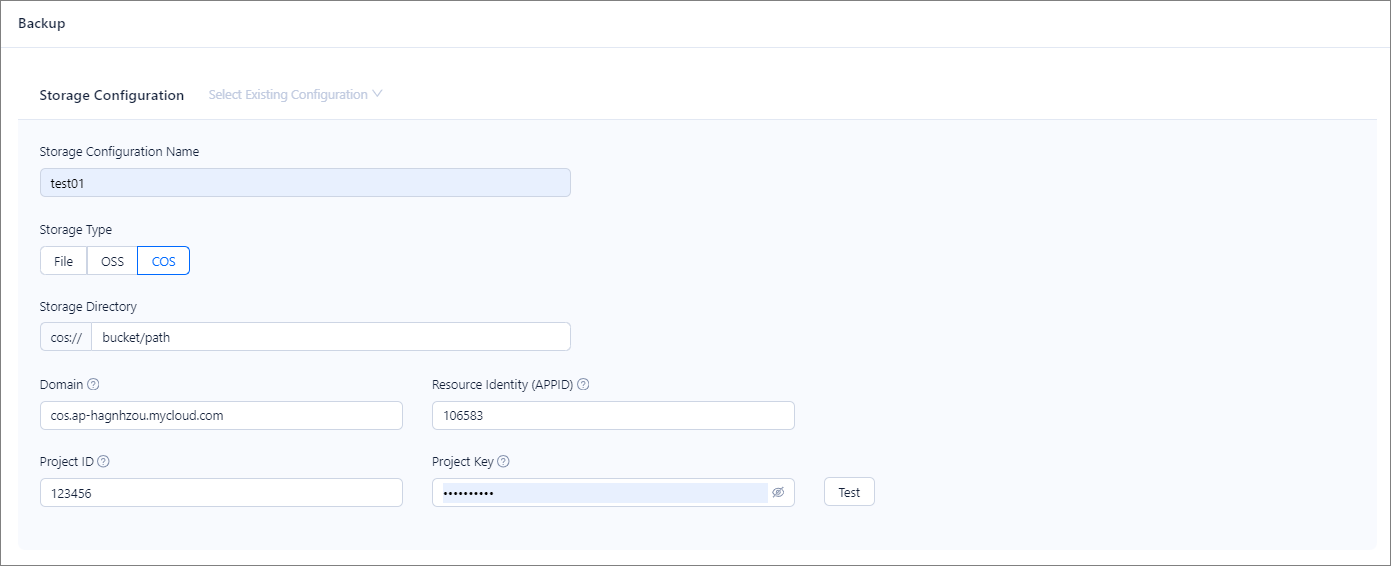
In the Storage Configuration section, specify the backup media and destination information, such as the domain name and AK/SK pair. Then, click Test to test the connectivity.
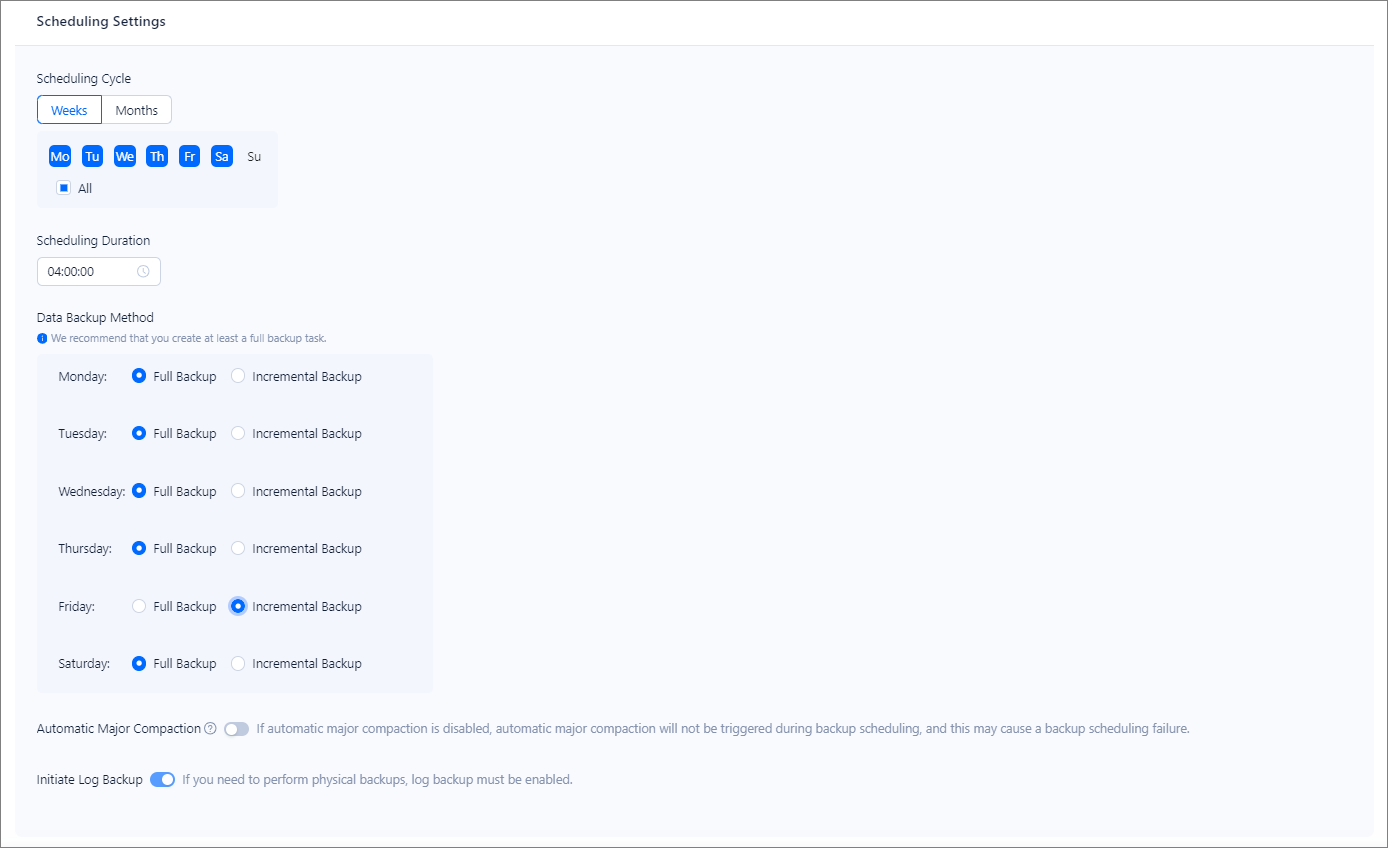
In the Scheduling Configuration section, specify the backup scheduling cycle and start time as needed. The following figure shows that full backups are performed on Saturday and incremental backups are performed on other days of a week. We recommend that you schedule a backup after a major compaction is completed. For example, if the daily major compaction starts at 2:00 a.m. and takes 2 to 3 hours to complete, you can set the backup start time at 6:00 a.m.
In the Scheduling Configuration Cleanup for Expiring Backups section, specify the number of days that a backup file is retained. Expired backup files are automatically cleared. By default, this parameter is disabled, which specifies to retain all backup files. Note that a full backup file is required for data restore. Therefore, the latest full backup file that was generated seven days ago is retained. In addition, if only one valid backup is available, this valid backup will not be cleared.

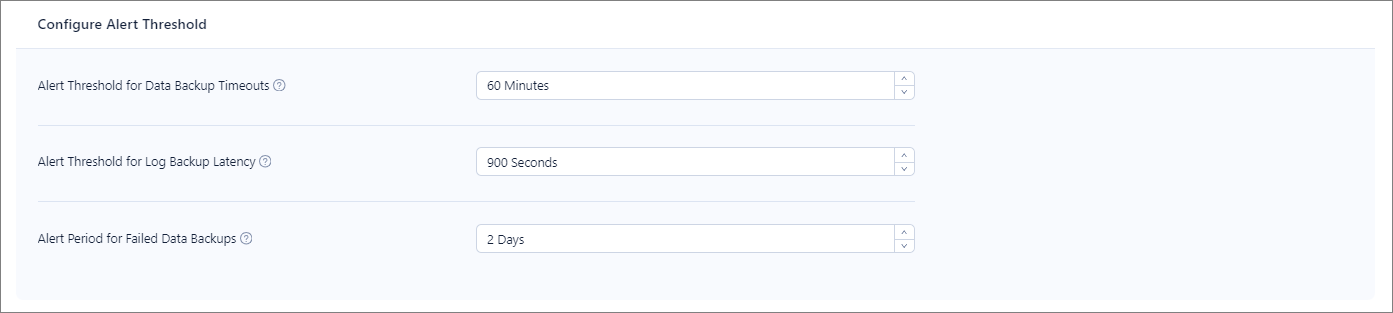
In the Configure Alert Threshold section, specify the alert thresholds related to backup. When the actual value of a backup parameter exceeds the threshold, an alert is triggered. You can adjust Alert Threshold for Data Backup Timeouts based on the actual duration of a data backup task, Alert Threshold for Log Backup Latency based on the actual log backup delay, and Alert Period for Failed Data Backups based on the backup scheduling cycle.
Click Create to save the backup strategy.
If you want to perform a second backup or remote backup, you must enable the second backup feature of a cluster. For more information, see Create a cluster-level backup strategy.
FAQ
Q: What do I do if the following error message is returned when I click Test: The storage configuration test on {hostIpList: xxx} failed. Make sure that the configuration directory {xxx} is accessible.?
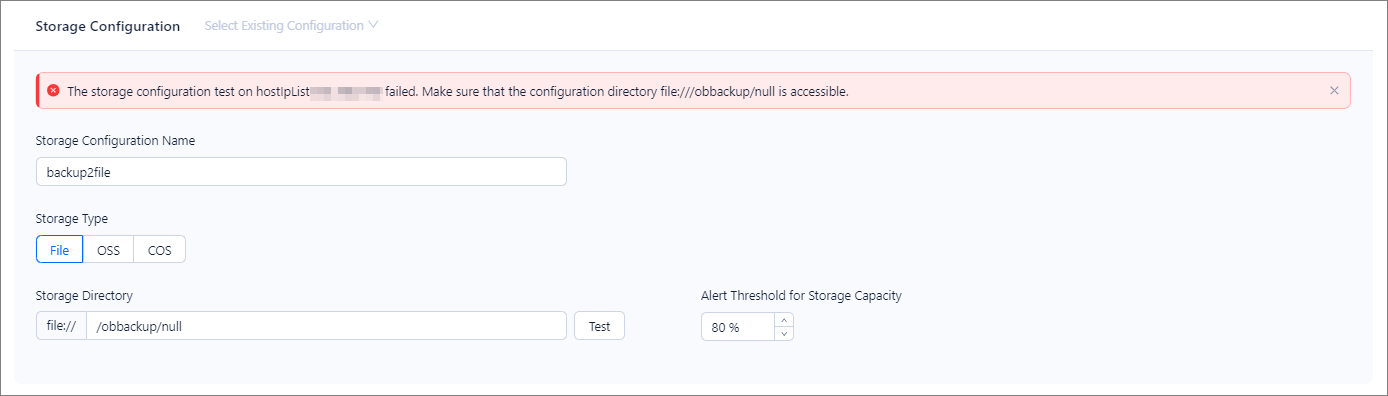
A: Check whether the host corresponding to the IP address can access the specified backup storage directory. If you set the storage type to OSS or COS, check whether the AK/SK pair is correct.