







This topic describes how to block an alert.
Background information
Topics View alert events and View alert notification history describe how to block alerts on the Alert Events and Notification History tabs. However, these methods allow you to block only reported alerts for a specified period. This topic describes how to create a blocking condition. It is a more flexible method that allows you to block unwanted alerts in advance.
After a blocking condition is created, the system starts to block alerts based on the condition. The blocking condition takes effect in 30s.
Procedure
Log on to the OceanBase Cloud Platform (OCP) console.
In the left-side navigation pane, choose System Management > Alerts .
On the Alert Blocking tab, click Create Blocking Condition .
Configure the blocking condition in the Create Blocking Condition dialog box.
FieldDescriptionApplication The alert source. Valid values: OB, OBProxy, Backup and Recovery, OCP, OMS, and ODP. Blocking Scope The blocking scope. Valid values: All, Tenant, and Server. The options displayed vary with the value specified for Application. Matched Object The object for which alerts are to be blocked. - If you select Tenant for Blocking Scope , you must select the tenant whose alerts are to be blocked.
- If you select Server for Blocking Scope , you must select the server whose alerts are to be blocked.
Alert Item Select one or more alert items to be blocked. End Time Specify the end time for the blocking condition. The blocked alerts will not be reported before the end time expires. This field is required. - Click the End Time field to select the end time.
- You can also click a time next to the End Time field. For example, if you click 6 Hours , the system enters the time six hours later from the current time to the End Time field.
Daily Block Period You can toggle on the Daily Block Period switch, and specify the start time and end time. The system blocks the alerts during the specified period every day. 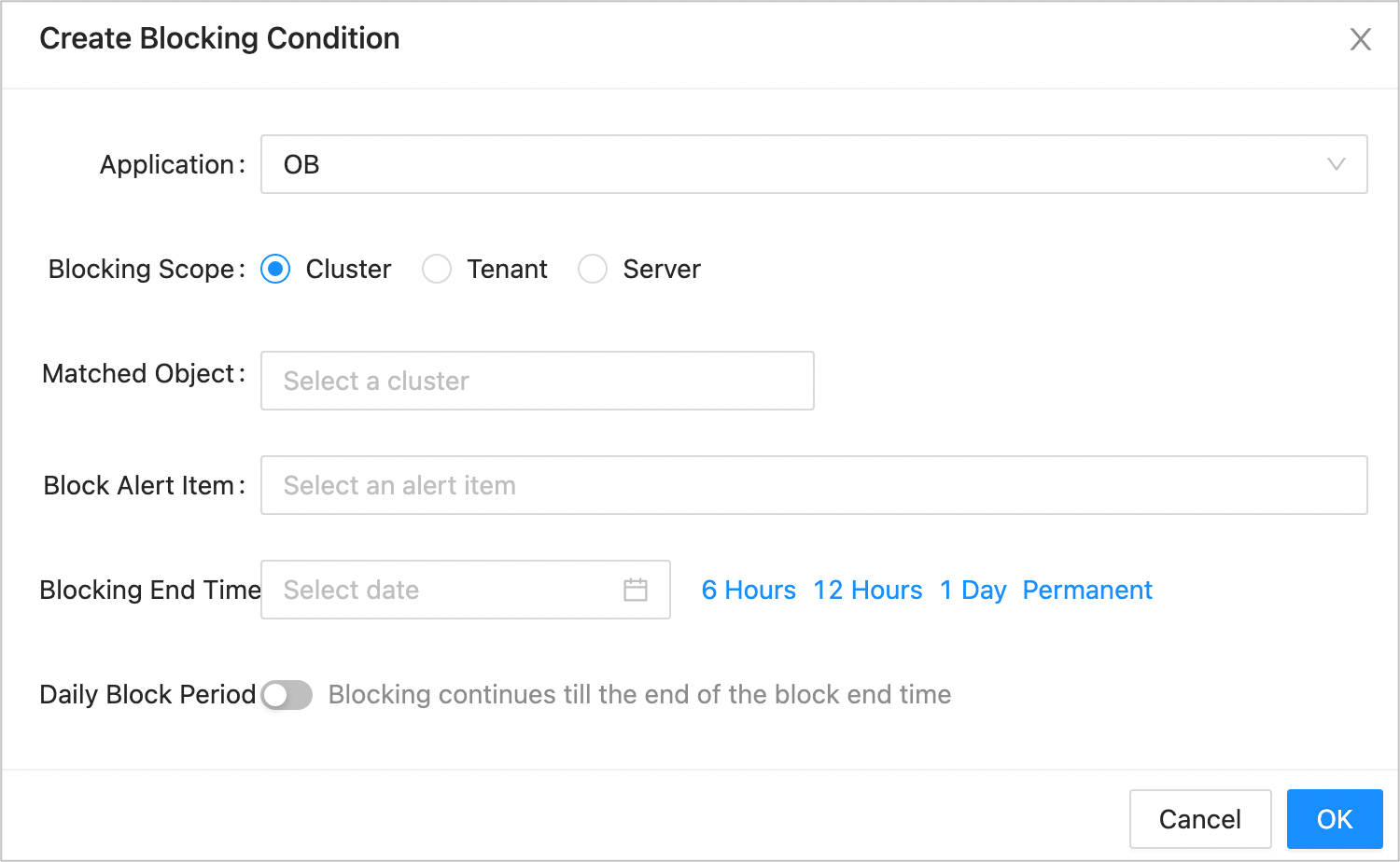
Click OK .
The system returns the Blocking Condition list, which contains the newly created condition.
By default, all alert blocking conditions are displayed in the Blocking Condition list.
Note
- After an alert blocking condition is created, it takes effect within 30s.
- Alert blocking conditions that have been expired for over seven days are not displayed in the Blocking Condition list.