







This topic describes the inspection rule page, where you can view the basic information of inspection rules, their scheduling settings, and the inspection task list.
Procedure
Log on to the OCP console. In the left-side navigation pane, choose System Management > Inspection .
Click an inspection rule name to go to its details page.
On the inspection rule page, you can perform some general O&M operations. For more information, see Initiate an inspection, Modify inspection scheduling, Modify an inspection rule, and Delete an inspection rule.
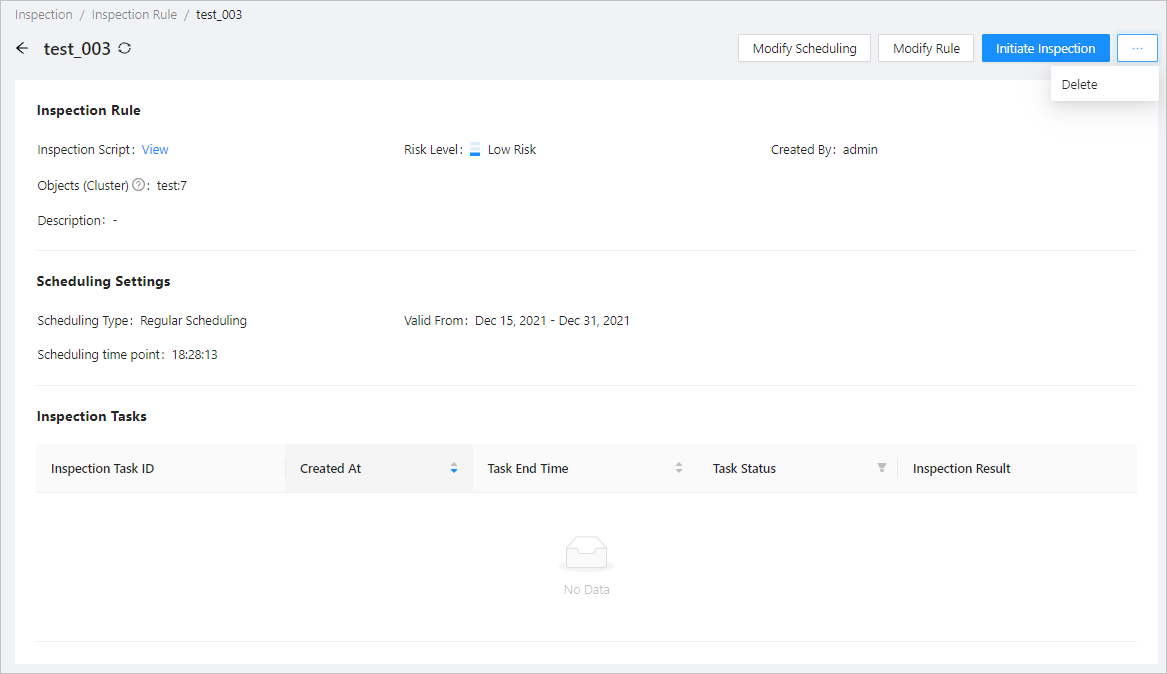
View the detailed information of an inspection rule.
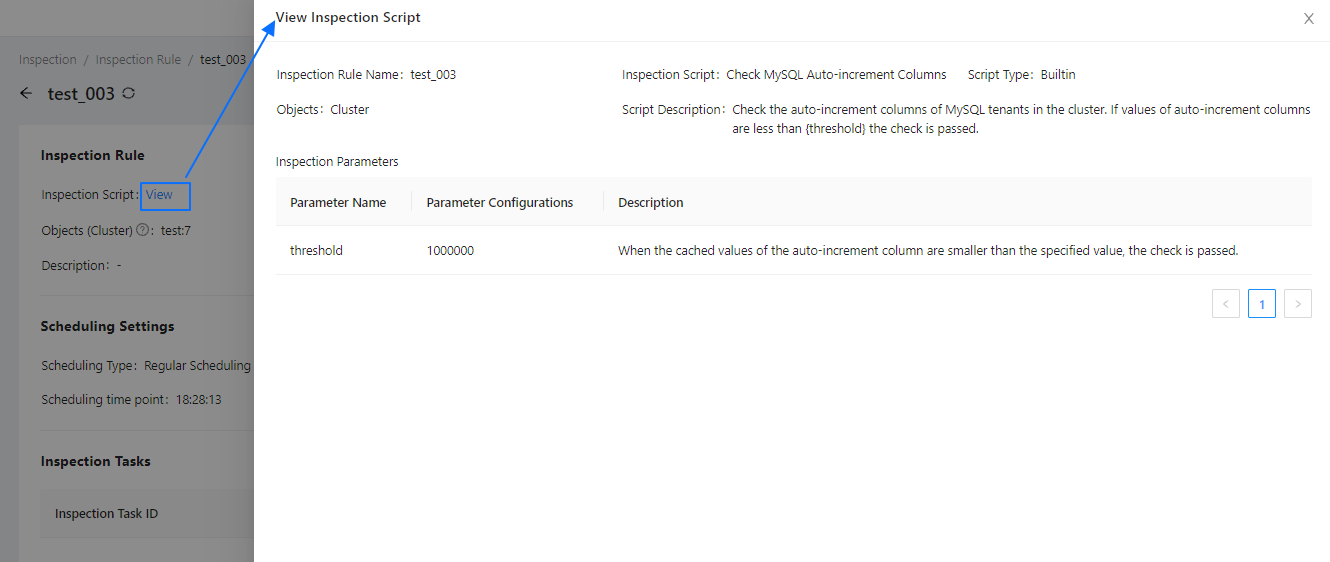
Click View next to Inspection Script to view the detailed information of the script.
You can view the risk level, creator, inspection object, and description.
View the scheduling settings.
If the scheduling type is Regular Scheduling, you can view its effective duration and scheduling point in time.
If the scheduling type is Single Scheduling, you can view its scheduling duration.
View the inspection task list. You can view the inspection task ID, creation time, task end time, task status, and inspection result.

You can click an inspection task ID to go to the task details page. On this page, you can view information in the following fields: Task Status, Current Progress, Started At, Time Consumed , and Initiated By . You can switch between log view and flow view. You can also locate the current progress and download logs.
Click View in the Inspection Result column. If the result is Failed , you can click View in the View Details column to view the inspection details.