







This topic describes how to modify the system permissions and role of a user, and add objects.
Procedure
Log on to the OceanBase Cloud Platform (OCP) console. In the left-side navigation pane, click Tenants . The Tenant Overview page appears.
Find the target tenant in the Tenants list, and click the tenant name. The details page of the Oracle tenant appears.
In the left-side navigation pane, click User Management . On the page that appears, click the Users tab.
Find the target user in the Users list, and click the username. The user details page appears.
On this page, you can perform the following operations:
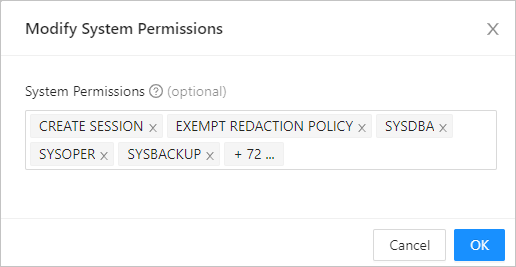
Modify the system privileges of the user: Click Modify System Permissions . In the dialog box that appears, select permissions from the drop-down list or remove existing permissions.
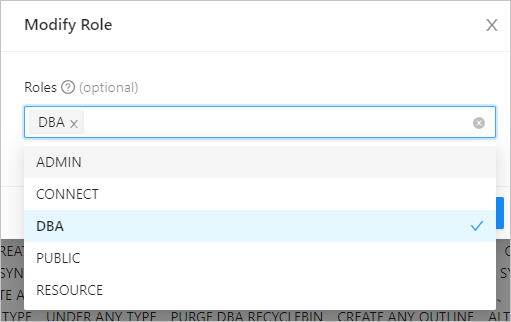
Change the user role: Click Modify Role . In the dialog box that appears, select roles from the drop-down list.
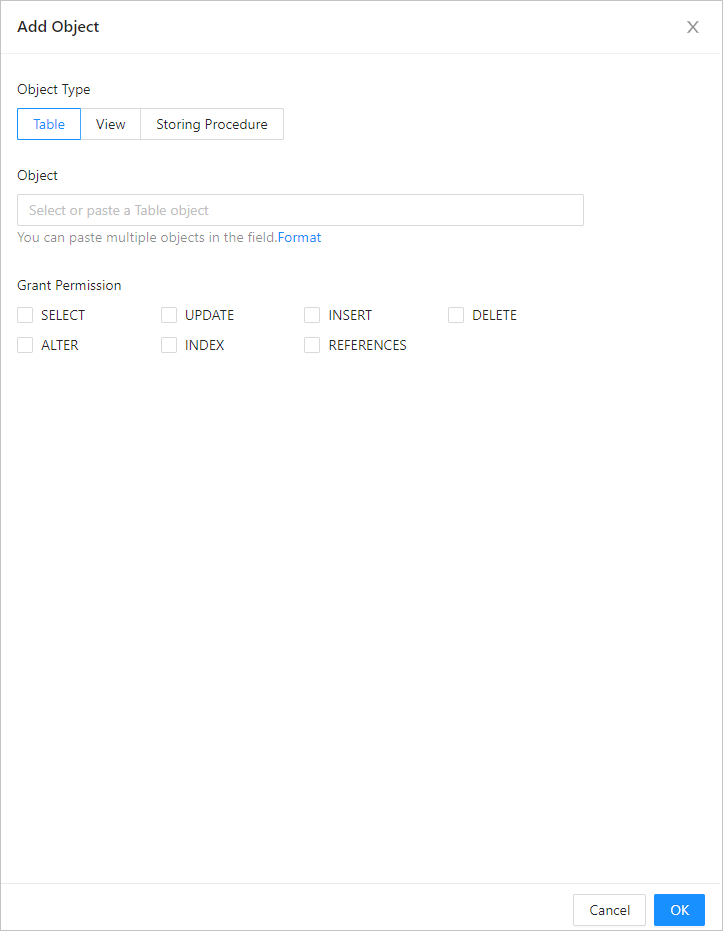
Add objects that are accessible to the user: Click Add Object . In the dialog box that appears, specify the following information:
ParameterDescriptionObject Type Available options: Table , View , and Stored Procedure . Note that you can add only one type of objects at a time. To add different types of objects, you need to add them separately. Object You can select objects of other users, so that the user can access these objects. You can paste one or more objects into the field in the format of "username.object name", such as schemaname.tablename. Separate objects with commas (,). Grant Permission Select the privileges as needed. For more information, see System privileges. After the accessible objects are added, the user can access and perform operations on these objects within the granted permissions.
Delete objects:
Delete an object: In the Accessible Objects list, locate the row that contains the target object, and click Delete in the Actions column.
Batch delete objects: In the Accessible Objects list, select the target objects, and click the Batch Delete .
After an accessible object is deleted, the user can no longer access the object.
Modify object permissions:
Modify the permissions on an object: In the Accessible Objects list, locate the row that contains the target object, and click Modify Permission in the Actions column.
Batch modify permissions on objects: In the Accessible Objects list, select the target objects, and click the Batch Modify Permissions .
