







This topic describes how to create a user.
Privilege to create a user
You may need to create users and grant them privileges in OceanBase Database as needed. To create a user, you must have the CREATE USER privilege.
By default, only cluster and tenant administrators have the CREATE USER privilege. Other users can create a user only after they are granted the CREATE USER privilege. For more information, see Modify user privileges.
Naming rules for usernames
When you specify a name for a user, take note of the following items:
The username must be unique in a tenant.
Users in the same tenant must have unique names. However, users in different tenants can have the same name. You can globally and uniquely identify a tenant user by specifying the username in the
username@tenant nameformat.The
systenant uses the MySQL mode. To distinguish users in thesystenant from those in a user tenant in MySQL mode, we recommend that you use a specific prefix for the name of asystenant user.Naming rules:
When you create a user by using an OBClient or OceanBase Developer Center (ODC), the username cannot exceed 64 bytes in length.
When you create a user in the OceanBase Cloud Platform (OCP) console, the username must be 2 to 64 characters in length and start with a letter, and can contain letters, digits, and underscores (
_).
Create a user with the minimum database privileges by using an SQL statement
You can use the CREATE USER statement to create a user. To create a user, you must have the CREATE USER privilege. When you create a user, we recommend that you grant the user the minimum database privileges.
The syntax for creating a user is as follows:
CREATE USER [IF NOT EXISTS] user_specification_list
    [REQUIRE {NONE | SSL | X509 | tls_option}];

user_specification_list:
    user_specification [, user_specification ...]

user_specification:
    user IDENTIFIED BY  'authstring'
  | user IDENTIFIED BY PASSWORD 'hashstring'

tls_option:
 | CIPHER 'cipher'
 | ISSUER 'issuer'
 | SUBJECT 'subject'
Some notes about this:
IF NOT EXISTS: If the username already exists and you do not specify theIF NOT EXISTSclause, an error is reported.IDENTIFIED BY: You can use theIDENTIFIED BYclause to specify a password for the user.The password in the
user IDENTIFIED BY 'authstring'clause is in plaintext. However, after the password is saved to themysql.usertable, the server stores the password in ciphertext.The password in the
user IDENTIFIED BY PASSWORD 'authstring'clause is in ciphertext.
REQUIRE: specifies an encryption protocol for the user. Valid values:NONE,SSL,X509, andtls_option.
The following example shows how to create the user1 user with the minimum database privileges:
Log on to a MySQL tenant as the
rootuser.Execute the following statement to create the
user2user:obclient> CREATE USER 'user2' IDENTIFIED BY '******';Execute the following statement to grant
user2the privilege to access all tables in thedb1database:obclient> GRANT SELECT ON db1.* TO user2;
Create a user with the minimum database privileges in the OCP console
You can create users in MySQL mode in the OCP console.
Prerequisites
Before you create a user, ensure that:
You have the permissions to modify a tenant. For more information about user permissions in OCP, see the OCP User Guide of the corresponding version.
Your password box contains the root password of the tenant. For more information about the password box, see the OCP User Guide of the corresponding version.
Procedure
Log on to the OCP console.
In the left-side navigation pane, click Tenants to go to the Tenants page.
In the tenant list, select a tenant whose Tenant Mode is MySQL to go to the Overview page.
In the left-side navigation pane, click User Management.
In the upper-right corner, click Create User.
In the Create Database User dialog box, set the information about the user.
The following table describes the parameters for setting the user.
ParameterDescriptionUser Name The name of the database user to be created. Password The password must be 8 to 32 characters in length and contain at least two digits, two uppercase letters, two lowercase letters, and two special characters. The supported special characters are . _ + @ # $ %Confirm Password Enter the password you specified in the New Password parameter. Global Permissions Optional. The parameter specifies the privileges that apply to all databases. Database Permissions Optional. The parameter specifies the privileges granted to the user. To select the databases that the user can access, click the > icon to move the databases to the right-side pane, and then select the privileges as needed. The following table describes the privileges that you can specify in Global Permissions and Database Permissions.
PrivilegeDescriptionALTER The ALTER TABLE privilege. CREATE The CREATE TABLE privilege. DELETE The DELETE privilege. DROP The DROP privilege. INSERT The INSERT privilege. SELECT The SELECT privilege. UPDATE The UPDATE privilege. INDEX The CREATE INDEX and DROP INDEX privileges. CREATE VIEW The privilege to create and drop views. SHOW VIEW The SHOW CREATE VIEW privilege. CREATE USER The CREATE USER, DROPUSER, RENAME USER, and REVOKE ALLPRIVILEGES privileges. PROCESS The PROCESS privilege. SUPER The SET GLOBAL privilege for modifying global system parameters. SHOW DATABASES The global SHOW DATABASES privilege. GRANT OPTION The GRANT OPTION privilege. 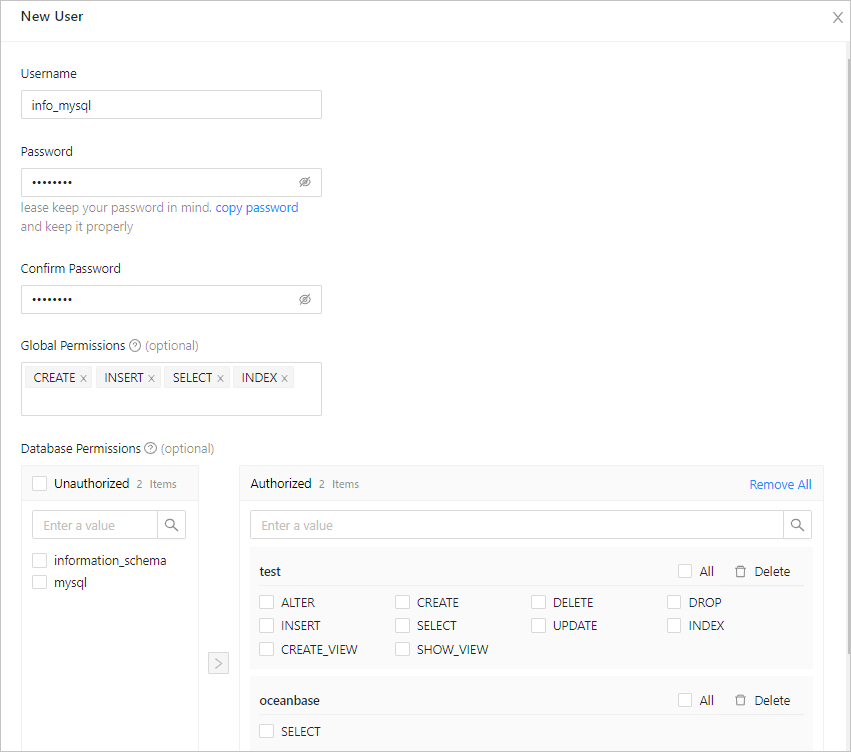
Click Submit.