







This topic describes how to view and modify the parameter configurations of a data migration task.
View parameter configurations
You can view the parameter configurations of a data migration task in the Running, Modifying, Integrating, Completed, Stopping, or Stopped state.
Log in to the OceanBase Migration Service (OMS) console.
In the left-side navigation pane, click Data Migration.
On the Migration Tasks page, choose ... > Settings next to the task that you want to manage.
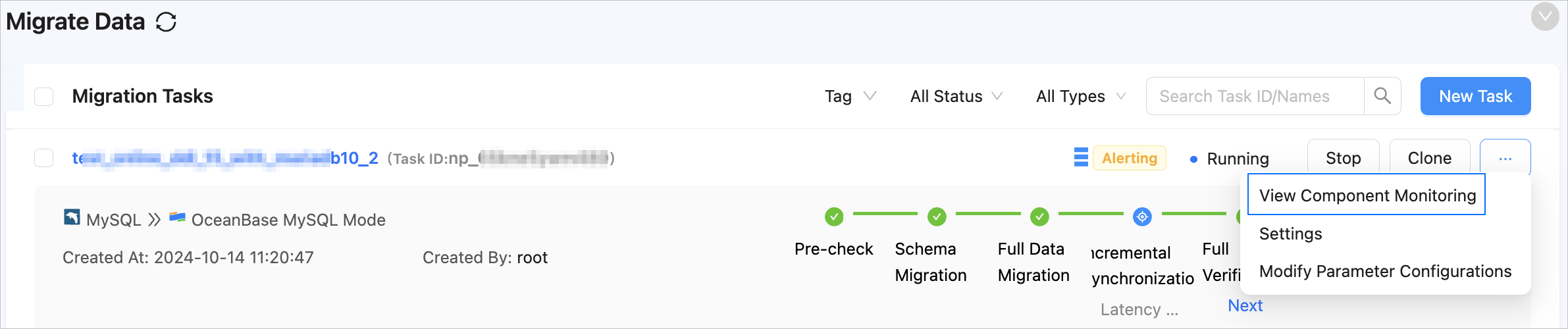
You can also click the name of the task to go to its details page and then choose ... > Settings in the upper-right corner.
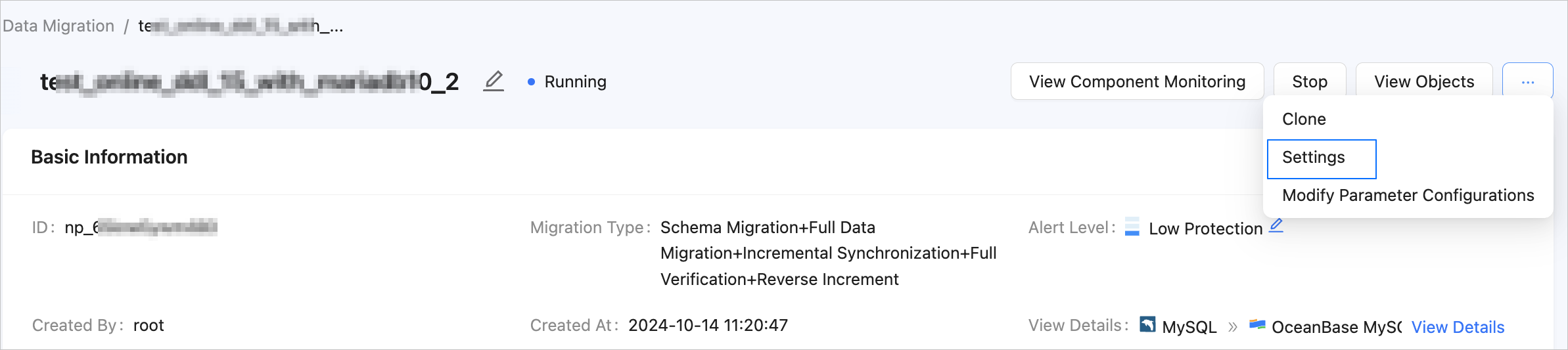
On the Settings page, view the parameter configurations of the current task.
Modify parameter configurations
You can modify the parameter configurations of a data migration task in the Not Started, Running, Paused, or Failed state.
Log in to the OMS console.
In the left-side navigation pane, click Data Migration.
On the Migration Tasks page, choose ... > Modify Parameter Configurations next to the task that you want to manage.

You can also click the name of the task to go to its details page and then choose ... > Modify Parameter Configurations in the upper-right corner.
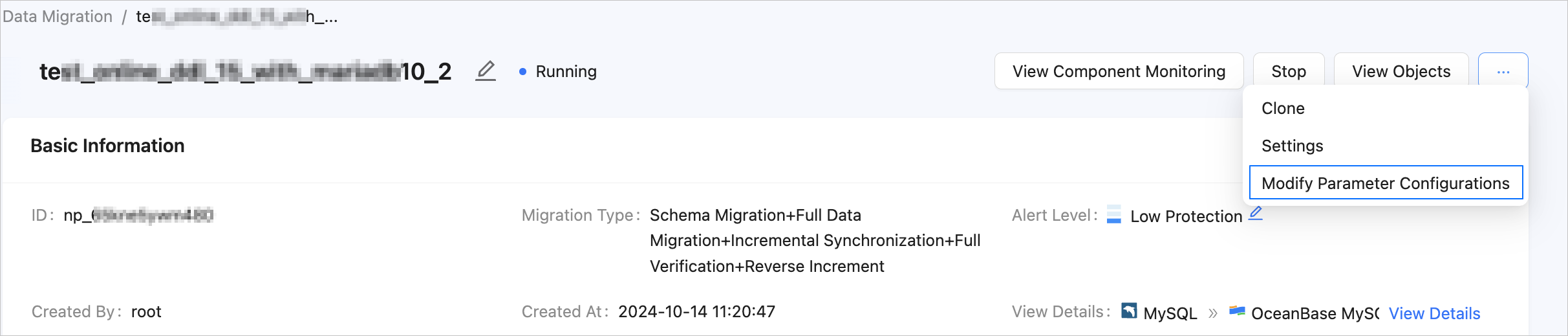
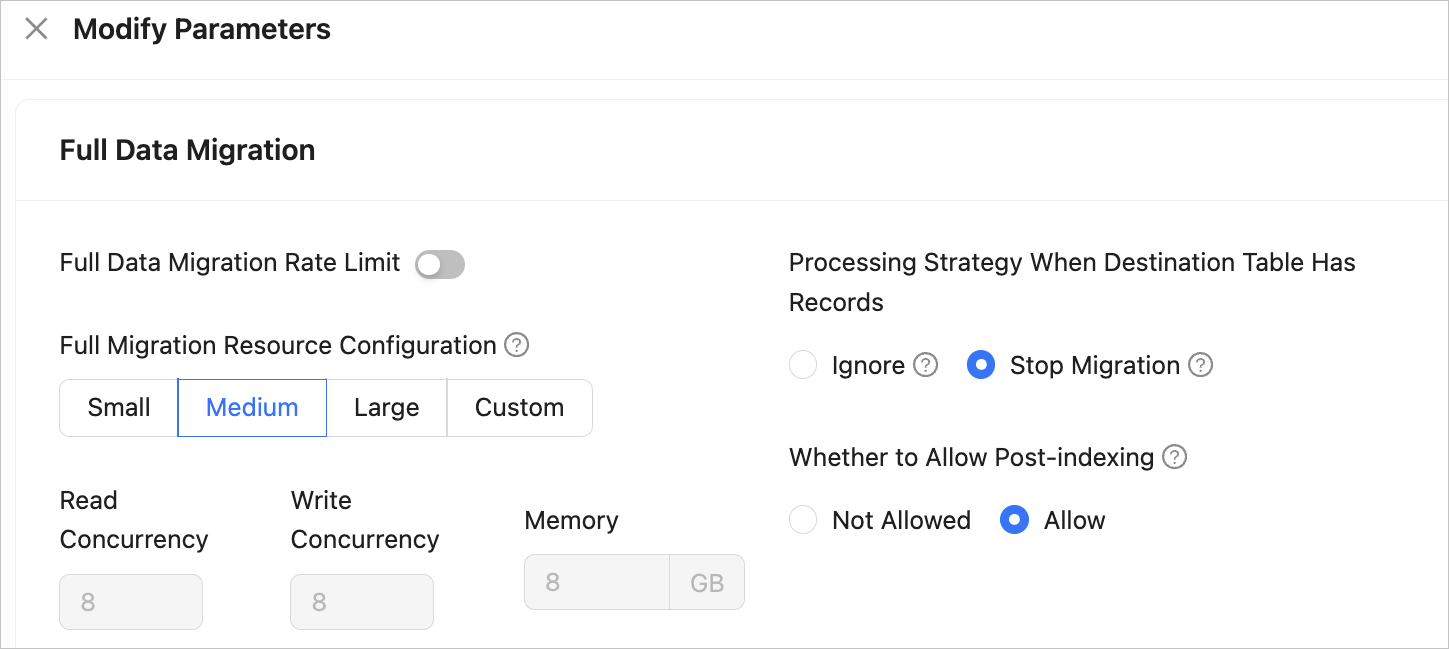
In the Modify Parameter Configurations panel, modify the parameter configurations as needed.
Full migration
The following parameters are displayed only if you have selected Full Migration on the Select Migration Type page.
 ParameterDescription
Full Migration Rate Limit You can choose whether to limit the full migration rate as needed. If you choose to limit the full migration rate, you must specify the records per second (RPS) and bytes per second (BPS). The RPS specifies the maximum number of data rows migrated to the target database per second during full migration, and the BPS specifies the maximum amount of data in bytes migrated to the target database per second during full migration. Note
The RPS and BPS values specified here are only for throttling. The actual full migration performance is subject to factors such as the settings of the source and target databases and the instance specifications.
Full Migration Resource Configuration You can select Small, Medium, or Large to use the corresponding default values of Read Concurrency, Write Concurrency, and Memory. You can also customize the resource configurations for full migration. Through resource configuration for the Full-Import component, you can limit the resource consumption of a task in the full migration phase. Notice
In the case of custom configurations, the minimum value is
1, and only integers are supported.Processing Strategy When Target Table Has Records Valid values are Ignore and Stop Migration. - If you select Ignore, when the data to be inserted conflicts with the existing data of a target table, OMS retains the existing data and records the conflict data.
Notice
If you select Ignore, data is pulled in IN mode for full verification. In this case, the scenario where the target table contains more data than the source table cannot be verified, and the verification efficiency will be decreased.
- If you select Stop Migration and a target table contains data, an error is returned during full migration, indicating that the migration is not allowed. In this case, you must clear the data in the target table before you can continue with the migration.
Notice
After an error is returned, if you click Resume in the dialog box, OMS ignores this error and continues to migrate data. Proceed with caution.
Whether to Allow Post-indexing Specifies whether to create indexes after the full migration is completed. Post-indexing can shorten the time required for full migration. For more information about the considerations on post-indexing, see the description below. Notice
This feature is supported only if you have selected both Schema Migration and Full Migration on the Select Migration Type page.
- Only non-unique key indexes can be created after the migration is completed.
- OceanBase Database V1.x does not support the post-indexing feature.
- If you select Ignore, when the data to be inserted conflicts with the existing data of a target table, OMS retains the existing data and records the conflict data.
Incremental synchronization
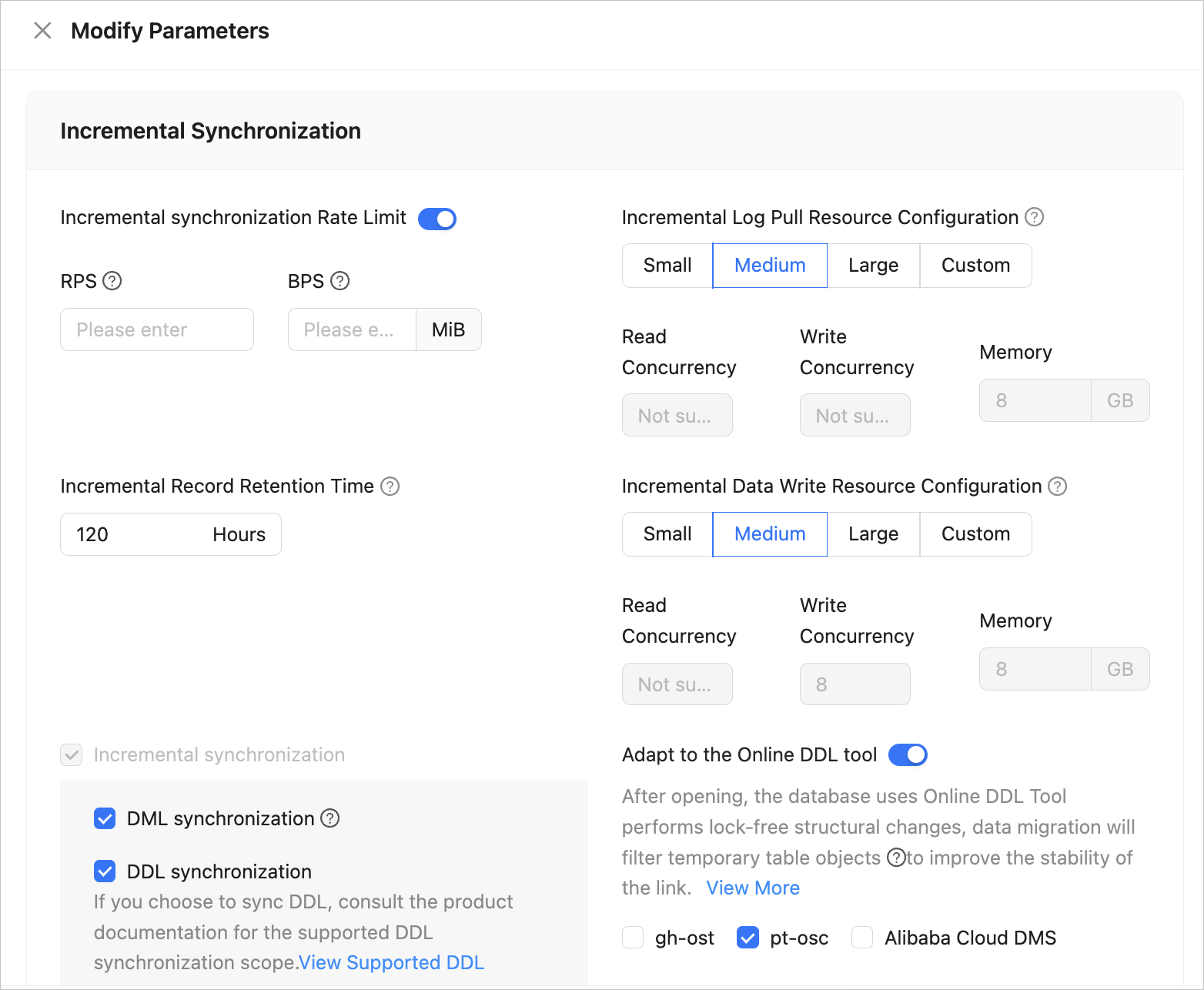
The following parameters are displayed only if you have selected Incremental Synchronization on the Select Migration Type page.
 ParameterDescription
Incremental Synchronization Rate Limit You can choose whether to limit the incremental synchronization rate as needed. If you choose to limit the incremental synchronization rate, you must specify the RPS and BPS. The RPS specifies the maximum number of data rows synchronized to the target database per second during incremental synchronization, and the BPS specifies the maximum amount of data in bytes synchronized to the target database per second during incremental synchronization. Note
The RPS and BPS values specified here are only for throttling. The actual incremental synchronization performance is subject to factors such as the settings of the source and target databases and the instance specifications.
Incremental Log Pull Resource Configuration You can select Small, Medium, or Large to use the corresponding default value of Memory. You can also customize the resource configurations for incremental log pull. Through resource configuration for the Store component, you can limit the resource consumption of a task in log pull in the incremental synchronization phase. Notice
In the case of custom configurations, the minimum value is
1, and only integers are supported.Incremental Data Write Resource Configuration You can select Small, Medium, or Large to use the corresponding default values of Write Concurrency and Memory. You can also customize the resource configurations for incremental data write. Through resource configuration for the Incr-Sync component, you can limit the resource consumption of a task in data writes in the incremental synchronization phase. Notice
In the case of custom configurations, the minimum value is
1, and only integers are supported.Incremental Record Retention Time The duration that incremental parsed files are cached in OMS. A longer retention period results in more disk space occupied by the Store component. Incremental Synchronization Start Timestamp - If you have set the migration type to Full Migration, this parameter is not displayed.
- If you have selected Incremental Synchronization but not Full Migration, specify a point in time after which the data is to be synchronized. The default value is the current system time. For more information, see Set an incremental synchronization timestamp.
Incremental Synchronization Incremental Synchronization supports the DML Synchronization and DDL Synchronization options. You can click Custom configuration DDL/DML to select operations based on your business needs. For more information, see Configure DDL/DML synchronization. Adapt to the Online DDL tool After you enable this feature, OMS allows you to use an online DDL tool to perform lock-free schema changes. OMS filters out temporary table objects during data migration to improve the stability of data migration. For more information, see Online DDL tools. Note
At present, OMS allows you to use Alibaba Cloud Data Management Service (DMS), gh-ost, or pt-osc to perform lock-free schema changes only when you migrate data from a MySQL database.
Reverse incremental migration
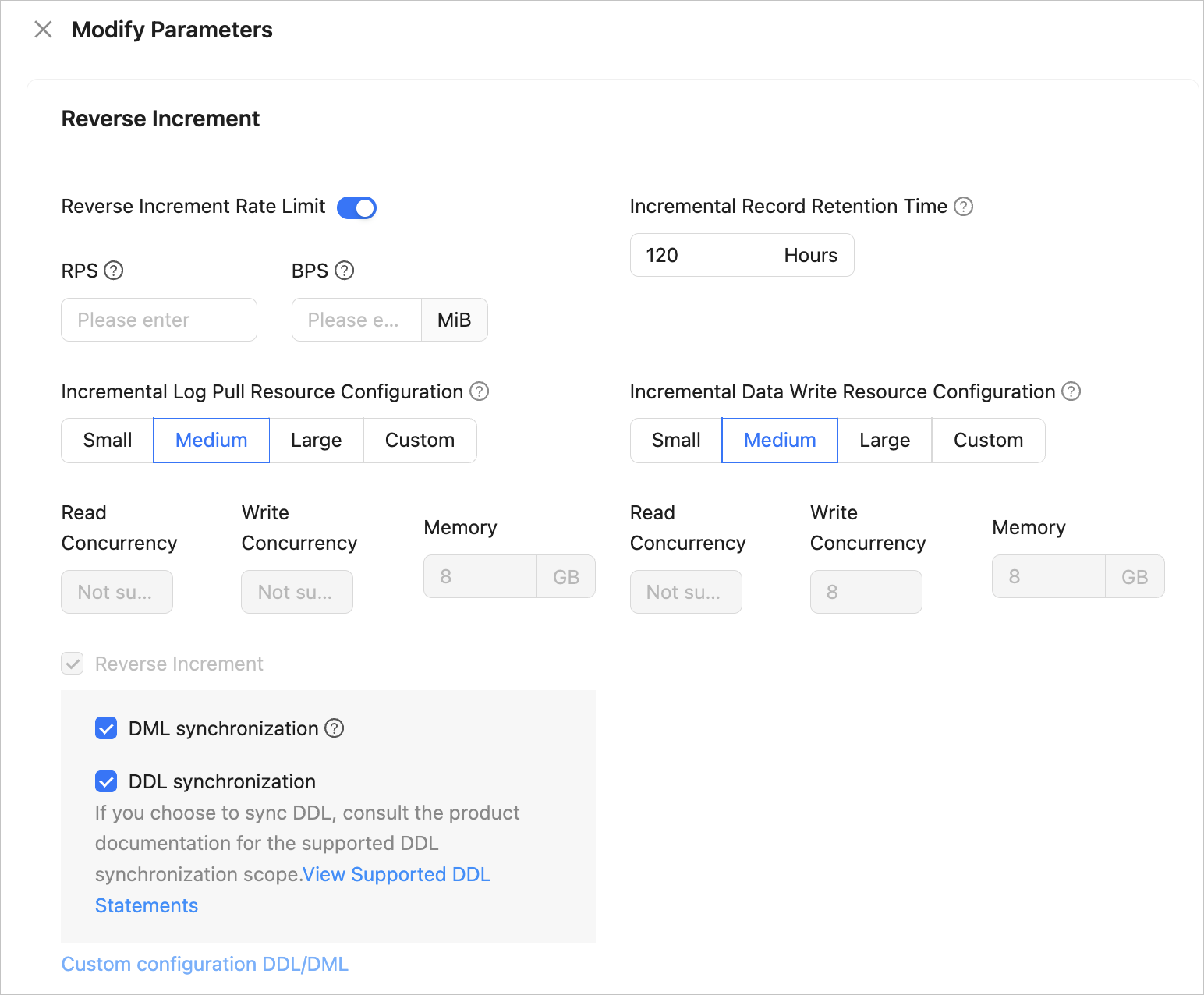
The following parameters are displayed only if you have selected Reverse Increment on the Select Migration Type page. The default parameter configurations for reverse incremental migration are consistent with those for incremental synchronization.
Full verification
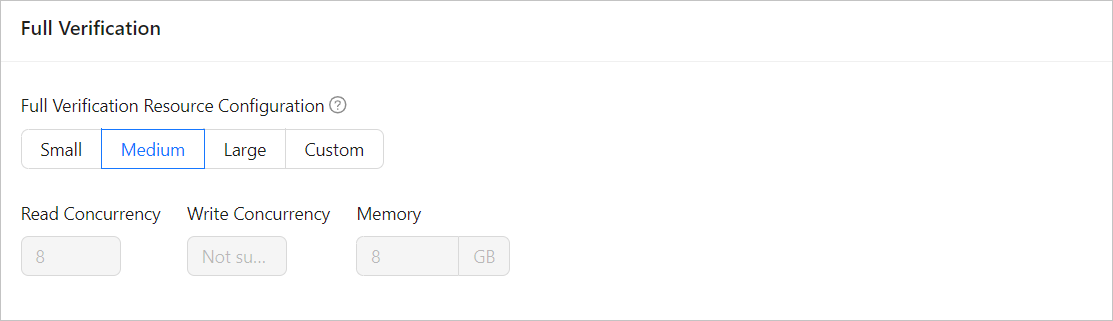
The following parameters are displayed only if you have selected Full Verification on the Select Migration Type page.
 ParameterDescription
Full Verification Resource Configuration You can select Small, Medium, or Large to use the corresponding default values of Read Concurrency and Memory. You can also customize the resource configurations for full verification. Through resource configuration for the Full-Verification component, you can limit the resource consumption of a task in the full verification phase. Notice
In the case of custom configurations, the minimum value is
1, and only integers are supported.
Click OK.