







This topic describes how to use OceanBase Migration Service (OMS) to synchronize data from a MySQL database to a DataHub instance.
Prerequisites
You have enabled binlogs for the self-managed MySQL database. For more information, see Enable binlogs for a MySQL database.
You have created a dedicated database user for data synchronization in the source MySQL database and granted corresponding privileges to the user. For more information, see Create a database user.
Limitations
The name of a table to be synchronized, as well as the names of columns in the table, must not contain Chinese characters.
OMS supports synchronization of data of the UTF8 and GBK character sets.
Data source identifiers and user accounts must be globally unique in OMS.
OMS only supports the synchronization of tables that contain primary keys or non-null unique keys.
DataHub has the following limitations:
DataHub limits the size of a message based on the cloud environment, usually to 1 MB.
DataHub sends messages in batches, with each batch sized no more than 4 MB. If a single message meets the conditions for sending, you can modify the
batch.sizeparameter. By default, 20 messages are sent at a time within one second.OMS supports the synchronization of only objects whose database name, table name, and column name are ASCII-encoded and do not contain special characters. The special characters are line breaks, spaces, and the following characters:
. | " ' ` ( ) = ; / & \.
Considerations
If the clocks between nodes or between the client and the server are out of synchronization, the latency may be inaccurate during incremental synchronization.
For example, if the clock is earlier than the standard time, the latency can be negative. If the clock is later than the standard time, the latency can be positive.
If incremental parsing is required for the MySQL database, you must specify the ID of the MySQL server (
server_id).When data transmission is resumed for a task, some data (transmitted within the last minute) may be duplicate in the DataHub instance. Therefore, data deduplication is required in downstream applications.
If you select only Incremental Synchronization when you create a data synchronization task, OMS requires that the local incremental logs in the source database be retained for more than 48 hours.
Data type mappings
When you synchronize incremental data from a MySQL database to a DataHub instance, the initial schema is synchronized to the DataHub schema. The following table lists data types supported by MySQL.
Data type in a MySQL database |
Default mapped-to data type in a DataHub instance |
|---|---|
| BIT | STRING (Base64-encoded) |
| CHAR | STRING |
| BINARY | STRING (Base64-encoded) |
| VARBINARY | STRING (Base64-encoded) |
| INT | BIGINT |
| TINYTEXT | STRING |
| SMALLINT | BIGINT |
| MEDIUMINT | BIGINT |
| BIGINT | DECIMAL (This data type is used because the maximum unsigned value exceeds the maximum LONG value in Java.) |
| FLOAT | DECIMAL |
| DOUBLE | DECIMAL |
| DECIMAL | DECIMAL |
| DATE | STRING |
| TIME | STRING |
| YEAR | BIGINT |
| DATETIME | STRING |
| TIMESTAMP | TIMESTAMP (accurate to milliseconds) |
| VARCHAR | STRING |
| TINYBLOB | STRING (Base64-encoded) |
| TINYTEXT | STRING |
| BLOB | STRING (Base64-encoded) |
| TEXT | STRING |
| MEDIUMBLOB | STRING (Base64-encoded) |
| MEDIUMTEXT | STRING |
| LONGBLOB | STRING (Base64-encoded) |
| LONGTEXT | STRING |
Supplemental properties
If you manually create a topic, add the following properties to the DataHub schema before you start a data synchronization task. If OMS automatically creates a topic and synchronizes the schema, OMS automatically adds the following properties.
Notice
The following table applies only to Tuple topics.
Parameter |
Type |
Description |
|---|---|---|
| oms_timestamp | STRING | The time when the change was made. |
| oms_table_name | STRING | The new table name of the source table. |
| oms_database_name | STRING | The new database name of the source database. |
| oms_sequence | STRING | The modified sequence number. The primary key on one server progressively increases. |
| oms_record_type | STRING | The change type. Valid values: UPDATE, INSERT, and DELETE. |
| oms_is_before | STRING | Specifies whether the data is the original data when the change type is UPDATE. The value Y indicates that the data is the original data. |
| oms_is_after | STRING | Specifies whether the data is the modified data when the change type is UPDATE. The value Y indicates that the data is the modified data. |
Procedure
Create a data synchronization task.
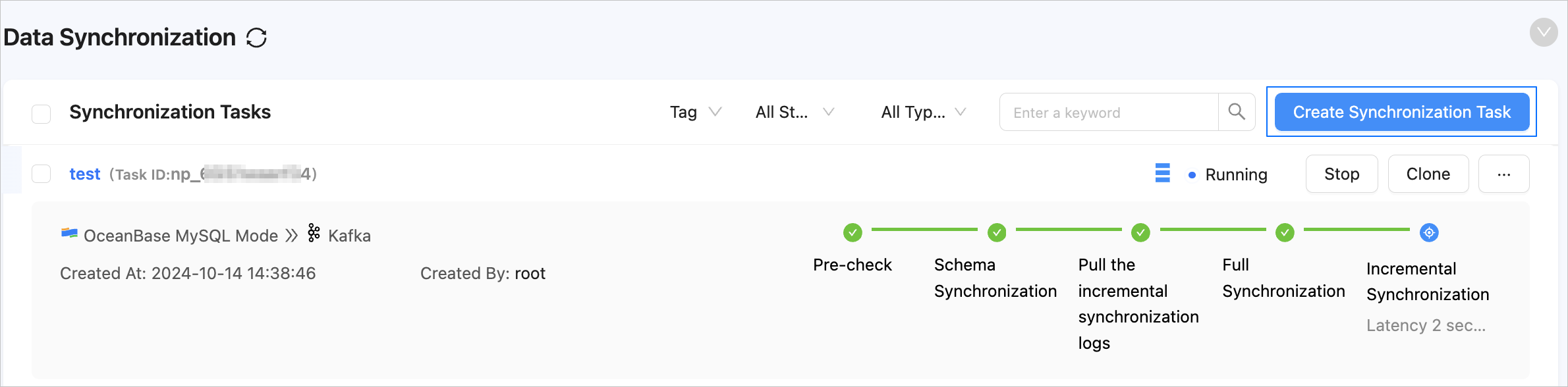
Log in to the OMS console.
In the left-side navigation pane, click Data Synchronization.
On the Data Synchronization page, click Create Synchronization Task in the upper-right corner.
On the Select Source and Target page, configure the parameters.
ParameterDescriptionTask Name We recommend that you set it to a combination of digits and letters. It must not contain any spaces and cannot exceed 64 characters in length. Source If you have created a MySQL data source, select it from the drop-down list. Otherwise, click New Data Source in the drop-down list and create one in the dialog box that appears on the right. For more information about the parameters, see Create a MySQL data source. Target If you have created a DataHub data source, select it from the drop-down list. Otherwise, click New Data Source in the drop-down list and create one in the dialog box that appears on the right. For more information about the parameters, see Create a DataHub data source. Tag Click the field and select a tag from the drop-down list. This parameter is optional. You can also click Manage Tags to create, modify, and delete tags. For more information, see Use tags to manage data synchronization tasks. Click Next. On the Select Synchronization Type page, specify the synchronization types for the current data synchronization task.
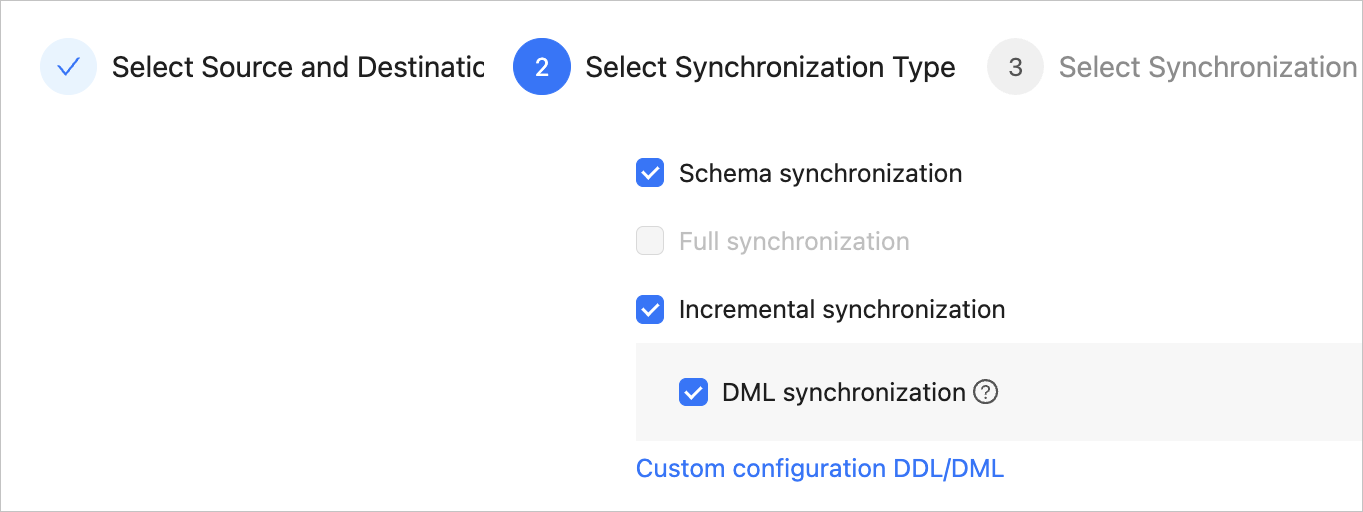
The supported synchronization types are Schema Synchronization and Incremental Synchronization. Schema Synchronization creates a topic. Incremental Synchronization supports only the DML Synchronization option. The supported DML operations are
INSERT,DELETE, andUPDATE. Select the options based on your business needs. For more information, see Configure DDL/DML synchronization.Click Next. On the Select Synchronization Objects page, select the target topic type and objects.
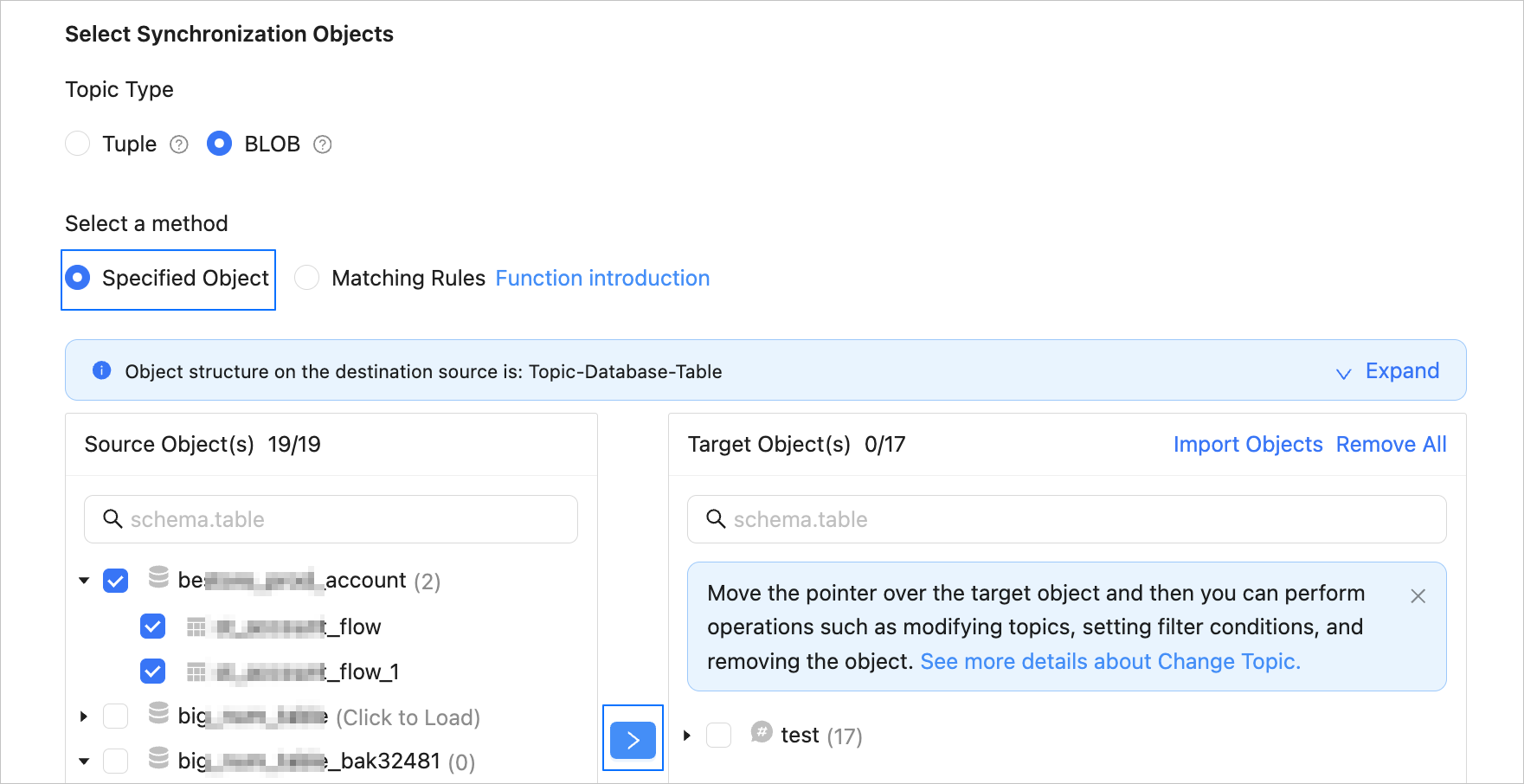
Available topic types are Tuple and BLOB. Tuple topics do not support DDL synchronization but support records similar to database records. Each record contains multiple columns. BLOB topics only support a binary block as a record. Data is Base64-encoded for transmission. For more information, visit the documentation center of DataHub.
After you select the topic type for synchronization, you can select Specify Objects or Match Rules to specify the synchronization objects. The following procedure describes how to specify synchronization objects by using the Specify Objects option. For information about the procedure for specifying synchronization objects by using the Match Rules option, see the Configure matching rules for data migration or synchronization from a database to a Message Queue instance section in the Configure matching rules topic.
In the Select Synchronization Objects section, select Specify Objects.
In the left-side pane, select the objects to be synchronized.
Click >.
Select a mapping method.
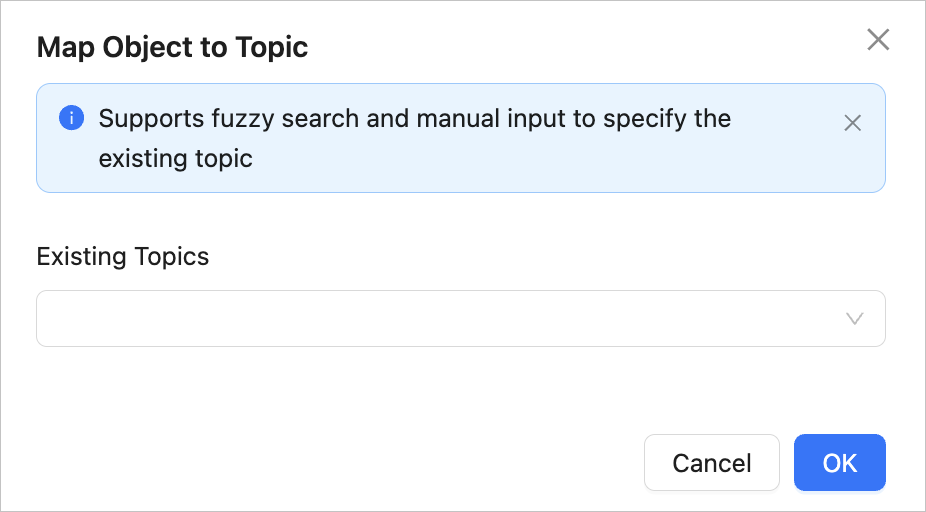
To synchronize one Tuple table or one or more BLOB tables, select the required mapping method and click OK in the Map Object to Topic dialog box.

If you did not select Schema Synchronization as the synchronization type, you can select only Existing Topics here. If you have selected Schema Synchronization when you specify the synchronization type, you can select only one mapping method to create or select a topic.
For example, if you have selected Schema Synchronization, when you use both the Create Topic and Select Topic mapping methods or rename the topic, a precheck error will be returned due to option conflicts.
ParameterDescriptionCreate Topic Enter the name of the new topic in the text box. The topic name can contain letters, digits, and underscores (_) and must start with a letter. It must not exceed 128 characters in length. Select Topic OMS allows you to query DataHub topics. You can click Select Topic, and then find and select a topic for synchronization from the Existing Topics drop-down list. You can also enter the name of an existing topic and select it after it appears. Batch Generate Topics The format for generating topics in batches is Topic_${Database Name}_${Table Name}.If you select Create Topic or Batch Generate Topics, after the schema migration succeeds, you can query the created topics on the DataHub side. By default, the number of data shards is 2 and the data expiration time is 7 days. These parameters cannot be modified. If the topics do not meet your business needs, you can create topics in the target database as needed.
To synchronize multiple Tuple tables, click OK in the dialog box that appears.

If you have selected a Tuple topic and multiple tables without selecting Schema Synchronization, you must select an existing topic and click OK in the Map Object to Topic dialog box.
Click OK.
Note
OMS automatically filters out unsupported objects. For information about the SQL statements for querying objects, see SQL statements for querying database objects.
OMS allows you to import objects from text files, set sharding columns for tables in the target database, and remove a single object or all objects. Objects in the target database are listed in the structure of Topic > Database > Table.
OperationDescriptionImport objects - In the list on the right, click Import Objects in the upper-right corner.
- In the dialog box that appears, click OK.
Notice
This operation will overwrite previous selections. Proceed with caution. - In the Import Synchronization Objects dialog box, import the objects to be synchronized.
You can import CSV files to configure synchronization objects. For more information, see Download and import the settings of synchronization objects. - Click Validate.
- After the validation succeeds, click OK.
Change topics When the topic type is set to BLOB, you can change the topic for objects in the target database. For more information, see Change the topic. Configure settings - In the list on the right, move the pointer over the object that you want to set.
- Click Settings.
- In the Settings dialog box, click Sharding Columns and select the sharding columns that you want to use from the drop-down list. You can select multiple fields as sharding columns. This parameter is optional.
Unless otherwise specified, select the primary key as sharding columns. If the primary keys are not load-balanced, select load-balanced fields with unique identifiers as sharding columns to avoid potential performance issues. Sharding columns can be used for the following purposes:- Load balancing: Threads used for sending messages can be recognized based on the sharding columns if the target table supports concurrent writes.
- Orderliness: OMS ensures that messages are received in order if the values of the sharding columns are the same. The orderliness specifies the sequence of executing DML statements for a column.
- Click OK.
Remove one or all objects OMS allows you to remove a single object or all objects to be synchronized to the target database during data mapping. - Remove a single synchronization object
In the list on the right, move the pointer over the object that you want to remove, and click Remove to remove the synchronization object. - Remove all synchronization objects
In the list on the right, click Remove All in the upper-right corner. In the dialog box that appears, click OK to remove all synchronization objects.
Click Next. On the Synchronization Options page, configure the following parameters.
Incremental synchronization
The following parameters are displayed only if you have selected Incremental Synchronization on the Select Synchronization Type page.
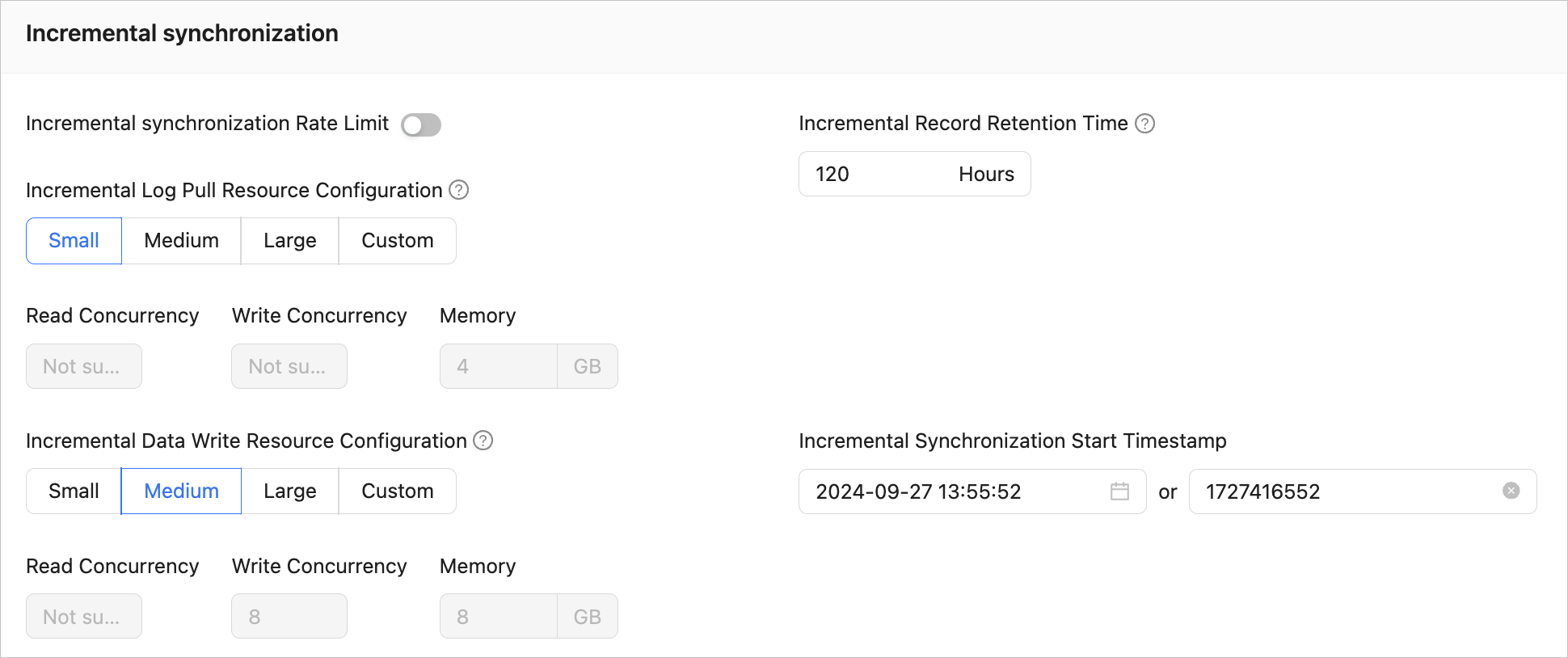 ParameterDescription
Incremental Synchronization Rate Limit You can choose whether to limit the incremental synchronization rate as needed. If you choose to limit the incremental synchronization rate, you must specify the records per second (RPS) and bytes per second (BPS). The RPS specifies the maximum number of data rows synchronized to the target database per second during incremental synchronization, and the BPS specifies the maximum amount of data in bytes synchronized to the target database per second during incremental synchronization. Note
The RPS and BPS values specified here are only for throttling. The actual incremental synchronization performance is subject to factors such as the settings of the source and target databases and the instance specifications.
Incremental Log Pull Resource Configuration You can select Small, Medium, or Large to use the corresponding default value of Memory. You can also customize the resource configurations for incremental log pull. By setting the resource configuration for the Store component, you can limit the resource consumption of a task in log pull in the incremental synchronization phase. Notice
In the case of custom configurations, the minimum value is
1, and only integers are supported.Incremental Data Write Resource Configuration You can select Small, Medium, or Large to use the corresponding default values of Write Concurrency and Memory. You can also customize the resource configurations for incremental data write. By setting the resource configuration for the Incr-Sync component, you can limit the resource consumption of a task in data writes in the incremental synchronization phase. Notice
In the case of custom configurations, the minimum value is
1, and only integers are supported.Incremental Record Retention Time The duration that incremental parsed files are cached in OMS. A longer retention period results in more disk space occupied by the Store component. Incremental Synchronization Start Timestamp The timestamp after which data is to be synchronized. The default value is the current system time. For more information, see Set an incremental synchronization timestamp. Advanced options
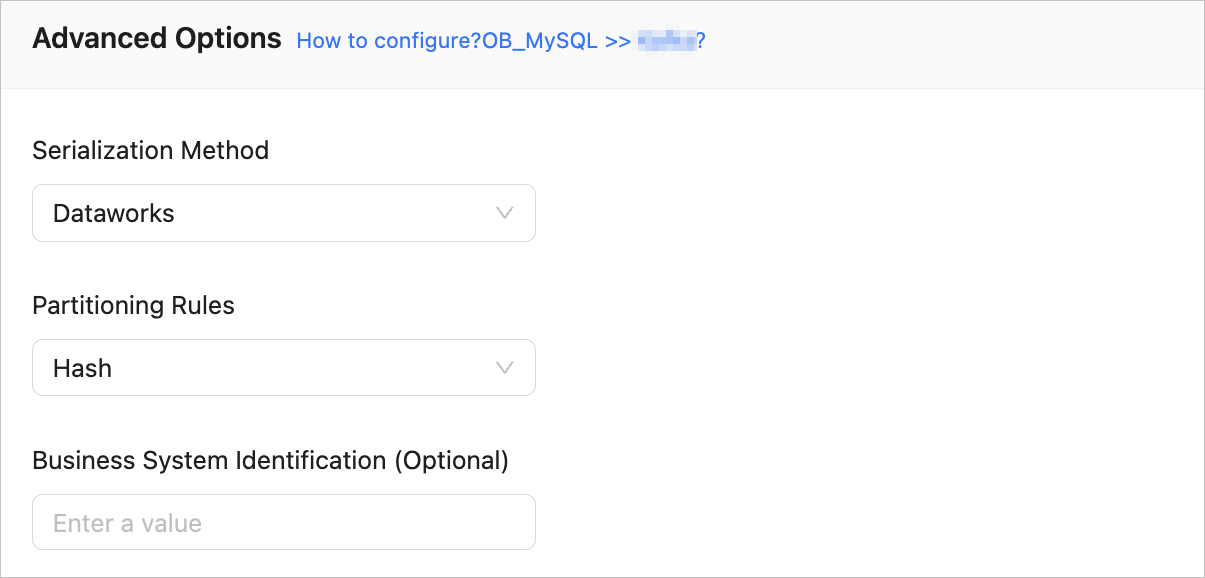 ParameterDescription
Serialization Method The message format for synchronizing data to a DataHub instance. Valid values: Default, Canal, Dataworks (version 2.0 supported), SharePlex, and DefaultExtendColumnType. For more information, see Data formats.
Notice
This parameter is available only when the topic type is set to BLOB on the Select Synchronization Type page.Partitioning Rules The rule for synchronizing data from the source database to a DataHub topic. Valid values: - Hash: indicates that OMS uses a hash algorithm to select the shard of a DataHub topic based on the value of the primary key or sharding column.
- Table: indicates that OMS delivers all data in a table to the same partition and uses the table name as the hash key.
Business System Identification (Optional) Identifies the source business system of data. This parameter is displayed only when Serialization Method is set to Dataworks. The business system identifier consists of 1 to 20 characters.
If the parameter settings on the page cannot meet your requirements, you can click Parameter Configuration in the lower part of the page to configure more specific settings. You can also reference an existing task or component template.

Click Precheck.
During the precheck, OMS checks whether the schema of the logical table is the same as that of the physical table. OMS checks only the column name, column type, and checks whether the values are null. OMS does not check the value length or default value. If an error is returned during the precheck, you can perform the following operations:
Identify and troubleshoot the problem and then perform the precheck again.
Click Skip in the Actions column of a failed precheck item. In the dialog box that prompts the consequences of the operation, click OK.
Click Start Task. If you do not need to start the task now, click Save to go to the details page of the task. You can start the task later as needed.
OMS allows you to modify the synchronization objects when the data synchronization task is running. For more information, see View and modify synchronization objects. After the data synchronization task is started, it will be executed based on the selected synchronization types. For more information, see the View synchronization details section in the View details of a data synchronization task topic.
If the data synchronization task encounters an execution exception due to a network failure or slow startup of processes, you can click Recover on the Synchronization Tasks or Details page of the synchronization task.