







You can manage alert items in OceanBase Cloud Platform (OCP).
Create an alert item
OCP provides a series of built-in alert items. You can view and edit the built-in alert items. For more information, see OCP Alert Reference of the corresponding version. You can also create custom alert items as needed.
Log on to the OCP console.
In the left-side navigation pane, choose System Management > Alerts.
On the Alert Item Configuration tab, click Create Alert Item in the upper-right corner.
Specify fields in the Rule Information section of the alert item.
Specify the application, alert scope, and matched objects for the alert item.
Set the trigger conditions based on the alert scope.
The valid options include With Operation Rules and Without Operation Rules.
With Operation Rules: If you select this option, the alert is triggered based on monitoring expressions. You need to configure the metric, operation rules, and duration of the alert.
For more information about metrics, see Alert Reference in OCP User Guide of the corresponding version.
You can configure multiple operation rules as needed. The system reports alerts of different levels based on the configured operation rules. You can configure at most five rules because the threshold and level in a rule cannot overlap with those in another rule.
If you set the duration of the alert to
0, an alert is immediately triggered if the specified alert rules are met.Without Operation Rules: If you select this option, alerts are not triggered based on monitoring expressions, and you must configure the alert level.
Specify the alert cycle.
The alert cycle is a detection cycle, in which the system detects whether the trigger condition is met. By default, the detection cycle is
60seconds. The value indicates that:The system detects whether the trigger condition is met once every 60 seconds. If yes, the alert is reported.
After the alert is reported, the system continues to detect whether the trigger condition is met once every alert cycle. If yes, the alert will not be eliminated.
Specify the elimination cycle.
The elimination cycle of an alert is the retention duration of an alert after the alert is reported. The system automatically clears the alert after the specified duration expires. The default cycle is 5 minutes.

Specify fields in the Basic Information section of the alert item.
Specify the name and description of the alert item as prompted.
Specify the alert overview template as prompted.
Specify the alert details template as prompted.
The alert overview template is referenced by the template field of the channel and corresponds to the alarm_summary variable.
The alert details template is referenced by the template field of the channel and corresponds to the alarm_description variable.
Choose whether to disable alerting.
You can disable system built-in alert items and custom alert items that are not temporarily used.
Click Submit.
Create an alert item group
OCP provides seven default alert item groups: oas, ocp, info, oms, backup, dev, and dba. You can edit the default groups but cannot delete them. You can also create custom alert item groups.
Log on to the OCP console.
In the left-side navigation pane, choose System Management > Alerts.
On the Alert Item Configuration tab, click Group Management to go to the Group Management page.
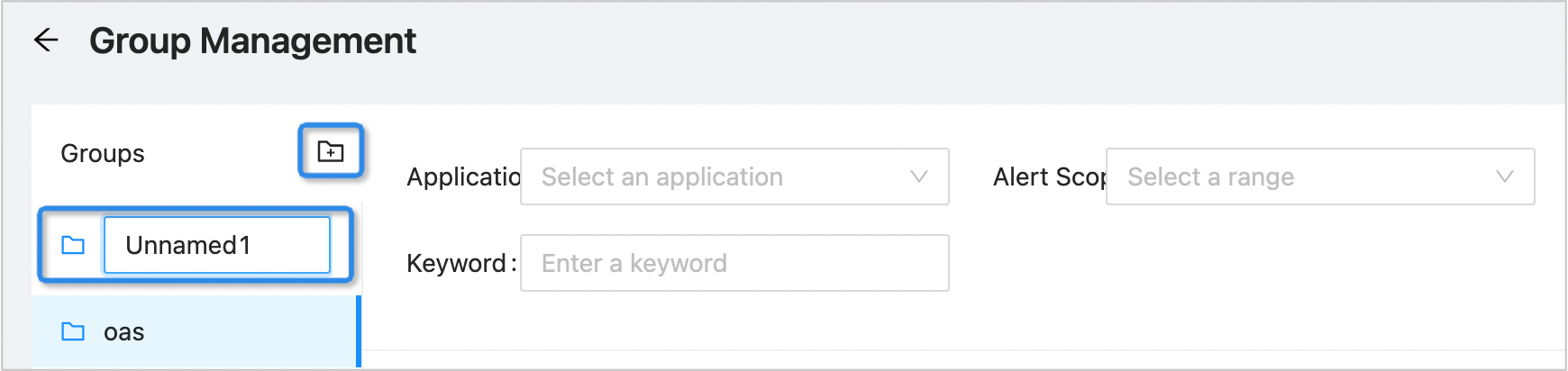
Click the Create icon on the right of the Groups list, enter the name of the new group, and press Enter.
Add alert items to an alert item group
To facilitate alert subscriptions, you can add alert items to an alert item group as needed in OCP.
In the left-side navigation pane, choose System Management > Alerts.
On the Alert Item Configuration tab, click Group Management.
Select the target group and click Manage Alert Items.
The Manage Alert Items dialog box appears. All alert items that can be added to the group on the right side are displayed on the left, and those already added to the group are displayed on the right.
Add alert items to the group: Select to-be-added alert items in the left-side pane and click the > icon.
Remove alert items from the group: Select to-be-removed alert items in the right-side pane and click the < icon.