







OceanBase Developer Center (ODC) provides a GUI for you to create stored procedures. This topic describes how to create a stored procedure in ODC.
Overview
A stored procedure is a collection of one or more statements. To perform a series of complex operations on a database, you can use a stored procedure to encapsulate these complex operations into a reusable code block in the database. This helps you reduce your workload.
In OceanBase Database, a stored procedure is a collection of SQL statements for implementing a specific feature. After you compile and store a stored procedure in the database, you can specify the stored procedure name and the required parameters to call this stored procedure for accelerated execution of the SQL statements.
A stored procedure can contain parameters and return values.
Differences between a stored procedure and a function
The return value of a function is a specific result value, while the return value of a stored procedure only indicates whether the execution is successful.
You can call a function by using a
SELECTstatement. You can call a stored procedure by using aCALLstatement.
Benefits of stored procedures
Improve the versatility and portability of the application: After you create a stored procedure, it can be repeatedly called by a program without the need to rewrite the SQL statements of the procedure. In addition, stored procedures can be modified with no impact on the program source code. This improves the portability of the program.
Accelerate SQL execution: If an operation involves a large number of SQL statements or repeated execution of the same SQL statements, you can compile the code into a stored procedure and execute the stored procedure, which is faster than separately executing the statements.
Alleviate the workload of the server: If one SQL statement is called at a time to perform operations on the database objects, a large number of SQL statements are transmitted. If an equivalent stored procedure, only the command for calling the procedure is sent, thereby reducing the network load.
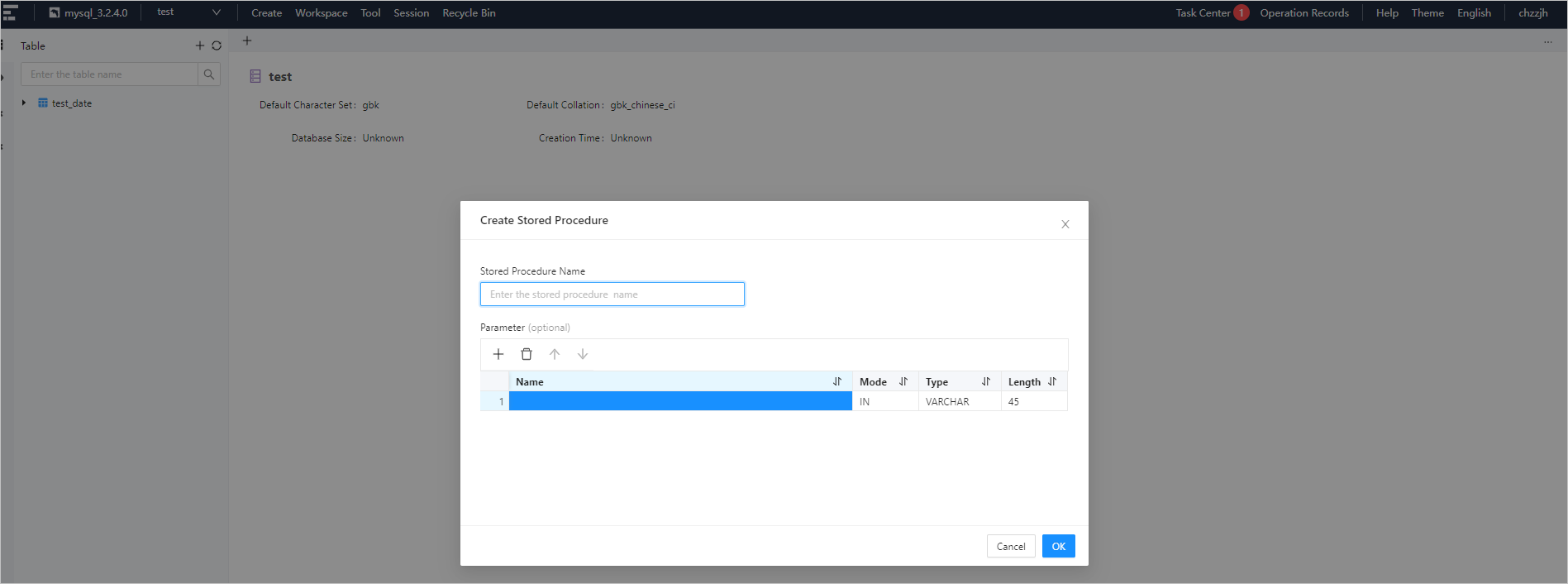
As shown in the preceding figure, you can create a stored procedure in the following five steps:
Specify the name of the stored procedure.
Configure parameters.
Check the parameters of the stored procedure.
Modify the parameters of the stored procedure.
Complete the stored procedure creation.
Procedure
In the following example, a stored procedure named proc_total is created in the ODC console for the calculation of department budgets. The stored procedure contains two INT-type input parameters budget_r and budget_s and calculates the sum of the two parameters. Procedure:
Step 1: Specify the name of the stored procedure.
Log on to the ODC console and click the name of the target connection to go to the corresponding connection management page. You can click Stored Procedure in the left-side navigation pane to get a list of stored procedures. To create a stored procedure, click the + icon in the upper-right corner of the Stored Procedure list or choose Create > Stored Procedure in the top navigation bar.
In the Create Stored Procedure dialog box, enter a name for the stored procedure.
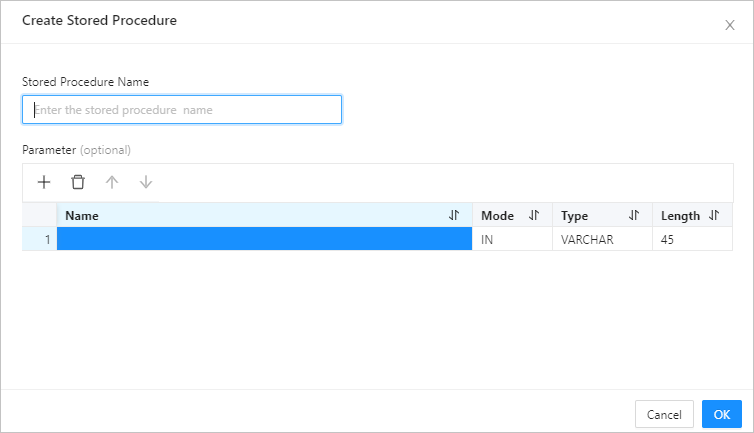
Step 2: Configure parameters.
Parameters specify the information passed to a function when the function is called. You need to configure the following parameters: Name, Mode, Type, and Length.
You can configure parameters by using one of the following three methods.
MethodDescriptionUse the quick access toolbar In the quick access toolbar, you can add, delete, and move up and down parameters. Click the row number - You can click a row number to select a row and display the quick access toolbar that allows you to delete the entire row of parameters or move them upward or downward.
- You can click a row number to select a row, and then drag the row to adjust the orders of the entire row of parameters.
Right-click a row You can right-click a row to select it, and then select Copy or Move Down from the context menu that appears. Note
After you copy a row, you can paste the row by using the Command+V or Ctrl+V shortcut keys.
Step 3: Verify the parameters of the stored procedure.
Click OK to go to the Create Stored Procedure page.
Step 4: Modify the stored procedure.
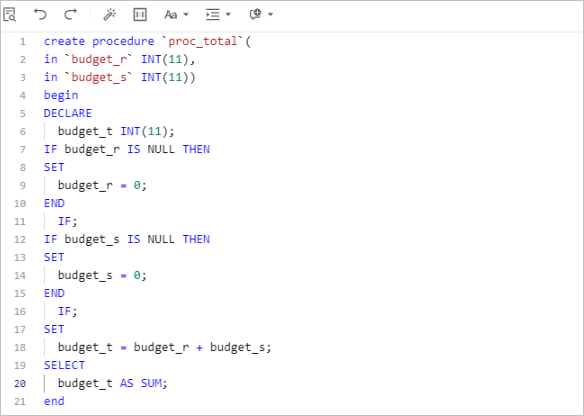
Modify the statements on the Create Stored Procedure page.
In addition, the toolbar on the editing page provides buttons described in the following table.
Button |
Description |
|---|---|
| Format | Click this button to apply formatting, such as indentation, line break, and keyword highlighting, to the selected SQL statements or all the SQL statements in the current SQL window. |
| Find and Replace | Click this button and enter text in the search field to find the specific content and enter text in the replacement field to replace the content found. |
| Undo | Click this icon to undo the last operation. |
| Redo | Click this button to reverse an Undo operation. |
| Case Sensitivity | The system supports three capitalization options: All Caps, All Lowercase, and Capitalize First Letter. Click the corresponding option to convert the selected statements in the script to the desired capitalization format. |
| Indent | You can add indents to or remove indents from the statements that you selected. |
| Comment | You can click Add Comments to convert the statements that you selected into comments or click Delete Comment to convert comments to SQL statements. |
| IN Value Conversion | You can convert a value of the A B format into the 'A','B' format. |
You can modify the SQL statements of the created stored procedure on the Create Stored Procedure page. Syntax:
CREATE PROCEDURE proc_name (
  [proc_parameter[,...]])
BEGIN
proc_body:
  Valid SQL routine statement
END [end_label]
Parameters
Parameter |
Description |
|---|---|
| proc_name | The name of the stored procedure. By default, a stored procedure is created in the current database. To create a stored procedure in a specific database, add the database name as the prefix to the name of the stored procedure in the format of db_name.sp_name.
Notice |
| [proc_parameter[,…] ] | The list of stored procedure parameters. A parameter is specified in the format of [IN|OUT|INOUT] parameter_name parameter_type. parameter_name specifies the parameter name and parameter_type specifies the parameter type, which can be any valid MySQL data type. If you need to specify multiple parameters, separate them with commas (,). A stored procedure can be created without a parameter. In this case, add a pair of parentheses after the name of the stored procedure.
Notice |
| proc_body | The body of the stored procedure, which contains the SQL statements to be executed when the stored procedure is called. The body begins with BEGIN and ends with END. If the body contains only one SQL statement, you can omit the BEGIN and END flags. |
Step 5: Complete the stored procedure creation.
Click Create in the upper-right corner to create the stored procedure. After a stored procedure is created, you can use the CALL statement to call the stored procedure, in the same way you call a built-in function.
Note
To manage a stored procedure, right-click the stored procedure name in the left-side navigation pane, and select the required operation from the context menu, which provides the following options: View, Create, Edit, Run, Download, Delete, and Refresh.
For more information, see Manage stored procedures.
Syntax:
CALL proc_name ([proc_parameter [,...]]);
Example:
CALL proc_total (30000, 20000);