







Overview
A function is a subprogram defined in a database. You can call functions by using built-in SQL statements. If the built-in functions cannot meet your business requirements, OceanBase Developer Center (ODC) allows you to create functions. User-defined functions not only help you perform some calculations and special operations, but also reduce coding redundancy to improve the code readability.
A function is a procedural object that is similar to a stored procedure in a database. Like a stored procedure, a function is a code snippet of SQL statements and procedural statements, and can be called by applications and other SQL statements.
The following information describes the differences between a user-defined function and a stored procedure:
A function returns only one result and is suitable for data processing that generates one result. A stored procedure may return zero or multiple results and is suitable for batch insertion and batch update.
You can call a function by using a
SELECTstatement. You can call a stored procedure by using aCALLstatement.
As shown in the preceding figure, you can create a function in the following six steps:
Specify the function name.
Specify the data type of the return value.
Configure parameters.
Check the parameters of the new function.
Modify the function.
Complete the function creation.
Procedure
In the following example, a function named function_emp is created in the ODC console to obtain the employee name from an employee table based on the employee ID. The function_emp function contains an id parameter of the INT type. Procedure:
Step 1: Specify the function name
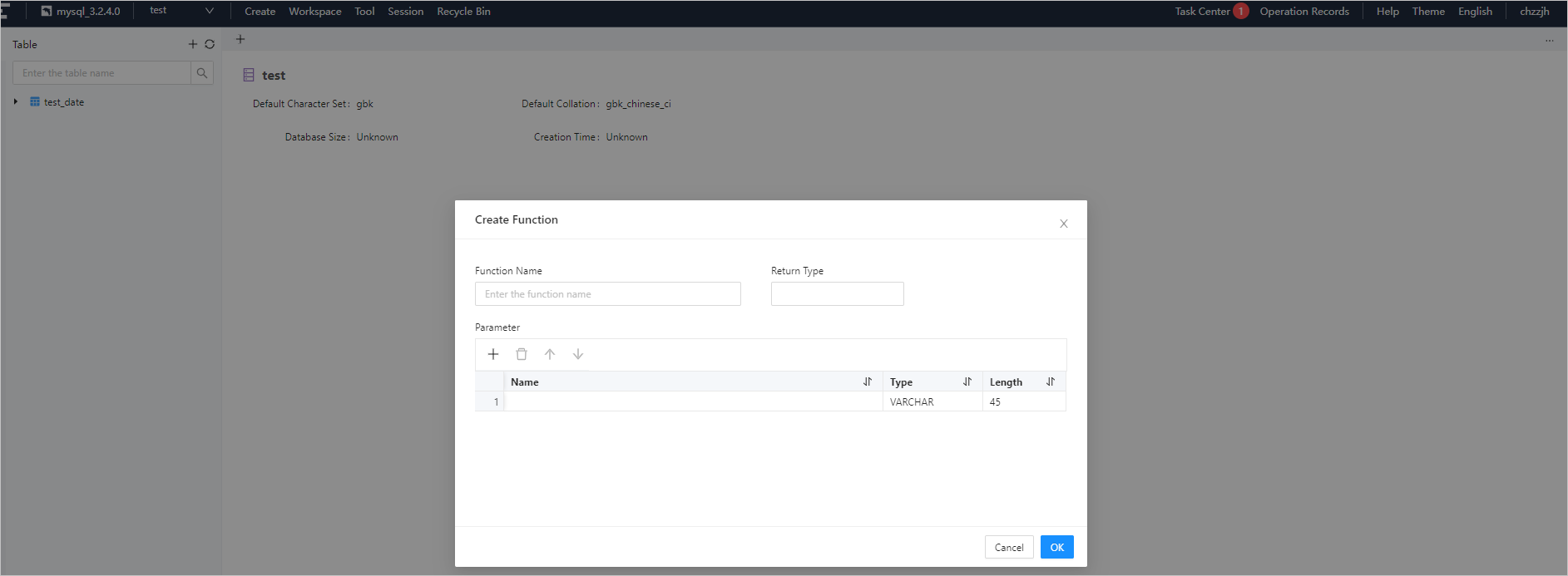
Log on to the ODC console and click the name of a connection to go to the corresponding connection management page. You can click Function in the left-side navigation pane to get a list of functions. To create a function, click the + icon in the upper-right corner of the function list or click Create in the top navigation bar.
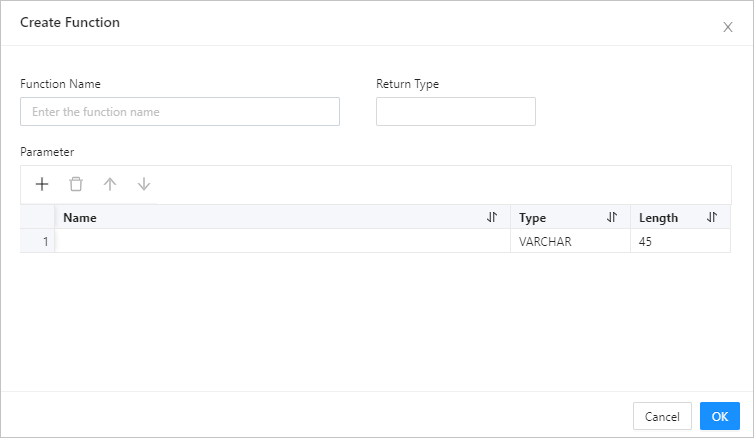
Step 2: Specify the data type of the return value
For more information about data types, see Data type overview.
Step 3: Configure parameters
Parameters specify the information passed to a function when the function is called. You need to configure the following parameters: Name, Type, and Length.
You can configure parameters by using one of the following three methods.
MethodDescriptionUse the quick access toolbar In the quick access toolbar, you can add, delete, and move up and down parameters. Click the row number - You can click a row number to select a row and display the quick access toolbar that allows you to delete the row or move the row up or down.
- You can click a row number to select the row, and then drag the row to adjust its order.Right-click a row You can right-click a row to select it, and then select Copy or Move Down from the context menu that appears. Note
After you copy a row, you can paste the row by using the Command+V or Ctrl+V shortcut keys.
Step 4: Check the parameters of the new function.
Click OK to go to the Create Function page.
Step 5: Modify the function.

Modify the function statement on the Create Function page.
In addition, the toolbar on the editing page provides buttons described in the following table.
Button |
Description |
|---|---|
| Format | Click this button to apply formatting, such as indentation, line break, and keyword highlighting, to the selected SQL statements or all the SQL statements in the current SQL window. |
| Find and Replace | Click this button and enter text in the search field to find the specific content and enter text in the replacement field to replace the content found. |
| Undo | Click this icon to undo the previous operation. |
| Redo | Click this button to reverse an Undo operation. |
| Case Sensitivity | The system supports three capitalization options: All Caps, All Lowercase, and Capitalize First Letter. Click the corresponding option to convert the selected statements in the script to the desired capitalization format. |
| Indent | You can add indents to or remove indents from the statements that you selected. |
| Comment | You can click Add Comments to convert the statements that you selected into comments or click Delete Comment to convert comments to SQL statements. |
| IN Value Conversion | You can convert a value of the A B format into the 'A','B' format. |
You can modify the SQL statements of the created function on the Create Function page. Syntax:
CREATE FUNCTION function_name ([var_name var_type[,...]])
RETURNS return_type
 delarification_block
BEGIN
    function_body
EXCEPTION
    exception_handler
END;
Parameters
Parameter |
Description |
|---|---|
| function_name | The name of the user-defined function.
Notice |
| var_name var_type | Parameters of the function. This parameter contains only the name and type. You cannot specify the IN, OUT, or INOUT keyword. |
| RETURNS return_type | The data type of the return value. return_type specifies the data type of the return value.
Notice |
| function_body | The body of the user-defined function. The function body must contain a RETURN statement. When the function body is a compound structure, you must use the BEGIN ... END statement. |
Example:
CREATE FUNCTION `function_emp` ( `id` int(45)) RETURNS VARCHAR(300)

-- The start of the function body.
BEGIN

-- Declare a variable.
DECLARE
  a VARCHAR(300);

-- Assign a value to the variable.
SELECT
  name INTO a
FROM
  employee
WHERE
  emp_no = id;

-- The return value.
RETURN a;

-- The end of the function body.
END
Step 6: Complete the function creation.
Click Create in the upper-right corner to create the function. After a user-defined function is created, you can use the SELECT statement to call the function, in the same way you call a built-in function.
Note
- To manage a function, right-click the function name in the left-side navigation pane, and select the required operation from the context menu, which provides the following options: View, Create, Run, Download, Delete, and Refresh.
- For more information, see Manage functions.
Syntax:
SELECT function_name ([function_parameter [,...]])
Example:
SELECT function_emp(2);