This topic describes how to view the details of an alert event and temporarily block an alert event.
Procedure
Log on to the OceanBase Cloud Platform (OCP) console.
In the left-side navigation pane, choose System Management > Alerts .
Click the Alert Events tab.
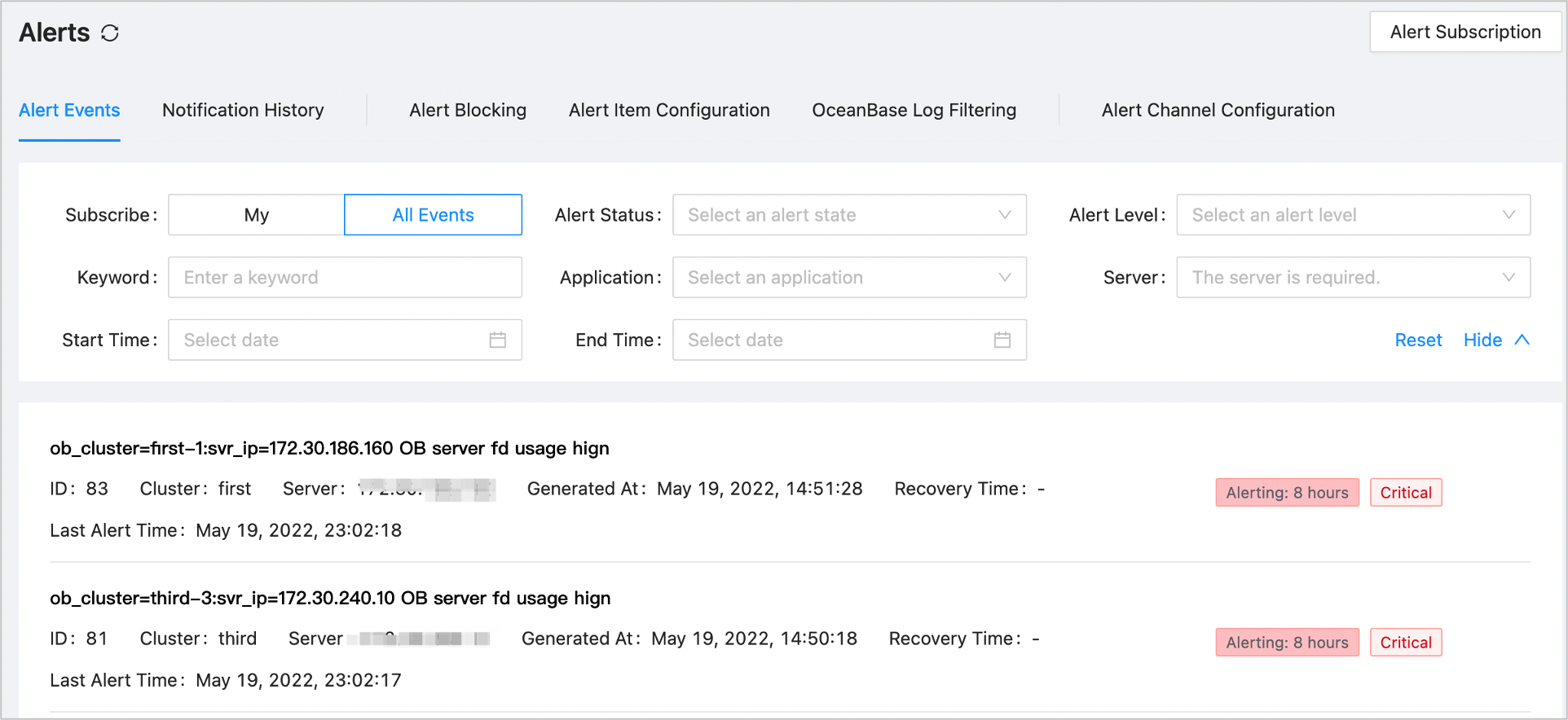
Expand the search section and set the search criteria.
For example, to query cleared alerts of the Critical level in Backup & Recovery , set the search criteria as shown in the following figure. All alert events that match the criteria will be returned in the alert event list.
Click an alert event in the alert event list to go to its Details page.
You can view the alert information and notification list on the Details page.
Click Suggestions on How to Deal with Alerts to view the suggestions on handling the alert.

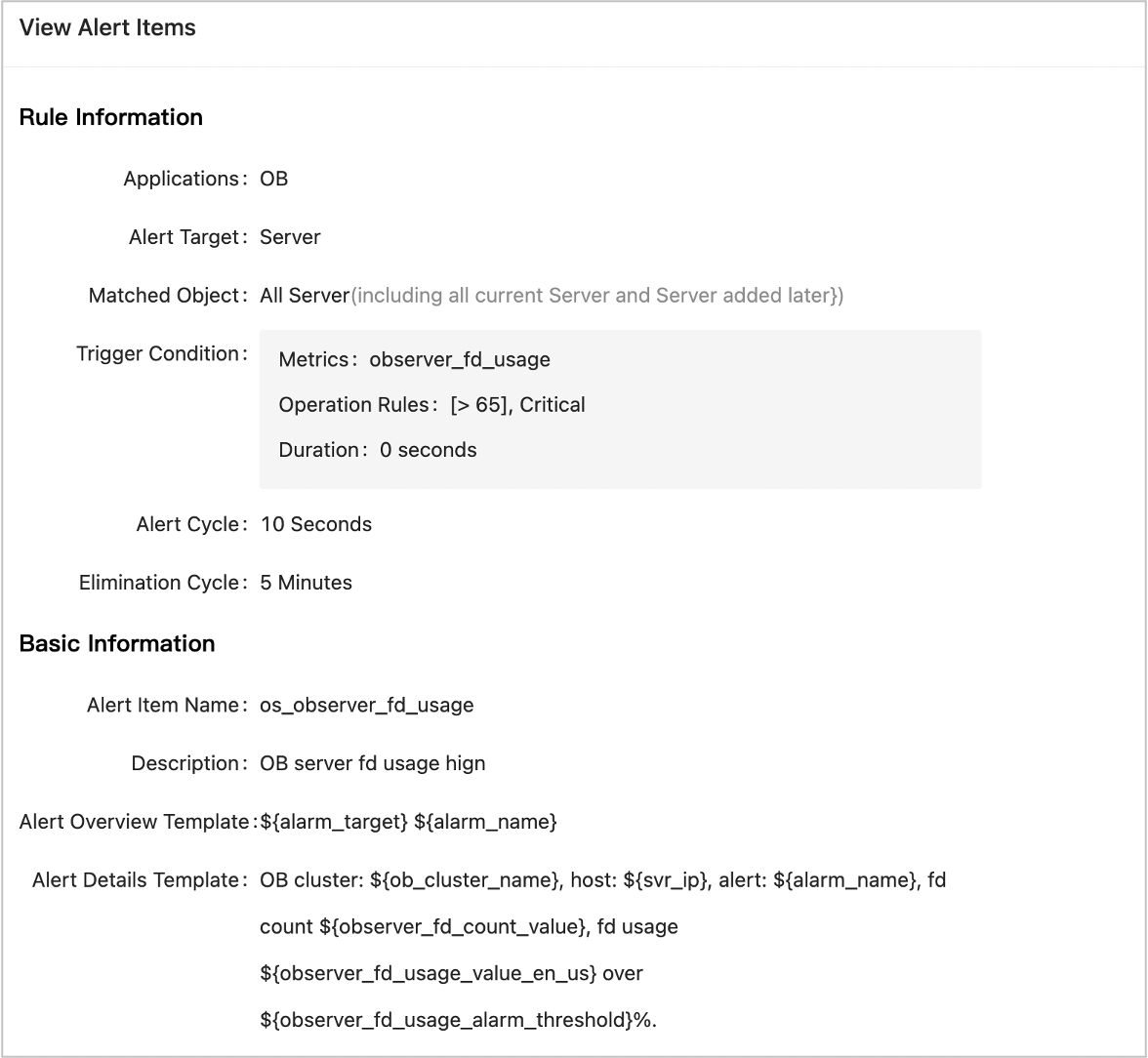
On the alert event details page, click View Alert Items .
The system displays the alert rules, basic information, and modification information about the alert event.
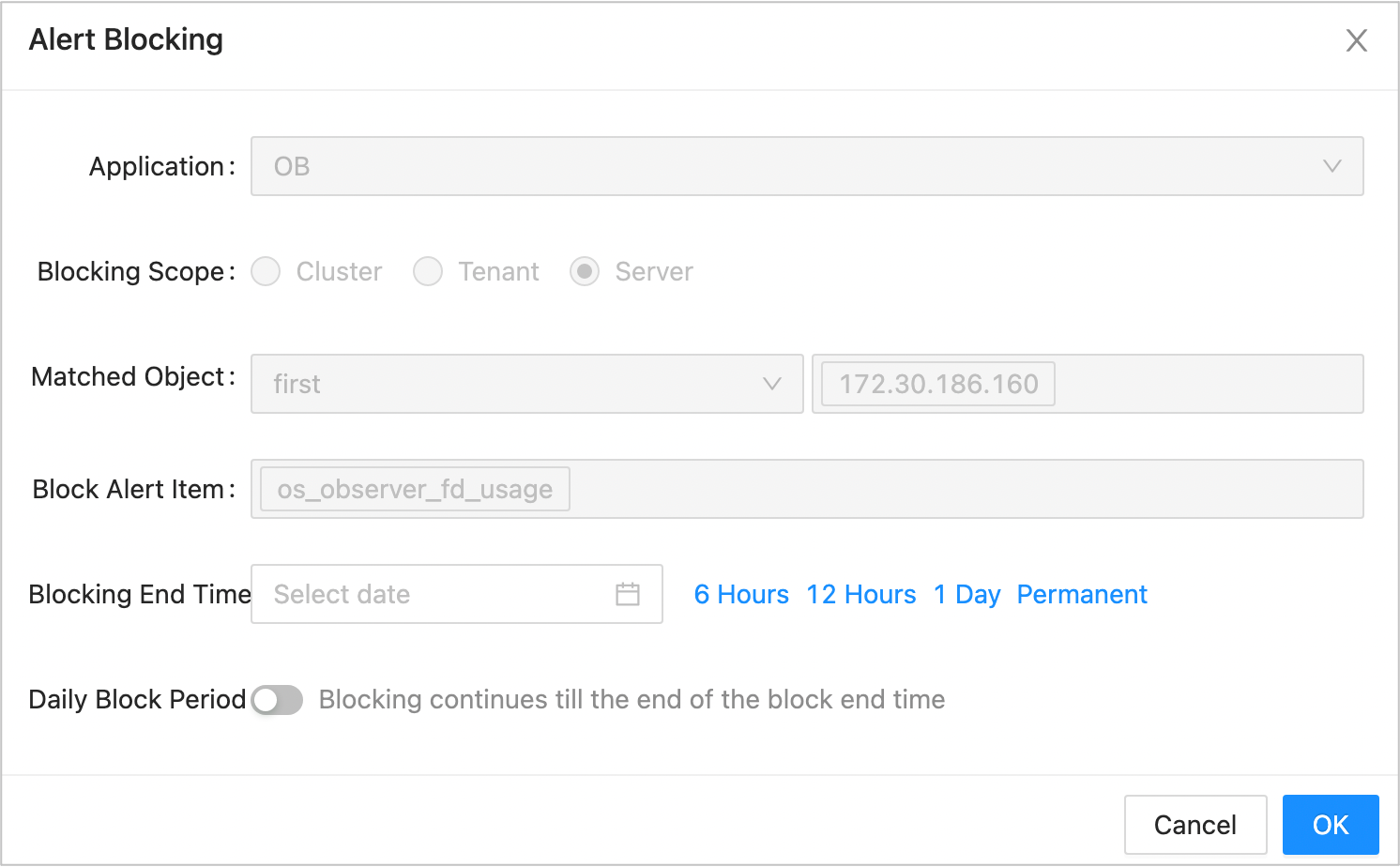
To block an alert event, click Alert Blocking on the details page of the alert event.
In the Alert Blocking dialog box, set End Time and Daily Block Period for the alert event and click OK .
Then, the alert will not be reported before the block period expires.