







This topic describes how to view the logon information, the related client information, logon result, and whether an automatic lock is triggered by a logon during the specified duration.
Prerequisite
You are logged on with an account that has the ADMIN or USER_MANAGER role.
Procedure
In the left-side navigation pane, choose System Management > Security to go to the Security page. On the User Management tab, click Logon History in the upper-right corner.
From the Username drop-down list, select the user to view.
Specify a time range in the Logon Time field.
Click Search .

All the users that match the search criteria are returned in the logon list.
In the logon list, you can view the username, IP address, client, logon time, logon result, and whether the account is automatically locked.
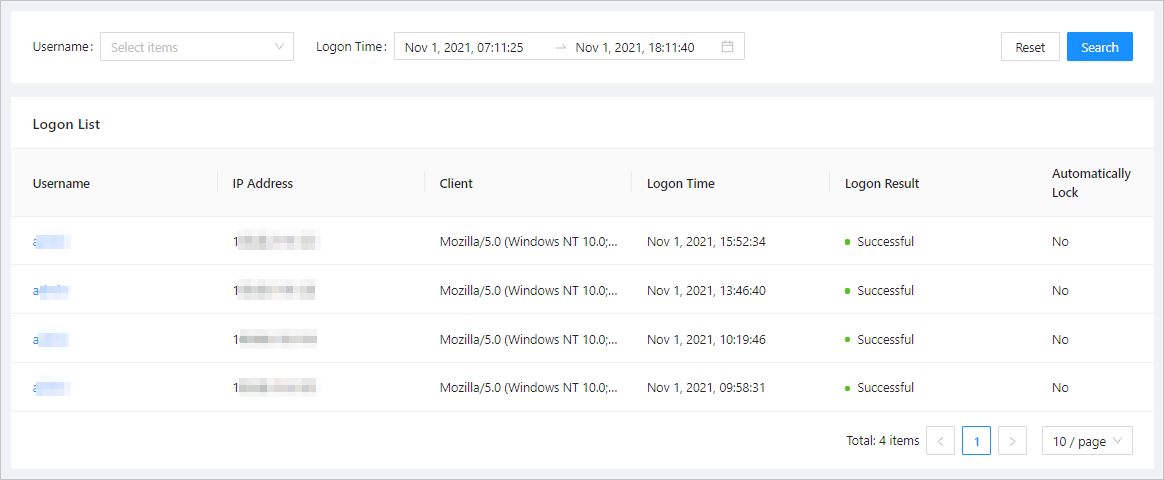
You can click a username in the logon list to go to the user details page. For more information about the user details page, see View users.