







Symptom
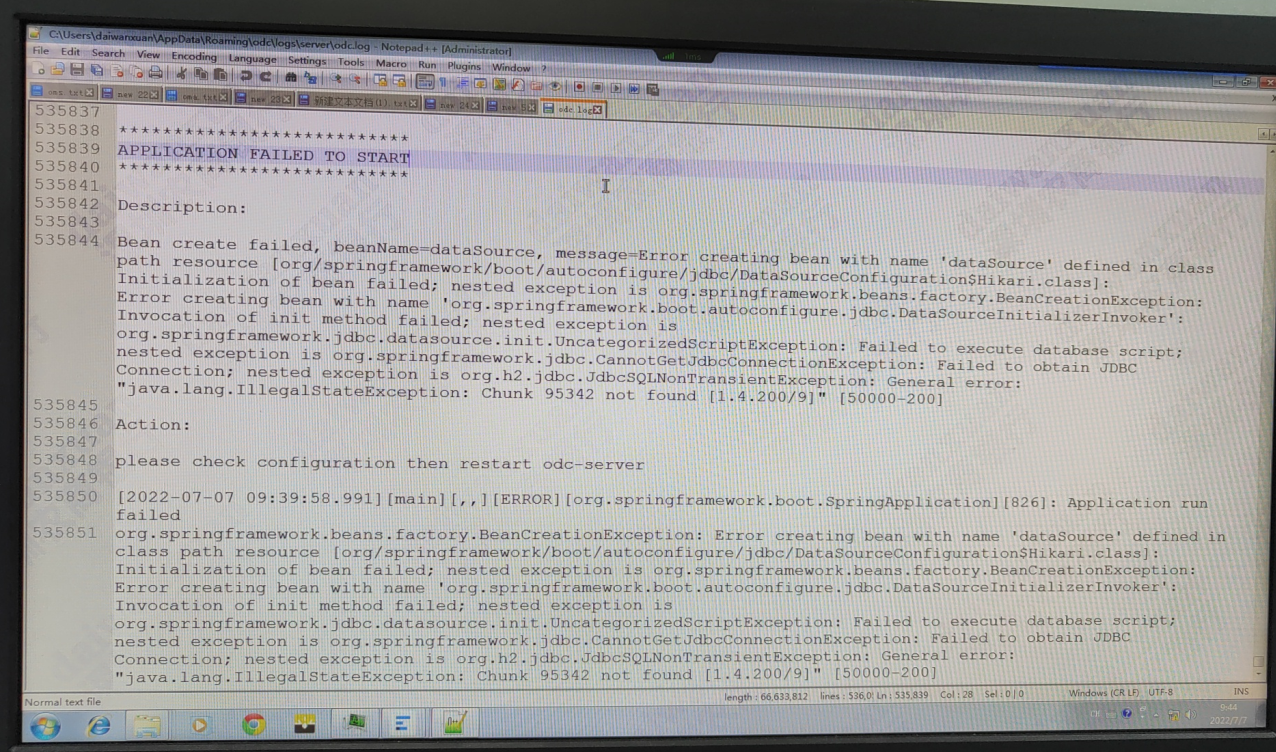
Client ODC fails to start. Error log: "java.lang.IllegalStateException: Chunk *** not found".
Possible causes
The MetaDB of client ODC, H2 Database, is corrupted. For more information, see IllegalStateException: Chunk not found in v1.4.200/9 and Cursor sporadically fail with 'IllegalStateException: Chunk {number} not found' on GitHub.
Solutions
Recover the MetaDB files.
Step 1: Download the recovery tool
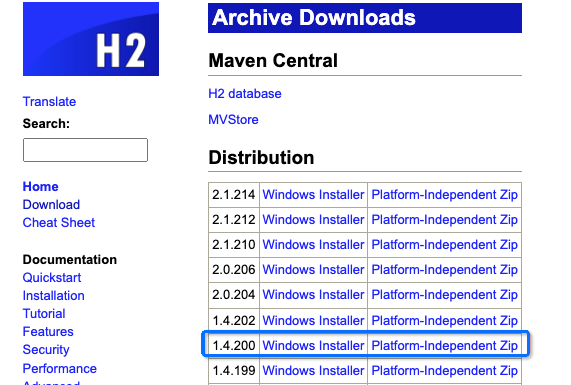
Download and install the recovery tool.
Notice
Download the tool based on the H2 Database version. ODC currently supports V1.4.200.
Step 2: Generate the recover SQL statement
View the path of the MetaDB files. The metadata of client ODC is maintained in the embedded H2 Database:
On Windows, the data file path is %USERPROFILE%\AppData\Roaming\odc.
Recover the MetaDB files.
cd %USERPROFILE%\AppData\Roaming\odc\On macOS, the data file path is
/Users/{user}/Library/Application Support/odc.cd ~/"Library/Application Support/odc" ls odc*.db # View the following two files, that is, the data files corresponding to the H2 Database. #odc2.0.mv.db odc2.0.trace.db
Copy the corrupted ODC MetaDB file odc2.0.mv.db to the h2\bin directory.
In the cmd window, run
java -cp h2-1.4.200.jar org.h2.tools.Recover.odc2.0.h2.sqlis generated in the path, as shown in the following figure.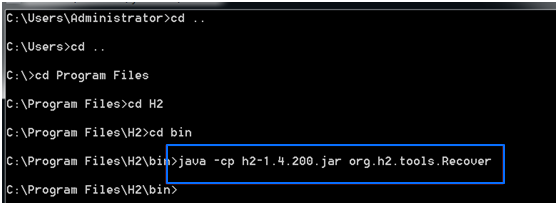
Step 3: Execute the RECOVER SQL statement
Generate a new database named
odc2.1. Here is the sample command:java -cp h2-1.4.200.jar org.h2.tools.RunScript -url jdbc:h2:./odc2.1 -user sa -password '' -script odc2.0.h2.sqlAfter the command is executed, the
odc2.1.mv.dbfile is generated in the path.
Step 4: Copy the recovered database files to the ODC installation path
Copy the
odc2.1.mv.dbfile to the path of the MetaDB files and rename it asodc2.0.mv.db.Restart ODC.