This topic describes how to configure notification for a project in OceanBase Developer Center (ODC).
Background information
Web ODC V4.2.4 allows a project member to add a notification channel to learn about changes in ticket events.
Channel types
ODC supports sending notifications by using DingTalk, Feishu, WeCom, and custom methods.
Channel type |
Parameter |
|---|---|
| DingTalk |
|
| Feishu |
|
| WeCom |
|
| Custom |
|
Message templates
ODC allows you to define notification templates separately in Simplified Chinese, Traditional Chinese, and English. By default, the notification templates are in the Markdown format.
Simplified Chinese
### ODC ${taskType}-${taskStatus}
 - 任务ID: ${taskId}
 - 项目: ${projectName}
 - 数据库: ${databaseName}
 - 发起人: ${creatorName}
 - 触发时间: ${triggerTime}
Traditional Chinese
### ODC ${taskType}-${taskStatus}
 - 任務ID: ${taskId}
 - 項目: ${projectName}
 - 數據庫: ${databaseName}
 - 發起人: ${creatorName}
 - 觸發時間: ${triggerTime}
English
### ODC ${taskType}-${taskStatus}
 - task ID: ${taskId}
 - project: ${projectName}
 - database: ${databaseName}
 - creator: ${creatorName}
 - trigger time: ${triggerTime}
The following table describes the supported labels.
Label name |
Description |
|---|---|
| region | The region of ApsaraDB for OceanBase. |
| taskType | The type of the task. |
| taskStatus | The status of the task. |
| projectId | The ID of the project. |
| projectName | The name of the project. |
| creatorId | The ID of the user that initiated the task. |
| creatorName | The username of the user that initiated the task. |
| taskId | The ID of the task. |
| connectionId | The ID of the data source. |
| databaseId | The ID of the database. |
| databaseName | The name of the database. |
| clusterName | The name of the cluster. |
| tenantName | The name of the tenant. |
| environment | The environment of the data source. |
| triggerTime | The time when the event was triggered. |
| message | The body of the message. |
| title | The title of the message. |
| approverId | The ID of the user that approved the task. |
| approverName | The username of the user that approved the task. |
Configure message notification
Example: Create a DingTalk notification channel and add the channel for the Database Change-Approved event.
Log on to the ODC console. Choose Projects > Notification. On the Notification tab, choose Notification Channel > Create Notification Channel.

On the Create Notification Channel page, configure the channel information.
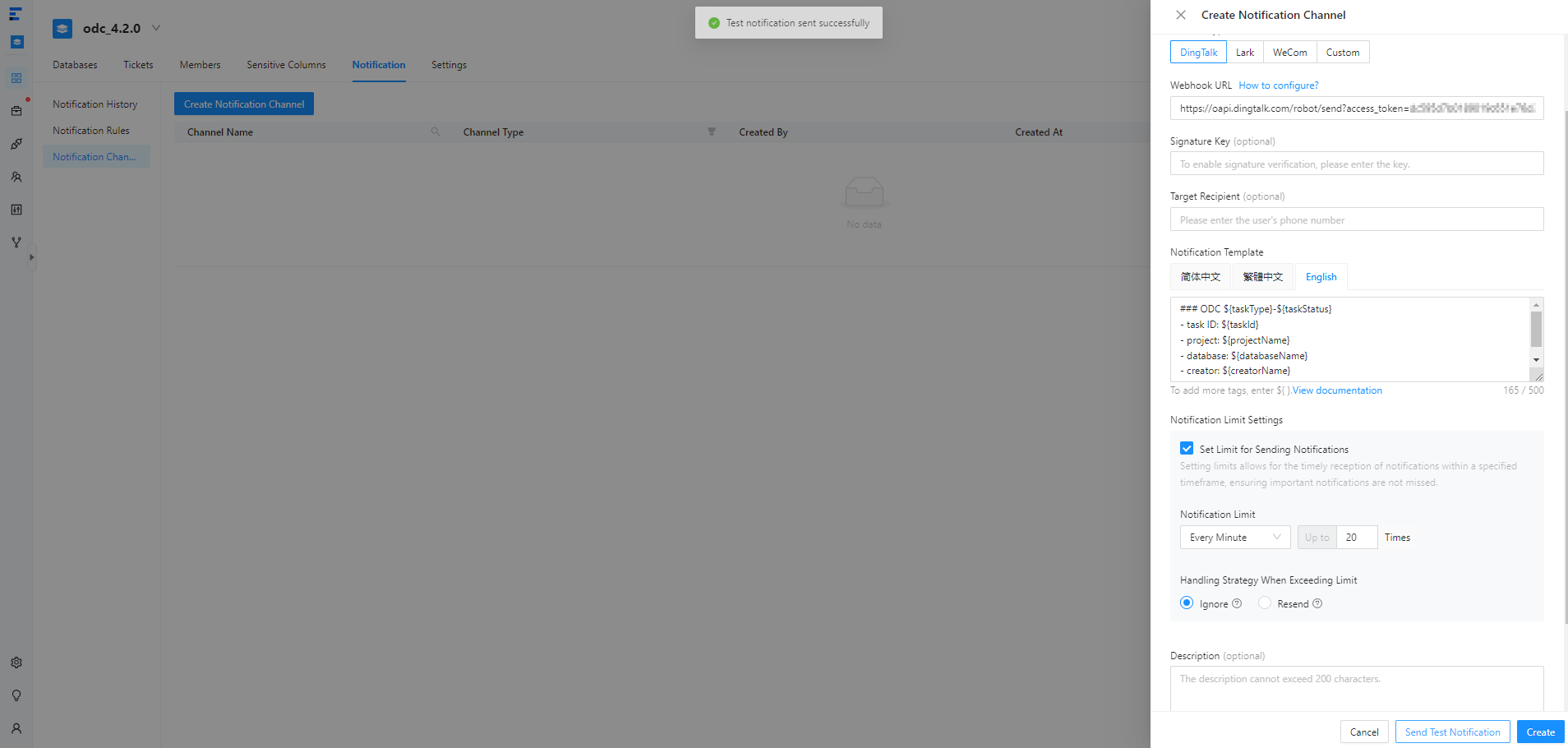 ParameterDescription
Channel Name Enter the name of the channel. Channel Type Select a channel type and obtain the corresponding webhook URL.
When you add a DingTalk or Feishu chatbot, you must enter ODC in the Custom Keywords field in the Security Settings section.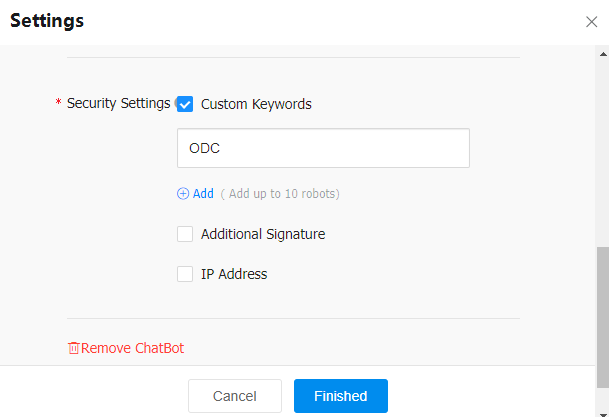
Signature Key The signature key of the DingTalk chatbot. Specified User The mobile number of the user. Notification Template Select a language for sending notifications. Notification Limit Settings The number of times to send notifications within the specified period. Description Optional. Additional information about the notification channel, which cannot exceed 200 characters in length. Click Send Test Notification. If a test message is successfully sent, click Create.

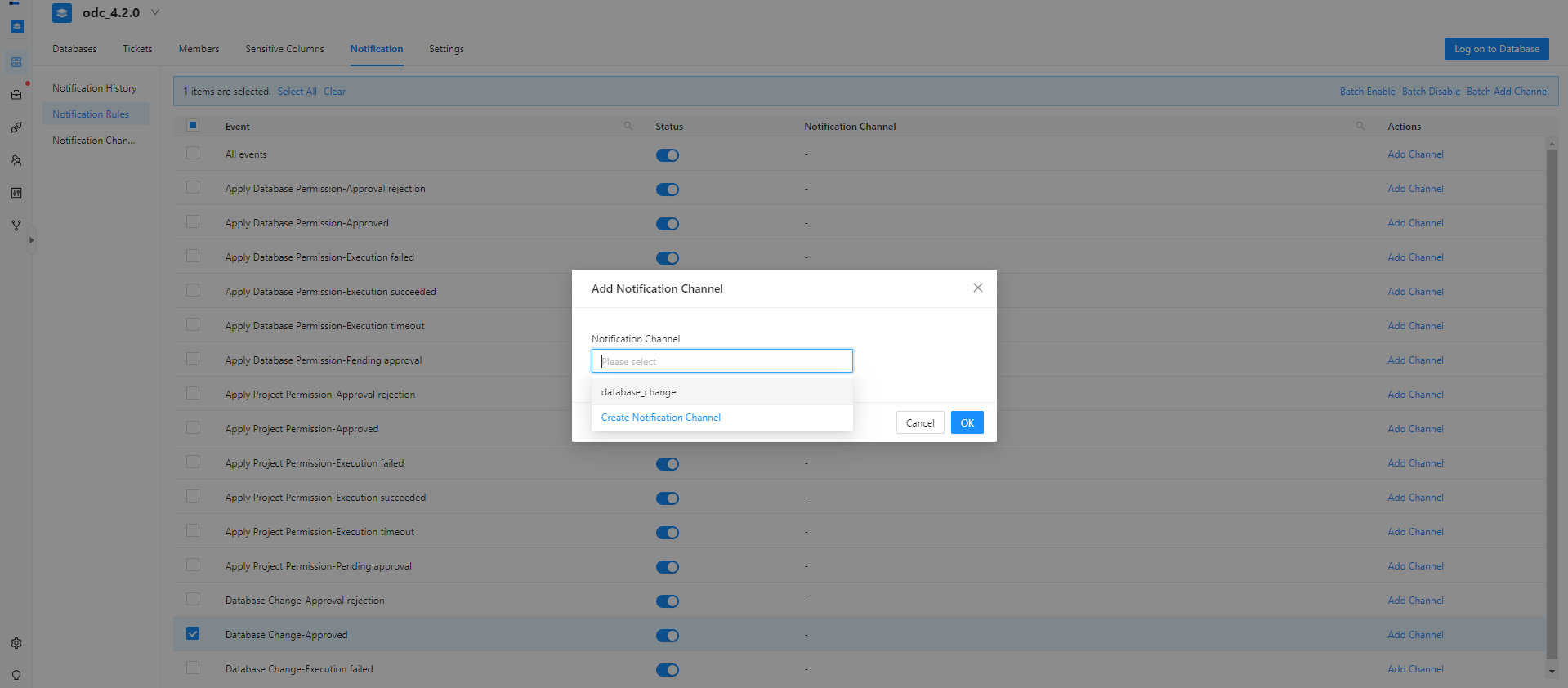
On the Notification tab, click Notification Rules in the left-side navigation pane, and add the configured notification channel for the Database Change-Approved event.