







This topic describes how to clean up archived data by submitting a ticket.
Background information
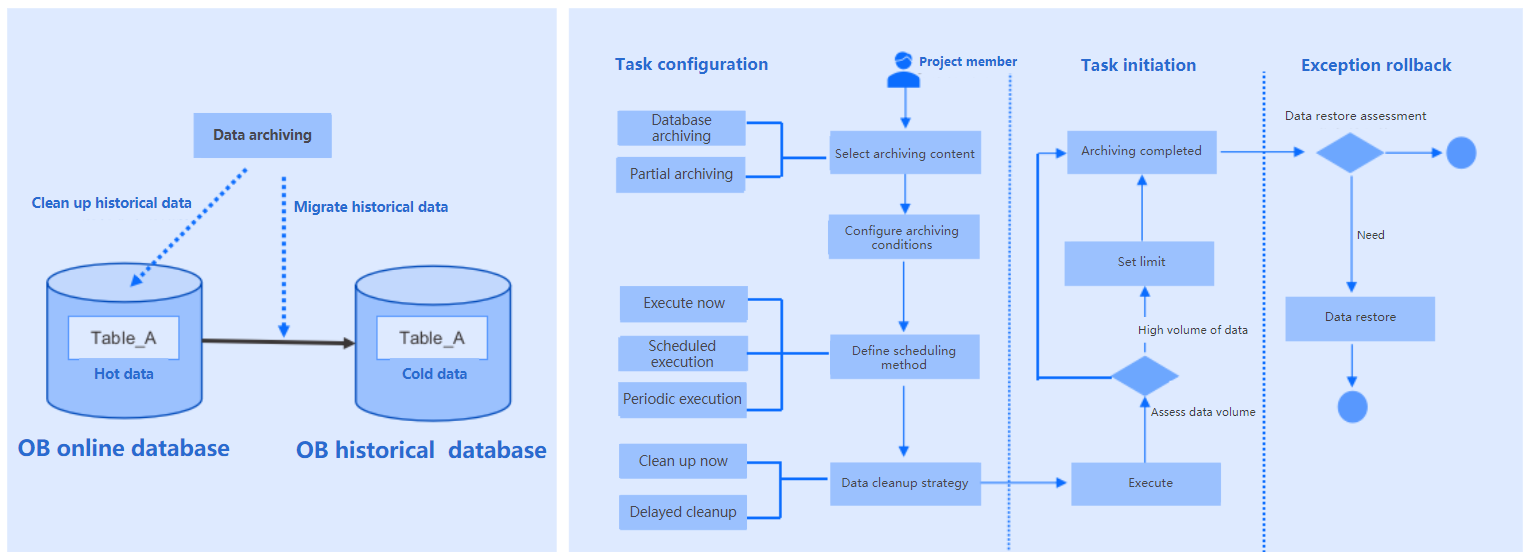
After you archive data in the source database to the destination database, OceanBase Developer Center (ODC) allows you to delete the data from the source database to improve the query performance and reduce the online storage costs.
Technical mechanism
Prerequisites
- The table to be cleaned up has a primary key.
Considerations
Pay attention to the following rules:
You must connect to an OceanBase data source by using OceanBase Database Proxy (ODP). At present, you cannot archive data in a directly connected OceanBase data source.
At present, an OceanBase data source must be a cluster instance. Therefore, you must configure the cluster instance name when you create an OceanBase data source.
CPU and memory exhaustion prevention is not supported for a MySQL data source.
Supported data sources for data cleanup are as follows:
OceanBase MySQL data sources
MySQL data sources
Data cleanup is not supported in the following cases:
The table does not have a primary key.
The table contains fields of the bit, enum, set, xml, or geometry type.
The archiving condition contains a LIMIT clause.
The table contains a foreign key.
Create a data cleanup task
Example: Clean up the student table in the odc_test database.
Parameter |
Example value |
|---|---|
| Data source | mysql_4.2.0 |
| Source database name | odc_test |
| Table name | student |
On the Ticket tab in the left-side navigation pane of the homepage, click Data Cleanup and then click New Data Cleanup.

On the Create Data Cleanup Task page, configure the following parameters.
 ParameterDescription
Source Database The database to which the table belongs. Cleanup Scope - Partially Cleaned: specifies to clean up only tables that meet filtering conditions in the database.
You can configure filtering conditions by using constants or referencing variables defined in Variable Configuration. For example, increate<'${create_time}',create_timeis the name of a variable configured in Variable Configuration andcreateis a field in the table to be archived. - Whole Library Cleaning: specifies to clean up all tables in the database.
Custom Variable Optional. You can define variables and set time offsets to filter rows to be cleaned up. Execution Mode The execution mode of the task. Valid values: Execute Now, Scheduled Execution, and Periodic Execution. Task Settings Configure a throttling strategy. - Row Limit: limits the total number of data rows operated per second.
- Data Size Limit: limits the total size of data operated per second.
Remarks Optional. Additional information about the task, which cannot exceed 200 characters in length. - Partially Cleaned: specifies to clean up only tables that meet filtering conditions in the database.
Click Create.
After the task is generated, choose Ticket > Data Cleanup to view the task.

View a data cleanup task
Task information
In the data cleanup task list on the Ticket tab, click View in the Actions column of a task.
In the Task Details panel, click the Task Information tab and view information such as the task type, source database, destination database, variable configurations, archiving scope, and execution mode.
Task process
In the Task Details panel, click the Task Process tab and view information such as the task initiation status, approval status, execution status, and execution result.
Execution records
In the Task Details panel, click the Execution Records tab and view task status and perform operations such as task retry and rollback.
Task logs
In the Task Details panel, click the Operation Records tab and view the approval status and records of the task.