







This topic describes how to create an inspection rule.
Background
Before you create an inspection rule, verify the inspection items that you want to use on the Inspection Item tab. For more information, see Inspection.
Procedure
Log on to the OceanBase Cloud Platform (OCP) console. In the left-side navigation pane, choose System Management > Inspection.
Click the Inspection Rule tab and then the New Inspection Rule button.

On the New Inspection Rules page, specify Basic Information, Inspection Activities, and Scheduling Settings for the new inspection rule.
Specify parameters in the Basic Information section.
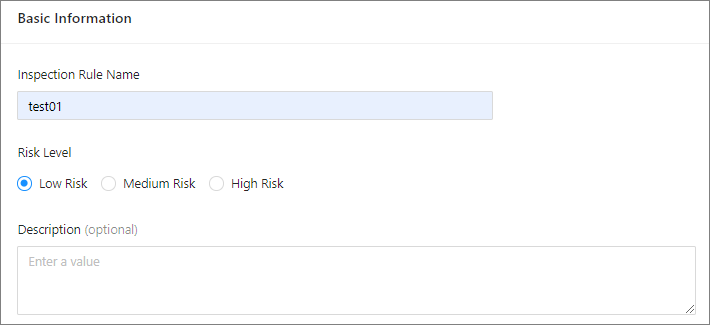 ParameterDescription
Inspection Rule Name The value can contain Chinese characters, English letters, digits, underscores (_), and hyphens (-). It must be 2 to 32 characters in length. Risk Level Select from three risk levels: low, medium, and high. Description Optional. Enter a brief description for the inspection rule. Specify Objects and Inspection Item Configuration.
 ParameterDescription
Objects Select an existing OceanBase cluster, OceanBase Database tenant, or OBProxy cluster in OCP. Inspection Item Configuration Click the Add Inspection Item button on the right side and select the required inspection items. Specify the inspection parameters of each inspection item as needed.
To delete an inspection item, click Delete on the right side and then click OK in the dialog box that appears.Notes
- The inspection items vary with inspection objects. For more information, see inspection items in Inspection.
- In one inspection rule, you can set an inspection parameter to only one value. To use different values of an inspection parameter to inspect the same object in different scenarios, you can create new inspection rules. For example, when you configure an inspection rule named host load for OceanBase cluster test01, you can select the host load inspection item**** for this rule and set the inspection parameter to 2. If you want to set more values of the host load inspection item for this cluster, you need to create new inspection rules.****
Turn on scheduling settings and specify the parameters as prompted.
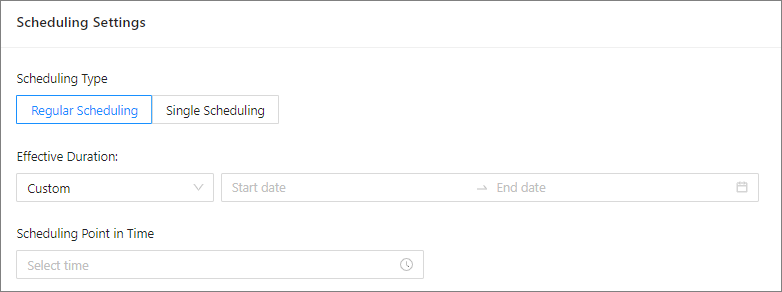 ParameterDescription
Scheduling Type Two scheduling types are supported: Regular Scheduling and Single Scheduling. - Regular Scheduling: OCP will regularly perform inspections within the effective duration of the scheduling rule.
- Single Scheduling: OCP will perform one-time inspection at the specified time.
Effective Duration This parameter is displayed only for regular scheduling. Scheduling Point in Time This parameter is displayed only for regular scheduling. Scheduling Duration This parameter is displayed only for one-time scheduling.
Click Submit. You can view the inspection rule in the inspection rule list. For more information, see View inspection rules.