You can view and modify parameters on the Parameter Management page.
View parameters
You can search for parameters on the Parameters tab to view the information about specific parameters. You can also view the parameter name, value, description, and whether a restart is required for updates to take effect in the parameter list. You can modify these parameters.
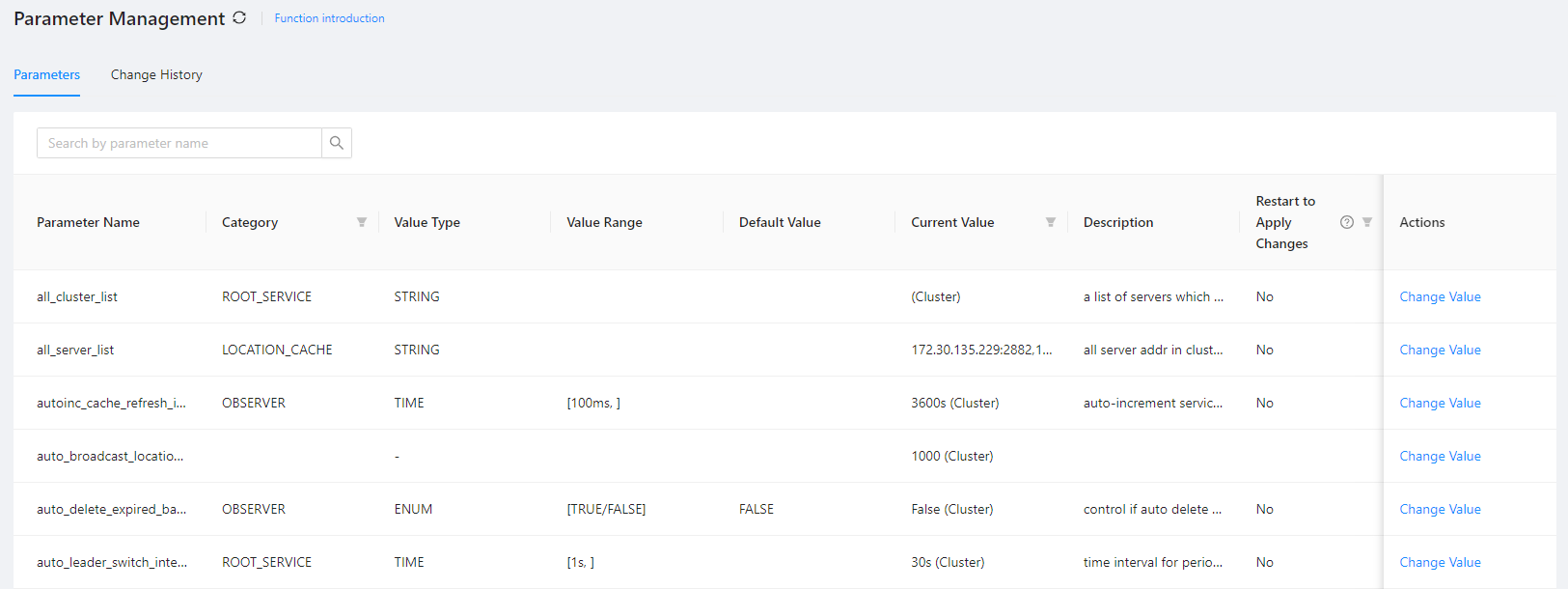
- You can click Change Value in the Actions column.
- enter the new value in the dialog box that appears, and click OK to complete the modification.
- After the values of the target parameters are modified, click Submit Changes. Identified as Yes in the Restart to Apply Change column, You need to restart the OBProxy cluster for the modified parameters to take effect.

- Click Confirm Modification. Then, waitting for the modification task execution to complete.
View change history
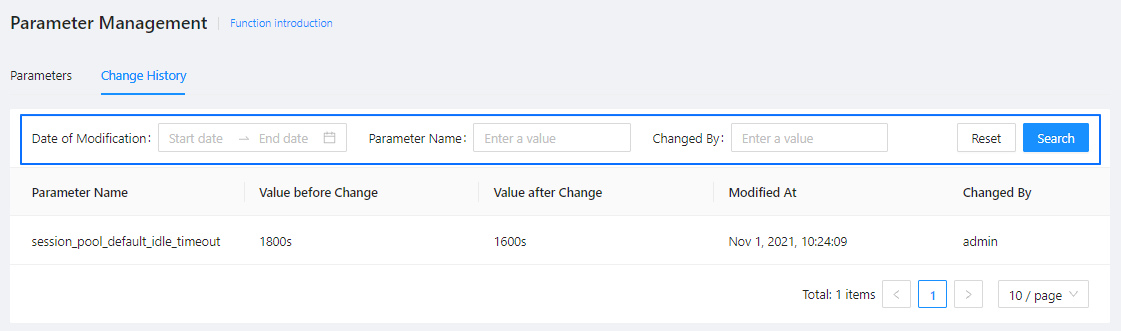
On the Change History tab, you can specify the following fields: Date of Modification , and Parameter Name . Then, click Search to filter the parameters and find the information you want. In the parameter list, you can view information in the following columns: Parameter Name , Value before Change , Value after Change , Modified At , and Changed By .