







Log on to the OceanBase Cloud Platform (OCP) console. In the left-side navigation pane, click Tenants. On the Tenants page, find the target tenant and click its name. The Overview page of the tenant automatically appears. In the left-side navigation pane, click Topology to view the topology of the tenant.
This topic shows the distribution of tenant replicas in the cluster. In the upper-right corner of the page, you can resize and refresh the topology.
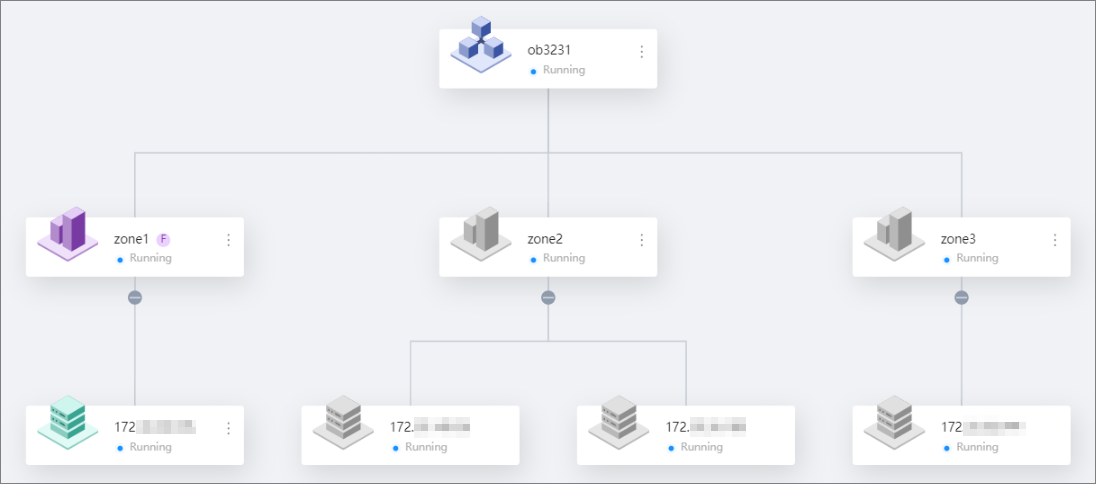
The topology consists of three layers:
The first layer, which indicates the cluster.
The second layer, which indicates the zones.
The third layer, which indicates the OBServers.
Cluster
The cluster icon displays the name and status of the cluster to which the tenant belongs.
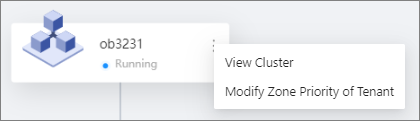
Click the More icon on the right of the cluster icon to view supported operations.
Click View Cluster to display the cluster topology on a new page.
Click Modify Zone Priority of Tenant to modify the zone priority in the dialog box that appears.
Zones
A zone icon displays the name and status of the zone.
If a zone contains a tenant replica, the zone icon is displayed in purple with the initial of the replica type next to the tenant name. Otherwise, the zone icon is gray.
Zones with replicas
When you hover the pointer over a zone icon, a tooltip appears and displays the type of the replica and the number of units in the zone.

Click the More icon on the right of the zone icon to view supported operations.

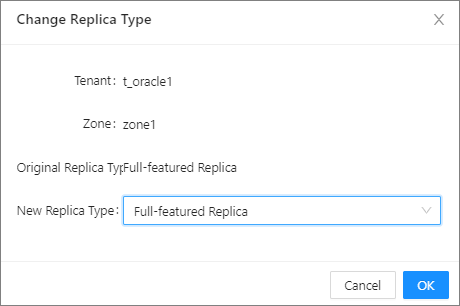
Click Change Replica Type and change the replica type in the dialog box that appears.
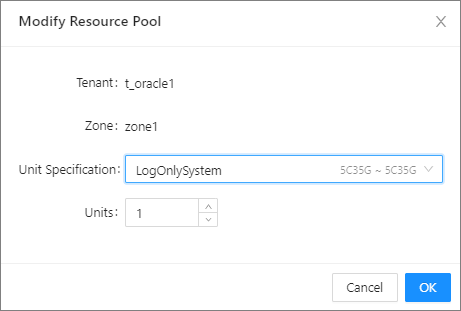
Click Modify Resource Pool and modify the resource pool of the zone in the dialog box that appears.
Note
If the version of the OceanBase Database is V4.0 and later, you can only set the same number of units for all zones. For more information about how to change the number of units in all zones, see Edit a tenant replica in a zone.
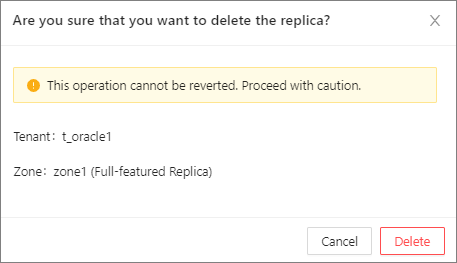
- Click Delete Replica. In the dialog box that appears, click Delete to delete the replica.
Note
The data of a deleted replica cannot be restored. Proceed with caution.
Zones without a replica
Click the More icon on the right of the zone icon to view supported operations.
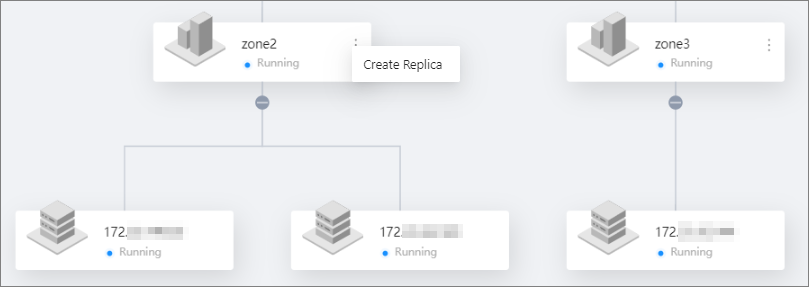
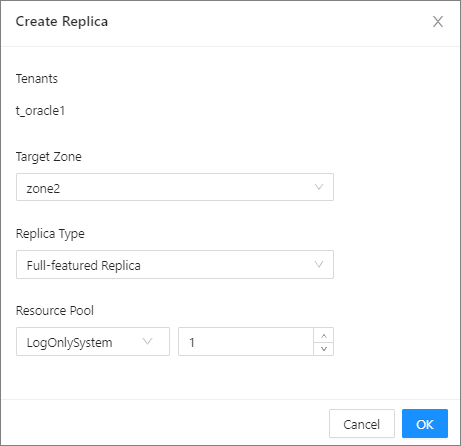
Click Create Replica and add a new replica in the dialog box that appears.
Note
If the version of the OceanBase Database is V4.0 and later, you can only set the same number of units for all zones.
- When you create the first replica of a tenant, the number of units that you specify in this dialog box applies to all zones under this tenant.
- If the tenant already has a replica, you can no longer set the number of units for the new replica. By default, the number of units for the new replica is the same as that for the first created replica.
Servers
A server icon displays the IP address, port number, and status of the server.
If a server hosts a resource unit of a tenant, the server icon is displayed in green. Otherwise, the server icon is gray.