







This topic describes the global inspection feature, including how to view and manage inspection rules and view inspection scripts.
Features
Inspection is an essential method to identify problems in a system and ensure its stable and effective operation. The global inspection feature of OceanBase Cloud Platform (OCP) checks performance of the OceanBase system and its environment based on programmable scripts, and generates reports to expose security risks that cannot be detected by the monitoring or alerting feature. It works in collaboration with the health inspection feature of the cluster.
You can configure inspection rules to enable regular or ad hoc inspections of the partition information, serial number, and parameters of the cluster, and troubleshoot the cluster based on the inspection results to ensure the normal operation of OCP clusters.
If this is your first time to use the inspection feature, take the following steps:
View an inspection items: Select a script as needed.
Create an inspection rule: Specify the basic information, and select the inspection items selected in Step 1.
View an inspection rule: Click the name of a rule in the list of inspection rules. For more information, see View an inspection rule.
Perform other operations on an inspection rule. For more information, see Initiate an inspection, Modify an inspection rule, and Delete an inspection rule.
View inspection tasks,View inspection report, and Download report.
Inspection rules
An inspection rule defines a template for executing inspection tasks, and specifies the name, risk levels, inspection objects, inspection item configuration, scheduling type, effective duration and scheduling point in time. An inspection task is executed based on the inspection rules.
On the Inspection Rules tab, you can view the name, inspection rule type, inspection objects, inspection item, risk level, creator, scheduling type, and scheduling status of an inspection rule. You can also perform routine operations on the inspection rule. For more information, see View an inspection rule, Create an inspection rule, Initiate an inspection, Modify inspection rule, and Delete an inspection rule.

Parameter |
Description |
|---|---|
| Inspection Rule Name | Click the name of an inspection rule in the Name column. The details page of the rule appears. For more information, see View an inspection rule. |
| Inspection Rule Type | Valid values: Built-in Rules, and Custom Rules. |
| Inspection Objects | The specific objects that the inspection rules act on. |
| Inspection Item | Click the name of an inspection item. The details page of the item appears.. |
| Risk Level | Valid values: High Risk, Medium Risk, and Low Risk. |
| Scheduling Type | Valid values: Regular Scheduling, Single Scheduling, and None. |
| Scheduling Status | Valid values: In Effect, Expired, and No scheduling status. |
Inspection Item
An inspection item describes the general process of inspecting OCP managed resources. You can customize some parameters in a template inspection item to meet specific inspection requirements.
NOTE
OCP has moved all inspection items from Cluster Health Inspection to the Inspection.
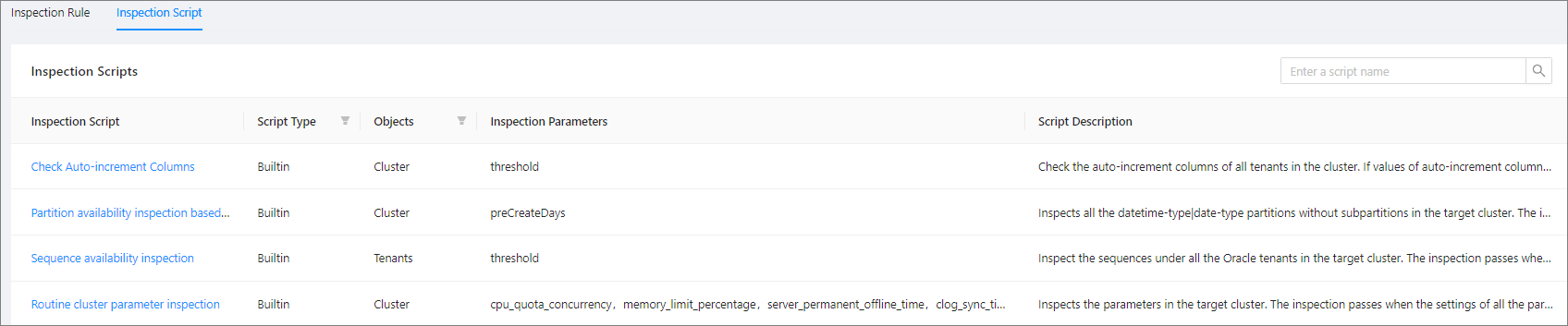
On the Inspection Item tab, you can view the name, inspection items type, inspected objects type, inspection parameters, and description of an inspection items.
Parameter |
Description |
|---|---|
| Inspection Item | Click the name of an inspection item in the Name column. The details page of the item appears. For more information, see View an inspection item. |
| Inspection Items Type | Valid values: Built-in Rules, and Custom Rules. |
| Inspection Objects Type | The specific objects that the inspection rules act on. Valid values:
|
| Inspection Parameters | Valid values: Parameter Name, Parameter Type, Sample Parameters, and Description. |
| Description | Description of inspection items. |
Inspection Task
The inspection task are given in a report to indicate potential security risks of the inspection objects.
On the Inspection Task tab, you can view Inspection Task ID, Inspection Rule, Created At, Task End Time, Task Status, and Inspection Result. You can also perform routine operations on the inspection task. For more information, see View an inspection task, View an inspection rules, View an insprction report, and Download report.