This topic describes how to add privileges to a role.
Modify a role by using SQL statements
You can use the GRANT statement to add privileges to a role.
Prerequisites
You must have the privileges or roles to be added and any of the following privileges: GRANT OPTION, GRANT ANY OBJECT PRIVILEGE, GRANT ANY PRIVILEGE, and GRANT ANY ROLE.
For information about how to view your privileges, see View user privileges. If you do not have the required privilege, contact an administrator. For more information, see Modify user privileges. For more information about how to view your roles, see View roles.
Syntax for the SQL statements
Add object privileges to a role:
GRANT obj_privilege ON obj_clause TO role_name [WITH GRANT OPTION];

obj_privilege:
    ALTER
  | DELETE
  | INSERT
  | SELECT
  | UPDATE
  | EXECUTE

obj_clause:
  relation_name
  | relation_name '.' relation_name
  | DIRECTORY relation_name
Add system privileges to a role:
GRANT {system_privilege_list | ALL PRIVILEGES}
    TO role_name [WITH {GRANT | ADMID} OPTION];

 system_privilege:
    CREATE SESSION
  | EXEMPT REDACTION POLICY
  | SYSDBA
  | SYSOPER
  | SYSBACKUP
  | CREATE TABLE
  | CREATE ANY TABLE
  | ALTER ANY TABLE
  | BACKUP ANY TABLE
  | DROP ANY TABLE
  | LOCK ANY TABLE
  | COMMENT ANY TABLE
  | SELECT ANY TABLE
  | INSERT ANY TABLE
  | UPDATE ANY TABLE
  | DELETE ANY TABLE
  | FLASHBACK ANY TABLE
  | CREATE ROLE
  | DROP ANY ROLE
  | GRANT ANY ROLE
  | ALTER ANY ROLE
  | AUDIT ANY
  | GRANT ANY PRIVILEGE
  | GRANT ANY OBJECT PRIVILEGE
  | CREATE ANY INDEX
  | ALTER ANY INDEX
  | DROP ANY INDEX
  | CREATE ANY VIEW
  | DROP ANY VIEW
  | CREATE VIEW
  | SELECT ANY DICTIONARY
  | CREATE PROCEDURE
  | CREATE ANY PROCEDURE
  | ALTER ANY PROCEDURE
  | DROP ANY PROCEDURE
  | EXECUTE ANY PROCEDURE
  | CREATE SYNONYM
  | CREATE ANY SYNONYM
  | DROP ANY SYNONYM
  | CREATE PUBLIC SYNONYM
  | DROP PUBLIC SYNONYM
  | CREATE SEQUENCE
  | CREATE ANY SEQUENCE
  | ALTER ANY SEQUENCE
  | DROP ANY SEQUENCE
  | SELECT ANY SEQUENCE
  | CREATE TRIGGER
  | CREATE ANY TRIGGER
  | ALTER ANY TRIGGER
  | DROP ANY TRIGGER
  | CREATE PROFILE
  | ALTER PROFILE
  | DROP PROFILE
  | CREATE USER
  | ALTER USER
  | DROP USER
  | CREATE TYPE
  | CREATE ANY TYPE
  | ALTER ANY TYPE
  | DROP ANY TYPE
  | EXECUTE ANY TYPE
  | UNDER ANY TYPE
  | PURGE DBA_RECYCLEBIN
  | CREATE ANY OUTLINE
  | ALTER ANY OUTLINE
  | DROP ANY OUTLINE
  | SYSKM
  | CREATE TABLESPACE
  | ALTER TABLESPACE
  | DROP TABLESPACE
  | SHOW PROCESS
  | ALTER SYSTEM
  | CREATE DATABASE LINK
  | CREATE PUBLIC DATABASE LINK
  | DROP DATABASE LINK
  | ALTER SESSION
  | ALTER DATABASE
Some notes about this:
obj_privilege: specifies the object privileges to be granted. When you grant multiple privileges to a user, the privileges must be separated with commas (,).obj_clause: specifies the objects related to the object privileges to be granted.system_privilege: specifies the system privileges to be granted. When you grant multiple privileges to a user, the privileges must be separated with commas (,).WITH GRANT OPTION: specifies whether to enable privilege delegation. When privilege delegation is enabled, grant revocation extends to dependent users.
Example
Grant the role1 role the SELECT privilege on the user1.tbl1 table:
obclient> GRANT SELECT ON user1.tbl1 TO role1;
Query OK, 0 rows affected
You can also add privileges to the PUBLIC role by using the following SQL statement:
Notice
To ensure the security of OceanBase Database, we recommend that you assign this role to a user only when the role is necessary for your business.
obclient> GRANT [privilege_list] TO PUBLIC;
After you add a privilege to the PUBLIC role, all users in the tenant have the privilege. This means that all users can immediately perform operations that are authorized by the privilege. For more information about the PUBLIC role, see Overview.
For more information about the GRANT statement, see GRANT.
Modify a role in the OCP console
You can also add system and object privileges to roles in the OceanBase Cloud Platform (OCP) console.
Prerequisites
The TENANT_MANAGER role is assigned to you. Otherwise, request the OCP administrator to assign the role. For more information, see "Edit a user" in the OCP User Guide of the corresponding version.
Procedure
Log on to the OCP console.
In the left-side navigation pane, click Tenants to go to the Tenants page.
In the tenant list, click a tenant whose Tenant Mode is Oracle to go to the Overview page.
In the left-side navigation pane, click User Management.
On the Roles tab, find the role that you want to modify and click the role name to go to the details page of the role.
Perform the following operations:
Add system privileges to the role
In the upper-right corner of the System Permissions section, click Modify System Permissions. In the dialog box that appears, select the system privileges to be granted to the role, and click OK.
Add object privileges to the role
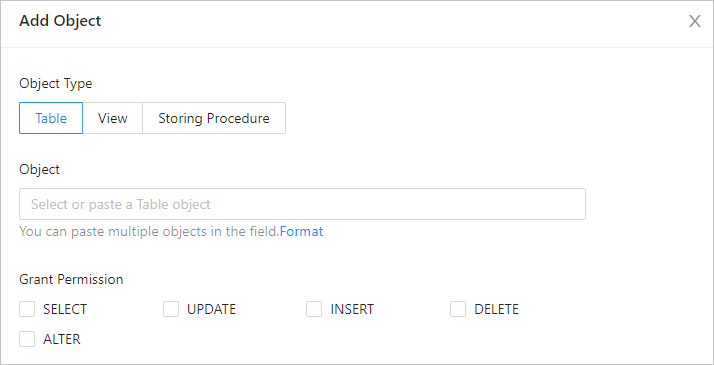
In the upper-right corner of the Accessible Objects section, click Add Object. In the dialog box that appears, add accessible objects and the corresponding privileges as prompted, and click OK.
The following table describes the parameters in the Add Object dialog box.
ParameterDescriptionObject type The type of the object. Valid values: Table, View, and Storing Procedure. Object You can specify multiple objects at a time in the Username.Object nameformat. Separate multiple objects with commas (,).
For example,schemaname.tablename.Grant Permission Select the privileges to be granted.