







This topic introduces how to create a tenant.
Background
The GUI varies with the OceanBase Cloud Platform (OCP) version. In this example, OCP V3.3.2 is used. For OCP of other versions, see the User Guide of the corresponding version.
Procedure
Log on to the OCP console. The Clusters page automatically appears.
In the left-side navigation pane, click Tenants.
In the upper-right corner of the Tenants page, click Create Tenant.

On the Create Tenant page, configure the basic information of the tenant.
Select an OceanBase cluster.
Specify the tenant mode.
OceanBase Database supports the Oracle and MySQL tenant modes.
Set the Tenant Name parameter.
The tenant name must be 2 to 32 characters in length and can contain letters, digits, and underscores (
_).Set the administrator password. The password can be randomly generated.
- In MySQL mode, the administrator account is root.
- In Oracle mode, the administrator account is SYS.
- The password must be 8 to 32 characters in length and contain at least two digits, two uppercase letters, two lowercase letters, and two special characters. The password contains two or more of the following special characters: . _ + @ # $ %
Set the Character Set parameter.
The valid values are utf8mb4, binary, gbk, and gb18030. The default value is utf8mb4.
Set the Collation parameter.
Note
You need to set the Collation parameter only when the Tenant Mode parameter is set to MySQL.
- If Character Set is set to binary, the valid value of Collation is binary.
- If Character Set is set to utf8mb4, valid values of Collation are utf8mb4_bin, utf8mb4_general_ci, and utf8mb4_unicode_ci. Default value: utf8mb4_general_ci.
- If Character Set is set to gbk, valid values of Collation are gbk_bin and gbk_chinese_ci. Default value: gbk_chinese_ci.
- If Character Set is set to gb18030, the valid value of Collation is gb18030_bin. Default value: gb18030_chinese_ci.
(Optional) Set the Remarks parameter.
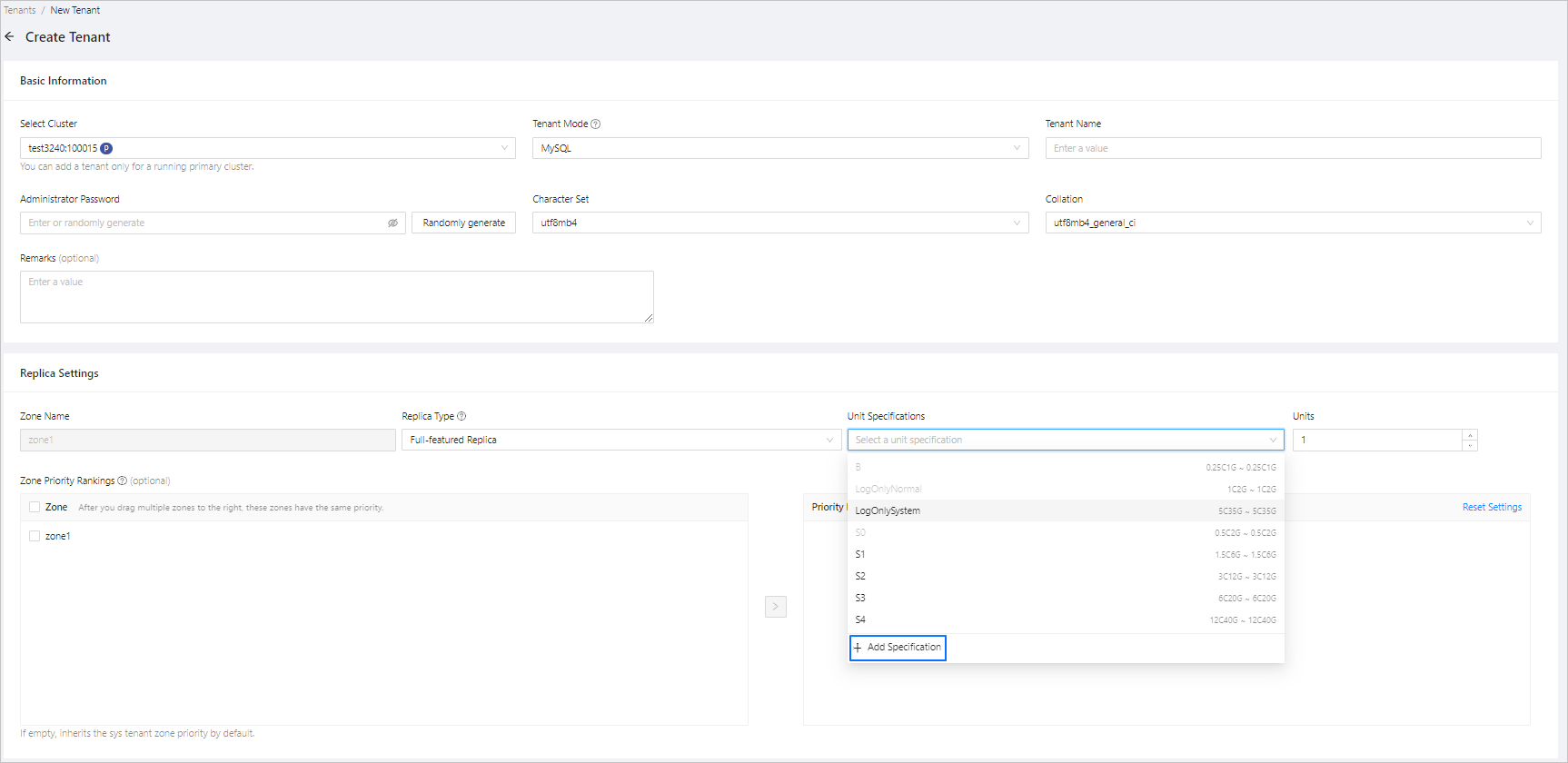
On the Create Tenant page, configure replica settings.
Set the replica type, unit specification, and the number of units for the zones.
After you select a cluster, a list of available zones is displayed based on the zone information of the selected cluster. You can click the delete icon to delete the zones that do not require replica distribution.
Specify the priorities of zones.
To set the same priority for multiple zones, select these zones at the same time and move them to the box on the right side.
Notice
- If a primary zone is specified, the region where the primary zone is located must have at least two zones and at least two full-featured replicas, with one replica for each zone.
- For more information about the primary zone, see Primary zone.
On the Create Tenant page, configure security settings.
Specify the list of clients that are allowed to access the tenant in the IP Address Whitelist field. Valid values:
- Default: All IP addresses are allowed to access this tenant.
- Custom: Only IP addresses on the allowlist are allowed to access this tenant. When you configure the allowlist, you must add the IP addresses of the OCP and ODP servers to the allowlist. Otherwise, you cannot manage the tenant in OCP.
Note
Configure the allowlist in the following formats:
- IP addresses, for example: 10.10.10.10,10.10.10.11
- CIDR block, for example: 10.10.10.0/24
- Fuzzy match, for example: 10.10.10.% or 10.10.10._
- Mixed format, for example: 10.10.10.10,10.10.10.11,10.10.10.%,10.10.10._,10.10.10.0/24
(Optional) Go to the Parameter Settings page and modify the values of tenant parameters.
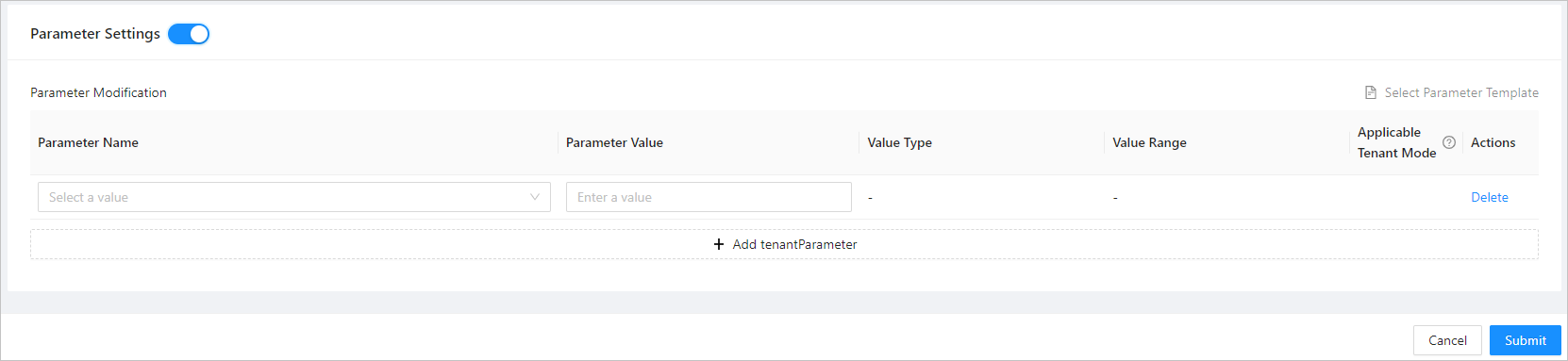
Click Submit.