







You can query cluster-level parameters by using an SQL statement or view the parameters in the OceanBase Cloud Platform (OCP) console.
Query cluster-level parameters by using an SQL statement
Cluster-level parameters define cluster-level configurations. You can query a parameter to check whether it is a cluster-level or tenant-level parameter.
Execute the following statement to check the category of a parameter:
SHOW PARAMETERS [SHOW_PARAM_OPTS];
You can set [SHOW_PARAM_OPTS] to [LIKE 'pattern' | WHERE expr]. Column attributes specified in WHERE expr are the same as those returned by the SHOW PARAMETERS statement.
The following table describes the column attributes returned by the SHOW PARAMETERS statement.
Column name |
Description |
|---|---|
| zone | The zone where the parameter exists. |
| svr_ip | The IP address of the server. |
| svr_port | The port of the server. |
| name | The name of the parameter. |
| data_type | The data type of the parameter. Valid values: STRING, CAPACITY, and so on. |
| value | The value of the parameter.
Note |
| info | The description of the parameter. |
| section | The category of the parameter. Valid values:
|
| scope | The application scope of the parameter. Valid values:
|
| source | The source of the current value. Valid values:
|
| edit_level | Defines the modification behavior of the parameter. Valid values:
|
As described in the table, a parameter whose scope value is CLUSTER is a cluster-level parameter.
Both the sys tenant and user tenants can query cluster-level parameters.
For example,
obclient> SHOW PARAMETERS LIKE 'stack_size';

obclient> SHOW PARAMETERS WHERE edit_level='static_effective' AND name='stack_size';
For more information about cluster-level parameters in OceanBase Database, see System parameters.
Query cluster-level parameters in the OCP console
You can query cluster-level parameters in the OCP console.
Log on to the OCP console. The Clusters page automatically appears.
In the Clusters list, find the target cluster and click its name.
In the left-side navigation pane of the page that appears, click Parameter Management.
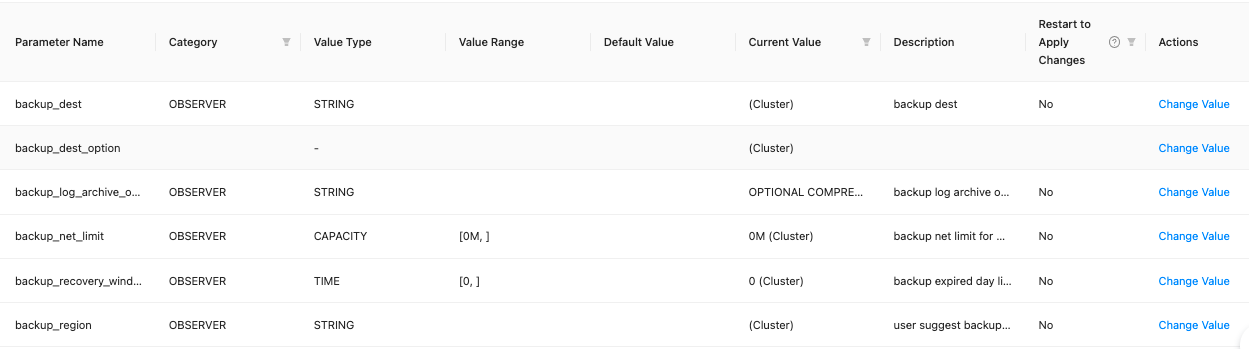
The Parameters page automatically appears. You can view all parameters of the current cluster on the Parameters page.
Note
In the Current Value column, a value followed by (Cluster) takes effect at the cluster level. As shown in the preceding figure, the current value of backup_region is 0 (Cluster), which indicates that the value 0 takes effect at the cluster level.
In the Current Value column, a value followed by (Custom) does not take effect at the cluster level. For example, 2d;1d (Custom) indicates that the value 2d applies to a specific zone and the value 1d applies to a specific OBServer node. You can click each value to view the object to which it applies.
In the search box on the Parameters page, enter part of a parameter name for fuzzy search.
In the search results, find the specified parameter.