







OceanBase Developer Center (ODC) allows you to import and export data and schemas from a specified table. This topic describes how to export and import a single table in ODC.
Limitations on files
The following table describes the requirements for the size of imported and exported data and the retention period of files in ODC.
Requirement |
Description |
|---|---|
| Size of imported and exported data in ODC |
|
| File retention period on the server |
|
Single table export
The following takes ODC V3.3.0 as an example to describe how to export a single table from a database. For more information about other versions, see OceanBase Developer Center.
After you open a database connection, you can click Table in the left-side navigation pane to view the tables. Right-click the name of the target table in the table list, and then select Single Table Export.
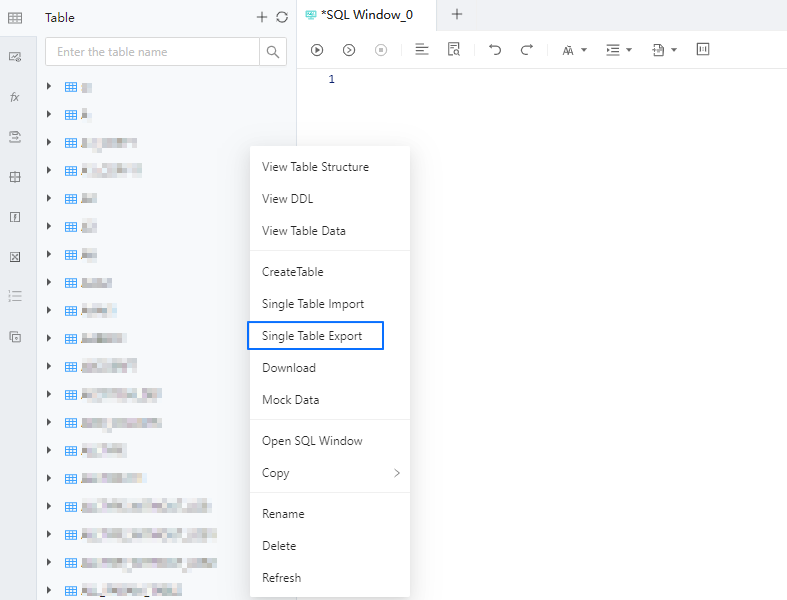
The following table describes the parameters for exporting a single table.
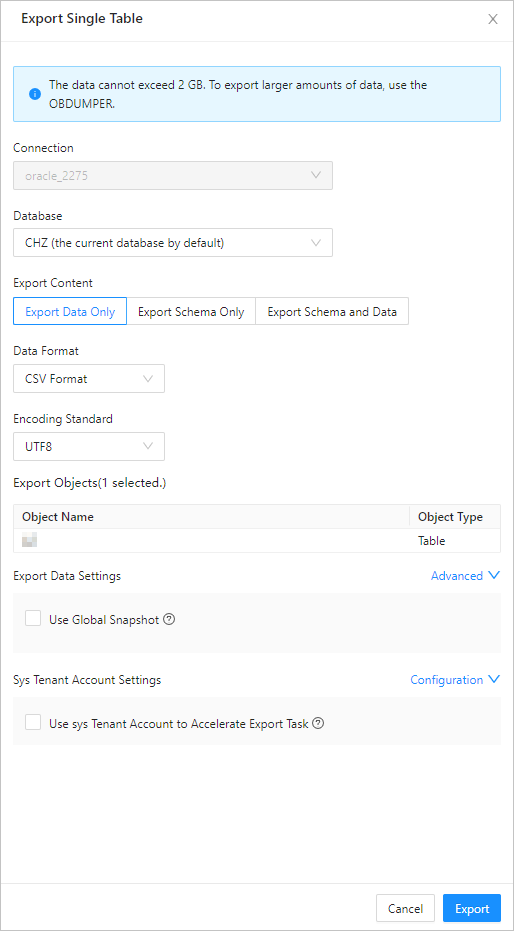 ParameterDescription
Task Name In the Batch Export panel, ODC automatically generates a default task name in the Task Name field in the format of connection name_mode name_date. You can modify the task name. Export Content ODC supports three export modes: Export Data Only, Export Schema Only, and Export Schema and Data. Export Schema Only exports the definition statements of the target object. You need to select an export mode in the Export Content section. Data Format ODC supports exporting data to files in the CSV format and SQL format. If you specify Export Schema Only for Export Content, you can only export data to files in the SQL format. For more information about the supported formats, see Export and import file formats. Encoding Standard ODC supports the following encoding standards: ASCII, ISO-8859-1, GB2312, GBK, GB18030, Unicode (UTF-8), Unicode (UTF-16), Unicode (UTF-32), and BIG5. You need to select a character set from the Encoding Standard drop-down list. Export Objects The table in the Export Objects section contains the Object Name and Object Type columns. Export Data Settings You need to configure the following parameters: - Use Global Snapshot: If you select this option, ODC exports the data in the latest global snapshot of the specified table to ensure global data consistency.
- Batch Commit Quantity (SQL Format): You can click Advanced next to Export Data Settings to enable this feature. If you select SQL Format for Data Format, you can specify the number of rows to be committed during the export. When this number is reached, a
COMMITcommand is executed. - Skipped Data Types: You can click Advanced next to Export Data Settings to enable this feature. Here, you can specify the data types that you want to skip when you export the data. The data types that can be skipped are different in MySQL and Oracle modes. You can select multiple data types.
- Specify information for the CSV format. If you specify the CSV format for Data Format and Export Data Only or Export Schema and Data for Export Content, you can click Advanced next to Export Data Settings to configure the following parameters:
- Include the Column Header: specifies whether to include column headers when data is exported in CSV format. This option is selected by default.
- Convert Empty Character String into Null Value: specifies whether to convert empty strings in the table to NULL values
\Nwhen data is exported in the CSV format. This option is selected by default. - Field Separator: specifies the separator between fields. Commas (
,), semicolons (;), and colons (:) are supported. You can also use a character as the separator. - Text Identifier: specifies the identifier for the text content. Single quotation marks (
') and double quotation marks (") are supported. - Line Break Symbol: specifies the line break symbol. The following characters are supported: \n, \r, and \r\n.
Export Schema Settings Select whether to add the DROP statement. If you select this option, a DROPstatement is added to the correspondingCREATEstatement in the export file.Sys Tenant Account Settings Specify whether to select Use sys Tenant Account to Accelerate Export Task or not. If you select this option, you need to enter the account and password of the SYS tenant in the Account and Password fields. Then, you can use the privileges of this account to export data, which significantly accelerates data export.
Notice
- The account and password of the sys tenant are the account and password of a user in a cluster tenant. Do not enter @sys#cluster in the Account field.
- To export objects other than tables and views, you must specify the sys tenant account.
- If the account of the sys tenant is not configured, comments and indexes are not imported or exported.
Generate an export task.
After you specify all preceding information, you can click Export in the lower-right corner of the panel to generate an export task.
View the export task.
After the export task is generated, the Task Center panel automatically appears, where you can view the task information and download exported data files.
Terminate the export task.
After the task is generated, the Task Center page automatically appears, where you can terminate a running export task.
Single table import
The following takes ODC V3.3.0 as an example to describe how to import a single table to a database. For more information about other versions, see OceanBase Developer Center.
After you open a database connection, you can click Table in the left-side navigation pane to view the tables. Right-click the target table name in the table list, and then click Single Table Import.
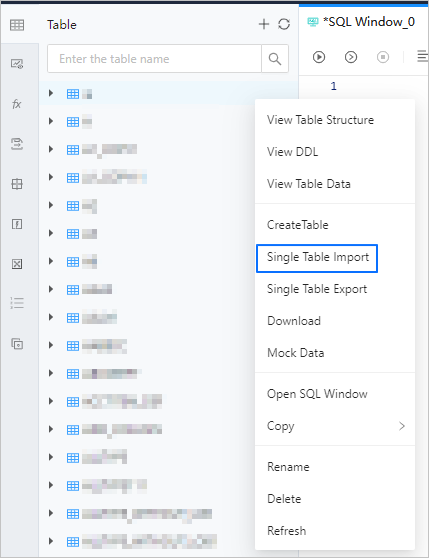
The following table describes the parameters for importing a single table.
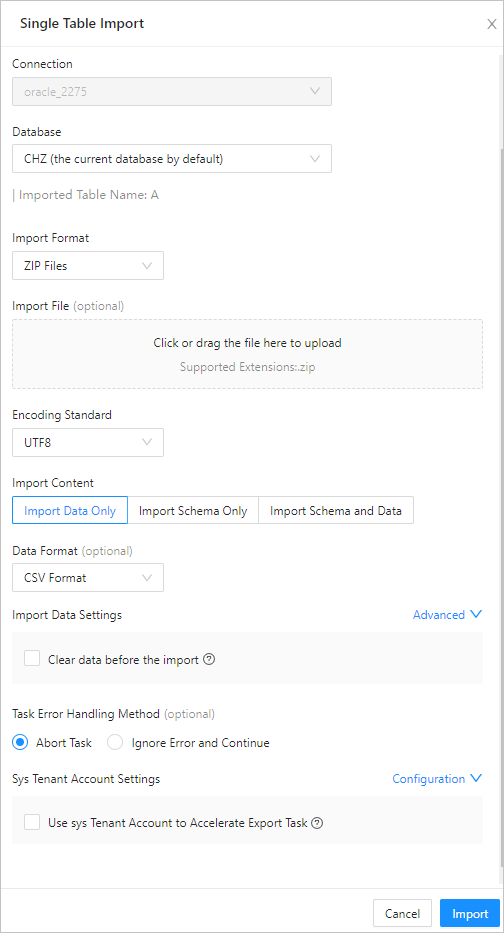 ParameterDescription
Task Name In the panel, ODC automatically generates a task name in the Task Name field in the format of connection name_mode name_date. You can modify the task name. Import Format ODC currently supports SQL files and ZIP files for batch import. You need to select a data format from the Import Format drop-down list. For more information about the supported formats, see Export and import file formats. Import File Click the file pool to go to the file explorer and select the file to be imported. You can also directly drag the file to the file pool to upload it. The format of the uploaded file must be the same as that of the value you specified for Import Format. To upload a file in the ZIP file format, you must first package it into a .zip file. SQL files suffixed with .sql are supported. Encoding Standard ODC supports the following encoding standards: ASCII, ISO-8859-1, GB2312, GBK, GB18030, Unicode (UTF-8), Unicode (UTF-16), Unicode (UTF-32), and BIG5. You need to select a character set from the Encoding Standard drop-down list. Import Content You must specify this parameter when you select ZIP Files for Import Format. ODC supports Import Data Only, Import Schema Only, and Import Schema and Data. Import Schema Only imports the definition statements of the target object. You need to select a mode under Import Content. Data Format You must specify this parameter when you select ZIP Files for Import Format. ODC only supports importing data in CSV format and SQL format. For more information about the supported formats, see Export and import file formats. If you specify Import Schema Only for Import Content or SQL Files for Import Format, you do not need to select the data format. Import Data Settings If you specify ZIP Files for Import Format and Import Data Only or Import Schema and Data for Import Content, this option must be specified. You need to configure the following parameters: - Clear Data Before Import: If you select this option, the original data in the destination object is cleared during data import.
- Batch Commit Quantity: You can click Advanced next to Import Data Settings to enable this feature. After you enable this feature, a
COMMITstatement is executed when the number of exported data rows reaches the specified quantity. - Skipped Data Types: You can click Advanced next to Import Data Settings to enable this feature. Here, you can specify the data types that you want to skip when you import the data. The data types that can be skipped are different in MySQL and Oracle modes. You can select multiple data types.
CSV format information If you specify CSV Files for Import Format, click Advanced next to Import Data Settings to configure the following parameters. - Include the Column Header: specifies whether to include column headers when data is imported in the CSV format. This option is selected by default.
- Convert the Empty String into a Null Value: This option is selected by default. This option determines whether to convert empty strings in the table to NULL values when data is imported in the CSV format.
- Field Separator: specifies the separator between fields. Commas (
,), semicolons (;), and colons (:) are supported. You can also use a character as the separator. - Text Identifier: specifies the identifier for the text content. Single quotation marks (
') and double quotation marks (") are supported. - Line Break Symbol: specifies the line break symbol. The following characters are supported: \n, \r, and \r\n.
Task Error Handling Method ODC supports two error handling methods: Abort Task and Ignore Error and Continue. You need to select the handling method under the Task Error Handling Method label. Sys Tenant Account Settings Specify whether to select Use sys Tenant Account to Accelerate Import Task or not. If you select this option, you need to enter the account and password of the SYS tenant in the Account and Password fields. Then, you can use permissions of this account to import data, which significantly accelerates data import. Notice The account and password of the sys tenant are the account and password of a user in a cluster tenant. Do not enter @sys#cluster in the Account field. If the account of the sys tenant is not configured, comments and indexes are not imported or exported. Generate the import task.
After you specify all preceding information, you can click Import in the lower-right corner of the panel to generate the import task.
View the import task.
After the task is generated, the Task Center page automatically appears, where you can view the task information.
Terminate the import task.
After the task is generated, the Task Center page automatically appears, where you can terminate a running import task.