







This topic describes how to use OceanBase Developer Center (ODC), OceanBase Cloud Platform (OCP), or the SQL command-line interface (CLI) to change the password of a user in OceanBase Database.
Change the password of a user in ODC
Prerequisites
ODC is connected to the database.
Procedure
Log on to the ODC console.
On the Connections page, select the connected database whose user password you want to change and click Open in the Actions column.
In the SQL window, enter and run the ALTER USER command to change the user password. SQL syntax:
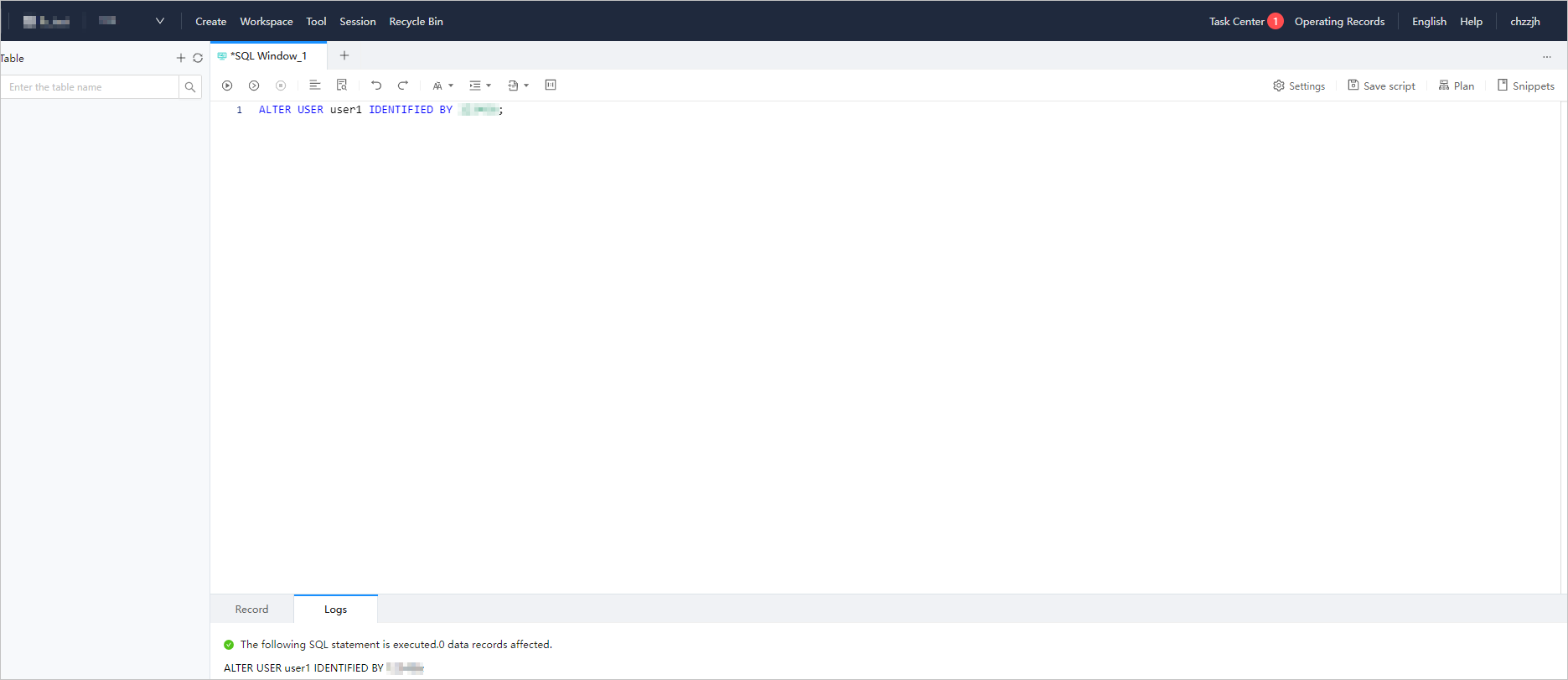
ALTER USER username IDENTIFIED BY password;
Change the password of a user in OCP
Before you change the password of a user under a tenant, make sure that you have the privileges to manage the tenant.
Prerequisites
You have the privileges of the TENANT_MANAGER role in OCP. Otherwise, request the OCP administrator to grant you the privileges. For more information, see "Edit a user" in the OCP User Guide of the corresponding version.
Procedure
Log on to the OCP console.
In the left-side navigation pane, click Tenants.
In the tenant list, find the tenant to which the user belongs and click the tenant name. The Overview page appears.
In the left-side navigation pane, click User Management.
In the user list, find the user whose password is to be changed. In the Actions column, click Change Password.

In the dialog box that appears, enter the new password and confirm it, and then click OK.
Change the password of a user by using the CLI tool
You can run the ALTER USER command to change the passwords of other users. To run this command, you must have the UPDATE USER privilege.
Syntax
ALTER USER 'username' IDENTIFIED BY 'password';
Example
The following sample statement shows how to change the password of the user ny into ***1**:
obclient> ALTER USER ny IDENTIFIED BY '***1**';
Query OK, 0 rows affected