







This topic describes the background information, limitations, procedure, scenarios, and troubleshooting tips for configuring matching rules for migration objects.
Background information
When you create a data migration project, you must specify the migration objects. To do so, OceanBase Migration Service (OMS) Community Edition allows you to specify the names of migration objects, import migration objects by using a CSV file, and specify migration object match rules. If you set the migration object selection mode to Match Rules for a migration project, you can specify the migration objects by configuring wildcard rules and specify the object-mapping logic between the source and destination data sources. This feature makes it easier to migrate a great number of objects based on simple and efficient string-matching rules. If a new table at the source meets a matching rule, the DDL statement that created the table can be automatically synchronized to the destination. For more information about DDL operations, see topics in the Supported DDL operations for synchronization and limitations chapter.
Limitations
OMS Community Edition allows you to specify multiple rules. Each rule occupies a single row without leading and trailing spaces.
Object migration rules are required and object exclusion rules are optional.
OMS Community Edition does not support DDL modifications during schema migration or full data migration.
When you set the migration object selection mode to Match Rules, OMS Community Edition does not support table names that contain special characters. Special characters are line breaks and | " ' ` ( ) = ; / & * ?
If wildcards are used, you cannot modify the destination database name or table name.
Considerations
After you configure object migration rules and object exclusion rules, if the name of a source table exists in the difference set between the object migration rules and object exclusion rules, the related object can be selected.
Note
A difference set between two sets contains all elements that exist in one set but do not exist in the other set.
After you enable the DDL synchronization feature, when you use a DDL statement to create a new table or modify a table schema in the source database, if the table name or table schema name is within the difference set between the migration object rule and the object exclusion rule, the DDL statement is synchronized to the destination database in real time by OMS Community Edition.
If you want to aggregate multiple tables:
We recommend that you configure the mappings between the source and destination databases by importing objects or specifying matching rules.
We recommend that you manually create schemas at the destination. If you use OMS Community Edition to create schemas, skip failed objects in the schema migration step.
When you execute the
RENAME TABLEDDL statement, if the new table name falls out of the original match rules or exclusion rules, unexpected synchronization errors may occur. Proceed with caution.
Configure matching rules
Create a data migration project and configure it to the Select Migration Objects step.
For more information, see the topic about creating a data migration project between the corresponding data sources in the Data migration chapter.
On the Select Objects page, select the migration objects and migration scope.
You can select Specify Objects or Match Rules to specify the migration rules. This section describes how to configure a matching rule.
Select Match Rules.
In the Specify Migration Scope section, specify object migration rules in the Object Migration Rule field and object exclusion rules in the Object Exclusion Rule field. The Object Exclusion Rule field is optional. For more information, see Wildcard rules.
Click Verify.
To view the matching results, click Preview Objects after the verification succeeds. The wildcard-based matching rules and exclusion rules apply to tables and views. The matching results are displayed on the Final Objects, New Objects, and Removed Objects tabs.
TabDescriptionFinal Objects Displays the migration objects that are hit by the specified matching rules. New Objects Displays the migration objects that are not in the result of the previous matching. Removed Objects Displays the migration objects that are only in the result of the previous matching.
Complete subsequent project settings as prompted.
Sample scenarios
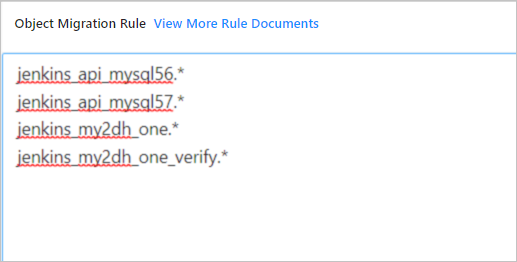
Assume that you have four databases in the production environment: jenkins_api_mysql56, jenkins_api_mysql57, jenkins_my2dh_one, and jenkins_my2dh_one_verify. This section describes how to configure matching rules in different scenarios.
Synchronize all four databases
To synchronize all four databases to the destination, configure the matching rules as shown in the following figure.
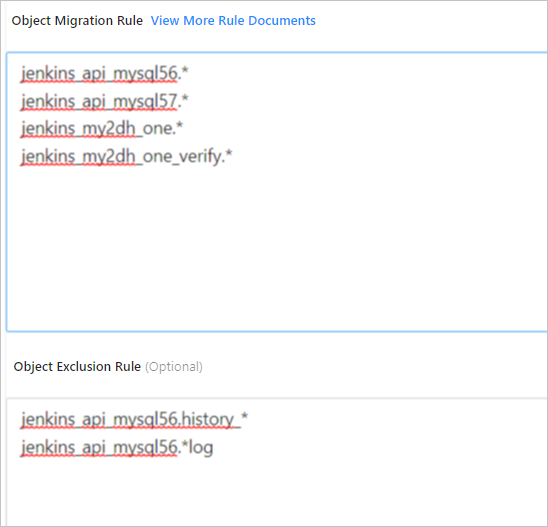
Exclude historical tables and log tables
To exclude historical tables whose names begin with "history_" and log tables whose names end with "log" in the jenkins_api_mysql56 database, configure the matching rules as shown in the following figure.
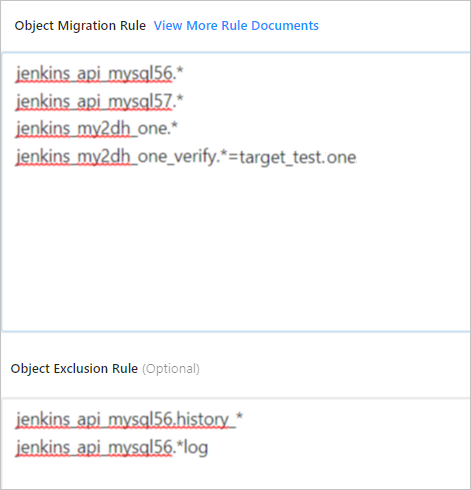
Set the mapping relationship between the source and destination databases
To synchronize the jenkins_my2dh_one_verify database to the destination database target_test, configure the matching rule as shown in the following figure.
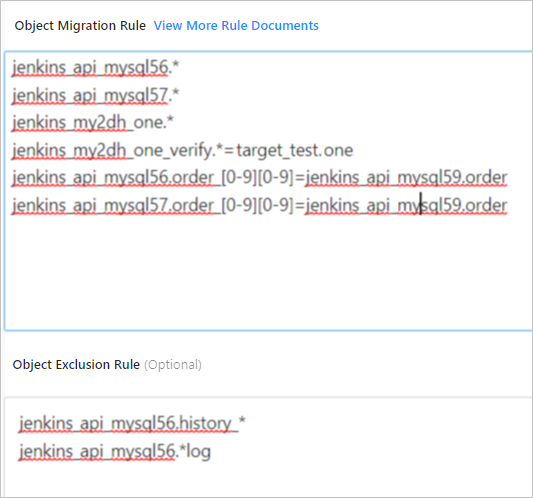
Aggregate multiple tables
To aggregate the order tables named from order00 to order99 in the jenkins_api_mysql56 and jenkins_api_mysql57 databases to orders in the destination database jenkins_api_mysql59, configure the matching rules as shown in the following figure.
FAQ
Insufficient privilege
Pay attention to the privilege settings of the source database user. If you do not grant all required privileges to the migration user, some objects may not displayed in the frontend by OMS Community Edition, and you cannot properly configure matching rules. In this case, you must add these objects to Object Exclusion Rule to prevent the data migration project from being interrupted when OMS Community Edition cannot find the destination objects.
DML filtering unsupported
If DDL synchronization is not enabled, OMS Community Edition allows you to set the migration object selection mode to Match Rules. If a new table meets the matching rules during incremental synchronization, OMS Community Edition ignores the related DDL statements but synchronizes the DML statements. As a result, data cannot be written to the destination, and the data migration project fails. Therefore, you must create a table in the destination or add the table to the blocklist of OMS Community Edition.