






This document describes how to view the OceanBase Developer Center (ODC) runtime environment and version information.
The OS environment information includes the OS version, Java version, and environment variables.
Linux
Run the following command to view environment information in a Linux operating system:
# Check the OS kernel version
uname -a

# Check the OS version for a Red Hat- or CentOS-based system
cat /etc/*-release

# Check the OS version for a Debian-based system
cat /etc/*_version

# Check the CPU info
lscpu

# Check the memory info
free -m

# Check the Docker version
docker -v

# Check the Java version
java -version
Windows
Run the following command to view environment information in a Windows operating system:
# Check the OS info
systeminfo | findstr /C:"OS"

# Check the CPU info
wmic cpu get caption, deviceid, name, numberofcores, maxclockspeed, status

# Check the memory info
wmic os get freephysicalmemory, freevirtualmemory

# Check the Java version
java -version
macOS
# Check the OS kernel version
uname -a

# Check the OS version
sw_vers

# Check the CPU info
sysctl -a | grep machdep.cpu

# Check the memory info
memory_pressure

# Check the Java version
java -version
Chrome
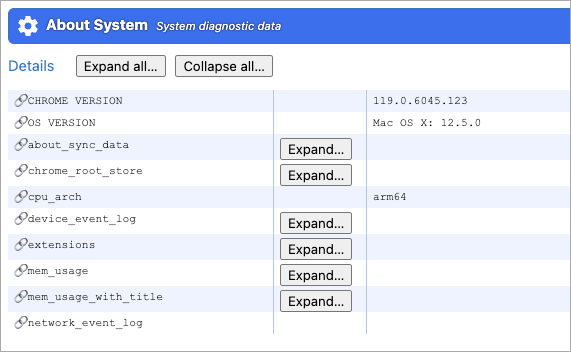
Enter chrome://system/ in the address bar of the browser.
Here is the sample result:
Firefox
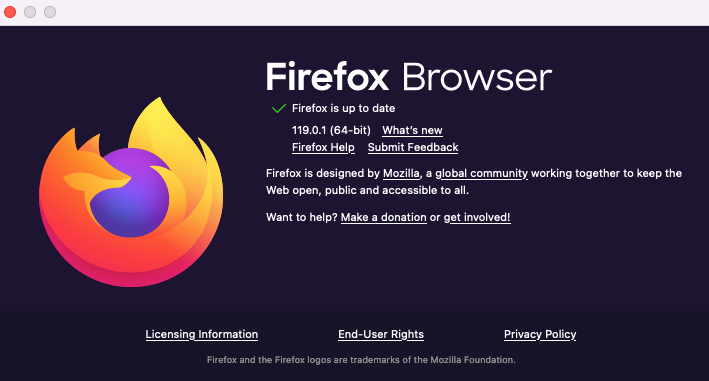
Click the top right menu and choose Firefox Help > About Firefox and check the version number.
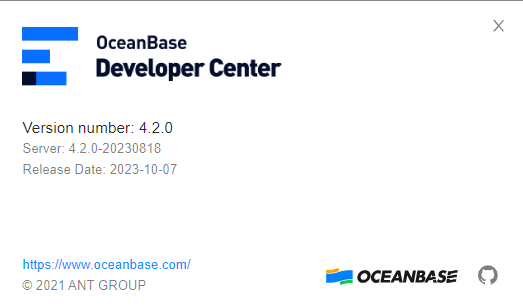
Choose Help > About Developer Center and check the ODC version.
Here is the sample result:
On the OBServer node
Run the observer -V command and check the OceanBase Database version. Here is the sample code:
bin/observer -V
observer (OceanBase 3.1.1)

REVISION: 1-de6a3aa580f8b1a83616e84aad816085ddec5085
BUILD_BRANCH: HEAD
BUILD_TIME: Dec  6 2021 03:11:30
BUILD_FLAGS: RelWithDebInfo
BUILD_INFO: jenkins-oceanbase_build_3_1_7u-B418

Copyright (c) 2021 Ant Group Co., Ltd.
In ODC
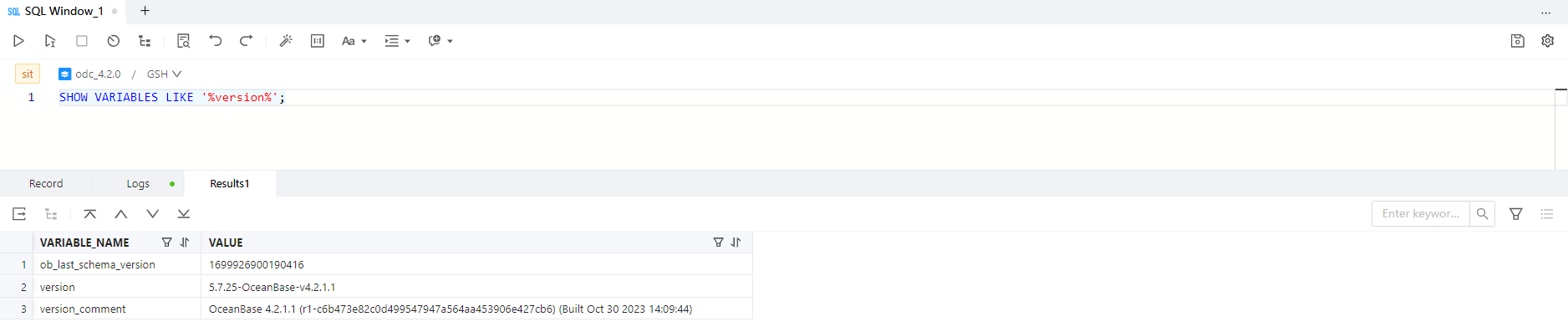
If you have connected to OceanBase Database by using ODC, run the following command in the SQL window in ODC:
MySQL mode
--Tenant variables
show variables like '%version%';

System Parameters
show parameters like 'min_observer_version';

-- version() function
select version();

-- You can query the __all_server system table in the sys tenant for build_version.
select min(build_version) as min_build_version from oceanbase.__all_server;
Oracle mode
--Tenant variables
show variables like '%version%';

-- v$version view
select * from v$version;
Here is the sample result:
On the ODP server
Run the obproxy -V command and check the ODP version number. Here is the sample code:
$bin/obproxy -V
bin/obproxy -V
obproxy (OceanBase 1.7.1 1874885.el7)
REVISION: 1874885-e61ae9b8d91d6af8c14fd3f27677666ed53d4565
BUILD_TIME: Mar 27 2020 14:01:52
BUILD_FLAGS: -g -O2 -D_OB_VERSION=1000 -D_NO_EXCEPTION -D__STDC_LIMIT_MACROS -D__STDC_CONSTANT_MACROS -DNDEBUG -D__USE_LARGEFILE64 -D_FILE_OFFSET_BITS=64 -D_LARGE_FILE -D_LARGEFILE_SOURCE -D_LARGEFILE64_SOURCE -Wall -Werror -Wextra -Wunused-parameter -Wformat -Wconversion -Wno-deprecated -Wno-invalid-offsetof -finline-functions -fno-strict-aliasing -mtune=core2 -Wno-psabi -Wno-sign-compare -DGCC_52 -DSUPPORT_SSE4_2 -DHAVE_SCHED_GETCPU -DHAVE_REALTIME_COARSE -DOB_HAVE_EVENTFD -DHAVE_FALLOCATE -DHAVE_MINIDUMP

Copyright (c) 2007-2020 Alipay Inc.
If you cannot access ODC by using a browser, you may use the curl ODC health check API to determine whether the application is working properly. Here is the sample code:
curl -XGET http://${ip}:${port}/api/v1/heartbeat/isHealthy
In normal cases, the response is returned immediately. Here is the sample response:

If the call is stuck or an error is returned, the browser may be stuck due to a backend issue. Retain the odc.log log and contact OceanBase Technical Support.