







This topic provides information on exporting the schema and data of database objects.
Background information
OceanBase Developer Center (ODC) allows you to export schemas and data of database objects in batches.
You can create an export task to export only schemas of database objects, only data of database objects, or both.
Export both schema and data: Export both the definition statements and data of database objects.
Export data only: Export only data of table or view objects.
Export schema only: Export only definition statements of database objects.
Formats of exported files
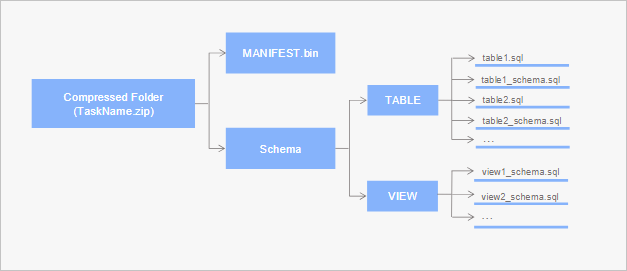
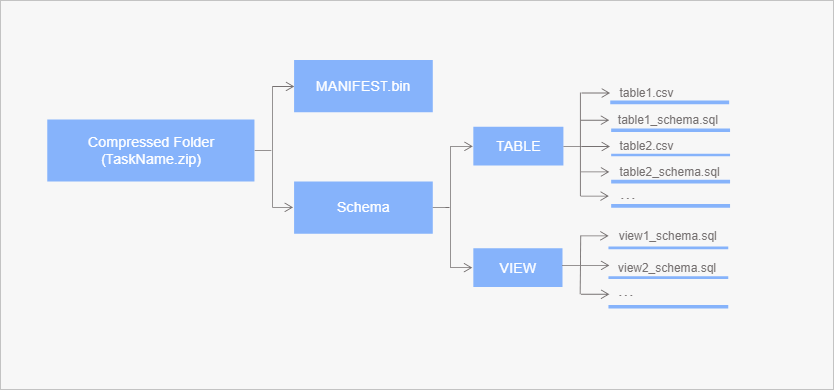
ODC exports data in a zip file, which contains the metadata file MANIFEST.bin, the schema definition files of the exported objects, and the data files.
When you create an export task, if you set Data Format to SQL Format, the zip file contains the schema definition files named in the <object name>-schema.sql format and data files named in the <object name>.sql format. The object names are the same as those of the objects in the database.
If you set Data Format to CSV Format, the zip file contains the schema definition files named in the <object name>-schema.sql format and data files named in the <object name>.csv format. The object names are the same as those of the objects in the database.
Considerations
In web ODC, the maximum size of files exported in one batch cannot exceed 2 GB before compression. To export data of a larger size, use OceanBase OBDUMPER.
The status of a task, such as Succeeded, Failed, and Canceled, does not affect the lifecycle of the task files. Tasks are permanently retained. Task-related files are retained for 14 days by default.
Instances earlier than OceanBase Database V2.2.30 support only UTF8.
In ODC V2.2.1 and earlier, to use the export feature, you must connect to the target OceanBase Database instance by using ODP. ODC does not support the export feature for direct connections.
In ODC V2.4.1 and later versions, you can configure the sys tenant account to improve the export speed. To export objects other than tables and views, you must configure the sys tenant account.
Create an export task
Assume that you want to batch export the schemas and data of the employee and salary tables from the odc_test database to a local disk.
Parameter |
Example |
|---|---|
| Data Source | mysql410 |
| Database Name | odc_test |
| Table Name | employee, salary |
On the Ticket tab, choose Export > Create Export Task.
In the Create Export Task panel, select the content to be exported.
Select a database.
Select the database where the object to export resides. The data source name of the target database of the task is also displayed.
Notice
OceanBase Database does not support the export feature for built-in databases in MySQL mode.
Select the export range.
You can select Partial Export or Full Export.
If you select Partial Export, you can select the objects you want to export in the Select Objects pane in the Export Objects section. You can use the search field to search for desired objects.
If you select Full Export, all objects in the database are exported.
Go to the Export Settings panel.
Click Next: Export Settings to specify the file export settings and the sys tenant account.
Configure the data files.
Note
If you set Export Content to Export Schema Only, you do not need to configure a data file.
ParameterDescriptionData Format ODC supports exporting data to files in the CSV format and SQL format. If you specify Export Schema Only for Export Content, you can only export data to files in the SQL format. File Encoding ODC supports the following file encodings: ASCII, ISO-8859-1, GB2312, GBK, GB18030, Unicode (UTF-8), Unicode (UTF-16), Unicode (UTF-32), and BIG5. Maximum Size of a Single File If you set Export Content to Export Schema Only, you do not need to configure this parameter.
You can select the maximum size of a single-table data file. If the size of a file exceeds the maximum size, the file is automatically split into smaller ones for the export. If you do not specify the maximum size, the files are not split into small ones.CSV Settings If you select the CSV format for the export and set Export Content to Export Schema and Data, you can specify the following information: - Include Column Header: specifies whether to include column headers when data is exported in CSV format. This option is selected by default.
- Convert Empty Character String into Null Value: This option is selected by default to determine whether to convert empty strings in the table to NULL values when data is exported in CSV format.
- Field Separator: specifies the separator between fields. The following signs are supported: commas (,), semicolons (;), and colons (:). You can also use a character as the separator.
- Text Identifier: specifies the identifier for the text content. Single quotation marks (') and double quotation marks (") are supported.
- Line Break Symbol: specifies the line break symbol. The following characters are supported: \n, \r, and \r\n.
Batch Commit Quantity (SQL Format) When you export data in the SQL format, after you specify this field, a COMMITstatement is executed when the number of exported data rows reaches the specified quantity.Use Global Snapshot After you select this option, ODC will export the data in the globally latest snapshot for the specified table. You can select this option to ensure global data consistency. Configure schema files.
If you set Export Content to Export Schema Only, you can select whether to merge the export results into one SQL file. If you select this option, the DDL statements are merged into and exported as an SQL file.
Choose whether to select Add DROP TABLE Statement before CREATE TABLE Statement. If you select this option, a
DROPstatement is added before the correspondingCREATEstatement of an object when the schema files of the object are exported.
Specify the task execution method.
Select Execute Immediately or Timed Execution.
Set the sys tenant account.
Select Use sys Tenant Account to Accelerate Import Task and specify Account and Password.
Click Test Connection next to the password field to test the connection to the target database. By default, the account for the connection settings is automatically filled in. If the connection fails, we recommend that you change the password for this export.
Notice
- The account and password of the sys tenant are the account and password of a user in the cluster. Do not enter
@sys#clusterin the Account field. For example, the account of the root@sys user is root. - If the sys tenant account is not configured, the import and export speed may be affected.
- The account and password of the sys tenant are the account and password of a user in the cluster. Do not enter
Retain the current configuration.
After specifying all information, select Retain Current Configuration in the lower-left corner of the panel to save the configuration of the current data files and schema files.
Generate an export task.
After you specify all preceding information, you can click Export in the lower-right corner of the panel to create an export task.
View an export task
Task list
Note
- The tasks in the last 48 hours are displayed in the task list.
- ODC allows you to run up to three export tasks in parallel, while subsequent tasks wait in the queue.
After an export task is generated, the Ticket panel appears. In the Export panel, you can view the approval status and basic information of the task and download the exported data and schema files.
The following table describes the columns in the Export task list.
Column |
Description |
|---|---|
| No. | The ID of the export task. |
| Type | The type of the task specified when you created the task. |
| Ticket Description | The description that you entered when you initiated the task. |
| Current Reviewer | The reviewer of the task. Click the  icon to search for and filter the operator. icon to search for and filter the operator. |
| Created By | The user who created the export task. You can click the search icon to search for tasks created by a specific creator. |
| The time when the replica was created. | The date and time when the task was generated. |
| Status | The current status of the task. ODC provides different management actions for tasks in different states. |
| Actions | Click View to go to the Task Details page to view the task information and task logs. |
Task information
As shown in the preceding figure, click View in the Export task list.
In the Task Details panel, click the Task Information tab to view the basic information of the task, export files, and export objects.
ParameterDescriptionBasic task information Displays information in fields such as Execution Status, Task ID, Database, Task Type, Risk Level, Execution Method, Created By, and Created At. Export file information Displays fields such as Export Content, Data Format, File Encoding, Export Data Settings, Export Schema Settings, Task Error Handling, and sys Tenant Account Settings. Export object information Displays the information about the objects during data export, including Object Name, Object Type, Schema Processing Status, Processed Quantity, and Data Processing Status.
Task process
In the Task Details panel, click the Task Process tab to view the status information, such as Initiated Task, Approval, and Execution.
Task logs
In the Task Details panel, click the Task Logs tab to view all logs and alert logs of the task.
Parameter |
Description |
|---|---|
| All Logs | Displays the complete information of all task logs, including INFO, ERROR, and WARN logs. |
| Alert logs | Displays the ERROR and WARN logs of the task. When a task fails, you can view the error message in the alert logs. |
In addition, the toolbar provides the following buttons:
Button |
Description |
|---|---|
| Find | Click this button to search for logs. |
| Download | Click this button to download logs. |
| Copy | Click this button to copy logs. |
Export files
In the lower-right corner of the Task Details panel, click Download to export the files to your local disk.