







This topic introduces the user interface of OceanBase Developer Center (ODC).
Project collaboration window
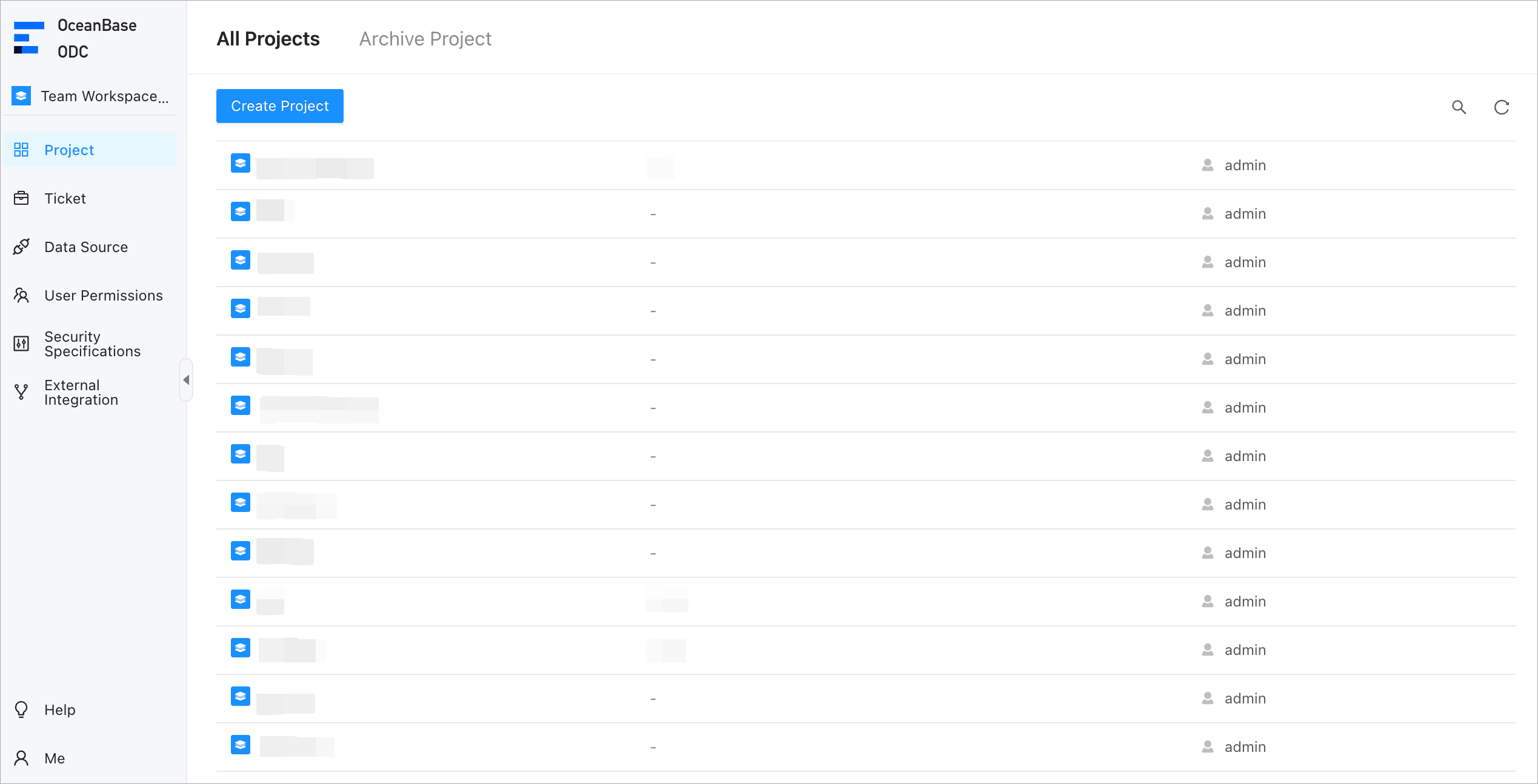
Log on to ODC and choose Team Workspace to go to the ODC project collaboration window.
Workspace
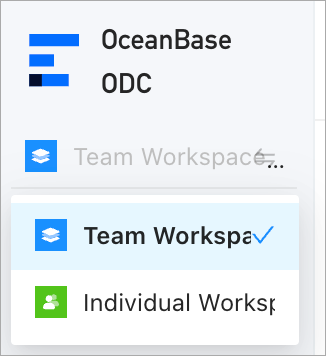
Click Workspace to switch between the team workspace and individual workspace.
Team Workspace: supports multiple projects and members. It provides unified control rules to improve the collaboration efficiency of project teams and secure changes to data sources.
Individual Workspace: supports flexible management of personal data sources without complex control rules and restrictions.
Project

Users with project administrator permissions can create multiple projects and members. Members of the same project can perform collaborative control on databases, tickets, members, and sensitive data in the project.
Data source

You can connect ODC to an OceanBase database. After the connection is successfully established, you can edit and manage the connected data sources, including the database objects and resources, in ODC.
Command-line window
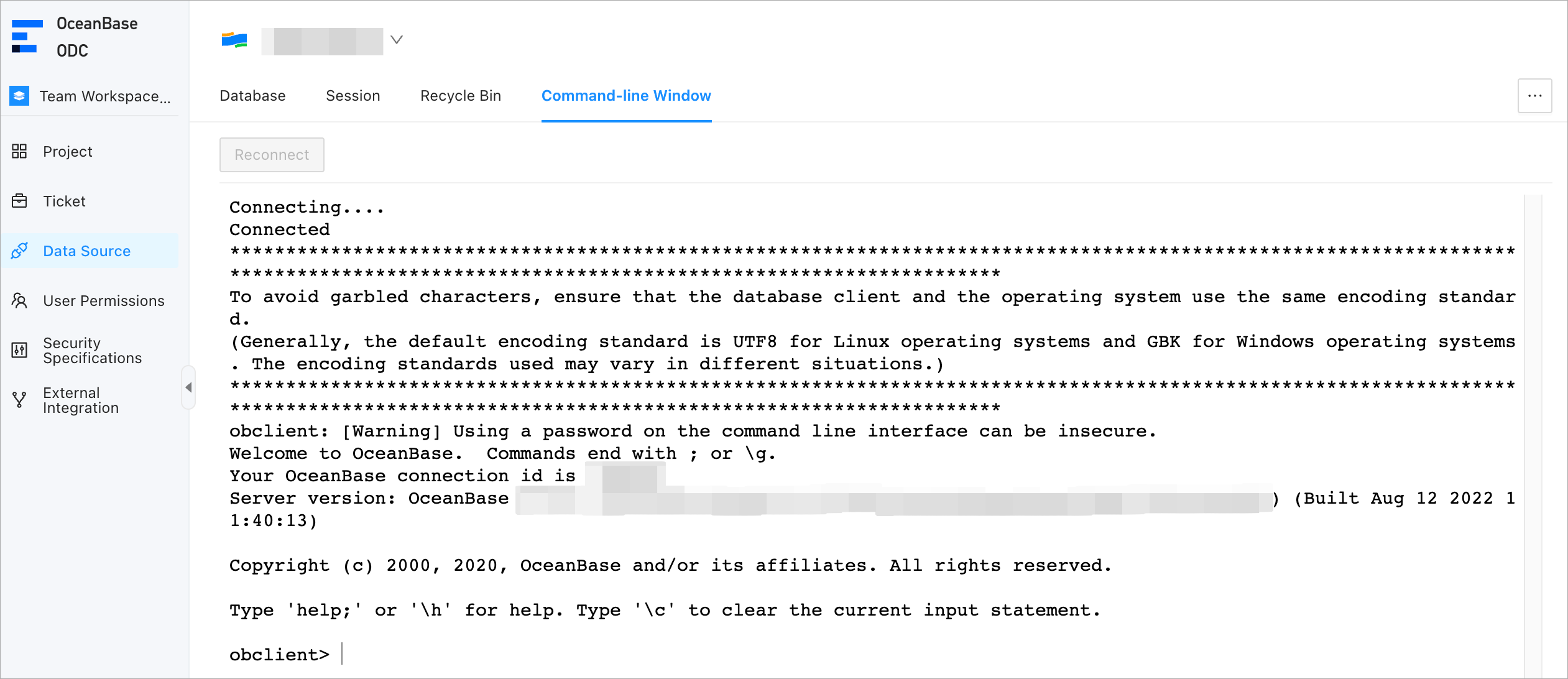
In the command-line window, you can directly execute SQL or PL statements and view the results in real time. You can also run files uploaded to the server by using the SOURCE command.
Ticket

In ODC, you can submit tickets to apply for data export, data import, data mocking, database change, lock-free structure changes, scheduled SQL plan execution, and scheduled data archiving. You can also approve tickets in ODC.
User permissions

Users with the ODC system administrator role can add users to teams and add roles to users to grant resource management and system operation permissions. They can also set automatic authorization rules to automatically grant specific roles or permissions to users that meet the specified conditions upon initial logon or creation. This avoids repeated authorization operations.
Security specifications

You can set and manage environments, risk levels, risk identification rules, desensitization algorithms, approval processes, and operation records in security specifications.
External integration
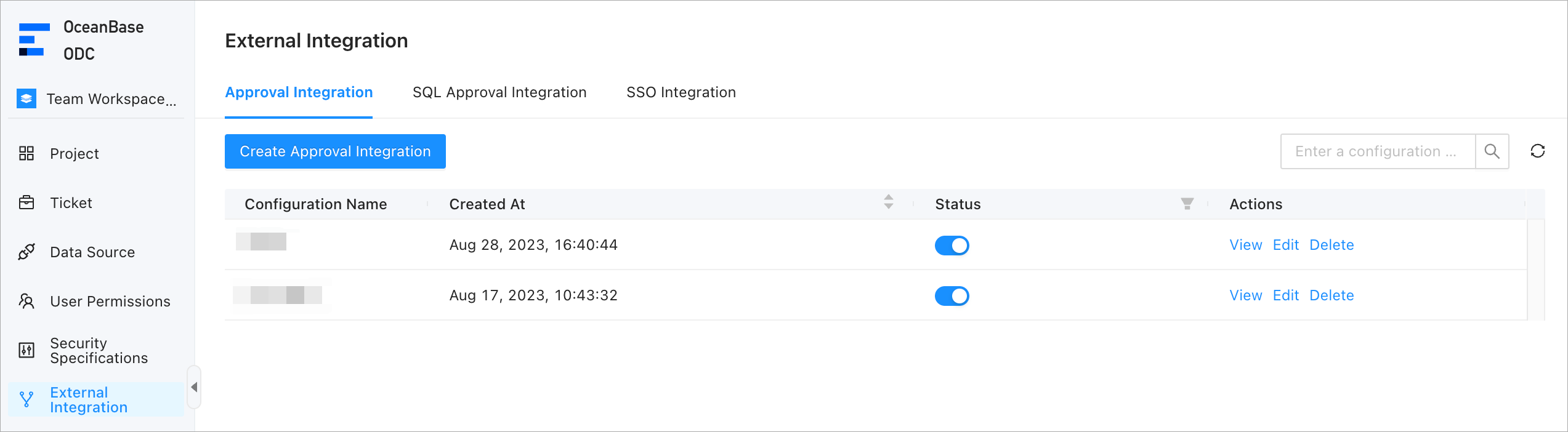
ODC allows to integrate external approval systems into ODC. To do so, you can integrate the custom code of the external systems on the Approval Integration and SQL Approval Integration tabs of the External Integration page. Then, ODC calls the APIs that you configured for external approval process management and SQL interception checks.
You can also configure single sign-on (SSO) of the OpenID Connect (OIDC) or OAuth2 type for ODC on the SSO Integration tab of the External Integration page.
Help
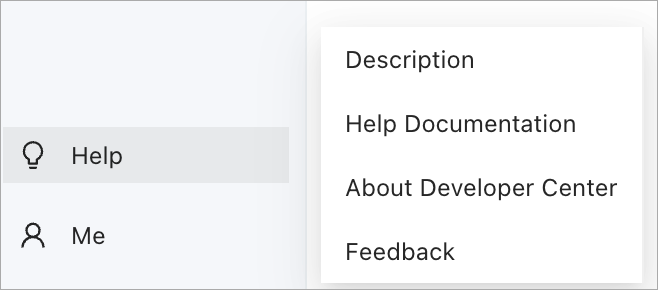
You can click Help in the lower-left corner of the ODC homepage to view the operation tutorials, new features, and FAQ of ODC.
Click the desired document on the tab. The introduction information and redirect link of the document are then displayed in the window that appears.
Me

On the Me page, you can change the password, modify the language, configure preferences, view operating records, and exit ODC.
SQL development window
After you log on to a database, the SQL development window appears.
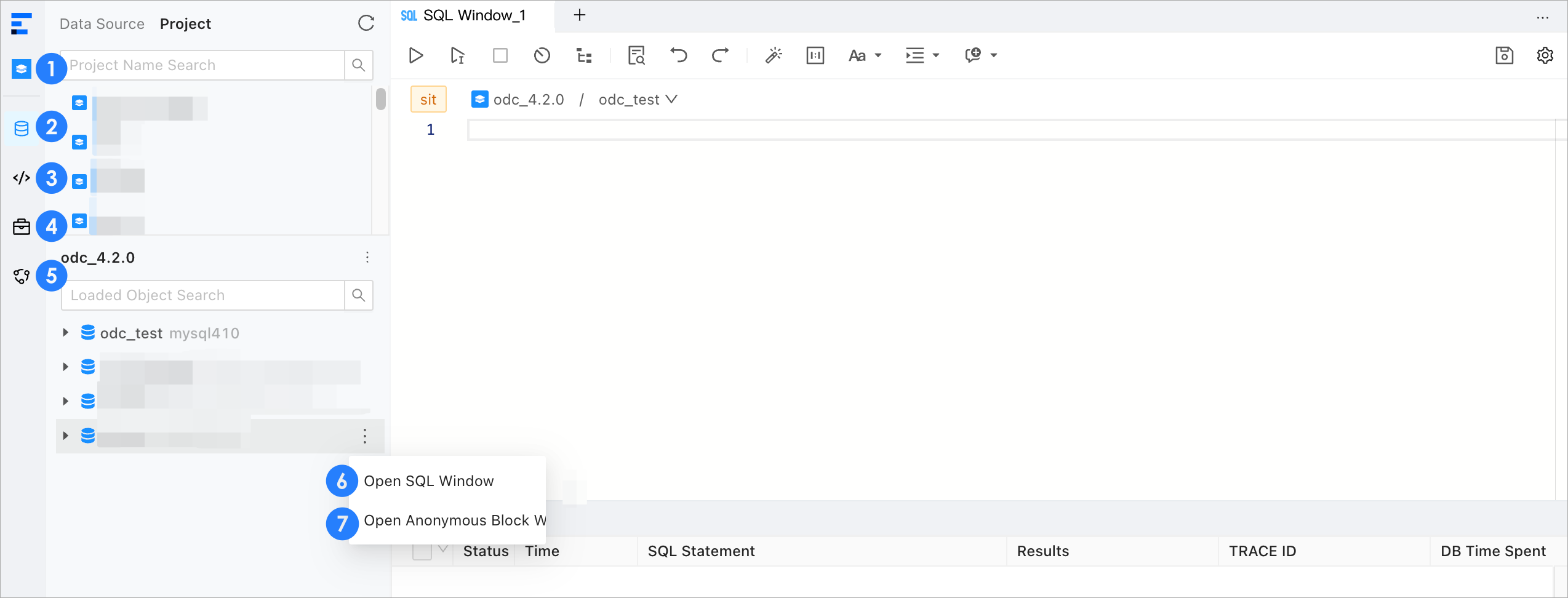
No. |
Window |
|---|---|
| 1 | Workspace |
| 2 | Database |
| 3 | Script |
| 4 | Ticket |
| 5 | O&M Management |
| 6 | SQL Window |
| 7 | Anonymous Block Window |
Workspace
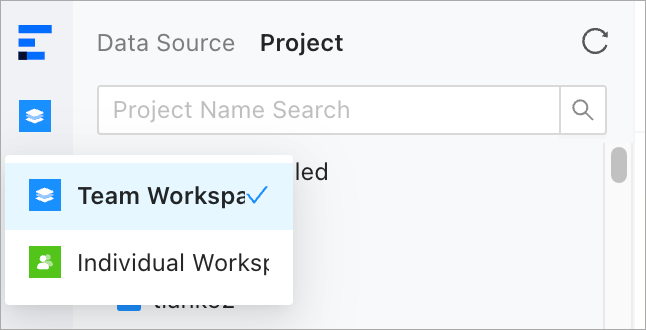
Click Workspace to switch between the team workspace and individual workspace.
Team Workspace: supports multiple projects and members. It provides unified control rules to improve the collaboration efficiency of project teams and secure changes to data sources.
Individual Workspace: supports flexible management of personal data sources without complex control rules and restrictions.
Database
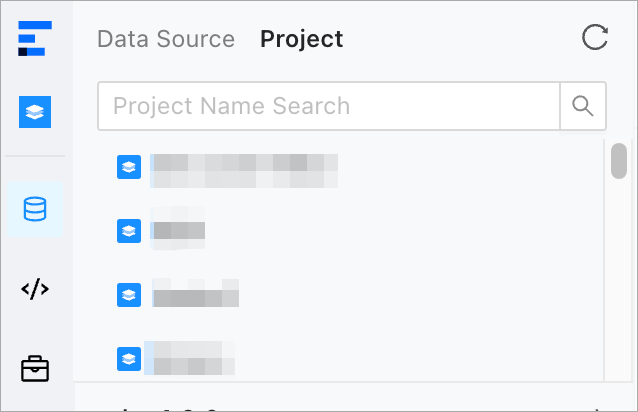
You can create and manage database objects in databases of the data source or project.
Script
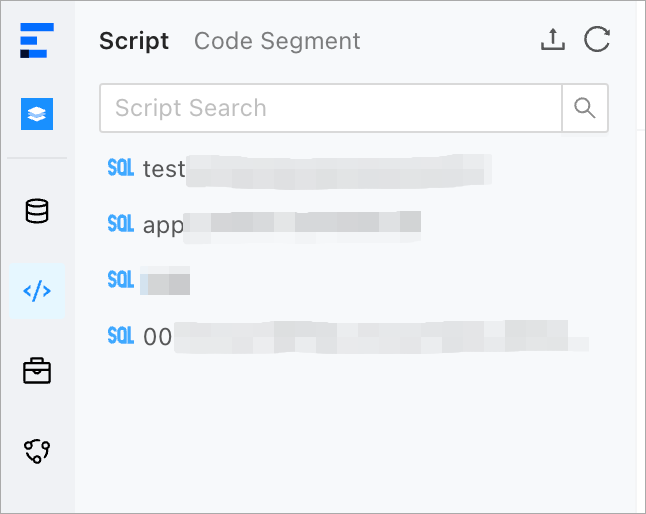
In the SQL window and Anonymous Block window, you can save edited scripts. You can manage the saved scripts on the Script tab.
Ticket
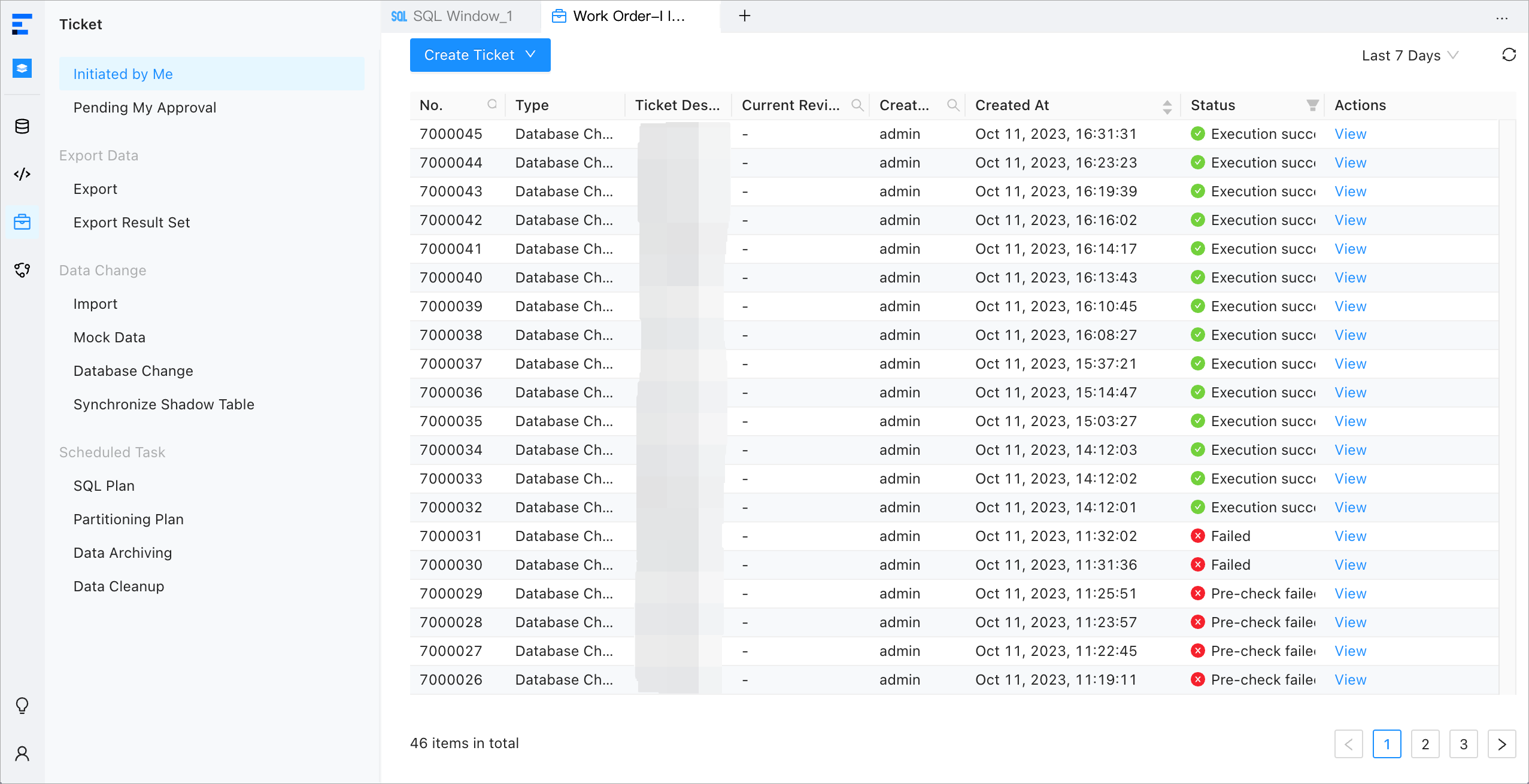
You can submit tickets to apply for data export, data import, data mocking, database change, lock-free structure changes, SQL plan execution, and data archiving. You can also approve tickets in ODC.
O&M Management

Session Management: You can manage all sessions of the data source.
Global Variables: You can query and modify all variables of databases connected to the current data source.
Recycle Bin: You can query and restore deleted database objects.
SQL window

No. |
Window |
Description |
|---|---|---|
| 1 | SQL editing section | In the SQL editing section, you can edit and execute SQL statements. |
| 2 | Record tab | On the Record tab, you can view the execution records of each SQL statement in the current connection process. |
| 3 | Logs tab | On the Logs tab, you can view the execution records of the current SQL window. |
| 4 | Results tab | On the Results tab, you can view the execution result of the current SQL statement. |
Anonymous block window

You can compile, run, and debug PL objects and anonymous blocks in this window.