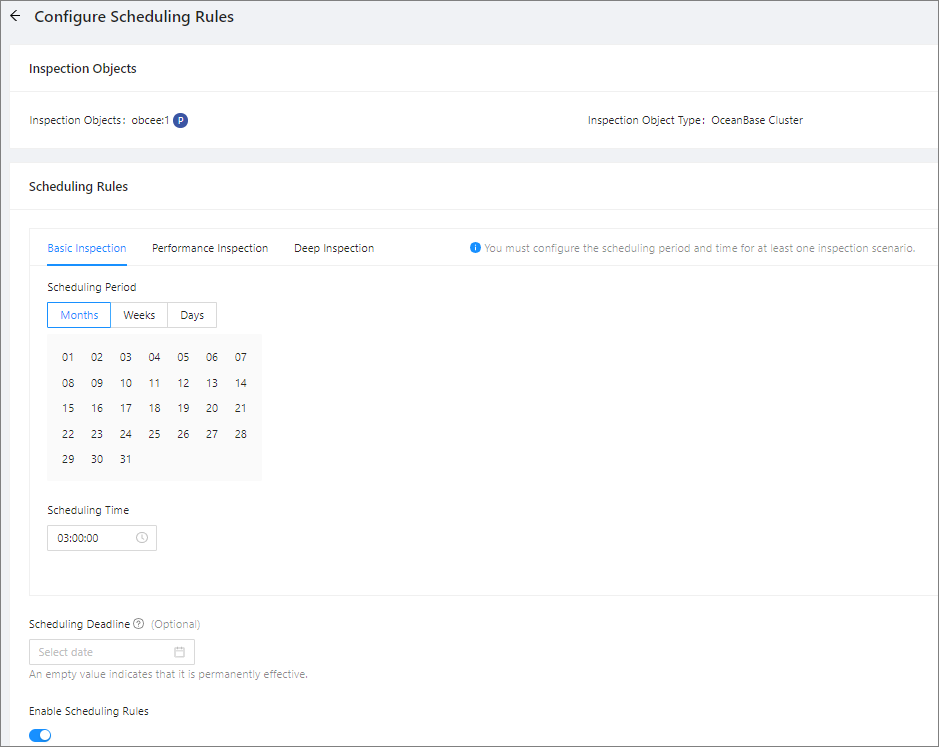
This topic describes how to configure a custom scheduling rule for an inspection object. If you want to configure a unified scheduling rule for objects managed in OceanBase Cloud Platform (OCP), see Configure a global scheduling rule.
Applicability
This topic applies only to OceanBase Cloud Platform Enterprise Edition. OceanBase Cloud Platform Community Edition does not support the inspection service.
Background information
After you configure a scheduling rule for an object, OCP periodically inspects the object based on the scheduling rule. For more information, see Inspection.
Prerequisites
Make sure that you have the following permissions:
- Resource Permissions: Cluster Maintenance or Tenant Maintenance permission
- Menu Permissions: Permission on the Inspection Service menu of O&M Management
Procedure
Log on to the OCP console. In the left-side navigation pane, choose Inspection Service.
Wait until the Inspection List page appears.
Click the tab containing the target inspection object.
Select the object that you want to inspect from the list, move the pointer over the More icon (...) in the Actions column, and select Configure Scheduling Rule.
On the Configure Scheduling Rule page, configure the scheduling cycle and scheduling duration for different inspection scenarios, and set the scheduling deadline and whether to enable the scheduling rule.
Click Submit.