Web OceanBase Developer Center (ODC) V4.2.0 and later allow a user with the project creation permission to create a project and add members to the project. A project member can add and change databases in the project. This topic describes how to implement database changes through project collaboration.
Technical mechanism

The ODC system administrator grants the project creation permission to a user. Then, the user can create a project and add members to the project.
The project administrator or database administrator (DBA) adds a database to the project.
A project member initiates a database change ticket.
ODC determines the risk level of this ticket based on the risk level identification rules and selects the corresponding approval process for this ticket.
After the ticket is approved, the database change is automatically executed by ODC or manually executed by the user.
The project administrator archives the project after all tickets in the project are executed and no active scheduled tasks exist. Databases and sensitive columns added to the project are released when it is archived. An archived project is unrecoverable and no longer supports any collaboration activities.
After the project is archived, the project administrator deletes the project. The configuration of a deleted project is unrecoverable.
Create a project
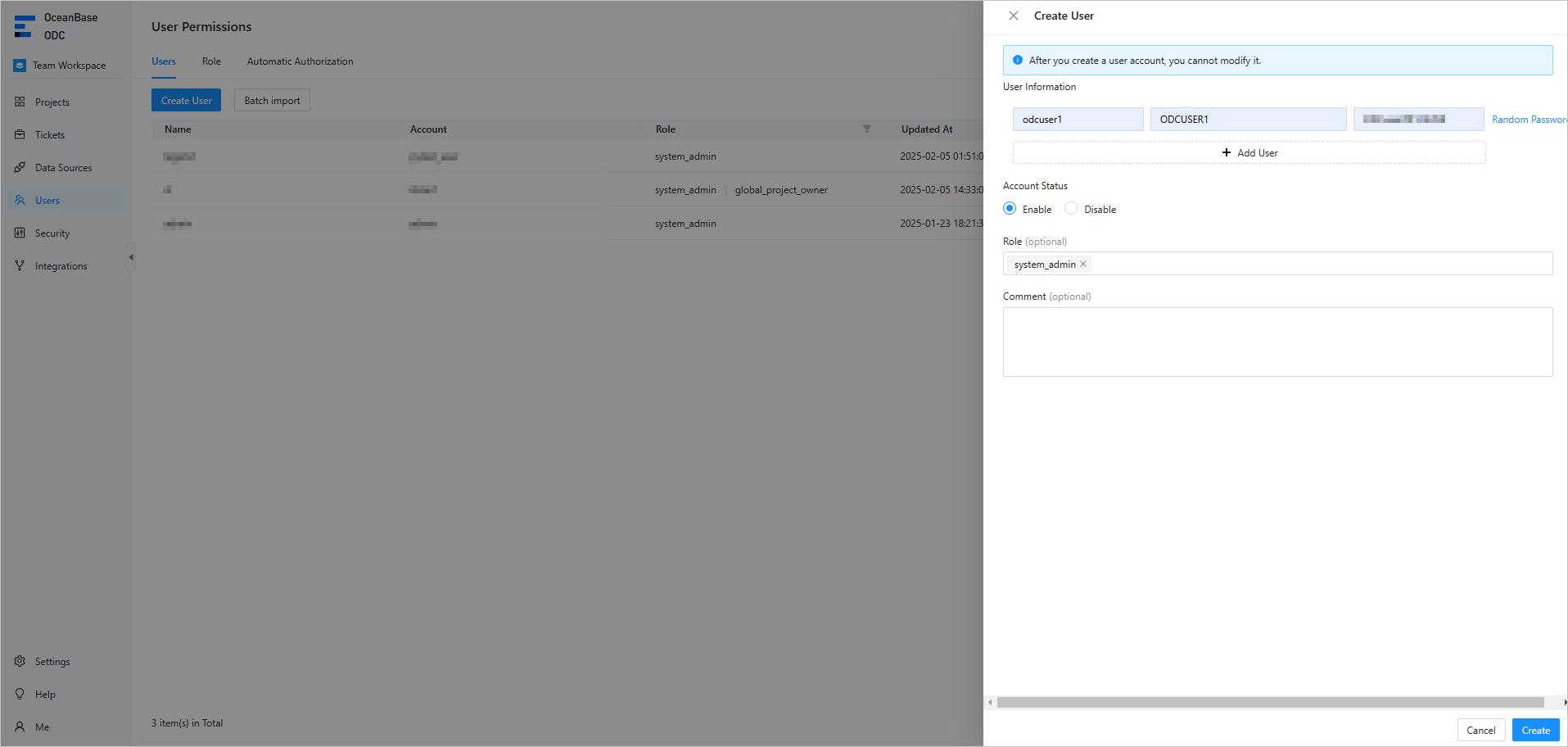
The system administrator grants the project creation permission to a user.
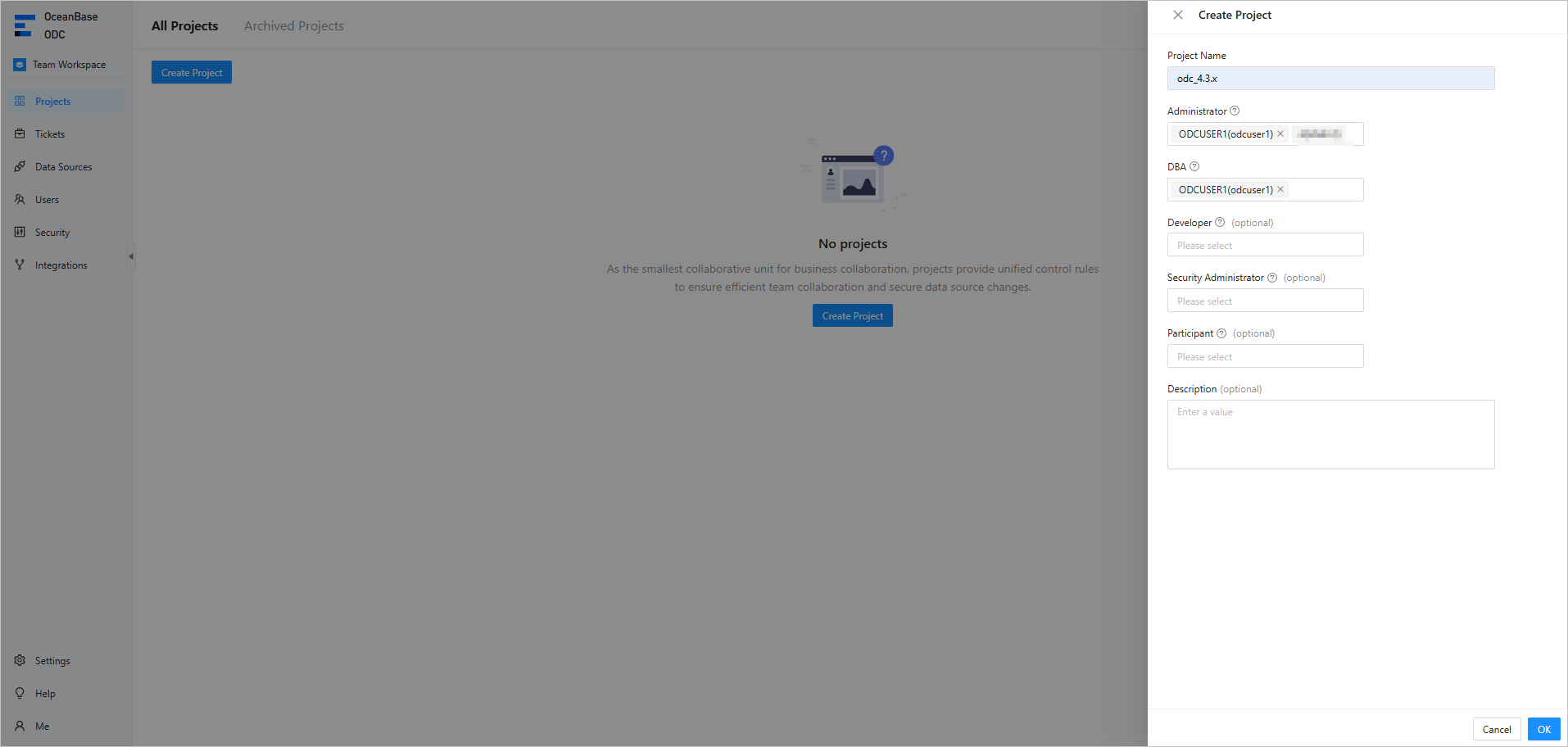
The project administrator creates a project and adds members to the project.
Note
An ODC user with the project creation permission can create projects. By default, the user who creates a project is granted the administrator role of this project. After the project administrator assigns ODC users as members of the project, the members can access this project after logging in to the ODC console with their own accounts, and work as a team in the project.
ParameterDescriptionProject Name The name of the project. Administrator A user that has all permissions of the project. DBA A user that has all permissions of the project, except for member management, message configuration, and project setting. Developer (Optional) A user that can log in to all databases, execute SQL statements, and submit tickets, who is usually a developer. Security Administrator (Optional) A user that has all participant permissions and can manage sensitive columns of the project. Participant (Optional) A user that can view basic information of the project, request database permissions, and submit tickets. Description (Optional) The description of the user. Other users can be added as members by the administrator or can apply to join the project on their own. For more information, see Manage project members and Apply for project permissions.
Archive a project
After all tickets in a project are executed and no active scheduled tasks exist, and the project is no longer in use, the project administrator can archive the project.
Notice
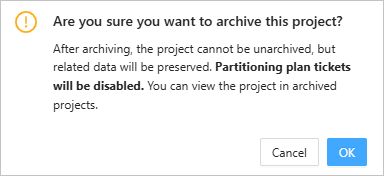
- Databases and sensitive columns added to the project are released when it is archived. An archived project is unrecoverable and no longer supports any collaboration activities.
- If a partitioning plan task is in progress when you archive the project, the partitioning plan task will be automatically terminated after the project is archived.
In the project list, click the name of the project to be archived.
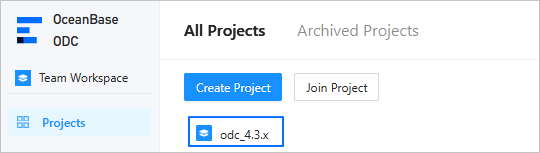
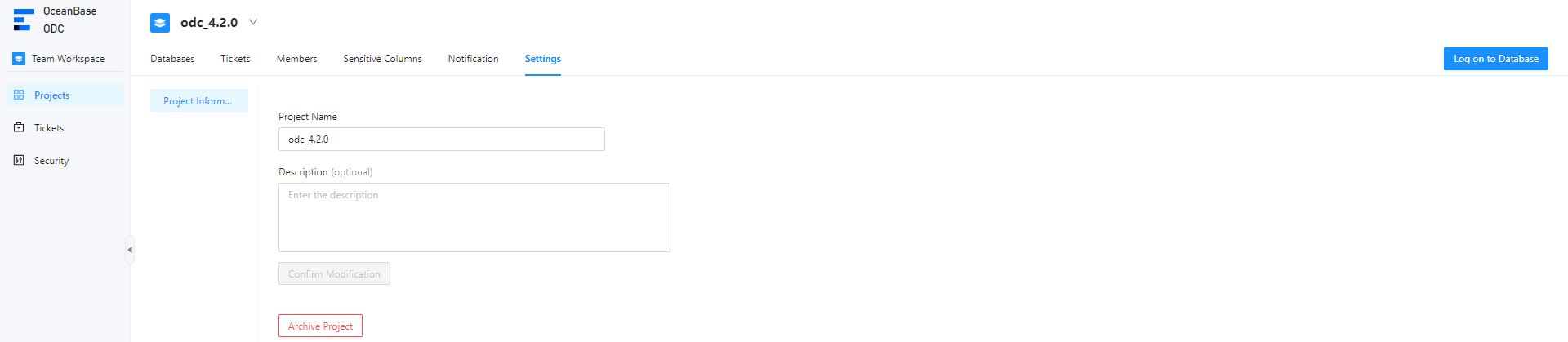
On the Settings tab of the project, click Archive Project.
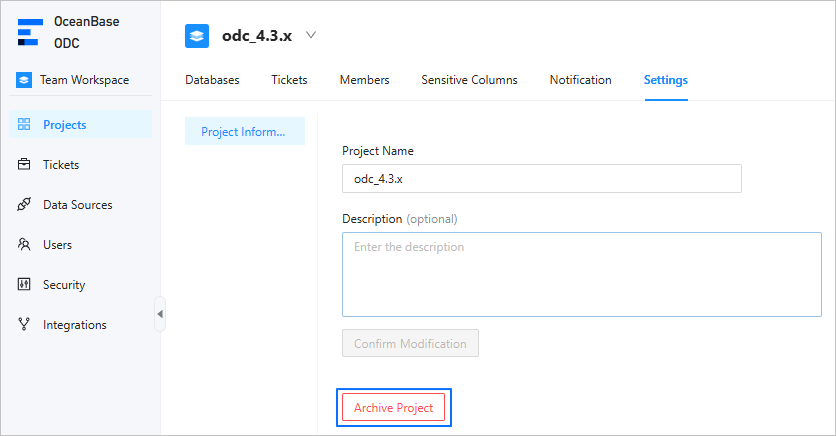
In the dialog box that appears, click OK.
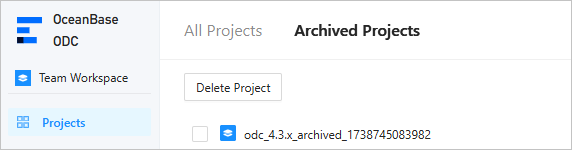
When the project is archived, you can view it on the Archived Projects tab.
Delete a project
The project administrator can delete an archived project.
Notice
The data of a deleted project is unrecoverable.
On the Archived Projects tab, click the More icon in the row of the archived project and select Delete Project. To batch delete archived projects, select the archived projects and click Delete Project on top of the project list.

In the dialog box that appears, type
deleteand click Delete.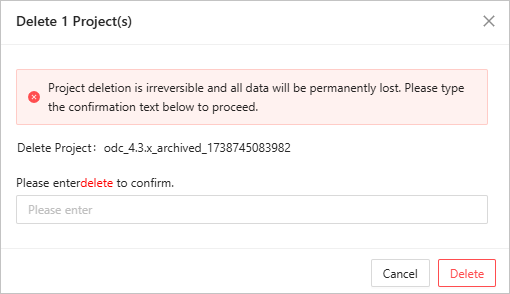
Common project features
Manage databases
You can add a database from a data source to a project. After the database is added, project members can maintain and access the database. For more information, see Manage databases.
Manage logical databases
You can configure multiple (or a single) physical database of the same type and environment as a logical database in a project. This way, you can query and manage complex and large-scale databases and tables. For more information, see Manage logical databases.
Add object storage files
You can add an object storage file to a project. For more information, see Add object storage files.
Manage tickets
Project members without database editing permissions can submit tickets to request the execution of the following operations: data import, data export, data mocking, database change, batch database changes, logical database, shadow table synchronization, schema comparison, and online schema change.
Manage jobs
Project members can submit jobs to request the execution of the following operations: SQL plan, partitioning plan, data archiving, and data cleanup.
Manage members
The project administrator can add, edit, or remove members as well as manage database and table permissions. For more information, see Manage project members.
Manage notifications
A project member can specify the ticket events for which notifications are sent and add notification channels such as DingTalk, Lark, WeCom, and custom webhooks. When a specified ticket event occurs, ODC sends a change message to notify the project member. For more information, see Manage notifications.
Configure project settings
The project administrator can rename the project and archive the project on the project settings page.