







Project collaboration window
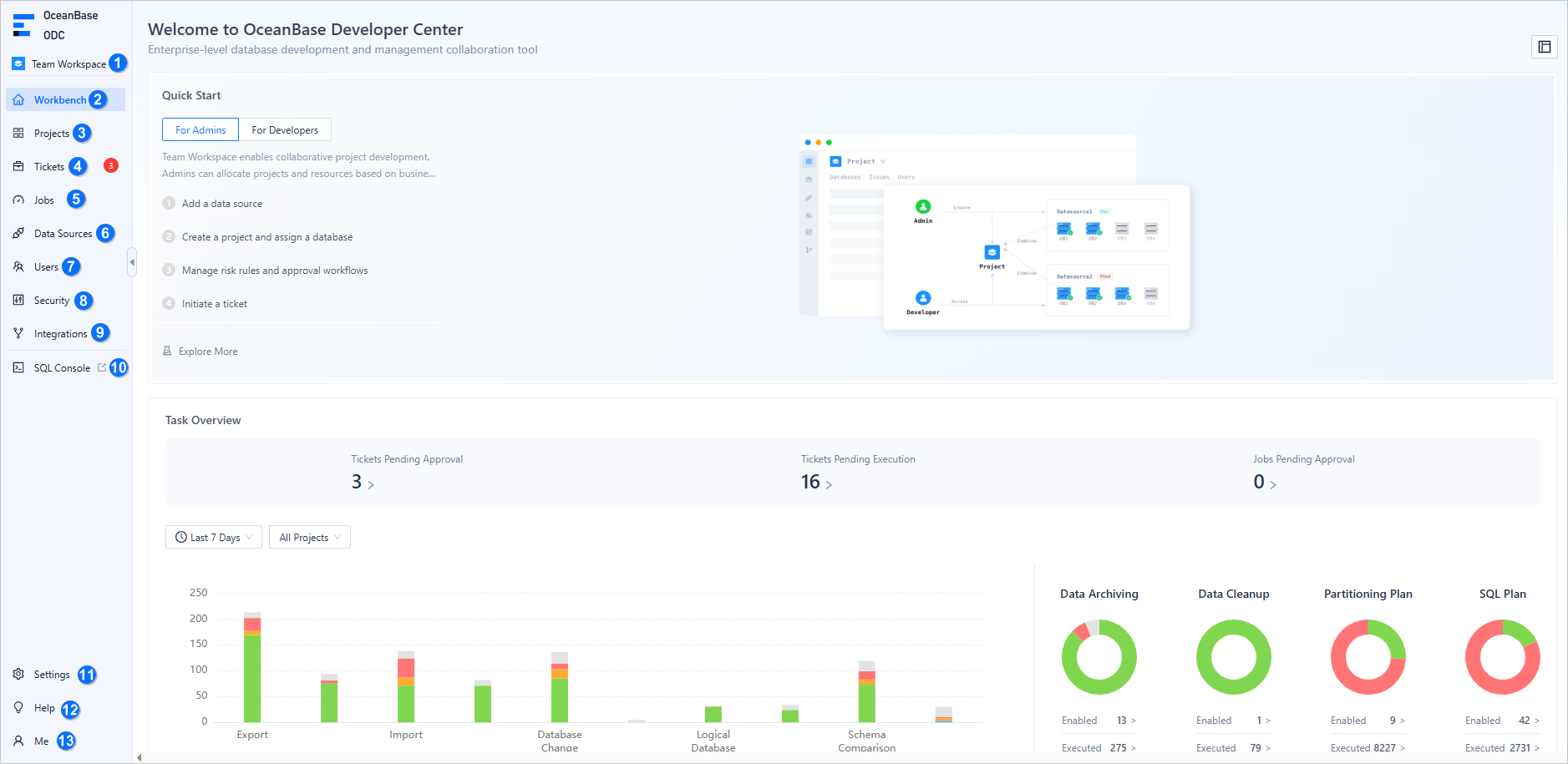
Log in to the OceanBase Developer Center (ODC) console and choose Team Workspace to go to the ODC project collaboration window.
No. |
Module |
Description |
|---|---|---|
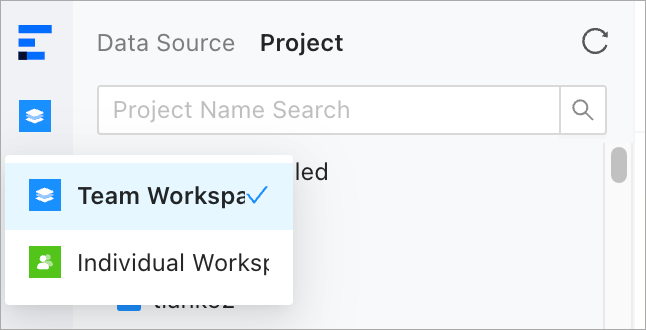
| 1 | Workspace | You can click Team Workspace or Individual Workspace to switch between the two workspaces.
|
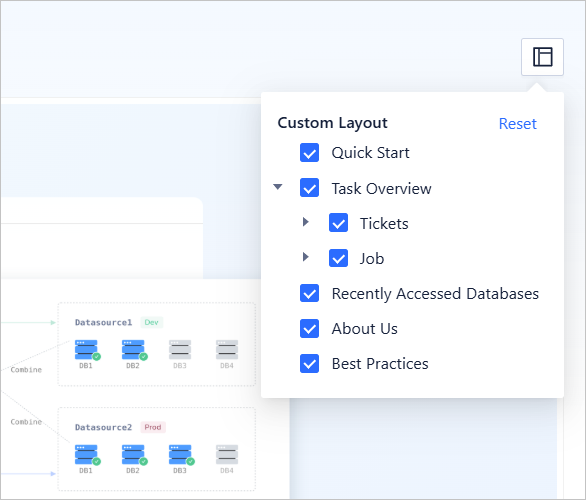
| 2 | Workbench | The workbench provides the following information. You can conveniently view and access the information that you need.
NoteClick the menu icon in the upper-right corner to customize the contents of the workbench.
|
| 3 | Projects | You can create projects as the project administrator and configure members and databases for projects. A project contains four types of resources: databases, tickets, members, and sensitive data. A project is the minimum unit of collaboration. Tickets are most commonly used for collaboration in a project. Sensitive data is the subject for data desensitization strategies. |
| 4 | Tickets | You can submit a ticket to perform operations such as importing, exporting, mocking, and archiving data, modifying a database, implementing lock-free structure changes, and managing SQL plans. You can also review the created tickets. |
| 5 | Jobs | You can apply for a job to execute data archiving, data cleaning, SQL plans, and partitioning, and approve the created task processes. |
| 6 | Data Sources | ODC allows you to connect to OceanBase Database and MySQL Database to edit and manage data sources, including database objects and resources. |
| 7 | Users | You can create and edit users as the ODC system administrator and assign roles to users to grant them the permissions on resource management and system operations. You can also configure automatic authorization rules to automatically grant specific roles or permissions to users that meet the specified conditions. |
| 8 | Security | On the Security page, you can perform the following operations:
|
| 9 | Integrations | On the Integrations page, you can configure approval integration, SQL approval integration, and login integration.
|
| 10 | Settings | On the homepage of ODC, click Settings in the lower-left corner to set the database, editor, appearance, and account. |
| 11 | Help | On the homepage of ODC, click Help in the lower-left corner to view tutorials for common ODC operations and new features of the current version. You can report questions to Github or support email. |
| 12 | Me | On the homepage of ODC, you can click Me in the lower-left corner. The menu that appears provides options for you to change the password, view the operation records, and log off. |
SQL development window
After you log in to a database, go to the SQL development window.

No. |
Module |
Description |
|---|---|---|
| 1 | Workspace | You can click Team Workspace or Individual Workspace to switch between the two workspaces.
 |
| 2 | Databases | You can create and manage database objects in databases of the data source or project. 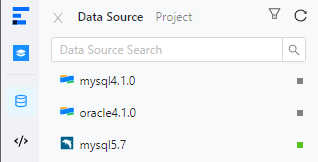 |
| 3 | Scripts | You can save edited scripts in the SQL Window and Anonymous Block Window and manage the saved scripts on the Script tab. You can also manage snippets on the Snippets tab. 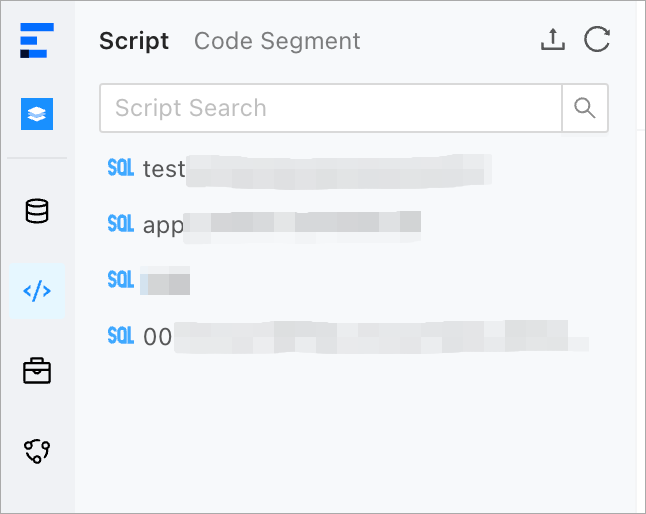 |
| 4 | Tickets | You can submit a ticket to perform operations such as importing, exporting, mocking, and archiving data, modifying a database, implementing online schema changes, and managing SQL plans. You can also review the created tickets. 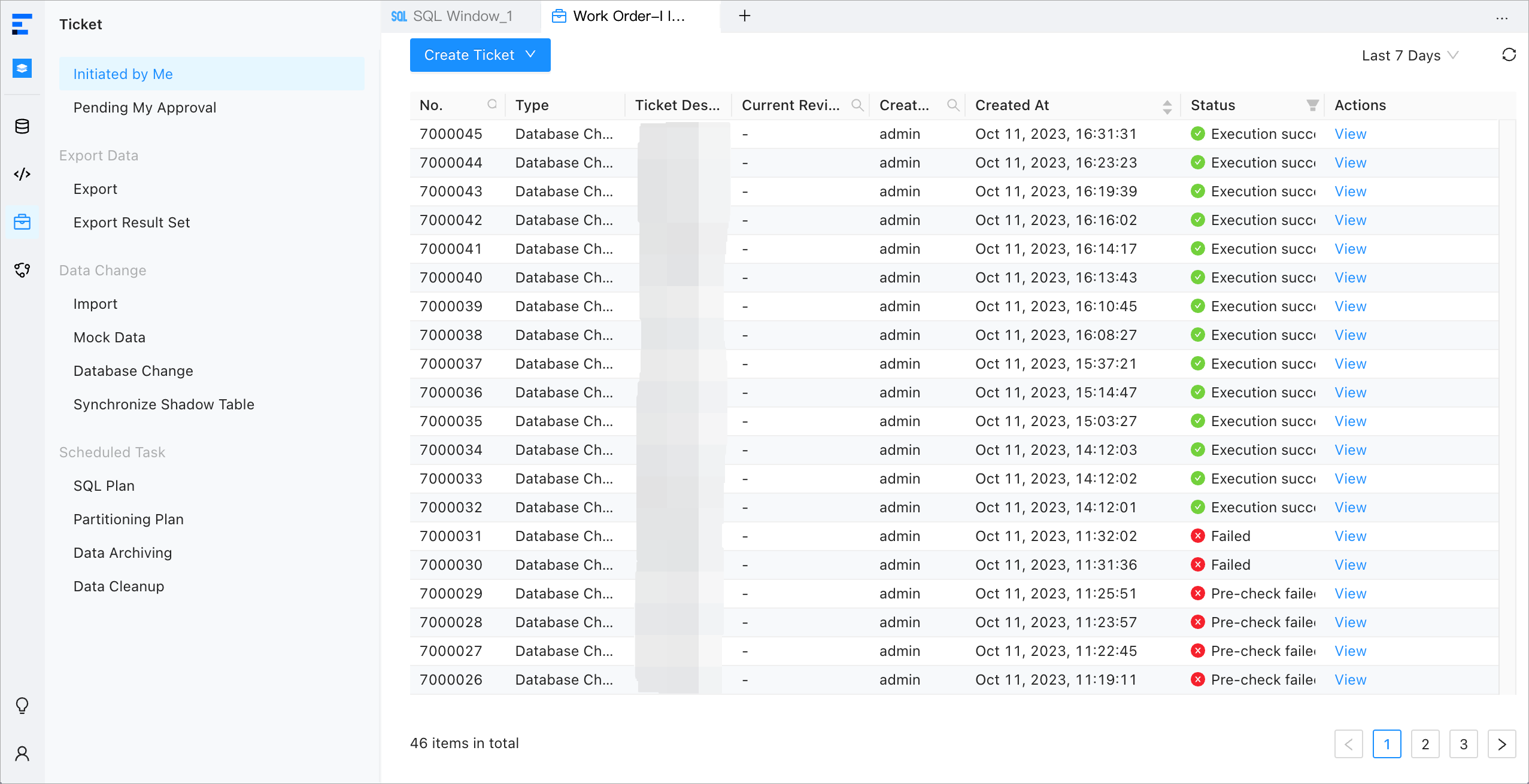 |
| 5 | O&M Management |
 |
| 6 | SQL Window | 
|
| 7 | Anonymous block window | You can compile, run, and debug PL objects and anonymous blocks.  |