







This topic describes how to submit a batch database change ticket in OceanBase Developer Center (ODC) to change or update the schemas or data of multiple databases in different environments of the same project.
Background information
In practice, you need to deploy your business in multiple environments and regions. Here are some typical scenarios:
The lifecycle of a business system spans different phases from development to testing and launch. Therefore, you need to separately build development, testing, prerelease, and production environments for the business system.
For purposes of nearby business access and disaster recovery, you need to deploy the production environment of a business system on multiple nodes across regions. For example, you can deploy the environment in Hangzhou, Shanghai, and Beijing, with each of the center responsible for part or all of the services.
To ensure consistency of database object schemas in different environments, you must make sure that the initial schema configurations in the environments are the same and that subsequent schema changes are performed in the environments in a unified manner. In this case, a standard process management mechanism is required to avoid risks.
The batch database change feature aims to reduce potential risks in schema changes in multiple environments and allow you to easily ensure database schema consistency in different environments.
ODC allows you to perform SQL-based changes for multiple databases in different environments of the same project in serial or parallel mode.
Serial mode: Changes are performed on multiple databases in the specified order. Feedback is reported each time after the change process on a database is completed. This is similar to the scenario where R&D changes are made in the testing environment first, then the prerelease environment, and finally the production environment.
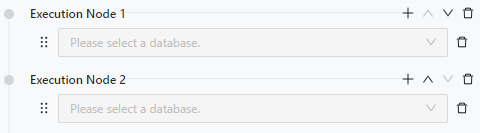
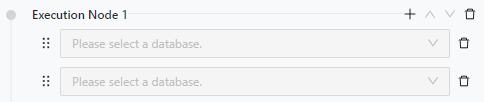
Parallel mode: Database changes can be performed in batches in combination with the serial mode.
The example in this topic describes how to create a batch database change task in ODC to create a table named employee in the odc_test and user_ro databases.
Note
The data used in this topic are examples. You can replace them with actual data as needed.
Considerations
- Only homogeneous data sources are supported for multi-database changes.
Create a batch database change task
Choose Projects > All Projects. On the tab that appears, click the project name.
On the Tickets tab, choose Batch Database Change > Create New.
In the Create Batch Database Change Ticket panel, configure the following parameters and click Create.
ParameterDescriptionProject The project for which the batch database change task is to be created. Database - Select the databases to be changed and specify the change execution order. Changes are executed in order for databases on different nodes and concurrently for databases on the same node.
- You can save the database configurations as a template for future reuse.
SQL Content Select SQL Entry or Upload File. - SQL Entry: This is the default way to specify SQL content. You can directly write the SQL script in the editing area.
Note
- The maximum size of the SQL statements that can be entered in the SQL window is limited to 500,000 characters. If the SQL script to be executed has more than 500,000 characters, you can directly upload the script file.
- You can click IN Value Conversion to convert the batch copied data into the
in('A','B')format. - Column values are separated with line breaks.
- Row values are separated with spaces or tabs.
- Upload File: Click the file pool to go to the file explorer and select the file to be imported. You can also directly drag the file to the file pool to upload it.
Note
- You can upload up to 500 files. The total file size cannot exceed 256 MB.
- By default, files are sorted by the order in which they were uploaded. You can drag and drop them to change the order. Tasks are executed in the file order.
- Only SQL files suffixed with
.sqlare supported.
SQL Check Click this icon to check the syntax of the SQL statement. Rollback Plan Specify Rollback Plan. You can write an SQL script or upload a file to specify the rollback plan. For more information, see the description of SQL Content. Note
You can select Generate Backup Rollback Plan so that backup rollback SQL statements will be automatically generated for
UPDATEandDELETEstatements.- For OceanBase Database in MySQL compatible mode or native MySQL, a rollback SQL statement can be generated only for an
UPDATEorDELETEstatement executed on a table with a primary or unique key. - A backup rollback SQL statement can be generated only when a database change statement affects no more than 100,000 rows and the batch database change task affects no more than 1 million rows.
SQL Execution Settings - Delimiter: Specify the delimiter between fields. Commas (
,), semicolons (;), and colons (:) are supported. - Query Result Limit: Specify the number of data rows in the query result. Value range: 1 to 1,000,000.
- Execution Timeout: Specify the timeout period for statement execution, in hours. The default value is 48 hours. The maximum value is 480 hours.
- SQL Execution Error Handling Method: You can select Stop Execution or Ignore Error and Continue.
Task Settings You can select Auto Execution or Manual Execution. Description You can enter a description of no more than 200 characters in the text box. This parameter is optional. After the task is generated, you can click Batch Database Change on the Tickets tab to view the task information.
View the batch database change task
Go to Tickets > Batch Database Change. In the multi-database change task list, click the name of the target task to view the task details. You can also click the ··· icon in the Actions column to perform more operations.
- Execute: If the task execution mode is manual, you can manually execute the task.
- Terminate: If the task execution mode is periodic or regular, you can terminate the task.
- Disable/Enable: If the task execution mode is periodic or regular, you can disable the task to temporarily stop its execution. After re-enabling, the task will resume.
- Edit: If the task is disabled, you can edit it to update its content.
- Delete: If the task status is Completed or Terminated, you can delete it.
- View: View the task details.
- Clone: Copy the task execution content to quickly generate a new task with the same configuration.
- Share: Copy the task access address.
- Rollback: If a rollback plan is selected and rollback SQL is provided for the change ticket, a backup rollback plan ticket for UPDATE/DELETE statements can be quickly generated.
In the task details panel that appears, the Basic Information tab is displayed by default. You can view information such as the task type, database, variable configuration, and execution mode.
Note
You can configure whether to support query and download of query results in the system settings. For more information, see System settings.
Click the Workflow tab to view the task initiation status, approval status, execution status, and execution results.
Click the Execution Records tab to view the task execution records.
Click the Logs tab to view all logs and alert logs of the task.
ItemDescriptionAll Logs All logs display the INFO, ERROR, and WARN logs of the task. You can click the Find, Download, and Copy buttons to find, download, or copy all logs. Alert Logs Alert logs display the ERROR and WARN logs of the task. When the task fails, you can view the error information in the alert logs. You can click the Find, Download, and Copy buttons to find, download, or copy alert logs.