







This topic describes how to create a role in OceanBase Cloud Platform (OCP).
Background information
If you have been granted the ADMIN or ORG_ADMIN role and the preset roles cannot satisfy your needs, you can create a role and assign more fine-grained permissions to the role.
Prerequisites
You have logged in to the OCP console and been assigned the ADMIN or ORG_ADMIN role.
Procedure
Log in to the OCP console.
In the left-side navigation pane, choose System Management > User Management.
In the upper-right corner of the Role tab, click Create Role.
The role creation page appears.
On the Create Role page, configure the following information.
In the Basic Information section, specify Role Name, Organization, and Description.
The role name must start with a letter and end with a letter or a digit. It can contain letters, digits, and underscores (_). It must be 2 to 32 characters in length.

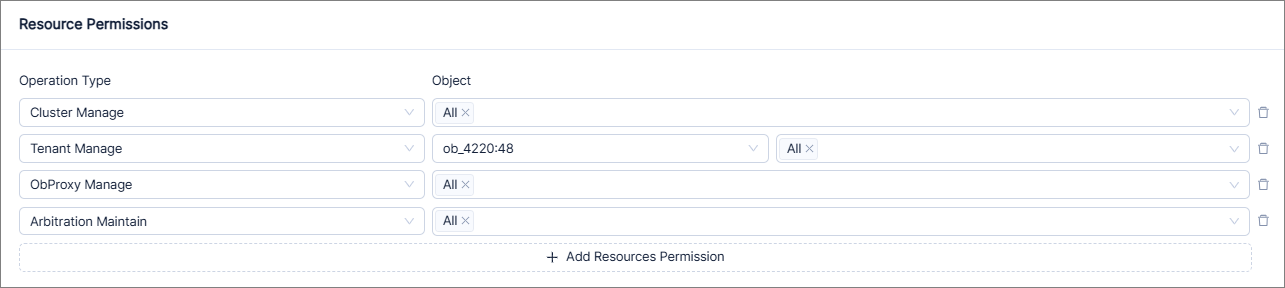
In the Resource Permissions section, configure the resource operation permissions of the role.
ParameterDescriptionOperation Type The management, maintenance, or read-only permission on clusters, tenants, OBProxy clusters, hosts, the arbitration service, or the binlog service. - Management permission: all O&M permissions, including the delete permission.
- Maintenance permission: all O&M permissions except the delete permission.
- Read-only permission: the read-only permission on specified objects.
Object You can select one or all objects. You can click + Add Resources Permission to add resource permissions to the role.
Note
If you have all permissions on a cluster, you have all permissions on the tenants and hosts in the cluster by default.
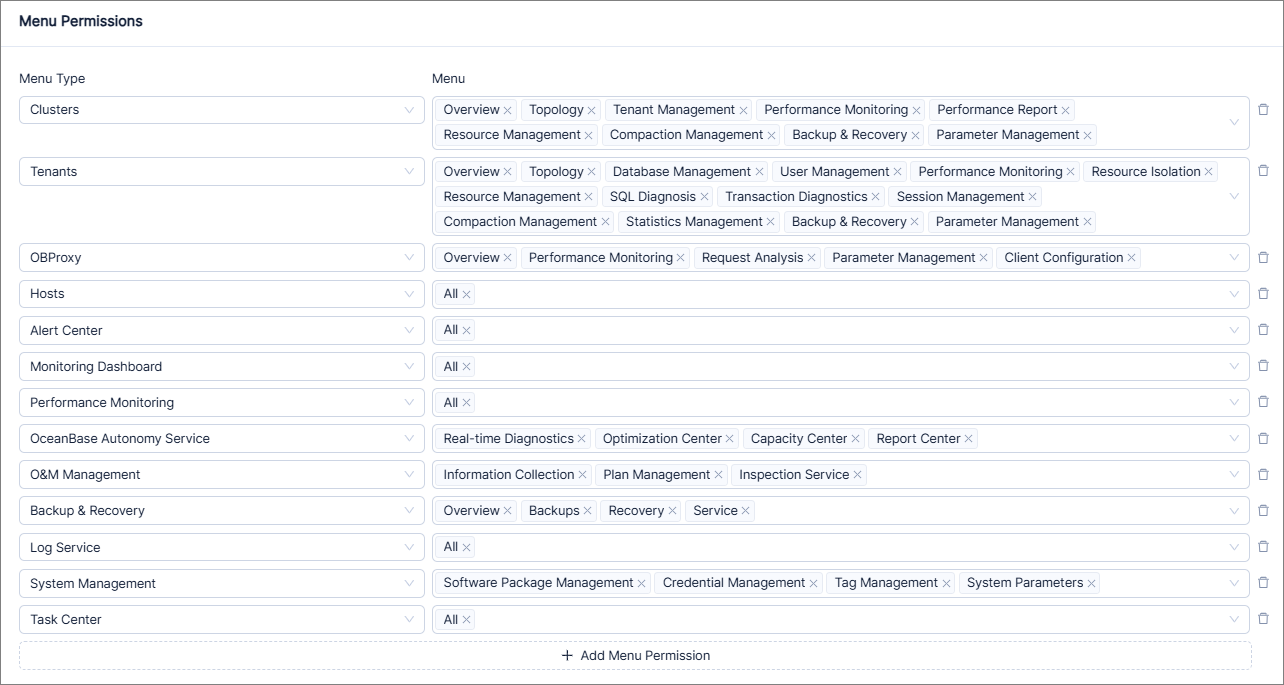
In the Menu Permissions section, configure the permissions of the role to view functional menus.
ParameterDescriptionMenu Type All level-1 navigation menus of OCP are listed here, including Overview, Cluster, Tenant, OBProxy, Binlog Service, Host, Alert Center, Monitoring Dashboard, Performance Monitoring, OceanBase Autonomy Service, O&M Management, Backup & Recovery, Log Service, System Management, and Task Center. Menu You can select one or all secondary navigation menus. You can click + Add Menu Permission to add menu permissions to the role.
Note
- After you select a resource permission, all required menu permissions are automatically listed. You can add, modify, and remove menu permissions as needed.
- If you do not select any menu permission for a role, by default, the role can access all menus except Overview.
Click Submit in the lower-right corner.