







OceanBase Database provides an enterprise-level native distributed architecture, which allows you to deploy OceanBase Database in distributed cluster mode. A distributed cluster provides financial-grade high availability and smooth scaling capabilities. It is highly compatible with Oracle and MySQL databases and is suitable for core business systems that demand high data security.
This topic describes how to create a primary distributed OceanBase cluster to be managed by OceanBase Cloud Platform (OCP).
Applicability
OCP Community Edition supports creating only a primary cluster.
Background information
- A cluster deployed on multiple hosts in a single zone can be scaled up only in terms of computing capabilities. The cluster does not support high availability and applies only to a development or test environment.
- A cluster with an even number of zones cannot meet the high availability requirements and has data security risks. We recommend that you adjust the configurations to ensure an odd number of zones or enable the arbitration service for the cluster or tenant.
Prerequisites
-
- You have logged in to the OceanBase Cloud Platform (OCP) console and been assigned the ADMIN or ORG_ADMIN role.
(Optional) An OBProxy cluster exists in OCP. This is required if you want to create a multi-replica OceanBase cluster. For more information about how to create an OBProxy cluster, see the following topics:
Procedure
Step 1: Go to the Create Cluster page
Log in to the OCP console, click Clusters in the left-side navigation pane to go to the Clusters page. Find the entry to cluster creation based on the actual business scenario.
If you do not have a manageable cluster, the system displays a message on the Clusters tab, prompting you to create one. Click Create Cluster in the message.
If you already have a manageable cluster, go to the Clusters tab and then click Create Cluster in the upper-right corner.
In the Create Cluster dialog box, select Distributed Cluster.
Step 2: Configure basic cluster information
The following table describes the basic information required to create a distributed cluster:
Parameter |
Description |
|
|---|---|---|
| Cluster Type | Select Primary Cluster. | |
| Cluster Name | The name of the cluster to be created. The cluster name must be 2 to 48 characters in length and can contain uppercase and lowercase letters, digits, and underscores (_), and start with a letter. | |
| root@sys Password | This password can be customized or randomly generated. The password must meet the following complexity requirements:
|
( ) { } [ ] : ; , . ? /. |
| OceanBase version | You can select an OceanBase Database version from the drop-down list or click Add Version at the bottom of the list to upload an OceanBase Database version. | |
| Associate OBProxy Cluster | You can associate the cluster with an OBProxy cluster. If you want to create a multi-replica OceanBase cluster, we recommend that you enable this option and select an existing OBProxy cluster to associate with the OceanBase cluster. After the association, the SQL requests of your business will be accurately forwarded to a replica. This ensures good experience that can rival access to a standalone database when you access an OceanBase database. 1. By default, the proxyro user is used for association. You do not need to enter a username or password. 2. Select the OBProxy cluster for association from the drop-down list. If no OBProxy cluster is available in the drop-down list, create an OBProxy cluster. For more information, see the Prerequisites section of this topic. The limitations on the OBProxy cluster to be associated are as follows:
|
|
| Load Type | You can select a load type for the cluster. The load type mainly affects the time required to identify SQL queries (parameter name: large_query_threshold). The RT of OLTP loads may be seriously affected. Proceed with caution. OCP supports five types of cluster loads.
|
Step 3: Configure the deployment mode
By default, three zones are added for a cluster. To deploy more than three zones for the cluster, click + NewZone. To deploy less than three zones for the cluster, click the Delete icon after the zone to be deleted.
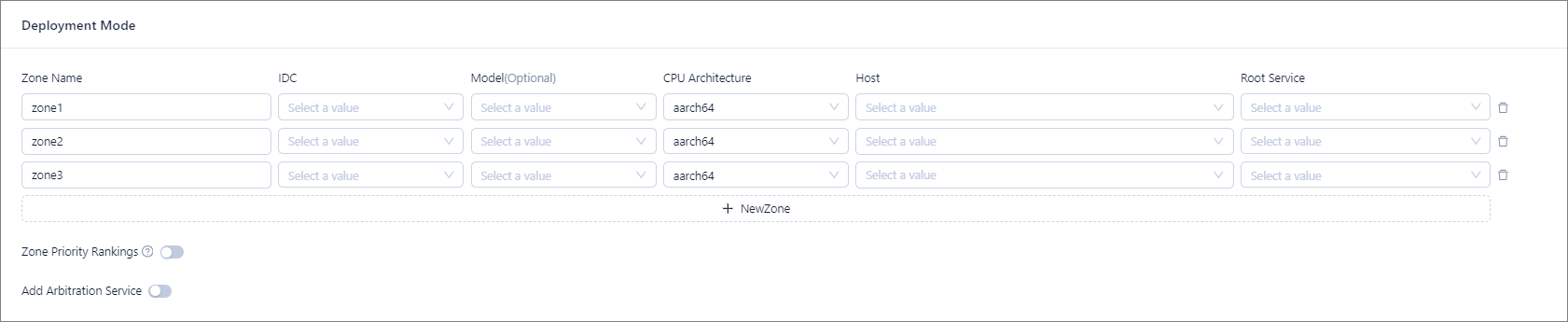
The following table describes the settings for each zone.
Parameter |
Description |
|---|---|
| Zone Name | You can retain the default name or define a custom name. A zone name must consist of 2 to 48 characters, including uppercase and lowercase letters, digits, and underscores (_), and start with a letter. In an OceanBase cluster that consists of multiple zones, the cluster must have a zone that shares the same region as that of the primary zone. |
| IDC | The IDC of the zone. Each zone can be deployed in only one IDC. |
| Host Type | Optional. If you select a type, the host list is filtered based on the type. |
| CPU Architecture | If multiple installation packages for different architectures are available for the selected OceanBase Database version, you must specify a host hardware architecture that matches the installation package to use.
Notice |
| Host | You can select or add hosts. |
| Root Service | Select an IP address as the host for the RootService. If you want to create a multi-replica OceanBase cluster, you must specify this parameter for each zone. |
| Zone Priority Rankings (This parameter is not required when you create a standby cluster.) | Choose whether to specify priorities for the zones in which the leader and follower replicas of the sys tenant in the cluster are located.
|
| Add Arbitration Service | Choose whether to add an arbitration service for the cluster. You can select a service from the Services drop-down list or click Create Service to create an arbitration service for the cluster. For more information, see Add an arbitration service.
Note |
Step 4: Enable the cgroup feature
The cgroup feature supports CPU resource isolation between tenants and within a tenant in the OceanBase cluster. When you create an OceanBase cluster of V4.0 or later, the cgroup feature is enabled by default to enhance CPU and IOPS isolation.
- It will cause a performance degradation of approximately 7%. If your business involves a single tenant and less than 14 CPU cores and requires high database performance, we recommend that you disable the cgroup feature.
- If the operating system kernel version on the host is earlier than 5.1.0, we recommend that you disable the cgroup feature. Otherwise, the system performance may be affected or the system may be unstable.
- If the operating system kernel version on the host is earlier than 4.1.9, you cannot create tenants in the cluster. In this case, the cgroup feature is disabled by default, and you cannot enable it.
Step 5: Configure the CPU overprovisioning quota
When the loads for different business scenarios are processed at the same time, OceanBase clusters may be overloaded. This results in CPU contention among threads of different tenants and degrades business performance. To ensure that the loads for different tenants can be alternately processed in a controlled manner, you can configure CPU overprovisioning to improve resource utilization.
In the CPU Overallocation Settings section, you can configure the overprovisioning quota by dragging the slider or specifying a value ranging from 101% to 200% in the textbox. The default value is 120%.
Note
- CPU overprovisioning is supported only in OceanBase Database V4.0 and later. You can configure an appropriate overprovisioning quota to make full use of the hardware resources.
- CPU overprovisioning depends on the cgroup configuration. Enable the cgroup feature for the cluster before you configure the CPU overprovisioning quota.

Step 6: Configure cluster parameters
Enable Parameter Settings and specify related cluster parameters.
If you have selected a load type in the Basic Settings section, the system automatically selects the parameter template corresponding to the selected load type.
You can click the button in section ① of the following figure to add startup parameters one by one and set their values.
You can also click Select Parameter Template as shown in section ② of the following figure and then select a parameter template. The system will automatically populate parameters in this section by using the template. If no cluster parameter template is available, click Create Cluster Template to create one. For more information, see Manage cluster parameter templates.
 TemplateDescription
Default Parameter Template for COMPLEX_OLTP The default template for the Complex OLTP load type. It applies only to OceanBase Database V4.2.5 and later. Default Parameter Template for HTAP The default template for the HTAP load type. It applies only to OceanBase Database V4.2.5 and later. Default Parameter Template for KV The default template for the OBKV load type. It applies only to OceanBase Database V4.2.5 and later. Default Parameter Template for EXPRESS_OLAP The default template for the Express OLAP load type. It applies only to OceanBase Database V4.2.5 and later. Default Parameter Template for OLAP The default template for the OLAP load type. It applies only to OceanBase Database V4.3.0 and later. Default Parameter Template for OceanBase Database V2.2.77 The template recommended for a production cluster of OceanBase Database V2.2.77. 8. Enable Custom Settings and specify custom cluster-level parameters for users (such as the OS user), paths (such as software installation paths, data disk paths, and log disk paths), and ports (such as SQL ports and RPC ports).
Note
If you need to customize CPU, memory, data disk, or log disk usage for a cluster, you can set the parameters cpu_count, memory_limit_percentage, system_memory, data_disk_usage_limit_percentage, datafile_size, clog_disk_usage_limit_percentage, and log_disk_size. For more information, see OceanBase's Overview of Cluster Parameters.
Step 7: Configure the user, paths, and ports
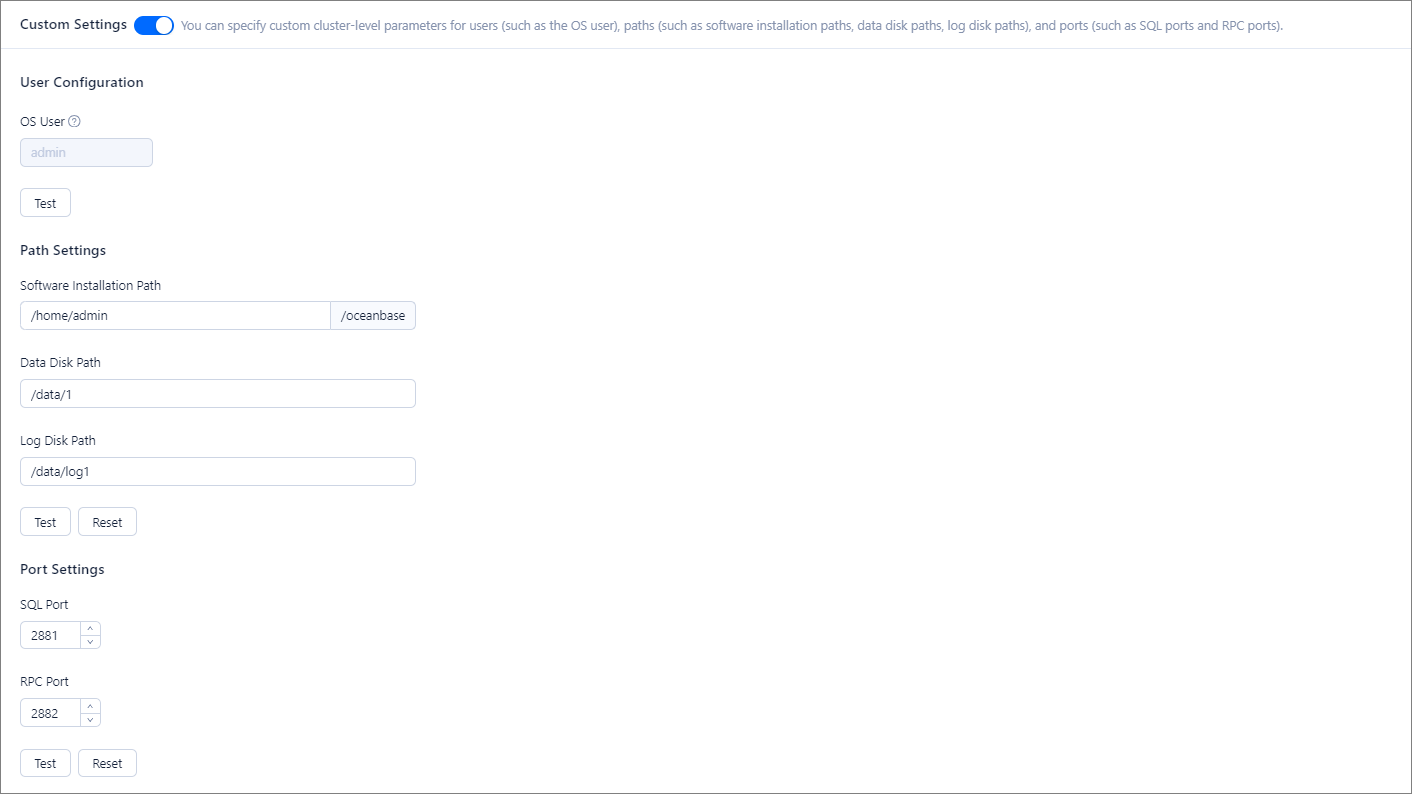
In the Custom Settings section, you can configure cluster-level parameters such as the OS user, paths (such as software installation path, data disk path, and log disk path), and ports (such as SQL port and RPC port).
Configure the OS user:
The OS user is used to install and run OBServer. It cannot be modified. You can modify the OS user by changing the default value of the
ocp.operation.default.os.userparameter. Note that the modification affects only the creation of distributed clusters, standalone, OBProxy, and arbitration services. It does not affect other parameters of existing clusters.Configure the paths:
ParameterDescriptionSoftware Installation Path - If the OS user is admin, the default software installation path is
/home/admin/oceanbase. You can change the path. - If the OS user is not admin, the default software installation path is
/opt/oceanbase/oceanbase. You can change the path.
Data Disk Path The default value is /data/1. You can change the path.Log Disk Path The default value is /data/log1. You can change the path. In a production environment, we recommend that the size of the log disk be at least three times the memory size of the host. To avoid performance issues, we recommend that you do not create the data directory and the log directory on the same disk.Note
When you create an OceanBase cluster of the following versions in OCP V4.3.0 BP1 or later, theslogdirectory will be placed in the log disk and no longer bound to the data disk. If you set thelog_disk_sizeparameter to0, the log disk is exclusively occupied by theclogdirectory. In this case, the value of thelog_disk_percentageparameter is 90% by default. If the size of the disk where theslogandclogdirectories are placed is less than 40 GiB, the space reserved for theslogdirectory is less than 4 GiB, which may affect the writing of slogs.- OceanBase Database V4.2.4.0 or later but earlier than V4.3.0.0
- OceanBase Database V4.3.1.0 or later
slogdirectory, see Structure of the OBServer node installation directory.- If the OS user is admin, the default software installation path is
Configure the ports:
ParameterDescriptionSQL Port The default value is 2881. You can change the port.RPC Port The default value is 2882. You can change the port.Click Test to check whether the paths and ports are available.
 9. After the test succeeds, click Submit.
Step 8: Confirm the configuration
After you configure the parameters, click OK to confirm the configuration. You can view the task progress in Task Center.