







This topic describes how to generate and view Active Session History (ASH) reports. An ASH report allows you to learn about the SQL statements that use the most database resources during a diagnostic period, the execution details of historical sessions of an OceanBase cluster, and other information. You can optimize the SQL statements based on the information and improve the SQL execution efficiency.
You can view and manage ASH reports by using one of the following methods:
Method 1: Log in to the OceanBase Cloud Platform (OCP) console. In the left-side navigation pane, click OceanBase Autonomy Service. On the page that appears, find the target cluster and click its name to go to the Report Center page.
Method 2: Log in to the OCP console and go to the Overview page of the target tenant. In the left-side navigation pane, click Session Management and go to the Active Session History Report tab.
Applicability
This topic applies only to OCP Enterprise Edition. OCP Community Edition does not support this feature.
Prerequisites
To manage the ASH reports of a cluster by using Method 1, make sure that you have the following permissions:
- Resource Permissions: Cluster Read-only or Tenant Read-only permission
- Menu Permissions: Permission on the Report Center menu of OceanBase Autonomy Service
To manage the ASH reports of a cluster by using Method 2, make sure that you have the following permissions:
- Resource Permissions: Cluster Read-only or Tenant Read-only permission
- Menu Permissions: Permission on the Session Management menu of Tenants
You have enabled parameters in the ASH Collection section by referring to Manage parameters.
Procedure
The procedure of Method 1 is described as follows:
Log in to the OCP console.
In the left-side navigation pane, click OceanBase Autonomy Service.
In the Cluster Details section, click the name of the cluster that you want to view. The Real-time Diagnostics page appears.
In the left-side navigation pane, click Report Center.
Go to the Active Session History Report tab.
Click Generate Report.
The Generate ASH Report dialog box appears.
Specify Analysis Time and Report Name.
Analysis Time: Specify the start time and end time for active session analysis.
Report Name: The report name is automatically generated based on the specified time in the following format: "OBASH_cluster name_tenant name_start time_end time". You can also use a custom report name.
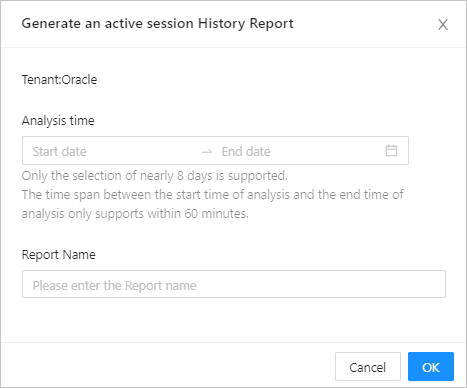
Click OK.
Wait until the report is generated.
In the Reports list, enter the name of report or creator in the search box and click the search icon. The reports that meet the filter condition are displayed in the Reports list.
Click View in the Actions column to view the report online.
Click Download in the Actions column to download the report and view it on your local machine.
Report content
You can view the following information in an ASH report:
Basic Information
ParameterDescriptionBasic information of the report The information of data analysis is provided in the following columns: Start Time, End Time, Elapsed Time, Sample Points, and Average Active Sessions. Basic information of the tenant The basic information of the target tenant is provided in the following columns: Tenant Name, Cluster, OceanBase Version, Mode, Replicas, Tenant Creation Time, Replica Distribution, and Primary Zone. Basic information of the tenant resources The information of the tenant resources is provided in the following columns: Zone, OBServer, Unit Resource Configuration, Replica Type, Active MemStore Size Limit (GB), and MemStore Size Limit (GB). Top Wait Events
The top 5 events with the longest wait time are displayed.
Command Types of Top SQLs
The following information is displayed: TopSQL's SQL Command Type, Unique SQL IDs, Proportion of Response Time (%), and Average Active Sessions.
SQL Statistics
SQL statements sorted by wait time: The top 5 SQL statements with the longest wait time are displayed.
List of full SQL text: The full text of the top 5 SQL statements with the longest wait time is displayed.
Sessions Sorted by Wait Events
The following information is displayed: the top 5 sessions with the highest wait event activity rate, and top 3 wait events with the longest wait time among these sessions.
Activity Time Slices
The following information is displayed: Start Time, End Time, and Duration of all time slices, as well as Average Active Sessions, Top 3 Wait Events, Wait Event Activity Rate, and Proportion of Wait Event Time.