








You can specify a time range to view data backup tasks, log backup tasks, and backup cleanup tasks of regular backups, and start or stop a task.
Procedure
Log on to the OceanBase Cloud Platform (OCP) console.
In the left-side navigation pane, choose Backup & Recovery > Backup . The system enters the Backup Task tab by default.
View data backup tasks.
The table on the Data Backup Tasks tab contains the following columns: ID, Cluster, Data Backup Mode, Backup Set ID, Backup Task Source, Start Time, End Time , Status , Second Backup , and Actions . You can filter backup tasks by status. The following table describes more information.
In the upper-right corner of the tab, you can select Last 24 Hours, Last 7 Days, or Last 30 Days, or select Custom Time and specify a time range, to filter data backup tasks by time.
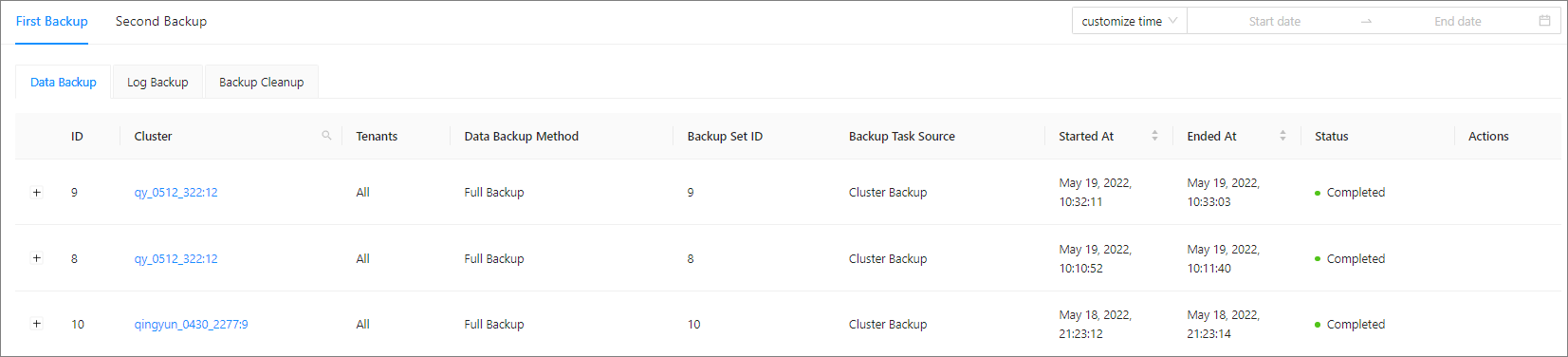
Parameter Description ID Click the plus sign ( + ) on the right of the ID to view Backup Method , Data Version , and Storage Directory . Cluster Click the cluster name in the Cluster column. The Overview page of the cluster appears. Data Backup Mode Valid values: Full and Incremental . Backup Task Source The application of the backup task. Status Valid values: In Progress , Failed , and Completed . NOTE
When OceanBase is above V2.2.77 and below V4.0, it supports viewing the task progress percentage.Second Backup If the value is Yes , you can click Yes to view all second backup tasks for the data. Actions If the data backup task fails, click View Cause in the Actions column. View Log backup tasks.
The table on the Log Backup tab contains the following columns: Cluster, Backup Method, Host IP Address, Latest Backup Time, Latency, Storage Directory , Start Time , Status , and Actions . You can filter the backup tasks by status. The following table describes more information.
In the upper-right corner of the tab, you can select Last 24 Hours, Last 7 Days, or Last 30 Days, or select Custom Time and specify a time range, to filter log backup tasks by time.

Parameter Description Cluster You can search for clusters. Click the cluster name in the Cluster column. The Overview page of the cluster appears. Backup Mode The backup mode of the cluster. Valid values: Logical Backup and Physical Backup . Service Host IP The IP address of the service host, for example, xxx.xxx.xxx.xxx. Latest Backup Time The point in time of the latest log backup. Latency The time difference between the backup data and the real-time data. Status Valid values: Starting , In Progress , Stopping , Stopped , and Failed . Actions For a cluster in the Starting or In Progress state, this column provides the Stop option. For a cluster in the Stopped state, this column provides the Start option. View backup cleanup tasks.
The table on the Backup Cleanup tab contains the following columns: ID , Cluster, Start Time, End Time , and Status . You can filter the cleanup tasks by status. The status can be Pending , Executing , Failed , or Completed .
In the upper-right corner of the tab, you can select Last 24 Hours, Last 7 Days, or Last 30 Days, or select Custom Time and specify a time range, to filter the cleanup tasks by time.