








OceanBase Cloud Platform (OCP) allows you to upgrade a standalone centralized OceanBase database to a distributed cluster online.
This topic describes how to upgrade a standalone centralized database to a distributed cluster.
Prerequisites
You have deployed a standalone centralized OceanBase database.
Procedure
Log on to the OCP console.
In the left-side navigation pane, click Clusters to go to the Cluster Overview page.
In the Clusters list on the page, find the target cluster and click its name.
In the upper-right corner of the Overview page of the cluster, click Scale to a distributed cluster.
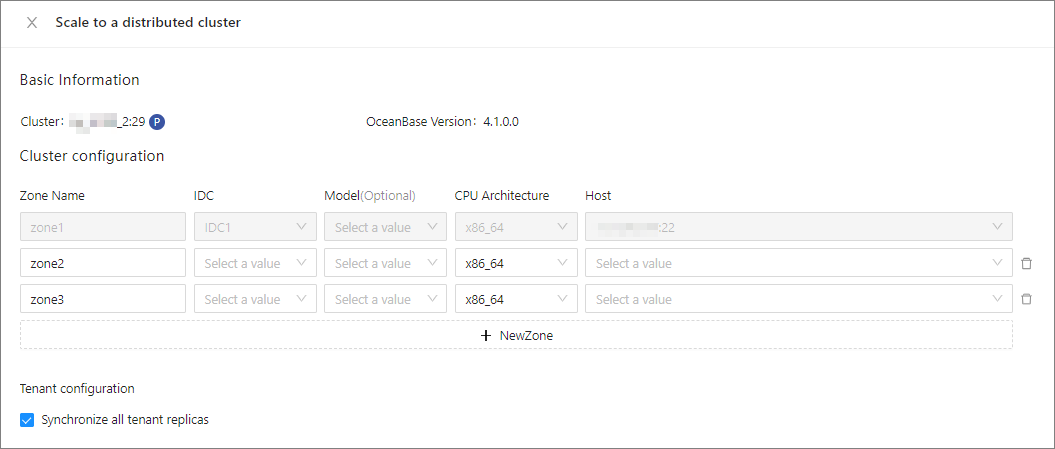
In the panel that appears on the right, configure the following information.
Set the zone information.
By default, three zones are displayed. To add more zones, click Add Zone.
Parameter Description Zone Name The name of the zone. IDC The IDC where the zone is located. Host Type Optional. If you select a host type, the host list displays only the hosts of the specified host type. CPU Architecture The CPU architecture of the host in the zone must be the same as that of the cluster.
After you select an architecture, the system checks whether an installation package for the CPU architecture of the current cluster exists. If the installation package for the specified architecture does not exist, the zone cannot be added.Host You can select only one host, which runs both the observer and rootserver processes. If no host is available in the drop-down list, you can click Add Host in the drop-down list to add a host. Note
- In addition to adding zones, you can also delete zones other than Zone1. You must retain at least one zone. Otherwise, you cannot upgrade the database to a distributed cluster.
- The name, IDC, host type, CPU architecture, and host information of Zone1 cannot be modified.
Choose whether to select Add Replicas for All Tenants in the Tenant Configuration section.
If you select this option, replicas are added for all tenants in the cluster. The same quantity of replicas of the same type, unit specifications, and unit quantities as those in the original zone are added for each tenant.
Click OK.
In the dialog box that appears, you can click View Task to view the creation progress.
You can also choose System Management > Tasks to view the progress of the task.