







This topic describes the frequently asked questions about updating OceanBase Migration Service (OMS).
Which versions of OMS can be upgraded to V3.4.0?
OMS V3.2.1 and later can be directly upgraded to OMS V3.4.0. If you use OMS of a version earlier than V3.2.1, you must upgrade it first to V3.2.1.
Must I back up the original database before the upgrade?
We recommend that you back up the original database before you start the upgrade. The backup of the original database is a fail-safe measure in the upgrade process. Once the upgrade fails, you can start the original OMS container.
If you do not back up the original database, make sure that the name of the new database is the same as that of the original database. In addition, you cannot roll back to the original database if the upgrade fails.
How can I control the interval for pulling data from the store component?
You can enable high availability (HA) to automatically create a new store. The prerequisite for automatic store creation is that the number of stores under the subtopic does not exceed the value of the subtopicStoreNumberThreshold parameter of ha.config. By default, the number of stores under a subtopic is 5.
Log on to the OMS console.
In the left-side navigation pane, choose System Management > System Parameters.
On the
System Parameterspage, findha.configand click the edit icon in the Value column.In the
Modify Valuedialog box, setenabletotrueto enable HA.Set the
perceiveStoreClientCheckpointparameter totrueto enable data pulling from the store component for the downstream component.If you set
perceiveStoreClientCheckpointtofalse, you need to set therefetchStoreIntervalMinparameter to the desired value. This parameter specifies the time interval, in minutes, for pulling data from the store component.For example, if the tasks monitored in the original container are all executed in real time, you plan to stop the original container at 4:00 pm, and the upgrade is expected to complete at 5:00 pm, we recommend that you set the
refetchStoreIntervalMinparameter to 90 minutes. This interval is the sum of a 60-minute period (between the container stop time and the upgrade end time) and a 30-minute redundant period (based on the business traffic).
If I modify the parameters of some processes before the upgrade, do the parameters exist after the upgrade?
If you modify the parameters of the JDBCWriter, connector, or checker component, the modified parameters still exist after the upgrade succeeds.
If you modify the parameters of the store component, such as a whitelist-related parameter, the subtopic configuration is updated accordingly, and the modified parameters still exist after the upgrade succeeds.
What do I do to resolve configuration compatibility issues when I upgrade OMS V3.2.1 or V3.2.2 to V3.4.0?
In scenarios with DDL operations for synchronization, if you did not add the dbType parameter before the upgrade, the project cannot run. You can choose one of the following methods to fix the issue after the upgrade. In scenarios without DDL operations for synchronization, if the source database is an OceanBase data source, the value of dbType is OB_MySQL by default.
Notice:
If you use OMS V3.3.0 and it contains data synchronization projects created by using OMS V3.2.1 or V3.2.2, the preceding issue may occur. You can fix it by using the same methods.
You can check whether the
dbTypeordb_typeparameter exists in the Source configuration file of the connector component. If any of the two parameters exists, no fix is required.
Method 1: Modify the configuration
Log on to the OMS console.
In the left-side navigation pane, choose OPS & Monitoring > Component > Connector.
On the Connector tab, click Update in the Actions column of the target connector.
In the Update Configurations dialog box, hover the pointer over the blank area on the right side of the source field and click + to add the
dbTypeparameter.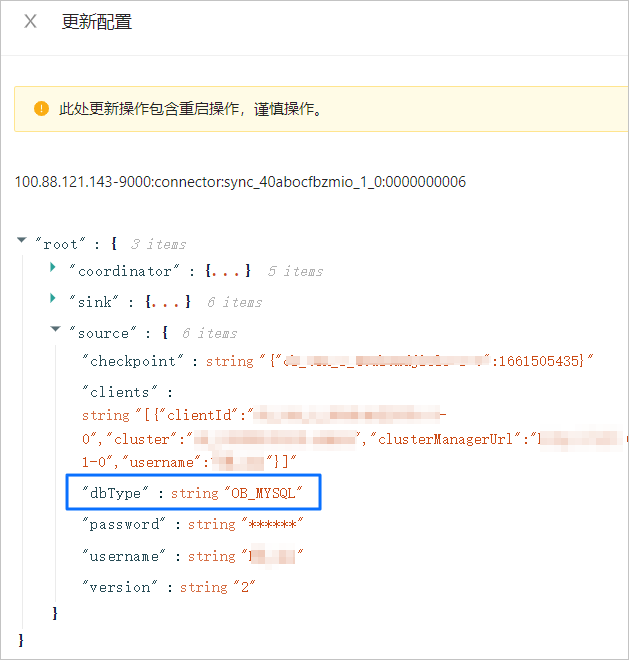
Notice:
If the
checkpointparameter is not specified, you need to specify the corresponding information``.After the configuration is completed, click Update.
Method 2: Re-create the project
Log on to the OMS console.
In the left-side navigation pane, click Data Synchronization.
On the Synchronization Projects page, click Clone in the Actions column of the project.
Configure information about the cloned project and change the synchronization start timestamp to a timestamp before the upgrade.
After the configuration is completed, start the data synchronization project and make sure that it runs normally.
Delete the previous data synchronization project.