







OceanBase Migration Service (OMS) allows you to configure the built-in monitoring metrics, alert thresholds, and alert frequency, and create, edit, and delete alert channels in the OMS console.
Background information
OMS alerts generated upon monitoring metrics such as the long-term synchronization channel status are sent to the customer environment by using OceanBase Cloud Platform (OCP). On the Alert Settings page, you can configure the thresholds of different protection levels for data migration and synchronization tasks.
OMS supports the following alert protection levels: No Protection, High Protection, Medium Protection, and Low Protection.
No Protection: No alert is generated. This protection level is suitable for short-term migration or business scenarios with low real-time requirements.
High Protection: This protection level is applicable to scenarios with extremely high requirements on latency.
A high protection alert is triggered when:
The synchronization latency is greater than the specified threshold.
The interruption duration of a schema migration or full data synchronization task exceeds the specified threshold.
Medium Protection: This protection level is applicable to scenarios with high requirements on latency. The threshold must be higher than or equal to the threshold configured for high protection.
Low Protection: This protection level is applicable to scenarios with low requirements on latency. The threshold must be higher than or equal to that configured for medium protection.
The admin user can modify the Alert Threshold and Alert Frequency for each protection level. Regular users can mark the protection level for their own data synchronization tasks and view the Alert Threshold and Alert Frequency of each protection level.
Alert settings
Log on to the OMS console.
In the left-side navigation pane, choose System Management > Alert Management.
On the Alert Management page, click the Alert Settings tab.
On the Alert Settings tab, configure the Alert Threshold and Alert Frequency parameters for High Protection, Medium Protection, and Low Protection.
Protection levelParameterDescriptionHigh protection Synchronization Latency Value range: 1 second to 5 minutes. High protection Interruption Duration Value range: 1 second to 5 minutes. Medium protection Synchronization Latency Value range: 30 seconds to 10 minutes. Medium protection Interruption Duration Value range: 30 seconds to 10 minutes. Low protection Synchronization Latency Value range: 5 minutes to 3 hours. Low protection Interruption Duration Value range: 5 minutes to 3 hours. Alert Frequency Value range: 1 minute to 600 minutes. The default value is 3 minutes. You can configure the frequency based on your business requirements. On the Data Migration and Data Synchronization pages, view and modify the alert protection levels.
For example, you can perform the following operations on the Data Migration page:
In the left-side navigation pane, click Data Migration.
On the Migration Tasks page, click the More icon for the task whose alert protection level you want to modify, and then click Modify Alert Level in the drop-down list.
In the Modify Alert Level dialog box, select the desired alert protection level.
Click Submit.
Create an alert channel
Log on to the OMS console. In the left-side navigation pane, choose System Management > Alert MAnagement.
On the Alert Management page, click the Alert Settings tab.
In the Alert Channels section, click Create Alert Channel in the upper-right corner.

In the Create Alert Channel dialog box, specify the following parameters.
ParameterDescriptionChannel Name The name of the input channel. The name must be 1 to 50 characters in length and can contain Chinese characters, English letters, digits, and underscores (_). Channel Type Valid values: OCP Alert and DingTalk Alerts. Configuration Information Fill in the configuration information based on the selected channel type. - If you select OCP Alert, select an OCP cluster from the associated OCP clusters.
- If you select DingTalk Alerts, you must specify the webhook access token of the DingTalk chatbot. For more information, see the "Obtain the access token of the DingTalk chatbot" section of this topic.
If you select DingTalk Alerts, you can specify a DingTalk group to receive the alerts.
Click Test Connection.
After the test succeeds, click Submit.
After you create an alert channel, you can edit or delete it.
Edit an alert channel
Click Edit in the Actions column of the channel that you want to edit.
In the Modify Alert Channel dialog box, modify the parameters.
You can modify the Channel Name, Channel Type, and Configuration Information parameters.
Click Test Connection.
After the test succeeds, click Submit.
Delete an alert channel
Click Delete in the Actions column of the channel that you want to delete.
In the dialog box that appears, click Delete.
Obtain the access token of the DingTalk chatbot
Open the destination DingTalk group and click the Group Settings icon in the upper-right corner.
Click Group Assistant.
In the Group Assistant panel, click Add Robot.
In the ChatBot dialog box, click the + icon.
Click Custom under the prompt Please choose which robot to add.
In the Robot details dialog box, click Add.
In the Add Robot dialog box, specify the following parameters.
ParameterDescriptionChatbot name The name of the custom chatbot. Add to Group The DingTalk group to which the chatbot is added. You cannot modify this parameter after you specify it. Security Settings Valid values: Custom Keywords, Additional Signature, and IP Address. To ensure the security of the custom chatbot, select at least one security setting. Select I have read and accepted DingTalk Custom Robot Service Terms of Service and click Finished.
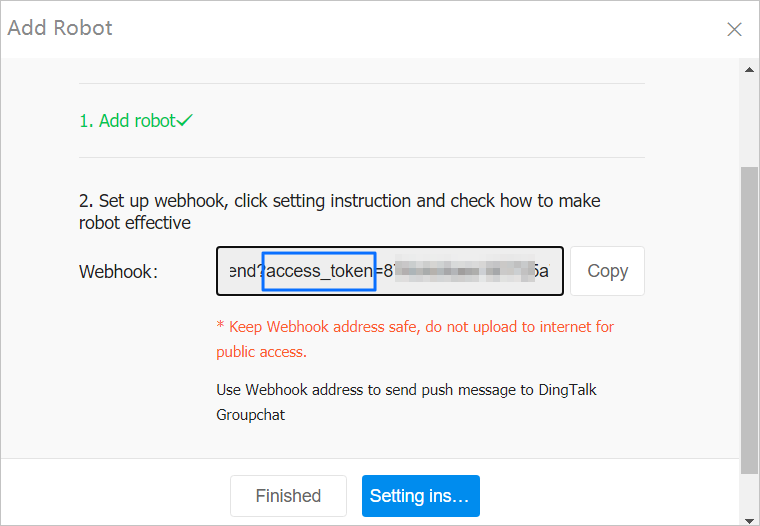
In the dialog box that appears, click Copy to copy the webhook address. Obtain the string after the
access_token=field. You can also directly copy the access token in the webhook address.Notice
Keep the webhook address confidential. If the webhook address is disclosed, security risks may occur.
Click Finished.