







If you encounter a fault or a high latency during a data migration or synchronization project, you can view the logs of the specific server components for troubleshooting. OceanBase Migration Service (OMS) Community Edition allows you to securely and conveniently view server logs without logging on to the specific server.
Prerequisites
You have identified the components that are in error and obtained the IP address of the corresponding server. The underlying component name of the task resource contains the IP address of the server to which it belongs.
Procedure
Log on to the OMS Community Edition console.
In the left-side navigation pane, choose OPS & Monitoring > Server.
Click View Logs in the Actions column of the target server.
For single-region deployment, the region information is displayed on the right of Server, and the region column is not displayed.
For multi-region deployment, you can filter servers by region and view the logs of servers in the target region.
Specify Log Position.
By default, logs are stored in the
/home/admin/xxxdirectory.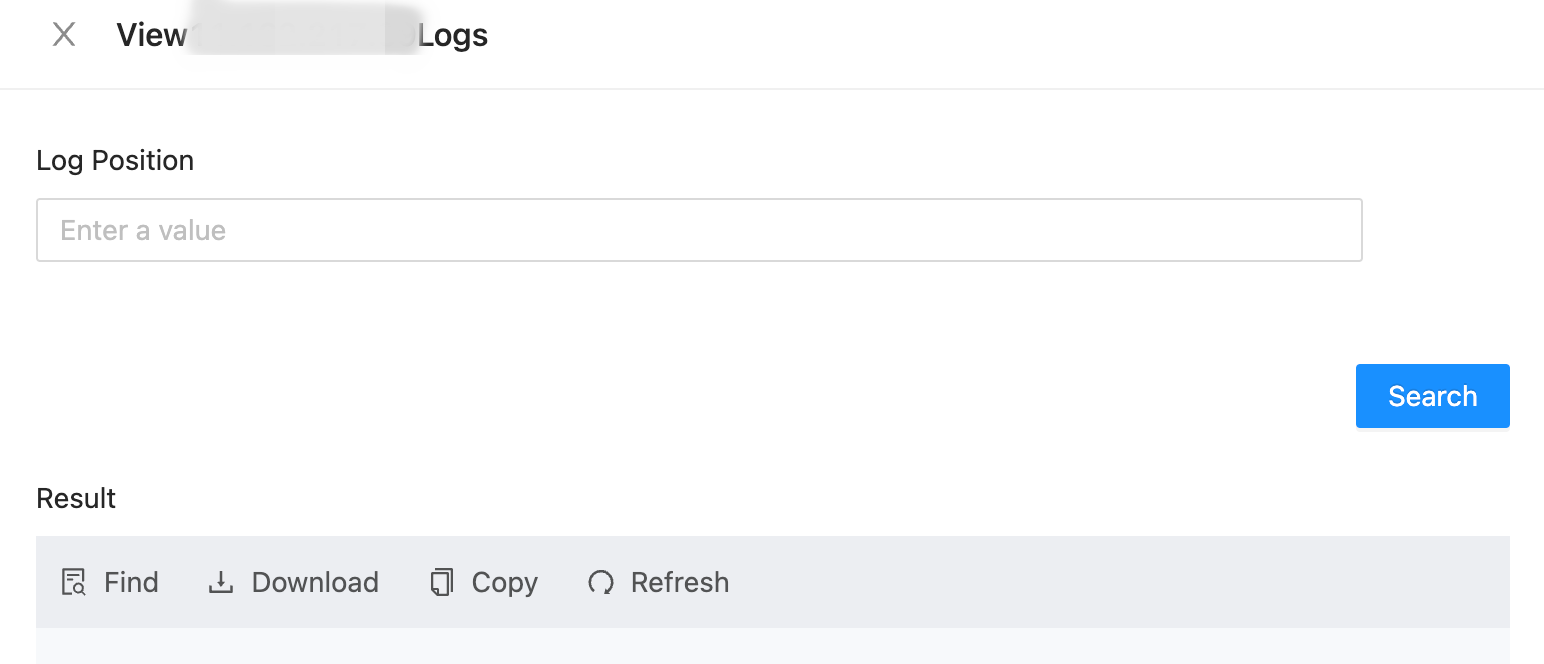
You can enter the name of the folder where the logs are stored to view all log files in the folder.
You can enter the path and the name of a log file to view its details.
Click Search.
The latest 1000 log entries are displayed. To refresh the logs, click Search again.
You can also download and copy logs.