







This topic describes how to perform batch operations on data migration projects by using OceanBase Migration Service (OMS) Community Edition.
Background
OMS Community Edition allows you to perform operations on multiple data migration projects at a time on the Migration Projects page. Supported batch operations on data migration projects vary based on the project states.
Project status |
Supported batch operation |
|---|---|
| Not Started | Batch start, batch delete, and batch modify alert configuration |
| Running | Supported batch operations on running projects vary based on the scenarios.
|
| Paused | Batch restore, batch release, batch modify alert configuration, and batch skip full verification (in the full verification stage) |
| Failed | Batch restore, batch release, batch modify alert configuration, and batch skip full verification (in the full verification stage) |
| Released | Batch delete |
| Releasing | N/A |
| Completed | Batch release |
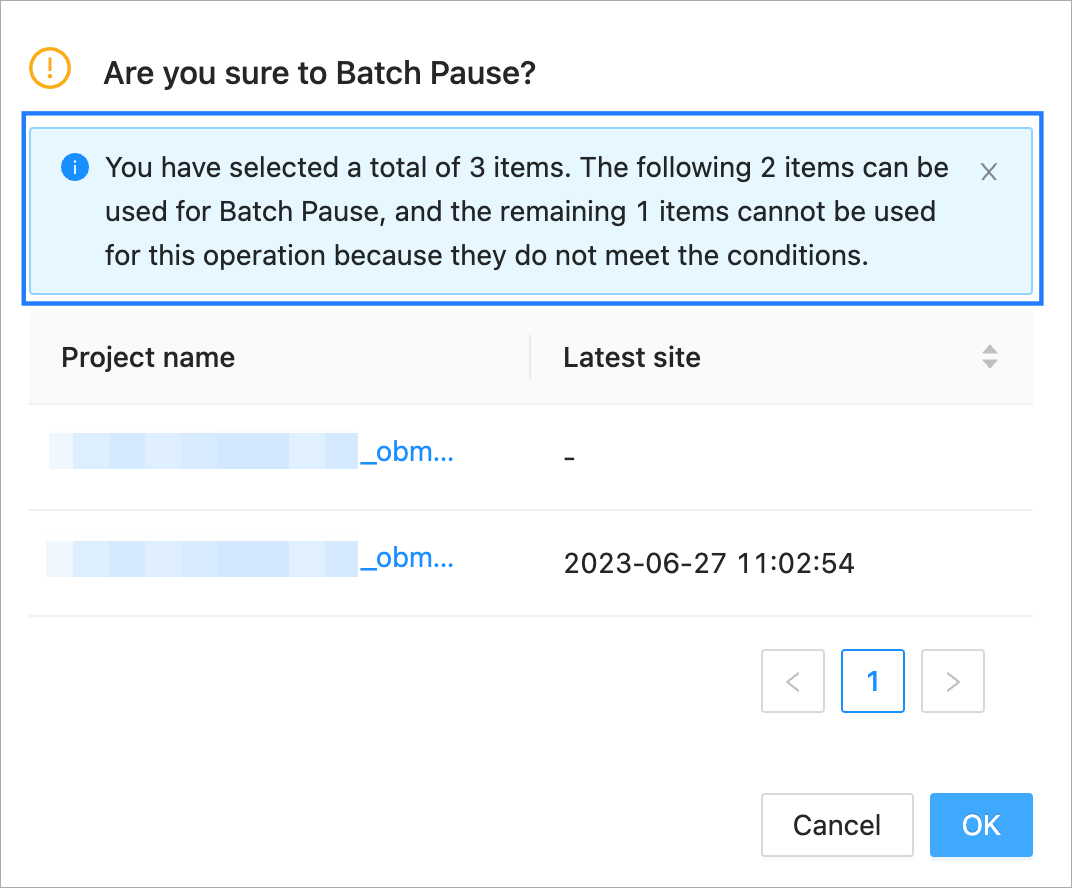
If you select multiple projects for a batch operation, but not all projects support this batch operation, a dialog box appears and displays the projects that support this batch operation.
Go to the Migration Projects page
Log on to the OMS Community Edition console.
In the left-side navigation pane, choose Data Migration. The Migration Projects page automatically appears.
You can select data migration projects for a batch operation.
Batch pause
OMS Community Edition allows you to batch pause data migration projects in the Running state.
On the Migration Projects page, select the data migration projects to be paused.
Click Batch Pause in the lower part of the page.
In the dialog box that appears, click OK.
This dialog box will display the number of projects that support batch pausing, the project names, and the latest timestamps.
After the operation succeeds, the number of projects that are successfully paused is displayed.
For any project that failed the batch operation, troubleshoot the issue as prompted.
Batch restore
OMS Community Edition allows you to batch restore data migration projects in the Paused or Failed state.
On the Migration Projects page, select the data migration projects to be restored.
Click Batch Restore in the lower part of the page.
In the dialog box that appears, click OK.
This dialog box will display the number of projects that support batch restoration, the project names, and the latest timestamps.
After the operation succeeds, the number of projects that are successfully restored is displayed.
For any project that failed the batch operation, troubleshoot the issue as prompted.
Batch release
OMS Community Edition allows you to batch release data migration projects in the Paused, Failed, or Completed state.
On the Migration Projects page, select the data migration projects to be released.
Click Batch Release in the lower part of the page.
In the dialog box that appears, click OK.
This dialog box will display the number of projects that support batch release, the project names, and the latest timestamps.
After the operation succeeds, the number of projects that are successfully released is displayed.
For any project that failed the batch operation, troubleshoot the issue as prompted.
Batch start forward switchover
OMS Community Edition allows you to batch start forward switchover on data migration projects that are in Running state and in the same step of the forward switchover stage, except for the switchover precheck step.
Forward switchover consists of the following steps: start forward switchover, perform switchover precheck, start the destination Store, confirm that writing has stopped in the source, confirm the writing stop timestamp upon synchronization completion, stop forward synchronization, process database objects, and start reverse incremental migration.
Note
The steps of forward switchover vary based on the migration type specified when you created the project.
On the Migration Projects page, select the data migration projects to batch start forward switchover.
Click Batch Start Forward Switchover in the lower part of the page.
In the dialog box that appears, click OK.
This dialog box will display the number of projects that support this batch operation, the project names, and the latest timestamps.
In the Batch Start Forward Switchover dialog box, view the status of the forward switchover task.
Note
You must manually confirm the following steps: start a forward switchover task, verify that writing is stopped at the source, process database objects, and start reverse incremental migration.
After the operation succeeds, the number of projects that succeeded in this batch operation is displayed.
For any project that failed the batch operation, troubleshoot the issue as prompted.
Batch start
OMS Community Edition allows you to batch start data migration projects in the Not Started state.
On the Migration Projects page, select the data migration projects for batch start.
Choose More Batch Operations > Batch Start in the lower part of the page.
In the dialog box that appears, click OK.
This dialog box will display the number of projects that support batch start, the project names, and the latest timestamps.
After the operation succeeds, the number of projects that are successfully started is displayed.
For any project that failed the batch operation, troubleshoot the issue as prompted.
Batch delete
OMS Community Edition allows you to batch delete data migration projects in the Not Started or Released state.
On the Migration Projects page, select the data migration projects for batch deletion.
Choose More Batch Operations > Batch Delete in the lower part of the page.
In the dialog box that appears, click OK.
This dialog box will display the number of projects that support batch deletion, the project names, and the latest timestamps.
After the operation succeeds, the number of projects that are successfully deleted is displayed.
For any project that failed the batch operation, troubleshoot the issue as prompted.
Batch enter forward switchover stage
OMS Community Edition allows you to enable multiple data migration projects that are in the Running state and have completed full verification to enter the forward switchover stage.
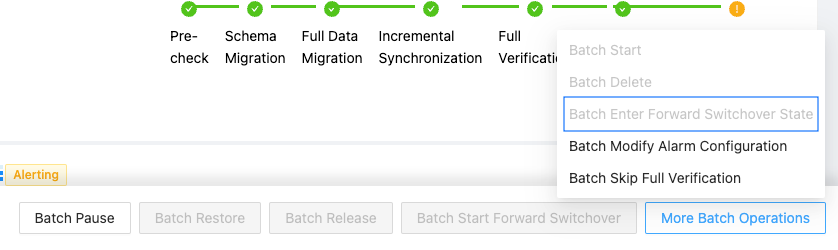
On the Migration Projects page, select the data migration projects to enter the forward switchover stage.
In the lower part of the page, choose More Batch Operations > Batch Enter Forward Switchover.
In the dialog box that appears, click OK.
This dialog box will display the number of projects that can enter the forward switchover stage, the project names, and the latest timestamps.
After the operation succeeds, the number of projects that succeeded in the batch operation is displayed.
For any project that failed the batch operation, troubleshoot the issue as prompted.
Batch modify alert configuration
OMS Community Edition allows you to batch modify the alert configuration of data migration projects in the Not Started, Running, Paused, or Failed state.
On the Migration Projects page, select the data migration projects whose alert settings are to be modified.
Choose More Batch Operations > Batch Modify Alert Configuration in the lower part of the page.
In the Batch Configure Alerts dialog box, specify the related parameters.
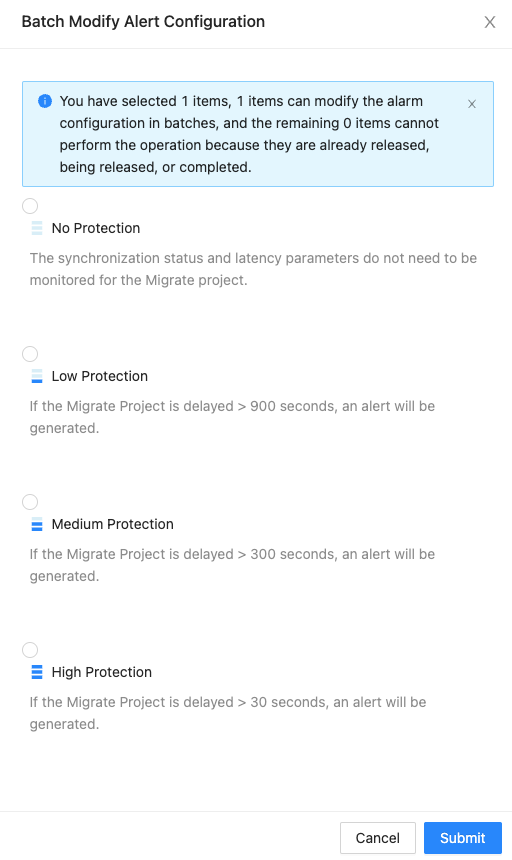
OMS Community Edition supports the following alert levels: No Protection, High Protection, Medium Protection, and Low Protection. For more information, see Alert settings.
Click Submit.
To view the alerts generated for a data migration or synchronization project, see View project alerts.
After the alert settings are modified for the selected projects, a prompt is displayed on the page. For any project that failed the batch operation, troubleshoot the issue as prompted.
Batch skip full verification
OMS Community Edition allows you to batch skip full verification for data migration projects that are in the Running, Paused, or Failed state during the full verification stage.
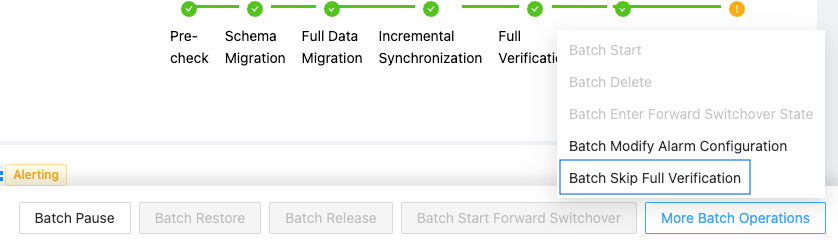
On the Migration Projects page, select the data migration projects to skip full verification.
Choose More Batch Operations > Batch Skip Full Verification in the lower part of the page.
In the dialog box that appears, click OK.
This dialog box will display the number of projects that can skip full verification, the project names, and the latest timestamps.
After the operation succeeds, the number of projects that succeeded in the batch operation is displayed.
For any project that failed the batch operation, troubleshoot the issue as prompted.