







Description
OceanBase Cloud Platform (OCP) needs to manage OceanBase clusters in multiple virtual private clouds (VPCs) in multi-VPC mode. OCP accesses the services in these VPCs through secure channels established by IC-Servers and IC-Agents. An IC-Server provides a virtual IP (VIP) address for OCP and functions as the proxy for OCP to access other VPCs.
This alert is triggered when OCP in the control VPC cannot access other VPCs.
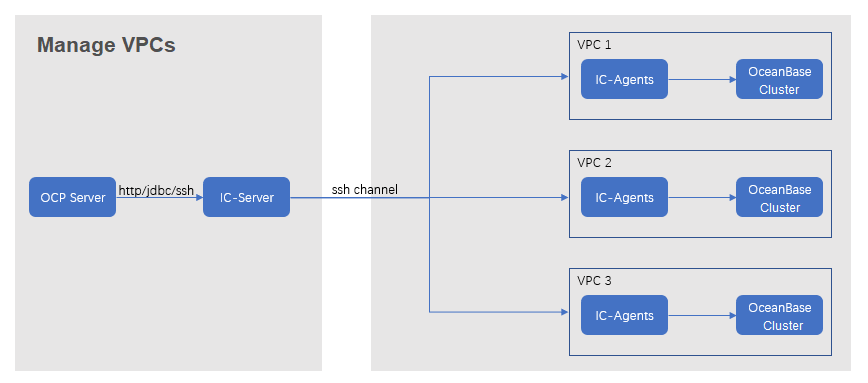
Principle
The following table describes the key parameters that are involved in the monitoring and alerting logic.
Parameter |
Value |
|---|---|
| Metric | vpc_network_health
Note |
| Source | The interface for health check on an IC-Server. The interface URL is in the following format: http:// ip:8088/api/v1/clusters/all/agents Replace ip with the IP address of the monitored host. |
| Collected metric | vpc_network_health |
| Metric expression | min(vpc_network_health{@LABELS}) by (@GBLABELS) |
| Collection cycle | 1 minute |
Alert rule
Metric |
Default threshold |
Duration |
Alert cycle |
Elimination cycle |
|---|---|---|---|---|
| vpc_network_health | 1 | 0 seconds | 60 seconds | 5 minutes |
Alert information
Trigger method |
Alert level |
Scope |
|---|---|---|
| Based on the expression of the metric | Critical | Server |
Alert templates
Overview: ${alarm_target} ${alarm_name}
Details: ${alarm_target} ${alarm_name}
Overview example: VPC-2 user VPC connection failed
Details example: VPC-2 user VPC connection failed
Impact on the system
You cannot manage OceanBase clusters and resources in the VPC in the OCP console.
Possible causes
All IC-Agent hosts in the faulty VPC crash, making the VPC inaccessible.
All IC-Agent processes in the faulty VPC are unavailable.
OCP cannot connect to any IC-Agents in the VPC due to network disconnection.
Suggested solutions
Check whether the alert ic_server_connect_failed Inter-Connector is reported, and whether IC-Servers are connected.
If an IC-Server is not connected, troubleshoot the connection issue.
Check whether IC-Agent hosts in the VPC are running properly.
For example, check whether you can log on to the hosts, and whether memory and CPU resources on the hosts are sufficient. If the hosts are running properly, go to the next step.
Check whether IC-Agent processes are normal, and whether error logs are printed.
Run the following command to check whether each IC-Agent process is normal:
ps -ef|grep ic-agentIf the process is not started, contact O&M engineers to restart the process. Then, check whether the alert is eliminated.
If the process is started, go to the next step.
Run the following command to check whether errors are printed in the log file
~/logs/ic-agent/agent.logof the IC-Server.grep -r "error" ~/logs/ic-agent/agent.logReplace tilde (~) in
~/logs/ic-agent/agent.logwith the actual deployment path of the IC-Agent.If error logs are printed, perform troubleshooting based on the errors.
If no error logs are printed, go to the next step.
Contact technical support for troubleshooting if the alert is not eliminated after all the preceding measures are taken.