







This topic introduces how to build an application by using OceanBase Connector/J and OceanBase Database. It also covers the use of the application for fundamental database operations, including table creation, data insertion, and data query.
 Download the java-oceanbase-jdbc sample project
 Prerequisites
You have installed OceanBase Database.
You have installed Java Development Kit (JDK) 1.8 and Maven.
You have installed Eclipse.
Note
The tool used to run the sample code in this topic is Eclipse IDE for Java Developers (2022-03), but you can also choose a tool that suits your personal preference to run the code.
Procedure
Note
The steps outlined in this topic are for the Windows environment. If you are using a different operating system or compiler, the steps may vary slightly.
- Import the
java-oceanbase-jdbcproject into Eclipse. - Obtain the URL of OceanBase Database.
- Modify the database connection information in the
java-oceanbase-jdbcproject. - Run the
java-oceanbase-jdbcproject.
Step 1: Import the java-oceanbase-jdbc project into Eclipse
Start Eclipse and choose File > Import.
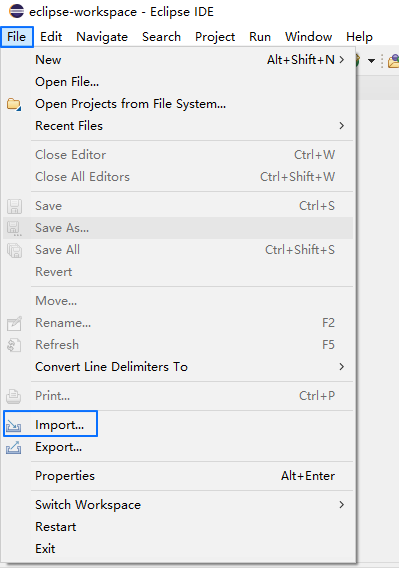
In the Import window, choose Maven > Existing Maven Projects and click Next.

In the window that appears, click Browse, select the root directory of the Maven project, and then click Finish.
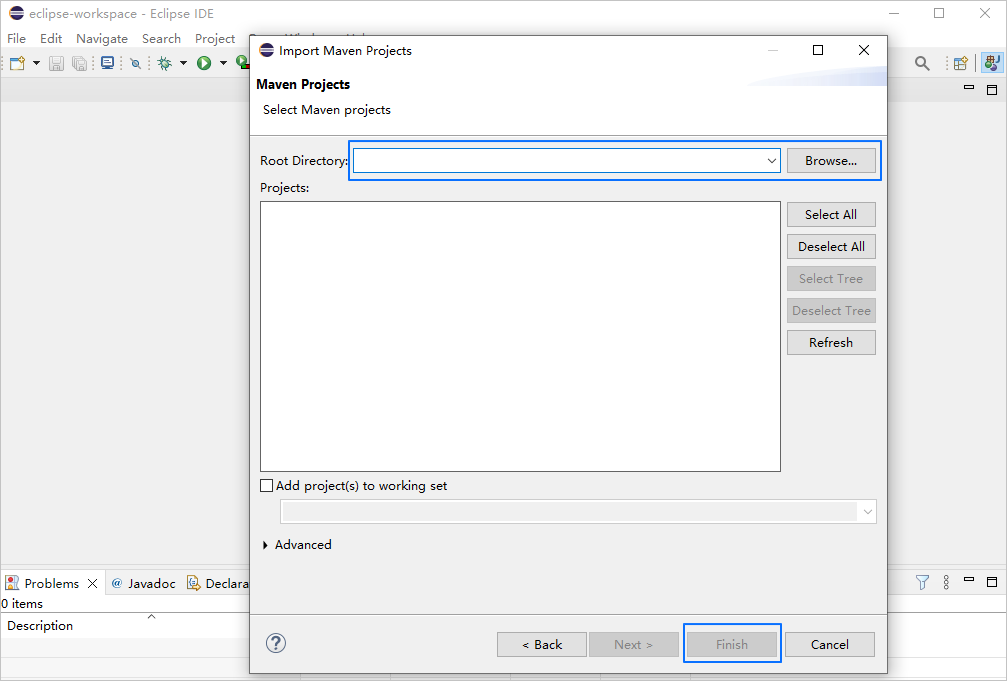
Eclipse automatically recognizes the
pom.xmlfile in the project and displays all Maven projects in Package Explorer. The icon of Package Explorer is displayed in the left-side pane of Eclipse. If the icon is not displayed, choose Window > Show View > Package Explorer.Note
When you import a Maven project using Eclipse, it will automatically detect the
pom.xmlfile in the project, download the required dependency libraries based on the described dependencies in the file, and add them to the project.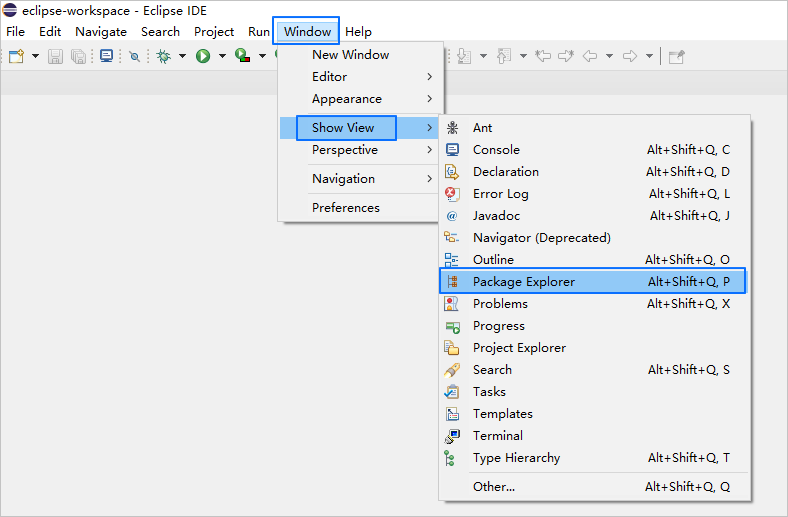
View the project.
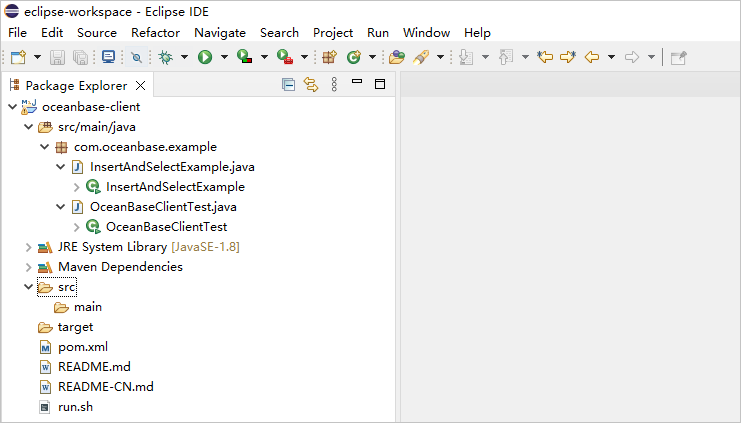
Step 2: Obtain the URL of OceanBase Database
Contact the deployment personnel or administrator of OceanBase Database to obtain the connection string.
Here is an example:
obclient -hxxx.xxx.xxx.xxx -P2883 -usys@oracel001#cluster_name -p******For more information about the connection string, see Connect to an OceanBase tenant by using OBClient.
Enter the URL of OceanBase Database.
Here is an example of the URL used to connect to OceanBase Database in Oracle mode:
jdbc:oceanbase://$host:$port/$schema_name?user=$user_name&password=$passwordwhere:
$hostspecifies the IP address for connecting to OceanBase Database. For connection through OceanBase Database Proxy (ODP), use the IP address of an ODP. For direct connection, use the IP address of an OBServer node.$portspecifies the port for connecting to OceanBase Database. For connection through ODP, the default value is2883, which can be customized when ODP is deployed. For direct connection, the default value is2881, which can be customized when OceanBase Database is deployed.$schema_namespecifies the name of the schema to be accessed.$user_namespecifies the username of the account in the format of user@tenant#cluster name or username@SERVICE:service name. It is specified by the-uparameter. When the value is in the user@tenant#cluster name format, the default tenant issysand the default administrator isroot. The cluster name is not required when you directly connect to OceanBase Database, but is required when you connect to OceanBase Database through ODP.$passwordspecifies the password of the account.
For more information about URL parameters, see Database URL.
Step 3: Modify the database connection information in the java-oceanbase-jdbc project
Modify the database connection information in the InsertAndSelectExample.java file based on the information obtained in Step 2: Obtain the URL of OceanBase Database.
Here is an example:
- The IP address of the OBServer node is
10.10.10.1. - The access port is 2881.
- The name of the schema to be accessed is
sys. - The tenant account is
sys@oracle001, whereoracle001is an Oracle user tenant created in OceanBase Database, andsysis the username of theoracle001tenant. - The password is
******.
Here is the sample code:
String url = "jdbc:oceanbase://10.10.10.1:2881/sys";
String user = "sys@oracle001";
String password = "******";
Step 4: Run the java-oceanbase-jdbc project
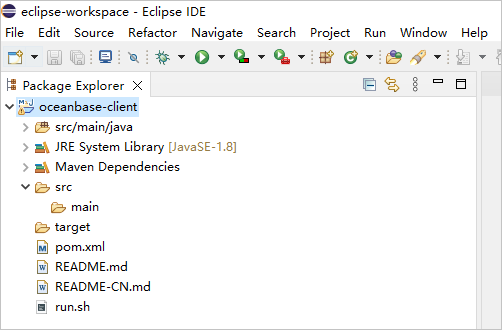
View the project structure in Package Explorer.
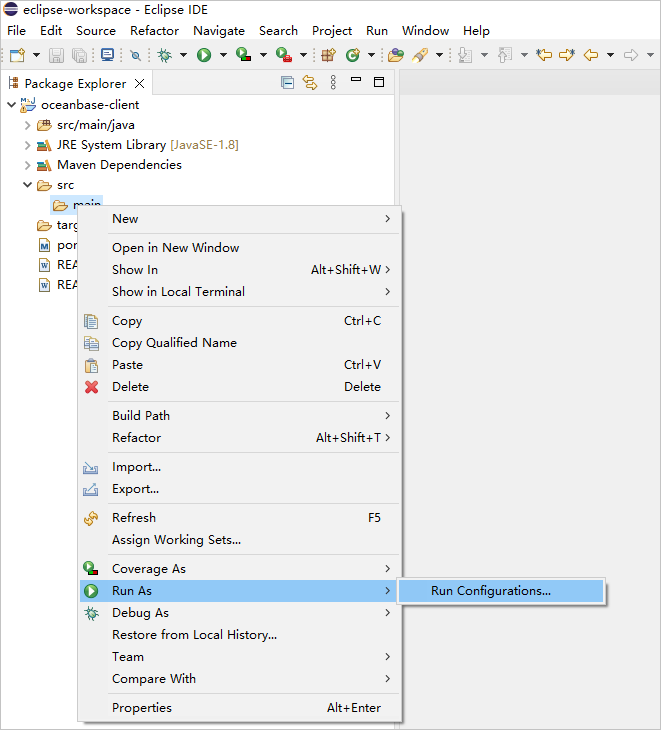
Right-click the main class in the project and choose Run As > Run Configurations... to open the Run Configurations window.
In the Run Configurations window, choose Java Application > New_configuration and select the
com.oceanbase.example.InsertAndSelectExampleproject for Main class.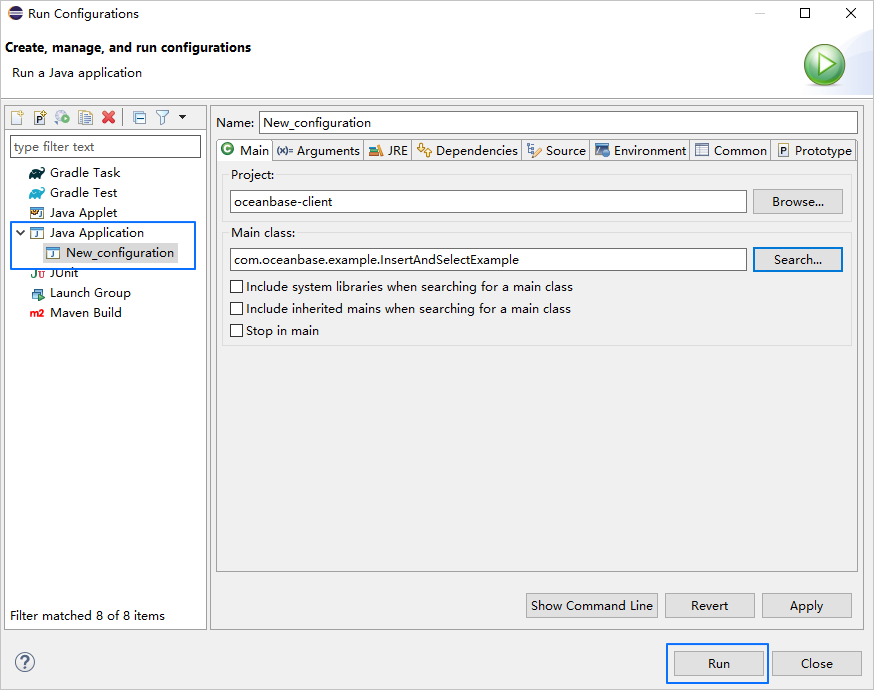
View the logs and output of the project in the Eclipse console.
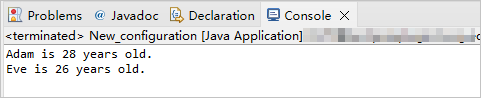
Project code introduction
Click here to download the project code, which is a package named java-oceanbase-jdbc.zip.
Decompress the package to obtain a folder named java-oceanbase-jdbc. The directory structure is as follows:
.
|-- README-CN.md
|-- README.md
|-- pom.xml
|-- run.sh
`-- src
    `-- main
        `-- java
            `-- com
                `-- oceanbase
                    `-- example
                        |-- InsertAndSelectExample.java
                        `-- OceanBaseClientTest.java
Here is a breakdown of the files and directories:
README-CN.md: the project's documentation, mainly for Chinese users.README.md: the project's documentation written in English, mainly for English users.pom.xml: the configuration file for the Maven project, defining the project's dependencies, plugins, and build rules.run.sh: a shell script used primarily for automatically compiling and running Java applications.src: the directory for storing the project's source code and resource files. It is the main directory of the project.main: a Java source code directory for storing the main code of the project.java: the root directory for storing the Java source code.com: the root directory for storing the Java package.oceanbase: a sub-package under thecompackage, indicating that the project is related to OceanBase Database.example: a sub-package under theoceanbasepackage, indicating that the project is a sample program used to demonstrate how to use the OceanBase JDBC driver to connect to and operate OceanBase Database.InsertAndSelectExample.java: part of the sample program and contains a sample classInsertAndSelectExampleused to demonstrate how to insert and query data.OceanBaseClientTest.java: part of the sample program and contains a sample classOceanBaseClientTestused to demonstrate how to connect to the database, execute SQL statements, and perform data queries.
Code in pom.xml
The pom.xml file is a configuration file for Maven projects, which defines the dependencies, plug-ins, and build rules of the projects. Maven is a Java project management tool that can automatically download dependencies, compile, and package the projects.
To configure the pom.xml file, perform the following steps:
Declare the file.
Declare the file to be an XML file that uses XML standard
1.0and character encodingUTF-8.Here is the sample code:
<?xml version="1.0" encoding="UTF-8"?>Configure namespaces and the POM version.
xmlns: the default XML namespace for the POM, which is set tohttp://maven.apache.org/POM/4.0.0.xmlns:xsi: the XML namespace for XML elements prefixed withxsi, which is set tohttp://www.w3.org/2001/XMLSchema-instance.xsi:schemaLocation: the location of an XML schema definition (XSD) file. The value consists of two parts: the default XML namespace(http://maven.apache.org/POM/4.0.0)and the URI of the XSD file (http://maven.apache.org/xsd/maven-4.0.0.xsd).<modelVersion>: the POM version used by the POM file, which is set to4.0.0.
Here is the sample code:
<project xmlns="http://maven.apache.org/POM/4.0.0" xmlns:xsi="http://www.w3.org/2001/XMLSchema-instance"
         xsi:schemaLocation="http://maven.apache.org/POM/4.0.0 http://maven.apache.org/xsd/maven-4.0.0.xsd">
  <modelVersion>4.0.0</modelVersion>
 <!-- Other configurations -->
</project>
Configure basic project information.
<groupId>: the ID of the project group, which is set tocom.oceanbase.example.<artifactId>: the name of the project, which is set tooceanbase-client.<version>: the project version, which is set to1.0-SNAPSHOT.<name>: the name of the project, which is set toob-example-oceanbase-client.
Here is the sample code:
<groupId>com.oceanbase.example</groupId>
<artifactId>oceanbase-client</artifactId>
<version>1.0-SNAPSHOT</version>

<name>ob-example-oceanbase-client</name>
Define source file properties of the project in
<properties>.<project.build.sourceEncoding>: the character encoding for the project source file, which is set toUTF-8.<maven.compiler.source>: the version of the Java source code used by the Maven compiler, which is set to1.8.<maven.compiler.target>: the version of the Java bytecode generated by the Maven compiler, which is set to1.8.<exec.mainClass>: a sample application in the project, which is set tocom.oceanbase.example.InsertAndSelectExample.
Here is the sample code:
<properties>
  <project.build.sourceEncoding>UTF-8</project.build.sourceEncoding>
  <maven.compiler.source>1.8</maven.compiler.source>
  <maven.compiler.target>1.8</maven.compiler.target>
  <exec.mainClass>com.oceanbase.example.InsertAndSelectExample</exec.mainClass>
</properties>
Configure project dependencies in
<dependencies>.Note
The following code defines that the project depends on OceanBase Connector/J V2.4.2. For more information about other versions, see OceanBase Connector/J.
<dependency>: a dependency.<groupId>: the ID of the group to which the dependency belongs, which is set tocom.oceanbase.<artifactId>: the name of the dependency, which is set tooceanbase-client.<version>: the version of the dependency, which is set to2.4.2.
Here is the sample code:
  <dependencies>
    <dependency>
      <groupId>com.oceanbase</groupId>
      <artifactId>oceanbase-client</artifactId>
      <version>2.4.2</version>
    </dependency>
  </dependencies>
Code in InsertAndSelectExample.java
The InsertAndSelectExample.java file is a part of the sample program and contains a sample class InsertAndSelectExample for demonstrating how to insert and query data.
To configure the InsertAndSelectExample.java file, perform the following steps:
Define the package and import
java.sqlinterfaces and classes.Declare that the current file belongs to the
com.oceanbase.examplepackage.Import the following interfaces and classes from the
java.sqlpackage:Connectioninterface: indicates a connection to a database.DriverManagerclass: provides a set of static methods for managing registration of the JDBC driver and obtaining a database connection. The most common method isgetConnection(), which is used to create a connection to a database.PreparedStatementinterface: indicates a precompiled SQL statement.ResultSetinterface: indicates a query result set.SQLExceptionclass: indicates exceptions that may occur when you use JDBC to connect to a database, such as connection failure and SQL statement execution failure.Statementinterface: indicates a statement in a database.
Here is the sample code:
package com.oceanbase.example;

import java.sql.Connection;
import java.sql.DriverManager;
import java.sql.PreparedStatement;
import java.sql.ResultSet;
import java.sql.SQLException;
import java.sql.Statement;
Define class names and the
mainmethod.Set the class name to
InsertAndSelectExample. The name must be the same as the file name.Set the
mainmethod topublic static void, which is a public static method that accepts a string arrayargsas parameters.throws ClassNotFoundException, SQLExceptionis used to declare that theClassNotFoundExceptionandSQLExceptionexceptions can be thrown from the method. The caller of the method that throws exceptions is required to handle the exceptions.Here is the sample code:
public class InsertAndSelectExample {

    public static void main(String[] args) throws ClassNotFoundException, SQLException {
        // to do:
        // 3.connect to your database
        // 4.create a table
        // 5.insert records
        // 6.fetch all records
        // 7.release all resources
    }
}
Connect to a database and obtain the database connection object.
Define the URL with additional connection properties required for connecting to OceanBase Database, where
jdbc:oceanbasespecifies to use the OceanBase Connector/J driver to connect to the database.host:portspecifies the IP address and port number of OceanBase Database.opt1=val1&opt2=val2...specifies the additional connection properties or parameters of the URL. For more information about the additional connection properties of a URL, see Database URL.schema_namespecifies the name of the schema to be accessed.String user = "user_name"specifies the username for logging in to the database.String password = "******"specifies the password for logging in to the database.
Obtain the database connection object as follows:
- Load the driver class named
com.oceanbase.jdbc.Driverby calling theforNamemethod ofClass. - Obtain the
Connectionobject namedconnby calling thegetConnectionmethod of theDriverManagerclass.
Here is the sample code:
String url = "jdbc:oceanbase://host:port/schema_name?[opt1=val1&opt2=val2...]";
String user = "user_name";
String password = "******";
Class.forName("com.oceanbase.jdbc.Driver");
Connection conn = DriverManager.getConnection(url, user, password);
Create a table.
Create a table named
personthat contains thenameandagecolumns. If the table already exists, drop the existing one and then create a new one. To do this, perform the following steps:- Create a
Statementobject namedstmtto send SQL statements to the database. - Call the
executemethod of thestmtobject to execute the SQL statementdrop table personto drop a table namedperson. Whether thepersontable already exists cannot be determined. Therefore, thetry-catchstructure is used to capture exceptions, to avoid an application crash caused by an attempt to drop a nonexistent table. - Call the
executemethod of thestmtobject again to execute the SQL statementcreate table person (name varchar(50), age int)to create a table namedpersonthat contains thenameandagecolumns. The data type of thenamecolumn isvarchar(50), and that of theagecolumn isint.
Here is the sample code:
Statement stmt = conn.createStatement(); try {stmt.execute("drop table person");} catch (Exception ignore) {} stmt.execute("create table person (name varchar(50), age int)");- Create a
Insert data into the table.
Call the
PreparedStatementinterface to insert two data records into thepersontable in the database. To do this, perform the following steps:- Create a
PreparedStatementobject namedpsto execute an SQL statement. The SQL statement isinsert into person values(?, ?), where?is a placeholder that indicates a value to be inserted. - Call the
setString()method to set the first placeholder toAdam. - Call the
setInt()method to set the second placeholder to28. - Execute an update to insert the first data record into the table.
- Call the
setString()method again to set the first placeholder toEve. - Call the
setInt()method again to set the second placeholder to26. - Execute an update again to insert the second data record into the table.
Here is the sample code:
PreparedStatement ps = conn.prepareStatement("insert into person values(?, ?)"); ps.setString(1, "Adam"); ps.setInt(2, 28); ps.executeUpdate(); ps.setString(1, "Eve"); ps.setInt(2, 26); ps.executeUpdate();- Create a
Obtain all records.
Query all data from the
persontable, and return the results to the console. To do this, perform the following steps:- Create a
PreparedStatementobject namedpsto execute an SQL statement. The SQL statement isselect * from person, which queries all data from thepersontable. Call thesetFetchDirection()method to set the cursor in the result set to move forward, and call thesetConcurrency()method to set the result set to be read-only. - Perform a query operation, save the query result to the
ResultSetobject, and name theResultSetobjectrs. - Use the
WHILEloop to traverse theResultSetobject, and call thers.next()method to move the cursor to the next row of data.trueis returned if there is more data. In the loop, call thers.getString(1)method to obtain the values of the first column (namely, thenamecolumn in thepersontable), call thers.getInt(2)method to obtain the values of the second column (namely, theagecolumn), and return the values to the console in the format ofname is age years old. - After the loop ends, close the
ResultSetandPreparedStatementobjects.
Here is the sample code:
ps = conn.prepareStatement("select * from person", ResultSet.TYPE_FORWARD_ONLY, ResultSet.CONCUR_READ_ONLY); ResultSet rs = ps.executeQuery(); while (rs.next()) { System.out.println(rs.getString(1) + " is " + rs.getInt(2) + " years old."); }- Create a
Release database resources.
Close the
PreparedStatement,Statement, andConnectionobjects to release database resources to reduce resource consumption and avoid performance issues.Here is the sample code:
ps.close();
stmt.close();
conn.close();
Complete code
<?xml version="1.0" encoding="UTF-8"?>

<project xmlns="http://maven.apache.org/POM/4.0.0" xmlns:xsi="http://www.w3.org/2001/XMLSchema-instance"
         xsi:schemaLocation="http://maven.apache.org/POM/4.0.0 http://maven.apache.org/xsd/maven-4.0.0.xsd">
  <modelVersion>4.0.0</modelVersion>

  <groupId>com.oceanbase.example</groupId>
  <artifactId>oceanbase-client</artifactId>
  <version>1.0-SNAPSHOT</version>

  <name>ob-example-oceanbase-client</name>

  <properties>
    <project.build.sourceEncoding>UTF-8</project.build.sourceEncoding>
    <maven.compiler.source>1.8</maven.compiler.source>
    <maven.compiler.target>1.8</maven.compiler.target>
    <exec.mainClass>com.oceanbase.example.InsertAndSelectExample</exec.mainClass>
  </properties>

  <dependencies>
    <dependency>
      <groupId>com.oceanbase</groupId>
      <artifactId>oceanbase-client</artifactId>
      <version>2.4.2</version>
    </dependency>
  </dependencies>

</project>
package com.oceanbase.example;

import java.sql.Connection;
import java.sql.DriverManager;
import java.sql.PreparedStatement;
import java.sql.ResultSet;
import java.sql.SQLException;
import java.sql.Statement;

public class InsertAndSelectExample {

    public static void main(String[] args) throws ClassNotFoundException, SQLException {

        String url = "jdbc:oceanbase://host:port/schema_name?[opt1=val1&opt2=val2...]";
        String user = "user_name";
        String password = "******";
        Class.forName("com.oceanbase.jdbc.Driver");
        Connection conn = DriverManager.getConnection(url, user, password);

        Statement stmt = conn.createStatement();
        try {
            stmt.execute("drop table person");
        } catch (Exception ignore) {
        }
        stmt.execute("create table person (name varchar2(50), age int)");

        PreparedStatement ps = conn.prepareStatement("insert into person values(?, ?)");
        ps.setString(1, "Adam");
        ps.setInt(2, 28);
        ps.executeUpdate();
        ps.setString(1, "Eve");
        ps.setInt(2, 26);
        ps.executeUpdate();

        ps = conn.prepareStatement("select * from person", ResultSet.TYPE_FORWARD_ONLY, ResultSet.CONCUR_READ_ONLY);
        ResultSet rs = ps.executeQuery();
        while (rs.next()) {
            System.out.println(rs.getString(1) + " is " + rs.getInt(2) + " years old.");
        }

        ps.close();
        stmt.close();
        conn.close();
    }

}
References
For more information about OceanBase Connector/J, see OceanBase Connector/J.