







This topic provides instructions on how to quickly try out OceanBase Database Community Edition by deploying a demonstration environment, a cluster environment, and a container environment.
Notice
The methods described in this topic are suitable only for trying out OceanBase Database and not for production environments. If you want to deploy OceanBase Database in a production environment, see Deploy OceanBase Database.
Background information
OceanBase Database provides a unified all-in-one package since V4.0.0. You can use this package to install obd, OceanBase Database, ODP, OBAgent, Grafana, and Prometheus at a time. Starting from V4.1.0, the all-in-one package also supports installing OCP Express. You can choose to install all or some components based on your needs.
Component overview
obd
OceanBase Deployer is a tool for installing and deploying OceanBase Database. It is abbreviated as obd. For more information, see OceanBase Deployer.
ODP
OceanBase Database Proxy is a dedicated proxy server for OceanBase Database. It is abbreviated as ODP (also known as OBProxy). For more information, see OceanBase Database Proxy.
OCP Express
OCP Express is a web-based management tool for OceanBase Database 4.x. It is integrated into an OceanBase cluster and supports key performance metrics and basic database management features of the cluster. For more information, see OceanBase Cloud Platform Express (OCP Express).
OBAgent
OBAgent is a framework for monitoring and collecting data from OceanBase Database. It supports both push and pull data collection modes to meet different scenarios.
Grafana
Grafana is an open-source data visualization tool that visualizes various metrics from data sources to help you understand the system running status and performance. For more information, visit the official website of Grafana.
Prometheus
Prometheus is an open-source service monitoring system and time series database. It provides a general data model and APIs for quick data collection, storage, and query. For more information, visit the official website of Prometheus.
Solution overview
To help you quickly get started with OceanBase Database, we provide three different solutions for deploying OceanBase Database. You can choose a solution based on your environment.
Solution 1: Deploy an OceanBase Database demonstration environment
This solution is suitable for deploying an OceanBase Database environment on a single server. The deployed OceanBase Database environment has the basic database capabilities and can help you understand OceanBase Database. However, it does not support distributed capabilities or high availability. We recommend that you do not use this solution for long-term purposes. For more information, see Solution 1: Deploy an OceanBase Database demonstration environment.
Solution 2: Deploy an OceanBase cluster
This solution is suitable for users who want to learn about the distributed architecture and features of OceanBase Database. The deployed OceanBase cluster has full database capabilities and supports distributed high availability. To deploy an OceanBase cluster, you need at least three servers with four vCPUs, 10 GB of memory, and 50 GB of disk space. For more information, see Solution 2: Deploy an OceanBase cluster.
Solution 3: Deploy an OceanBase container
This solution is suitable for users who want to deploy and manage OceanBase Database using containers. This solution has not been validated on a large scale. We recommend that you use it with caution. For more information, see Solution 3: Deploy an OceanBase container.
Prerequisites
Before you install OceanBase Database based on this topic, make sure that your software and hardware environment meets the following requirements:
Item |
Description |
|---|---|
| System |
|
| CPU | Minimum of 2 cores, recommended 4 cores or more. |
| Memory | Minimum of 6 GB, recommended 16 GB to 1024 GB. |
| Disk type | Use SSD. |
| Disk storage space | Minimum of 20 GB. |
| File system | EXT4 or XFS. When the data exceeds 16 TB, use XFS. |
| All-in-one package | The all-in-one package must be V4.1.0 or later. |
| Docker | If you deploy OceanBase Database by using Docker, install Docker and start the Docker service in advance. For more information, see Docker documentation.
NoteOn an x86 architecture-based Mac, only Docker V4.9.0 or earlier is supported for deploying OceanBase Database. You can click here to download Docker. |
Note
The following description is based on the x86 architecture of CentOS Linux 7.9. The settings may vary for other environments.
Solution 1: Deploy a standalone OceanBase demo environment
If you have only one server, you can run the obd demo command to deploy a standalone OceanBase database.
Step 1: Download and install the all-in-one package
Download the latest version of the all-in-one package from OceanBase Download Center and upload it to any directory on your server.
In the directory where the package is located, run the following commands to decompress and install the package.
[admin@test001 ~]$ tar -xzf oceanbase-all-in-one-*.tar.gz
[admin@test001 ~]$ cd oceanbase-all-in-one/bin/
[admin@test001 bin]$ ./install.sh
[admin@test001 bin]$ source ~/.oceanbase-all-in-one/bin/env.sh
Step 2: Deploy OceanBase Database on a single server
Run the following command to deploy OceanBase Database.
[admin@test001 ~]$ obd demoBy default, the
obd democommand deploys OceanBase Database and related components (ODP, OBAgent, Grafana, and Prometheus) with minimum specifications and starts them in the home directory of the current user. The name of the deployed cluster is fixed todemo. For more information about customized deployment, see Quick deployment command.You can also use obd commands to manage OceanBase Database. For more information about the commands, see Cluster commands.
Note
If you install Grafana or Prometheus, the public access address of the service is output. On Alibaba Cloud or other cloud environments, an intranet address may be output if the public IP cannot be obtained. This address is not a public IP address. You must use the correct address.
Run the connection command in the output to connect to the database.
After the
obd democommand is executed successfully, you will find the command to connect to OceanBase Database using OBClient. Here are two examples:Directly connect to the database through port 2881
[admin@test001 ~]$ obclient -h127.0.0.1 -P2881 -uroot@sys -Doceanbase -AConnect to the database through ODP
[admin@test001 ~]$ obclient -h127.0.0.1 -P2883 -uroot@sys -Doceanbase -A
For more information about how to connect to an OceanBase cluster using OBClient, see Connect to an OceanBase tenant by using OBClient. For more information about how to connect to OceanBase Database, see Overview of connection methods.
(Optional) Configure the password.
After you deploy OceanBase Database using the
obd democommand, you can follow these steps to configure the password for the demo cluster.Modify the configuration file.
obd cluster edit-config demoAfter you run the preceding command to open the configuration file, add
root_password: xxxxunder the oceanbase-ce component in the configuration file. Then, save and exit. Here is an example:oceanbase-ce: servers: - 127.0.0.1 global: home_path: /home/admin/oceanbase-ce ... # Some parameters are omitted here. log_disk_size: 13G root_password: ******Restart the cluster.
After you modify and save the configuration file, obd will output the restart command that needs to be executed. You can directly copy and execute it. Here is an example:
[admin@test001 ~]$ obd cluster edit-config demo
Search param plugin and load ok
Search param plugin and load ok
Parameter check ok
Save deploy "demo" configuration
Use `obd cluster reload demo` to make changes take effect.
Trace ID: 29dd12fa-3d73-11ee-91bc-00163e01cd7a
If you want to view detailed obd logs, please run: obd display-trace 29dd12fa-3d73-11ee-91bc-00163e01cd7a
As you can see from the output, after you modify the password for the root@sys user in the configuration file, you need to execute the
obd cluster reload democommand to restart the demo cluster.
Solution 2: Deploy OceanBase Database in a cluster
If you have multiple servers available, you can use obd web commands to start the GUI and deploy a distributed OceanBase cluster on the GUI.
Note
This section describes only simple operations to help you quickly deploy a distributed OceanBase cluster. For more information, see Deploy an OceanBase cluster on the GUI of obd.
Step 1: Download and install the all-in-one package
Download the latest version of the all-in-one package from OceanBase Download Center and upload it to any directory on your server.
In the directory where the package is located, run the following commands to decompress and install the package.
[admin@test001 ~]$ tar -xzf oceanbase-all-in-one-*.tar.gz
[admin@test001 ~]$ cd oceanbase-all-in-one/bin/
[admin@test001 bin]$ ./install.sh
[admin@test001 bin]$ source ~/.oceanbase-all-in-one/bin/env.sh
Step 2: Deploy OceanBase Database using the GUI
Run the
obd webcommand in the command-line interface to start the GUI. Log in to the GUI based on the address in the output and click Start Tour to start the deployment.[admin@test001 ~]$ obd web start OBD WEB in 0.0.0.0:8680 please open http://172.xx.xxx.233:8680Note
The GUI uses port 8680 by default. You can use the
obd web -p <PORT>command to specify a port.In Alibaba Cloud or other cloud environments, the program may fail to obtain a public IP address and output an intranet address. This IP address is not a public IP address, and you need to use the correct IP address to access the GUI.
The
obd webcommand is bound to 0.0.0.0. If you deploy OceanBase Database on multiple network cards, you can use any accessible IP address to access the GUI.
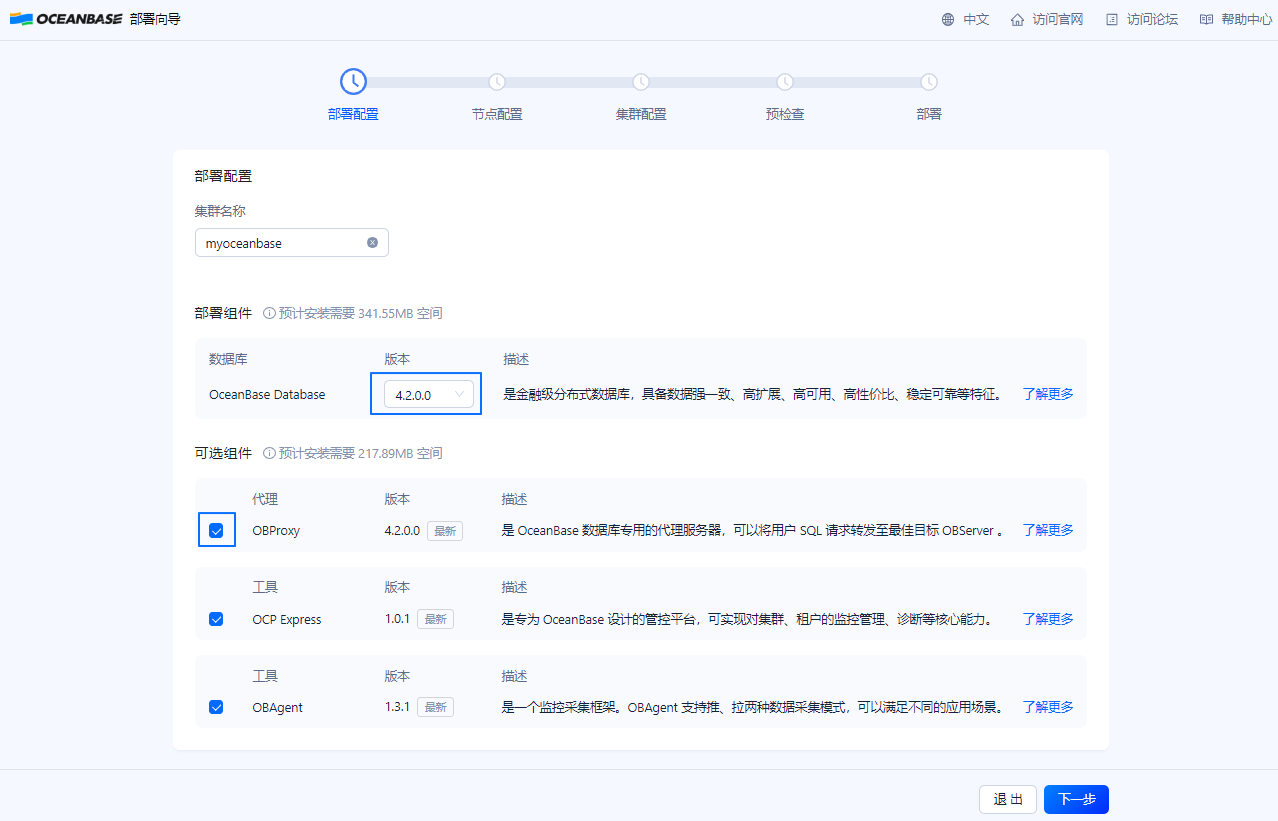
On the Deployment Configuration page, modify Cluster Name and select the components to be deployed. You can also use the default configuration (which deploys all components). Click Next to go to the Node Configuration page.
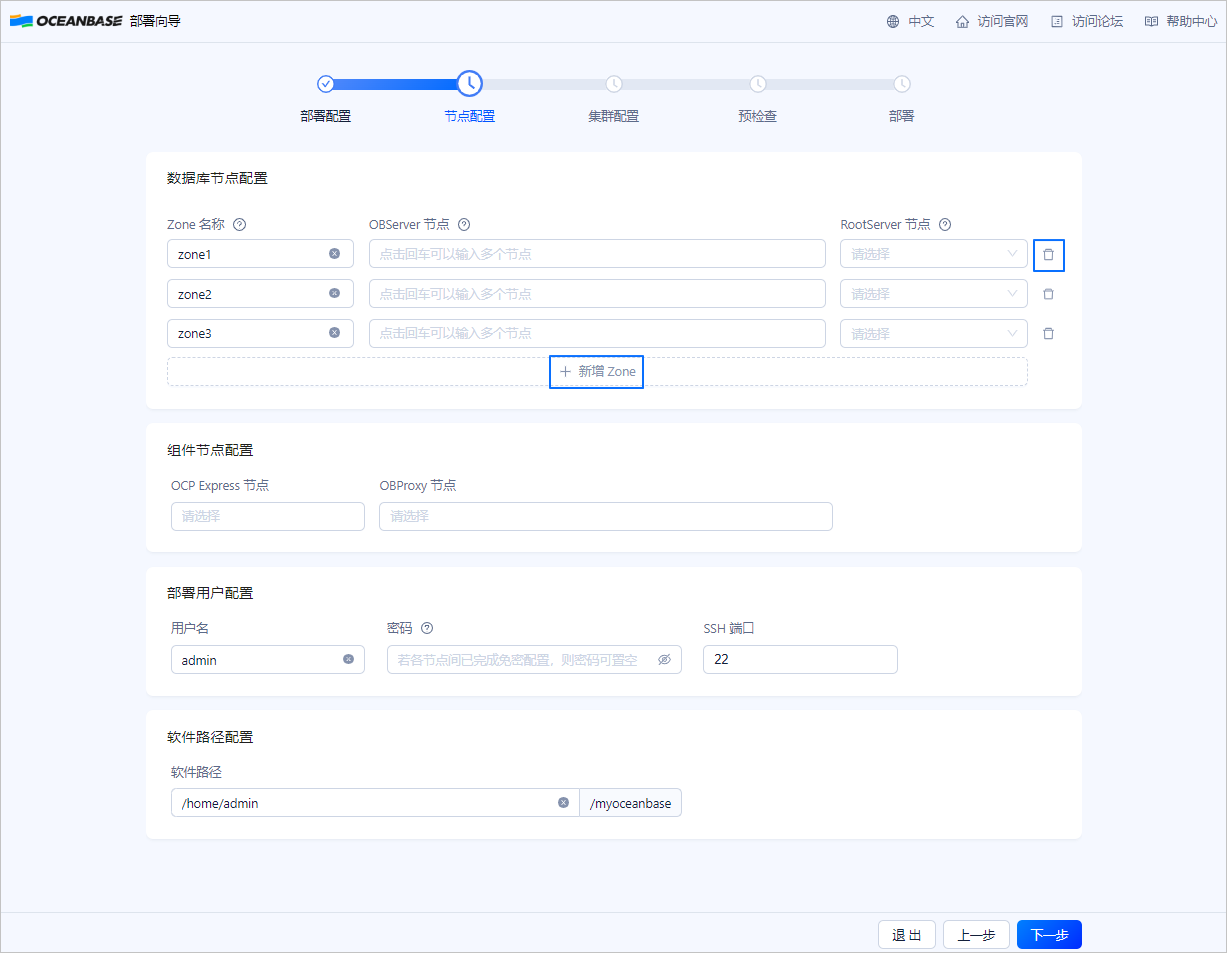
On the Node Configuration page, enter the node IP address and user password, and click Next to go to the Cluster Configuration page.
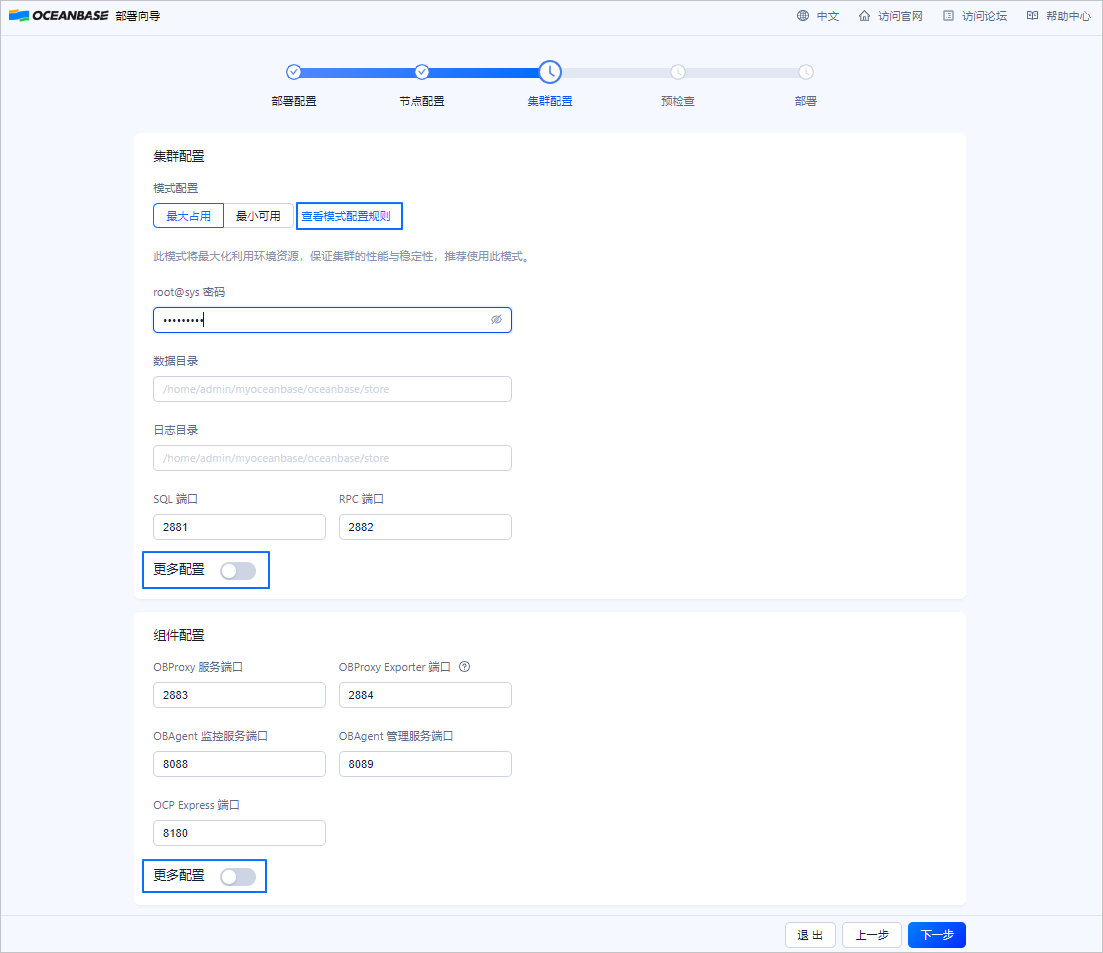
On the Cluster Configuration page, configure the deployment mode, password, directory, port, and other parameters of the cluster. You can also use the default configuration. Click Pre-check to go to the Pre-check page.
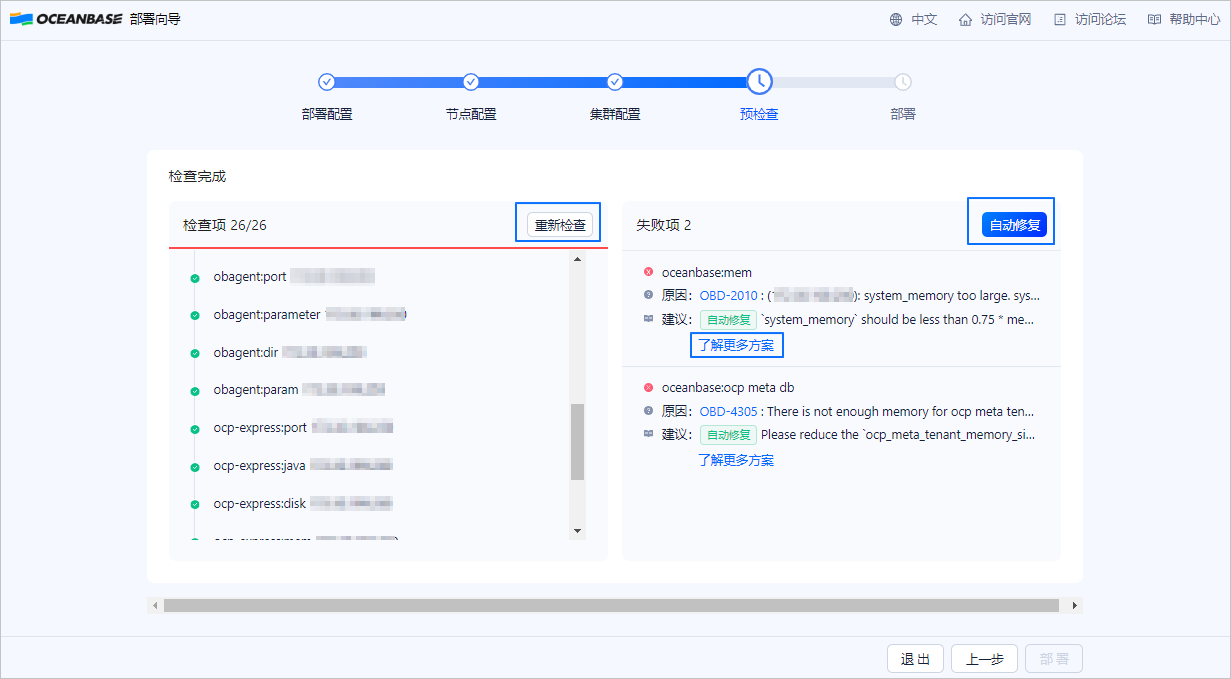
On the Pre-check page, review the configuration information. If it is correct, click Pre-check to perform a check. If the precheck fails, you can select Auto Repair or click More Solutions to go to the error code documentation. You can then modify the configurations as needed. After all errors are fixed, click Recheck to perform the precheck again.
After the precheck is passed, click Deploy to start deploying the OceanBase cluster. After the deployment is successful, you can copy the connection methods of each component to access them.
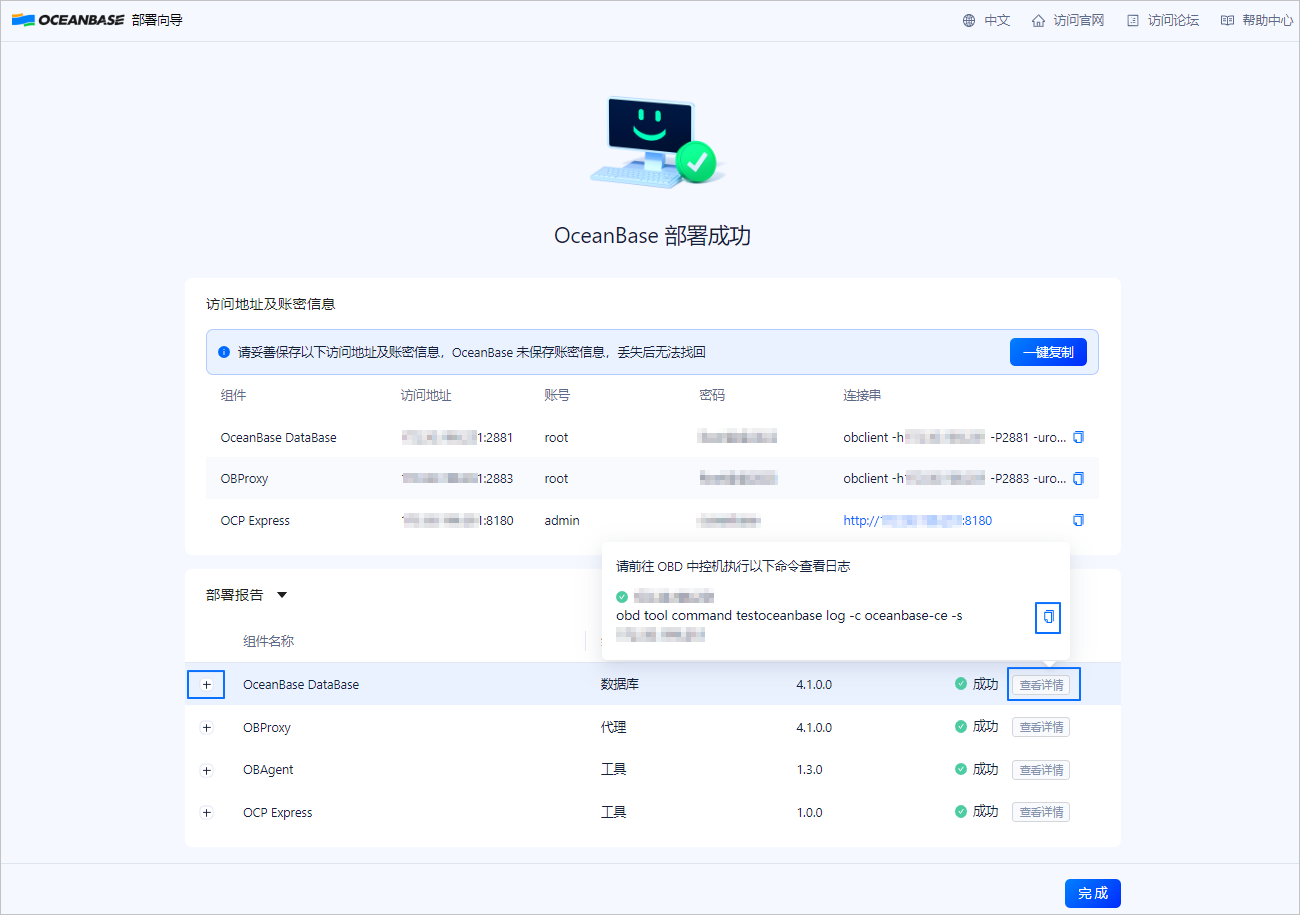
Click Complete to end the deployment process.
Connect to the OceanBase cluster using OBClient or log in to the GUI of OCP Express.
For more information about how to connect to an OceanBase cluster using OBClient, see Connect to an OceanBase tenant by using OBClient. For more information about other connection methods, see Overview of connection methods.
Directly connect to the database through port 2881. For example, directly connect to the 10.10.10.1 node:
[admin@test001 ~]$ obclient -h10.10.10.1 -P2881 -uroot@sys -p -Doceanbase -AAccess the database through ODP. For example, ODP is located on the 10.10.10.1 node:
[admin@test001 ~]$ obclient -h10.10.10.1 -P2883 -uroot@sys -p -Doceanbase -A
Option 3: Deploy OceanBase Database in a container
You can start OceanBase Database in a Docker container based on the information in this section to get a quick overview of OceanBase Database.
(Optional) Step 1: Pull the OceanBase Database image
Run the following commands to pull the image of OceanBase Database.
Search for images related to OceanBase Database.
[admin@test001 ~]$ sudo docker search oceanbasePull the latest image of OceanBase Database.
[admin@test001 ~]$ sudo docker pull oceanbase/oceanbase-ceNote
By default, the preceding command pulls the latest version of Docker image. You can select a desired image from Docker images as needed.
Step 2: Start an OceanBase Database instance
Run the following command to start an OceanBase Database instance.
[admin@test001 ~]$ sudo docker run -p 2881:2881 -v $PWD/ob:/root/ob -v $PWD/obd/cluster:/root/.obd/cluster --name obstandalone -e MODE=NORMAL -d oceanbase/oceanbase-ce
[admin@test001 ~]$ sudo docker run -p 2881:2881 -v $PWD/ob:/root/ob -v $PWD/obd/cluster:/root/.obd/cluster --name obstandalone -e MODE=MINI -d oceanbase/oceanbase-ce
In fast startup mode, if you configure environment variables related to tenants and resources, all variables except for OB_TENANT_PASSWORD and OB_SYS_PASSWORD will not take effect. The created user tenant name will default to and can only be test.
[admin@test001 ~]$ sudo docker run -p 2881:2881 -v $PWD/ob:/root/ob -v $PWD/obd/cluster:/root/.obd/cluster --name obstandalone -e MODE=SLIM -d oceanbase/oceanbase-ce
The options in the example have the following meanings:
-pmaps the container port to the host port. In the example, port2881in the container is mapped to port2881on the host.-vallows you to share files or directories between the container and the host, enabling data persistence or configuration sharing. By default, OceanBase Database is deployed in the/root/obdirectory in the container, and its configuration is saved in the/root/.obd/clusterdirectory. You can use this option to persist data on the host.You can also use the
-voption to mount an SQL file for execution. Here is an example. You need to replace{init_sql_folder_path}with the actual file path of the initialization SQL file.[admin@test001 ~]$ sudo docker run -p 2881:2881 -v {init_sql_folder_path}:/root/boot/init.d --name obstandalone -e MODE=SLIM -d oceanbase/oceanbase-ce--namespecifies the Docker container name. In the example, a Docker container namedobstandaloneis created.-especifies environment variables. In the example,MODEspecifies the startup mode of OceanBase Database.
Note
By default, the enable_rich_error_msg parameter is enabled when Docker is started. If an error occurs, you can use the trace command to obtain detailed error information.
The startup is expected to take 2 to 5 minutes. Run the following command. If the return value is boot success!, the startup is successful.
[admin@test001 ~]$ sudo docker logs obstandalone | tail -1
boot success!
Step 3: Connect to the OceanBase instance
The oceanbase-ce image is installed with obd (OceanBase Deployer, an OceanBase installation and deployment tool) and OBClient (an OceanBase command-line client). You can choose to access the container and use obd commands and the OBClient client to connect to the instance, or you can use the local OBClient or MySQL client on the host to connect to the OceanBase instance.
Connect after entering the container
Enter the Docker container
[admin@test001 ~]$ sudo docker exec -it obstandalone bashView cluster details
# View the cluster list.
obd cluster list
# View details about the obcluster cluster.
obd cluster display obcluster
Connect to the cluster
obclient -h127.0.0.1 -uroot@sys -A -Doceanbase -P2881 -p
Connect using the local host client
You can use the local OBClient or MySQL client on the host to connect to the OceanBase instance. Example:
[admin@test001 ~]$ obclient -uroot@sys -h127.0.0.1 -P2881 -p
Note
If the password was not configured through environment variables when the OceanBase instance was started, the default password for users created in the instance is an empty string.
After the connection is successful, the terminal will display the following message:
Welcome to the OceanBase.  Commands end with ; or \g.
Your OceanBase connection id is 3221711319
Server version: OceanBase_CE 4.3.0.1 (r100000242024032211-0193a343bc60b4699ec47792c3fc4ce166a182f9) (Built Mar 22 2024 13:19:48)

Copyright (c) 2000, 2018, OceanBase and/or its affiliates. All rights reserved.

Type 'help;' or '\h' for help. Type '\c' to clear the current input statement.

obclient [(none)]>
Environment variables that you can configure
Variable |
Default value |
Value description |
Description |
|---|---|---|---|
| MODE | MINI |
NoteIf |
The cluster startup mode. |
| EXIT_WHILE_ERROR | true |
|
Specifies whether to exit the container when OceanBase Database cannot be started. |
| OB_CLUSTER_NAME | obcluster | N/A | The name of the OceanBase cluster. |
| OB_TENANT_NAME | test | A maximum of 63 bytes, and can contain only uppercase and lowercase English letters, numbers, and underscores. It cannot be an OceanBase Database keyword. | After you configure this parameter, a MySQL tenant with the same name is created in the OceanBase cluster. If this parameter is not configured, a MySQL tenant named test is created by default.
NoteIf |
| OB_MEMORY_LIMIT | 6G | [6G, +∞) | The total memory size available to the OceanBase cluster. This parameter is equivalent to the memory_limit parameter in other two deployment modes. |
| OB_DATAFILE_SIZE | 5G | [5G, +∞) | The size of the data files in the OceanBase cluster. This parameter is equivalent to the datafile_size parameter in other two deployment modes. |
| OB_LOG_DISK_SIZE | 5G | [5G, +∞) | The size of the redo log disk in the OceanBase cluster. This parameter is equivalent to the log_disk_size parameter in other two deployment modes. |
| OB_SYS_PASSWORD | Default value: empty string | A string. No restriction is placed on the string. | The administrator password (root@sys) of the sys tenant in the OceanBase cluster. |
| OB_TENANT_PASSWORD | Default value: empty string | A string. No restriction is placed on the string. | The administrator password of the tenant specified by OB_TENANT_NAME in the OceanBase cluster. If OB_TENANT_NAME is not configured, the password of the root@test user is used. |
| OB_SYSTEM_MEMORY | 1G | [1G, +∞) | The memory size available to the tenant with the tenant ID 500 in the OceanBase cluster. This parameter is equivalent to the system_memory parameter in other two deployment modes. |
| OB_TENANT_MIN_CPU | N/A | N/A | The minimum CPU size available to the tenant specified by OB_TENANT_NAME in the OceanBase cluster. If this parameter is not configured, the tenant will use all remaining resources of the OceanBase cluster. This parameter is equivalent to the MIN_CPU parameter in the CREATE RESOURCE UNIT statement. |
| OB_TENANT_MEMORY_SIZE | N/A | N/A | The memory size available to the tenant specified by OB_TENANT_NAME in the OceanBase cluster. If this parameter is not configured, the tenant will use all remaining resources of the OceanBase cluster. This parameter is equivalent to the MEMORY_SIZE parameter in the CREATE RESOURCE UNIT statement. |
| OB_TENANT_LOG_DISK_SIZE | N/A | N/A | The log disk space available to the tenant specified by OB_TENANT_NAME in the OceanBase cluster. If this parameter is not configured, the tenant will use all remaining resources of the OceanBase cluster. This parameter is equivalent to the LOG_DISK_SIZE parameter in the CREATE RESOURCE UNIT statement. |
| OB_CONFIGSERVER_ADDRESS | N/A | N/A | The address of obconfigserver. Example: http://10.10.10.1:8080. |
References
For more information about deploying OceanBase Database Enterprise Edition, see Deploy OceanBase Database Enterprise Edition.