








After you create a batch or single table export task in OceanBase Developer Center (ODC), you can view the task in the task list on the Import tab of the Task Center page.
On the management page of the database connection, click Task in the navigation bar on the top of the page to go to the Task Center page. Click Export to display the task list.
Note
ODC allows you to run up to three export tasks in parallel, while subsequent tasks wait in the queue.
Task list
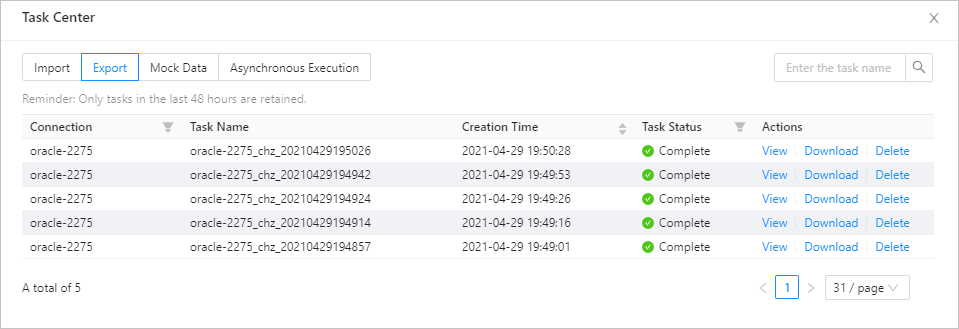 On the Export tab, the task list displays the tasks created in the recent 48 hours. The list displays the following information. You can filter and sort the tasks based on the information.
Connection: the name of the database connection to which the task belongs.
Task Name: the name of the task that you specified when you created the task.
Creation Time: the date and time when the task was created.
Task Status: the current status of the task. Valid values: Running , Aborted , Completed , and Failed . ODC provides different management actions for tasks in different states.
Actions: This column provides task management options, such as View , Download , Retry , Abort , and Delete .
| Action | Description |
|---|---|
| View | Click this button to go to the task details page to view the task information and task logs. |
| Download | Click this button to download the exported file to your local device when the task is completed. |
| Retry | Click this button to restart the task when the task fails. |
| Abort | Click this button to abort a task that is not completed. |
| Delete | Click this button to delete the task from the task list when the task is aborted, completed, or failed. |
Task details
Click View in the Actions column of the row where the target task is located. The task details panel appears. Click Task Information in the upper-right corner of the panel to view the basic task information, information about the exported files, and information about the exported objects.
Basic task information: displays information such as Task Name , Connection Name , Mode Name , Task Type , Creation Time , Retry Limit , and Retry Time .
Information about exported files: displays information that you specified when you created the import task, such as Export Content , Data Format , Encoding Standard , Export Data Settings , Export Schema Settings, Task Error Handling Method , and Sys Tenant Account Settings .
Information about exported objects: displays the data export progress of the selected object, including
information such as Object Name , Object Type , Schema Processing Status , Total Record Number , Processed Data Entries , and Data Processing Status .
Task logs
Click View in the Actions column of the row where the target task is located. The task details panel appears. Click Task Logs in the upper-right corner of the panel to view the alert logs and all logs of the task.
All Logs: displays the full information of all task logs, including INFO , ERROR , and WARN logs.
Alert Logs: Alert logs include the ERROR and WARN logs of the task. If the task failed, you can view alert logs to learn of the error information.