








Overview
After you log on to OceanBase Developer Center (ODC), the ODC homepage automatically appears.
On the ODC homepage, you can click Task or Help in the top navigation bar to go to the Task Center or Help Center. You can also perform the following operations on the page: managing database connections, switching the language, setting personal information, changing the password, and logging off ODC. On the right side of the homepage, you can also find the Help, Related Tools, and Related Resources tabs.
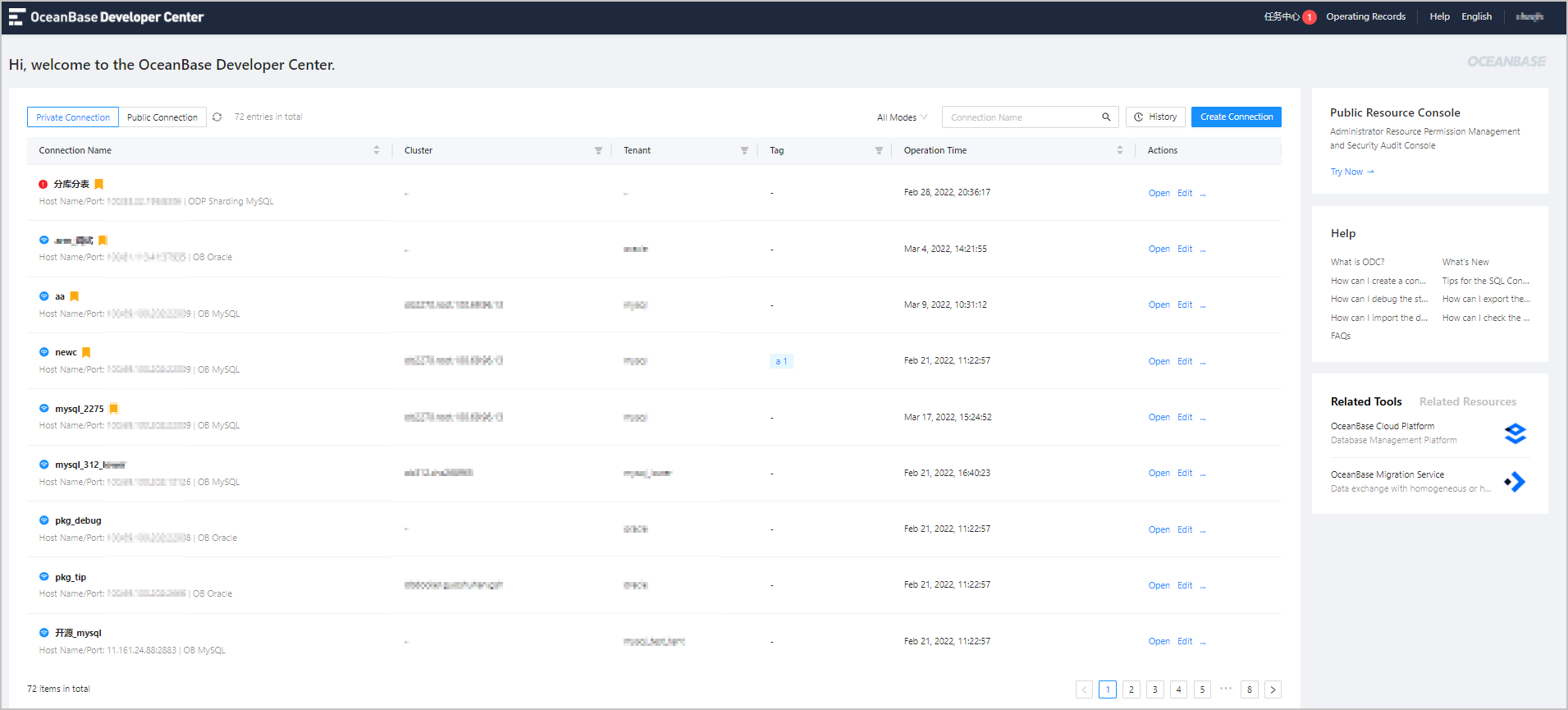
Manage database connections
The ODC homepage provides the Private Connection tab that shows the connections you have created, and the Public Connection tab that shows the public connections that you have the permission to access.
On the Private Connection tab, you can click All Modes to filter connections to the databases in MySQL or Oracle mode. For more information, see Manage private connections.
On the Public Connection tab, you can click All Modes to filter connections to the databases in MySQL or Oracle mode, and click All Permissions to filter the read-only or read/write permissions. For more information, see Manage public connections.
Public resource console
As a database development platform for enterprises, ODC provides the public resource console for the ODC administrator to manage users, grant permissions, and allocate resources. Notice
You can view the Public Resource Console tab only when you log on to the ODC homepage as an administrator.
Click the Public Resource Console tab, the Public Resource Management page automatically appears.
In the public resources management console, you can manage users, roles, public connections, resource groups, and system settings.
You can grant users the permissions to use public and individual resources by roles. You can also use a resource group to batch grant or revoke the permissions for multiple public connections. For more information, see Manage public resources.
Switch the language
The display language of ODC is displayed in the upper-right corner of the ODC logon page and homepage. The default language is Simplified Chinese . You can click the language option to switch the display language. ODC supports three display languages: English , Simplified Chinese , and Traditional Chinese .
Personal settings
The logged-on userame is displayed in the upper-right corner of the top navigation bar. Click the username and select Personal Settings from the drop-down menu that appears. The Edit Personal Settings panel appears.
In the panel, you can globally modify the settings of the customizable features. You can also select a connection and configure these features in the connection. The configurations take effect on the current connection. The priority of personal settings is lower than that of settings you configured for each connection. In addition, the personal settings are persisted.
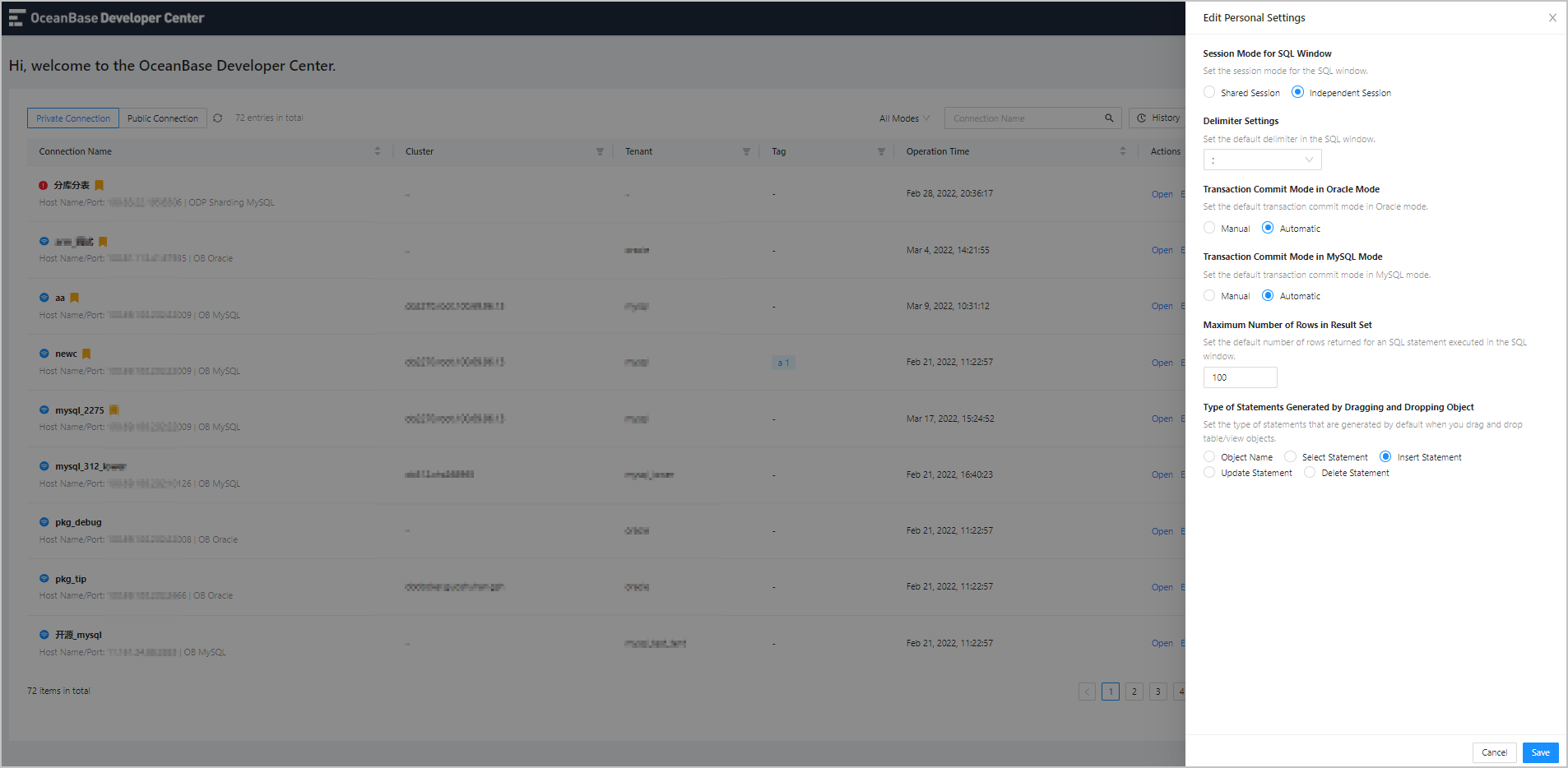
Your modifications to fields in the Edit Personal Settings panel take global effect.
| Setting | Description |
|---|---|
| Delimiter Settings | Set the default delimiter for executing PL statements in the SQL window. Five types of delimiters are supported: semi-colons ( ; ), slashes ( / ), double slashes ( // ), dollar signs ( $ ), and double dollar signs ( $$ ). |
| Transaction Commit Mode in Oracle Mode | Set the default transaction commit mode in Oracle mode. Valid values: Manual and Automatic |
| Transaction Commit Mode in MySQL Mode | Set the default transaction commit mode in MySQL mode. Valid values: Manual and Automatic |
| Maximum Number of Rows in Result Set | Set the default number of rows returned for an SQL statement executed in the SQL window. |
Change the password
The logged-on username is displayed in the upper-right corner of the top navigation bar. Click the username and select Change Password from the drop-down menu that appears. Then, set the new password in the Change Password dialog box. For more information, see Change Password.
Log off
Click the logged-on username and select Log Off from the drop-down menu that appears to return to the ODC logon page.
Help
On the right-side Help tab, you can view tutorial documents of some common operations in ODC, new features in the current version, and FAQ.
Click the document you want to view on this tab. The introduction and link to the document are displayed in a pop-up dialog box. You can view the PDF file on the current page, or click the link to go to the official website and view the document.
Related tools
On the right-side Related Tools tab, you can view other OceanBase services. Click the tool you want to view on this tab. The introduction and link to the tool are displayed in a pop-up dialog box.
Related resources
On the right-side Related Resources tab, you can view resources that are operated by OceanBase or that contain OceanBase information.
The tab provides links to resources such as OceanBase Enterprise, OceanBase Community Edition, and OceanBase Cloud Services.