







As an enterprise-class database development platform, OceanBase Developer Center (ODC) provides the snippets module to facilitate database development. If you forget about the usage of some statements, you can query in the snippets module. The snippets module provides suitable snippets based on whether you are in Oracle or MySQL mode. In addition to the built-in snippets, you can also create custom snippets to store frequently used code segments. A custom snippet can be viewed only by its creator.
To open the Snippets panel, click Snippets in the toolbar of an SQL window, an anonymous block window, or a PL object editing page.
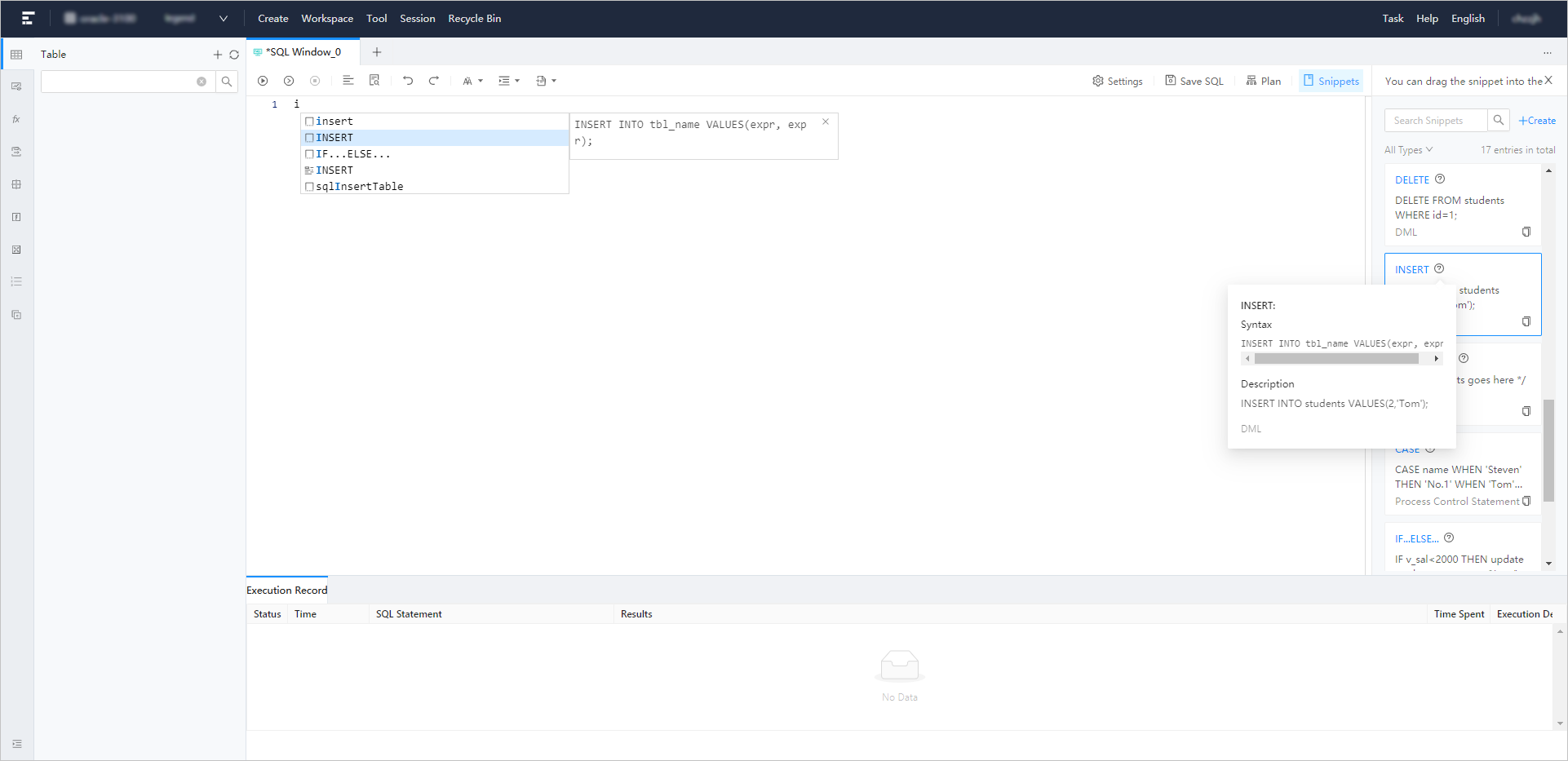
View snippets
In the Snippets panel, the snippets are displayed in a list of cards. Each card displays information about a snippet, such as its name, description, and type. When you place the pointer over the tips icon next to a snippet name, a tip window appears, displaying the entire code in the snippet.
You can find a search box above the card list. You can directly search for specific snippets. A filter is provided below the search box for you to filter snippets by type. The filter provides the following options: Others , DML , DDL , Process Control Statement , and All Types . By default, All Types is selected.
Create a snippet
Click the +Create button in the upper-right corner of the snippet list. The Create Snippet panel appears. Specify the following information in the panel:
Snippet Name : specifies the name of the snippet. It can contain letters, digits, and underscores (_), and can contain a maximum of 60 characters. This parameter must be specified.
Snippet Type : specifies the type of the snippet. The types include Others , DML , DDL , and Process Control Statement . By default, Others is selected.
Snippet : specifies the actual code of the snippet. The length cannot exceed 200 characters. This parameter must be specified. Similar to the SQL window, the toolbar of the editing area also provides buttons such as Format, Find and Replace, Undo, Redo, Case Sensitivity, Indent, and Comment. It also provides code highlighting and association features.
Snippet Description : provides additional notes on the snippet. The length cannot exceed 200 characters. This parameter must be specified.

Reference a snippet
You not only can view the content of a created snippet when you edit scripts, but also can reference it in your script. You can reference a snippet by using one of the following three methods:
Method 1: Drag the target card from the snippet list to the editing area, and the code in the snippet is copied to the editing area.
Method 2: Click the copy icon in the lower-right corner of the target snippet card to copy the code, and then press Ctrl+V or Cmd+V to paste the code to the editing area.
Method 3: The editing area of the SQL window supports code association. When you edit a script in the editing area, existing snippets appear in the code association window for you to view and reference.
Manage snippets
ODC provides the Edit and Delete options for you to manage custom snippets. You cannot edit or delete built-in snippets.
Edit : Click the management icon (···) in the upper-right corner of the target snippet card. In the menu that appears, click the Edit button to go to the Edit Snippet panel. The panel displays parameters such as Snippet Name , Snippet Type , Snippets , and Snippet Description that were specified at creation of the snippet. You can modify the information as needed.
Delete : Click the management icon (···) in the upper-right corner of the target snippet card. In the menu that appears, click the Delete button to delete the snippet.