Description
The password of the admin account of ODC V3.2.0 or later is forgotten.
Note
- In ODC V3.2.0 and later, an administrator can reset the logon password of an ordinary user account on the **User Management** page in the public resource console. In this case, do not use the solution described in this topic.
- For more information about how to reset a password in ODC V2.4.1 to V3.1.3, see How do I reset a password in ODC V2.4.1 to V3.1.3.
- For more information about how to reset a password in ODC V2.4.0 or earlier, see How do I reset a password in ODC V2.4.0 or earlier.
Possible causes
The admin account is a built-in administrator role in ODC and has account management permissions for all users by default. If an ordinary user forgets the password, the administrator who has the account management permission can reset the password for the user. However, if the password of the admin account is forgotten, other accounts cannot reset the password for the admin account.
Affected versions
ODC V3.2.0 and later
Solutions
Solution 1 Reinstall ODC in a new deployment environment
Use a deployment tool, such as OAT/Antman, to reinstall ODC.
Alternatively, connect to the MetaDB tenant in a command line interface. Run the
dropcommand to drop the MetaDB of ODC and recreate it. Then, restart the ODC Docker container.
Solution 2 Change the password of the admin account in ODC MetaDB
Connect to ODC MetaDB and modify the password field in the user table to reset the password.
ODC V2.4.1 and later use the Bcrypt algorithm to encrypt account passwords. Before you modify an account password in ODC MetaDB, generate the Bcrypt value of the password first.
Notice
In ODC V2.4.1 and later versions, the ODC user password is used to encrypt the database connection password. If you reset the password by modifying ODC MetaDB, the database connection password of the user becomes unavailable. In this case, you must reconfigure the database connection password before using it.
Step 1: Generate the Bcrypt value of the password
# You can run the `htpasswd` command to generate a Bcrypt-encrypted password.
# The following command generates the BCrypt value of the password `123456`, where the username can be any string.
htpasswd -bBn -C 10 username 123456

# In the following example, you can copy the string after `username:`.
# username:$2y$10$PHcT2yHCkaqwlfb7ZjXk5uzX5oRvvuMRrrBJfKwfdRfhMeYTU7WkK
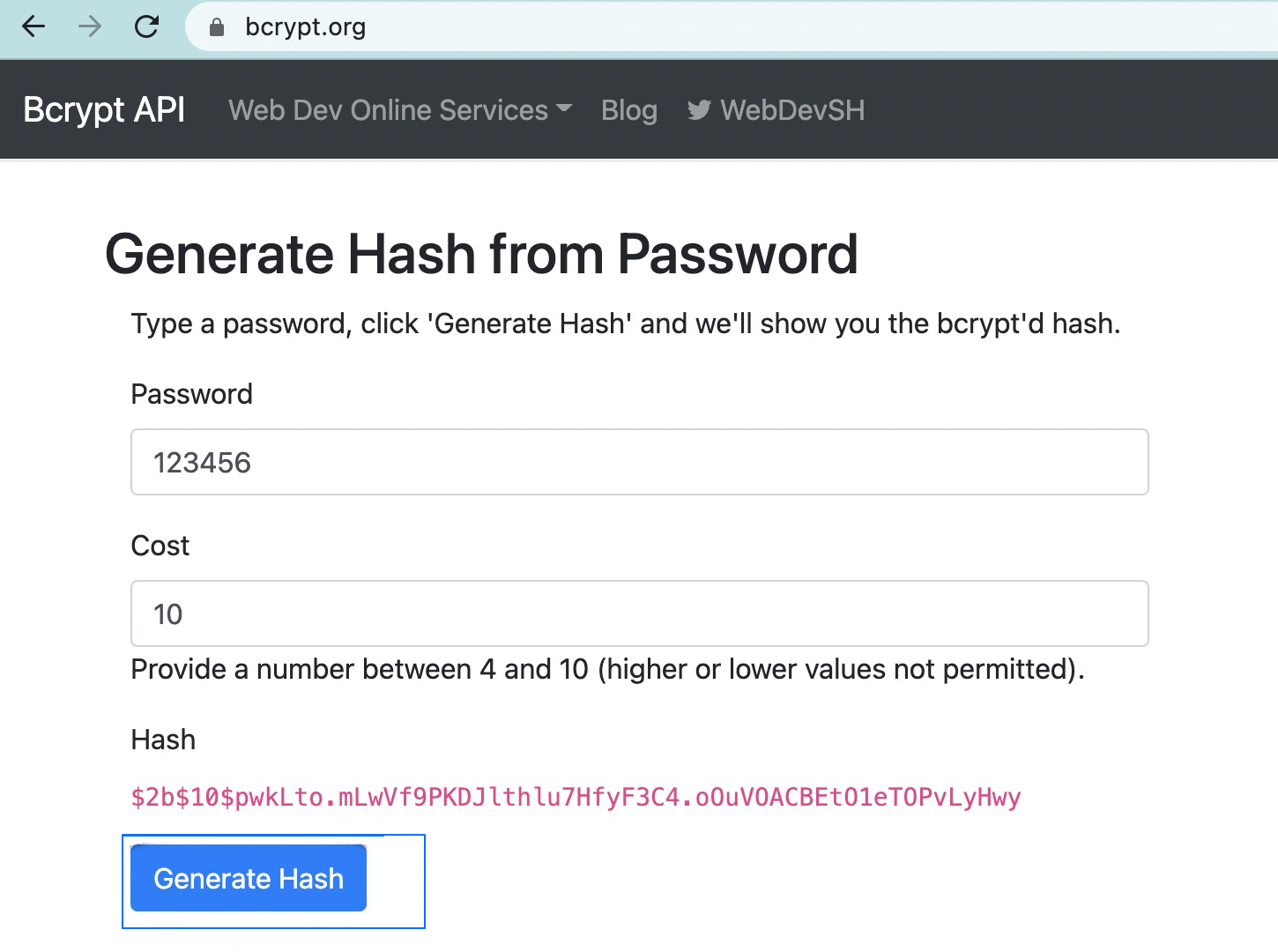
If your local server does not support the htpasswd command, you can generate Bcrypt values by using some online tools, such as bcrypt.org.
Step 2: Modify the password field in the user table
-- Use the bcrypt value generated in step 1 to modify the password field of the admin account in the `iam_user` table.
update iam_user set `password`='your bcrypted password value'
  where account_name='admin';
Step 3: Set an empty database connection password for the user
Note
If you do not perform this step, a decryption failure is reported for the query, and the password cannot be changed.
-- Set an empty database connection password.
UPDATE connect_connection SET is_password_saved = 0 , `password` = NULL ,  sys_tenant_password = NULL
WHERE owner_id IN (SELECT `id` FROM iam_user WHERE account_name = 'admin')
  AND visible_scope = 'PRIVATE';
Step 4: Edit each connection on the homepage and reconfigure the connection password
After the admin account logs in to ODC with the new password, reconfigure the connection password in the personal connection list on the ODC homepage.
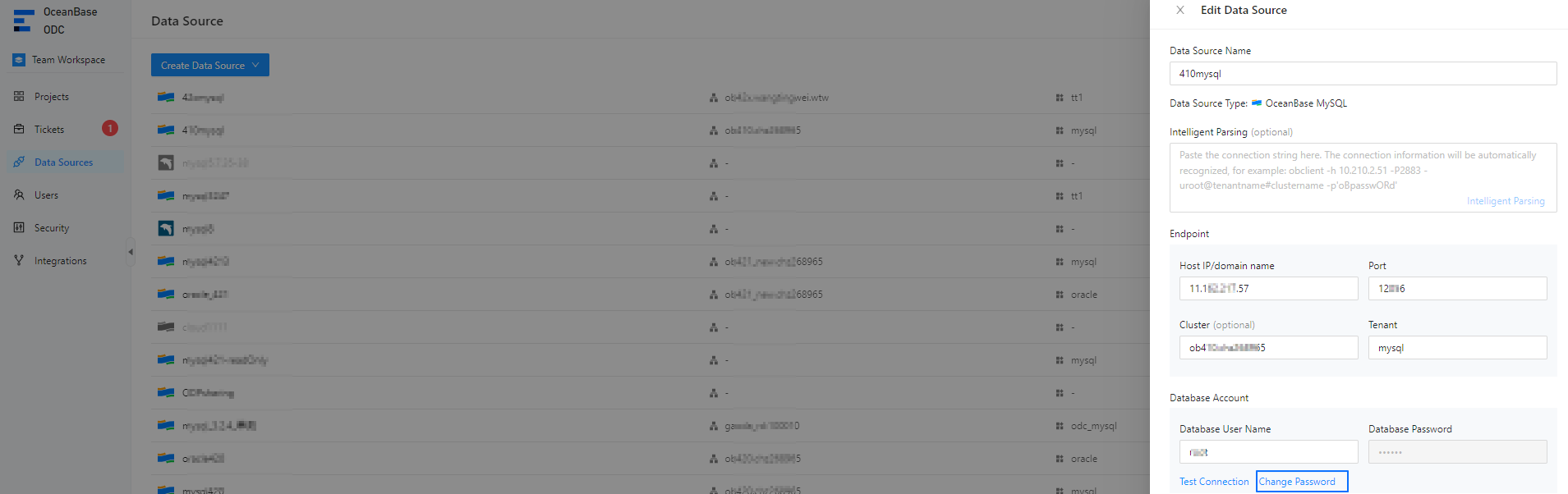
As shown in the following figure, click Change Password and select the Save Password checkbox to save the connection.