







This topic introduces how to build an application by using a Tomcat connection pool, OceanBase Connector/J, and OceanBase Database. It also covers the use of the application for fundamental database operations, including table creation, data insertion, data deletion, data updating, and data query.
 Download the tomcat-oceanbase-client sample project
 Prerequisites
- You have installed OceanBase Database.
- You have installed Java Development Kit (JDK) 1.8 and Maven.
- You have installed IntelliJ IDEA.
Note
The tool used to run the sample code in this topic is IntelliJ IDEA 2021.3.2 (Community Edition), but you can also choose a tool that suits your personal preference to run the code.
Procedure
Note
The steps outlined in this topic are for the Windows environment. If you are using a different operating system or compiler, the steps may vary slightly.
- Import the
tomcat-oceanbase-clientproject into IntelliJ IDEA. - Obtain the connection information of OceanBase Database.
- Modify the database connection information in the
tomcat-oceanbase-clientproject. - Set up the Tomcat runtime environment of the
tomcat-oceanbase-clientproject. - Run the
tomcat-oceanbase-clientproject.
Step 1: Import the tomcat-oceanbase-client project to IntelliJ IDEA
Start IntelliJ IDEA and choose File > Open....

In the Open File or Project window, select the project files and click OK to import the files.
IntelliJ IDEA automatically recognizes the files and displays the project's directory structure, file list, module list, dependency relationships, and other details in the Project window. This window is typically positioned on the left side of the IntelliJ IDEA interface and is generally open by default. If the Project window is closed, you can reopen it by choosing View > Tool Windows > Project in the menu bar or by using the shortcut Alt + 1.
Note
When you import a project using IntelliJ IDEA, it will automatically detect the
pom.xmlfile in the project, download the required dependency libraries based on the described dependencies in the file, and add them to the project.View the project.
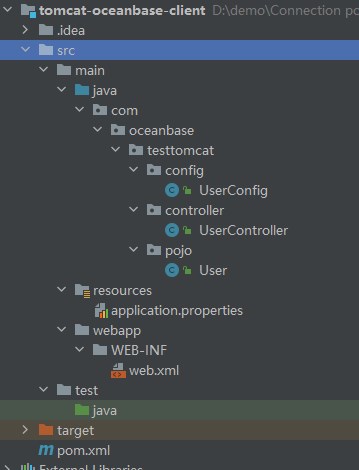
Step 2: Obtain the connection information of OceanBase Database
Contact the deployment personnel or administrator of OceanBase Database to obtain the connection information.
obclient -hxx.xx.xx.xx -P2883 -uroot@sys#cluster -p**** -AEnter the URL of OceanBase Database.
Note
The URL of OceanBase Database is required in the
application.propertiesfile.jdbc:oceanbase://host:port/schema_name?user=$user_name&password=$password&characterEncoding=UTF-8where:
hostspecifies the IP address for connecting to OceanBase Database. For connection through OceanBase Database Proxy (ODP), use the IP address of an ODP. For direct connection, use the IP address of an OBServer node.portspecifies the port for connecting to OceanBase Database. For connection through ODP, the default value is2883, which can be customized when ODP is deployed. For direct connection, the default value is2881, which can be customized when OceanBase Database is deployed.schema_namespecifies the name of the schema to be accessed.user_namespecifies the tenant account. For connection through ODP, two account formats are supported:username@tenant name#cluster nameandcluster name:tenant name:username. For direct connection, theusername@tenant nameformat is supported.passwordspecifies the password of the account.characterEncodingspecifies the character encoding format for the URL of OceanBase Database. The default value isutf8.
For more information about URL parameters, see Database URL.
Step 3: Modify the database connection information in the tomcat-oceanbase-client project
Modify the database connection information in the application.properties file based on the information obtained in Step 2: Obtain the connection information of OceanBase Database.
Here is an example:
- The name of the database driver is
com.oceanbase.jdbc.Driver. - The IP address of the OBServer node is
10.10.10.1. - The access port is 2881.
- The name of the schema to be accessed is
SYS. - The tenant account is
sys@xyoracle.xyoracleis an Oracle user tenant created in OceanBase Database, andsysis the username of a user in thexyoracletenant. - The password is
******.
Here is the sample code:
#Apache Commons DBCP2 Connection Pool
#Database Connection Pool Driver Class Name
db.app.pool.driverClassName=com.oceanbase.jdbc.Driver
#Database URL
db.app.pool.url=jdbc:oceanbase://10.10.10.1/SYS?characterEncoding=UTF-8
#Database username
db.app.pool.username=sys@xyoracle
#Database password
db.app.pool.password=******
#Initial size of connection pool
db.app.pool.initialSize=3
#Maximum number of connections in the connection pool
db.app.pool.maxTotal=10
#Maximum number of idle connections in the connection pool
db.app.pool.maxIdle=20
#Minimum number of idle connections in the connection pool
db.app.pool.minIdle=5
#Maximum wait time for obtaining connections (in milliseconds)
db.app.pool.maxWaitMillis=5000
#Verify the connection's query statement
db.app.pool.validationQuery=select 1 from dual
Step 4: Set up the Tomcat runtime environment of the tomcat-oceanbase-client project
Download Tomcat 8.5.95.
Download the package of Tomcat 8.5.95 from the official website of Apache Tomcat and decompress the package to the directory where you want to install Tomcat.
Configure Tomcat in IntelliJ IDEA.
- Open IntelliJ IDEA and choose File > Settings.
- In the Settings window, click Plugins in the left-side navigation pane.
- In the Plugins pane that appears, search for Smart Tomcat in the search box and install it.
- After Tomcat is installed, click Apply in the lower-right corner. Then, Tomcat Server appears at the bottom of the left-side navigation pane of the Settings window.
- Click Tomcat Server and then click the plus sign (+) in the right-side pane that appears.
- Select the directory where Tomcat is decompressed, click Apply, and then click OK.
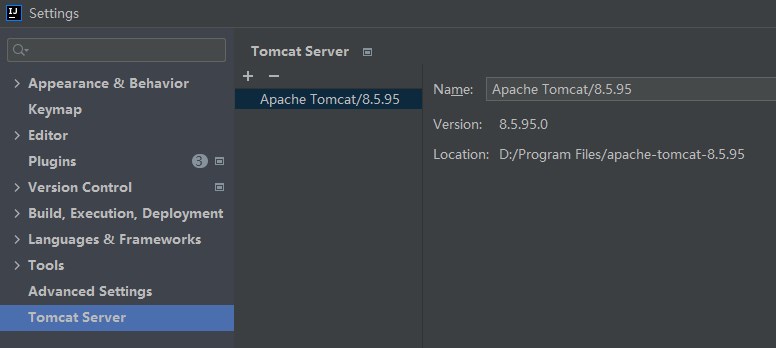
Create a Tomcat runtime configuration.
- In the top navigation bar of IntelliJ IDEA, choose Run > Edit Configurations.
- In the Run/Debug Configurations window, click the plus sign (+) and select Tomcat Server.
- Enter the server name in the Name field.
- In the Configuration section, select the installed version of Tomcat, change the value of Context path to
/, and enter8080in the SSL port field. - In the Before launch section, click the plus sign (+) and choose Launch Web Browser.
- Click Edit and enter
http://localhost:8080/hello/getDatain the URL field. - Click Apply and then click OK.
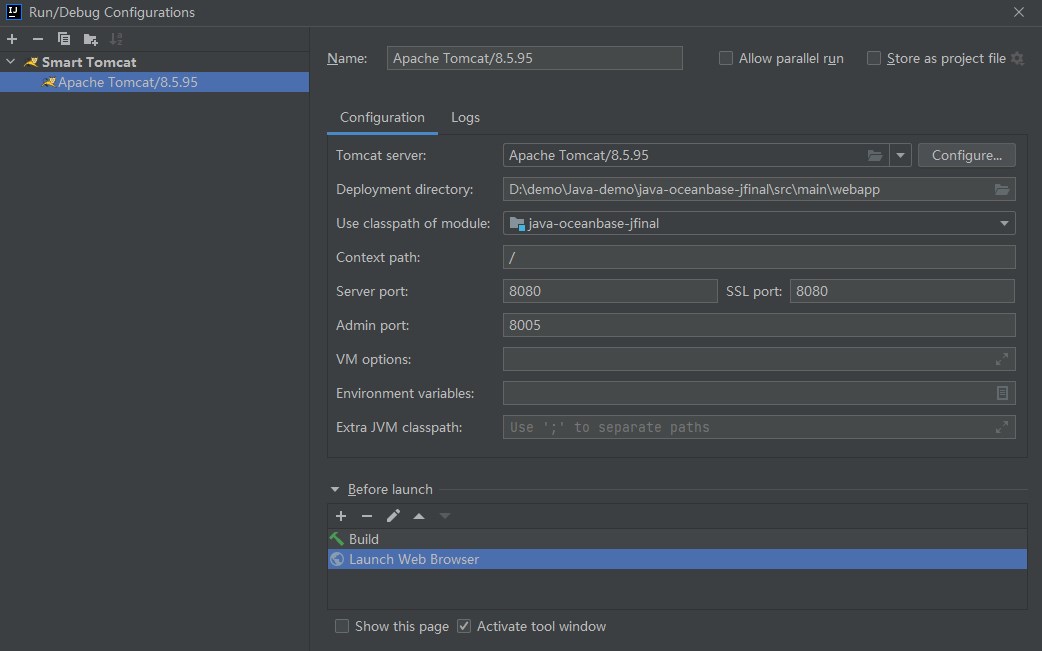
Run the Tomcat server.
In the top navigation bar of IntelliJ IDEA, select the Tomcat runtime configuration you just created.
Click the Run button (a green triangle) to start the Tomcat server.
Then, you can view the startup logs of the Tomcat server in the Run window of IntelliJ IDEA.
Step 5: Run the tomcat-oceanbase-client project
Specify the running path.
- In the top navigation bar of IntelliJ IDEA, select the Tomcat runtime configuration you just created.
- Click the Run button (a green triangle) to start the Tomcat server.
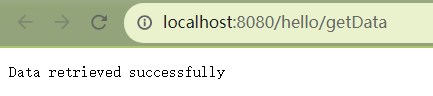
- Enter the URL
http://localhost:8080/hello/getDatain Google Chrome or Internet Explorer to view the running result.
View the running result.
In the console window of IntelliJ IDEA, view the project logs and output results.
Result after data insertion:
tomcat connection pool test 0 tomcat connection pool test 1 tomcat connection pool test 2 tomcat connection pool test 3 tomcat connection pool test 4 tomcat connection pool test 5 tomcat connection pool test 6 tomcat connection pool test 7 tomcat connection pool test 8 tomcat connection pool test 9Result after data modification:
-----After modification----- Connection pool test 0 Connection pool test 1 Connection pool test 2 Connection pool test 3 Connection pool test 4 Connection pool test 5 Connection pool test 6 Connection pool test 7 Connection pool test 8 Connection pool test 9Return result on the web page:
Project code
Click here to download the project code, which is a package named tomcat-oceanbase-client.
Decompress the package to obtain a folder named tomcat-oceanbase-client. The directory structure is as follows:
│--pom.xml
│
├─.idea
│
├─src
│ ├─main
│ │ ├─java
│ │ │ └─com
│ │ │ └─oceanbase
│ │ │ └─testtomcat
│ │ │ ├─config
│ │ │ │ └─UserConfig.java
│ │ │ │
│ │ │ ├─controller
│ │ │ │ └─UserController.java
│ │ │ │
│ │ │ └─pojo
│ │ │ └─User.java
│ │ │
│ │ ├─resources
│ │ │ └─application.properties
│ │ │
│ │ └─webapp
│ │ └─WEB-INF
│ │ └─web.xml
│ │
│ │
│ │
│ └─test
│ └─java
│
│
└─target
Here is a breakdown of the files and directories:
pom.xml: the configuration file of the Maven project, which contains the dependencies, plug-ins, and build details of the project..idea: the directory for storing project-related configuration information used in the Integrated Development Environment (IDE).src: the directory for storing the source code in the project.main: the directory for storing the main source code and resource files.java: the directory for storing the Java source code.com: the root directory for storing the Java package.oceanbase: the root directory for storing the project.testtomcat: the directory for storing code of the JFinal framework.config: the directory for storing configuration files, including those of the application.UserConfig.java: the user configuration file.controller: the controller directory for storing the controller file of the application.UserController.java: the controller file.pojo: the directory for storing JavaBean or entity classes.User.java: a file for storing user entity classes.resources: the directory for storing resource files, such as configuration files and SQL files.application.properties: the configuration file for storing database connection information.webapp: the directory for storing the static resources and configuration file of the web application.WEB-INF: the directory for storing the configuration file and other protected resource files of the web application.web.xml: the deployment descriptor file of the web application.test: the directory for storing the test code and resource files.target: the directory for storing compiled class files and .jar packages.
Code in pom.xml
Note
If you only want to verify the example, use the default code without making any modifications. Alternatively, you can follow the instructions below to customize the pom.xml file to suit your specific requirements.
To modify the pom.xml file, perform the following steps:
Declare the file.
Declare the file to be an XML file that uses XML standard
1.0and character encodingUTF-8.Here is the sample code:
<?xml version="1.0" encoding="UTF-8"?>Configure namespaces and the POM version.
xmlns: the default XML namespace, which is set tohttp://maven.apache.org/POM/4.0.0.xmlns:xsi: the XML namespace for XML elements prefixed withxsi, which is set tohttp://www.w3.org/2001/XMLSchema-instance.xsi:schemaLocation: the location of an XML schema definition (XSD) file. The value consists of two parts: the default XML namespace(http://maven.apache.org/POM/4.0.0)and the URI of the XSD file (http://maven.apache.org/xsd/maven-4.0.0.xsd).<modelVersion>: the POM version used by the POM file, which is set to4.0.0.
Here is the sample code:
<project xmlns="http://maven.apache.org/POM/4.0.0" xmlns:xsi="http://www.w3.org/2001/XMLSchema-instance" xsi:schemaLocation="http://maven.apache.org/POM/4.0.0 http://maven.apache.org/xsd/maven-4.0.0.xsd"> <modelVersion>4.0.0</modelVersion> </project>Configure basic information.
<groupId>: the ID of the project group, which is set tocom.oceanbase.<artifactId>: the dependency of the project, which is set totomcat-oceanbase-client.<version>: the version of the project, which is set to1.0-SNAPSHOT.<packaging>: the packaging mode of the project, which is set towar. In this mode, archive files of the web application are packaged in the WAR format.
Here is the sample code:
<groupId>com.oceanbase</groupId> <artifactId>tomcat-oceanbase-client</artifactId> <version>1.0-SNAPSHOT</version> <!-- Packaging method (default to jar) --> <packaging>war</packaging>Configure the Maven version.
Set both the source code version and target code version of the compiler to Java 8 by using
<maven.compiler.source>and<maven.compiler.target>.Here is the sample code:
<properties> <maven.compiler.source>8</maven.compiler.source> <maven.compiler.target>8</maven.compiler.target> </properties>Configure core dependencies.
Define a dependency named
jfinalthat belongs to thecom.jfinalgroup and whose version is5.0.6. With this dependency, you can use features of the JFinal framework.Here is the sample code:
<dependency> <groupId>com.jfinal</groupId> <artifactId>jfinal</artifactId> <version>5.0.6</version> </dependency>Define a dependency named
druidthat belongs to thecom.alibabagroup and whose version is1.2.8. With this dependency, you can use the Druid library to manage and optimize the acquisition and release of database connections.Here is the sample code:
<dependency> <groupId>com.alibaba</groupId> <artifactId>druid</artifactId> <version>1.2.8</version> </dependency>Define a dependency named
commons-dbcp2that belongs to theorg.apache.commonsgroup and whose version is2.9.0. With this dependency, you can use the Apache Commons DBCP2 library to manage and optimize the acquisition and release of database connections.Here is the sample code:
<dependency> <groupId>org.apache.commons</groupId> <artifactId>commons-dbcp2</artifactId> <version>2.9.0</version> </dependency>Define a dependency named
oceanbase-clientthat belongs to thecom.oceanbasegroup and whose version is2.4.3. With this dependency, you can use the features of OceanBase Client (OBClient), such as connections, queries, and transactions.
Here is the sample code:
```xml <dependencies> <dependency> <groupId>com.oceanbase</groupId> <artifactId>oceanbase-client</artifactId> <version>2.4.3</version> </dependency> </dependencies> ```
Code in application.properties
The application.properties file stores the connection information of OceanBase Database, including the class name of the database driver and the URL, username, password, and connection pool configurations. You can use the following parameters to establish and manage database connections for database operations in the application:
db.app.pool.driverClassName: the database driver used to establish a connection with OceanBase Database, which is set tocom.oceanbase.jdbc.Driver.db.app.pool.url: the URL for connecting to the database.db.app.pool.username: the username for connecting to the database.db.app.pool.password: the password for connecting to the database.db.app.pool.initialSize: the initial size of the connection pool, which is set to3, indicating that three database connections are initially created.db.app.pool.maxTotal: the maximum number of connections allowed for the connection pool, which is set to10, indicating that you can create a maximum of 10 database connections in a connection pool.db.app.pool.maxIdle: the maximum number of idle connections allowed in the connection pool, which is set to20.db.app.pool.minIdle: the minimum number of idle connections in the connection pool, which is set to5.db.app.pool.maxWaitMillis: the timeout value for requesting a database connection, which is set to5000ms. When you request a connection, a timeout exception is thrown if you fail to obtain a connection within 5,000 ms.db.app.pool.validationQuery: the SQL query statement for verifying database connections, which is set toselect 1 from dual. When you request a connection from the connection pool, this query statement is executed to verify the connection.Here is the sample code:
#Apache Commons DBCP2 Connection Pool #Database Connection Pool Driver Class Name db.app.pool.driverClassName=com.oceanbase.jdbc.Driver #Database URL db.app.pool.url=jdbc:oceanbase:////host:port/schema_name?characterEncoding=UTF-8 #Database username db.app.pool.username=user_name #Database password db.app.pool.password=****** #Initial size of connection pool db.app.pool.initialSize=3 #Maximum number of connections in the connection pool db.app.pool.maxTotal=10 #Maximum number of idle connections in the connection pool db.app.pool.maxIdle=20 #Minimum number of idle connections in the connection pool db.app.pool.minIdle=5 #Maximum wait time for obtaining connections (in milliseconds) db.app.pool.maxWaitMillis=5000 #Verify the connection's query statement db.app.pool.validationQuery=select 1 from dual
The following table describes the general parameters of Tomcat Database Connection Pool (DBCP).
Notice
The actual parameter configurations depend on the project requirements and database characteristics. We recommend that you adjust and configure the parameters based on the actual situation.
Parameter |
Default value |
Description |
|---|---|---|
| username | N/A | The username for connecting to the database. |
| password | N/A | The password for connecting to the database. |
| url | N/A | The URL for connecting to the database. |
| driverClassName | N/A | The standard Java class name of the database driver. |
| connectionProperties | N/A | The connection properties sent to the Java Database Connectivity (JDBC) driver when a connection is established, in the [propertyName=property;] format. |
| defaultAutoCommit | driver default | The default auto-commit state when a connection is created in the connection pool. If this parameter is not specified, the setAutoCommit method will not be called. |
| defaultReadOnly | driver default | The default read-only state when a connection is created in the connection pool. If this parameter is not specified, the setReadOnly method will not be called. |
| defaultTransactionIsolation | driver default | The default transaction isolation level when a connection is created in the connection pool. |
| defaultCatalog | N/A | The default connection catalog created in the connection pool. |
| cacheState | true | Specifies whether to cache the readOnly and autoCommit settings of connections. If you set the value to true, the current readOnly and autoCommit settings are cached for the first read and for all writes. This eliminates the need of extra database queries for any further getter calls. |
| defaultQueryTimeout | null | The query timeout value of the connection creation statement in the connection pool. If the value is not NULL, the specified integer is the query timeout value. If you set the value to NULL, the default timeout value of the driver is used. |
| enableAutoCommitOnReturn | true | Specifies whether to check and configure auto-commit for a connection when it is returned to the connection pool. |
| rollbackOnReturn | true | Specifies whether to roll back a non-read-only connection for which auto-commit is disabled when it is returned to the connection pool. If you set the value to true, a non-read-only connection for which auto-commit is disabled is rolled back when it is returned to the connection pool. |
| initialSize | 0 | The initial number of connections created when the connection pool is started. |
| maxTotal | 8 | The maximum number of active connections allocated from the connection pool. |
| maxIdle | 8 | The maximum number of idle connections in the connection pool. No extra connection is released when the number of idle connections reaches the specified value. A negative value indicates no limit. |
| minIdle | 0 | The minimum number of idle connections in the connection pool. No extra connection is created when the number of idle connections reaches the specified value. The value 0 indicates that no extra connections need to be created. |
| maxWaitMillis | indefinitely | The maximum duration for which the connection pool waits for a connection to return before an exception is thrown when no connection is available in the pool, in milliseconds. The value -1 indicates that the waiting duration is unlimited. |
| validationQuery | N/A | The SQL query statement for verifying connections. If this parameter is specified, the value must be an SQL SELECT statement that returns at least one row. If this parameter is not specified, the isValid method is called to verify connections. |
| validationQueryTimeout | no timeout | The timeout value for connection verification queries, in seconds. If you specify a positive value, the value is passed to the statement of the driver by calling the setQueryTimeout method that is used to execute the verification query. |
| testOnCreate | false | Specifies whether to verify a connection object after it is created. If the object cannot be verified, the borrow attempt that triggers the creation of the object will fail. |
| testOnBorrow | true | Specifies whether to verify a connection object before it is borrowed from the connection pool. If the object cannot be verified, it is deleted from the connection pool and an attempt will be made to borrow another object. |
| testOnReturn | false | Specifies whether to verify a connection object before it is returned to the connection pool. |
| testWhileIdle | false | Specifies whether connection objects will be verified by the idle object evictor (if any). If an object fails the verification, it is deleted from the connection pool. |
| timeBetweenEvictionRunsMillis | -1 | The amount of time for which the idle object eviction thread sleeps before it runs again, in milliseconds. If you specify a non-positive value, the idle object eviction thread will not run. |
| numTestsPerEvictionRun | 3 | The number of objects to check during each running period of the idle object eviction thread. |
| minEvictableIdleTimeMillis | 1000 * 60 * 30 | The minimum amount of time for which an object can be idle in the connection pool, in milliseconds. |
| softMinEvictableIdleTimeMillis | -1 | The minimum amount of time for which an object can be idle in the connection pool, in milliseconds, with the MinIdle constraint applied. |
| maxConnLifetimeMillis | -1 | The maximum lifetime of a connection, in milliseconds. A connection that exceeds this lifetime can no longer be activated, passivated, or verified. The value 0 or a smaller value indicates an unlimited lifetime. |
| logExpiredConnections | true | Specifies whether to record expired connections that are closed by the connection pool. The value false specifies to disable log recording for expired connections. |
| connectionInitSqls | null | The collection of SQL statements to be initialized when a physical connection is created for the first time. These statements are executed only when a connection is created in the configured connection factory. |
| lifo | true | Specifies whether the borrowObject method returns the most recently used connection in the connection pool. If you set the value to true, the borrowObject method returns the most recently used (last in) connection in the connection pool. If you set the value to false, the pool behaves as a first-in, first-out (FIFO) queue, in which idle connections are obtained from the idle instance pool in the order that they are returned to the pool. |
| poolPreparedStatements | false | Specifies whether to enable the prepared statement pool. |
| maxOpenPreparedStatements | unlimited | The maximum number of open statements that can be allocated from the connection pool. A negative value indicates no limit. |
| accessToUnderlyingConnectionAllowed | false | Specifies whether to allow access to the underlying connection. |
| removeAbandonedOnMaintenance | false | Specifies whether to remove abandoned connections within the maintenance period of the connection pool. The value true specifies to remove abandoned connections during the maintenance period (when eviction ends). To use this parameter, you must set timeBetweenEvictionRunsMillis to a positive value to enable maintenance. |
| removeAbandonedOnBorrow | false | Specifies whether to remove abandoned connections when a connection is borrowed from the connection pool. If you set the value to true, abandoned connections will be removed when a connection is borrowed from the connection pool under the following conditions:
|
| removeAbandonedTimeout | 300 | The amount of time elapsed before an abandoned connection is removed, in seconds. This parameter specifies the maximum amount of time that a connection can sit idle before it is considered abandoned and eligible for eviction. |
| logAbandoned | false | Specifies whether to record stack traces for application code that abandoned a connection. Recording abandoned statements and connections will increase the overhead for each connection open or new statement because stack traces must be generated. |
| abandonedUsageTracking | false | Specifies whether to record stack traces for abandoned connections. If you set the value to true, the connection pool will record a stack trace each time when a method is called in the connection pool and will keep the recent stack trace to facilitate debugging of abandoned connections. However, this will significantly increase the overhead. |
| fastFailValidation | false | Specifies whether a connection that throws a fatal SQLException quickly fails the verification. If you set the value to true, the connection verification will immediately fail, the isValid method of the driver will not be called, and no verification query will be attempted. SQLSTATE codes indicating fatal errors are as follows:
disconnectionSqlCodes parameter to overwrite this default disconnection code set. |
| disconnectionSqlCodes | null | A list of comma-separated SQLSTATE codes that indicate fatal disconnection errors. To use this parameter, you must set fastFailValidation to true. |
| jmxName | N/A | A data source object that can be operated and monitored. The data source must be registered as a Java Management Extensions (JMX) MBean under the specified name. This name must comply with the syntax for JMX object names. For more information, visit javadoc. |
Code in web.xml
The web.xml file configures a filter for the web application.
To configure the web.xml file, perform the following steps:
Declare the file.
Declare the file to be an XML file that uses the XML standard 1.0 and character encoding format UTF-8.
Here is the sample code:
<?xml version="1.0" encoding="UTF-8"?>Configure the XML namespace and the XML model version.
xmlns:xsi: the XML namespace for XML elements prefixed withxsi, which is set tohttp://www.w3.org/2001/XMLSchema-instance.xmlns: the default XML namespace for the POM, which is set tohttp://java.sun.com/xml/ns/javaee.xsi:schemaLocation: the location of an XSD file. The value consists of two parts: the default XML namespace(http://java.sun.com/xml/ns/javaee)and the URI of the XSD file (http://java.sun.com/xml/ns/javaee/web-app_3_0.xsd).<id>and<version>: the ID and version of the web application, which are respectively set toWebApp_IDand3.0.
Here is the sample code:
<web-app xmlns:xsi="http://www.w3.org/2001/XMLSchema-instance" xmlns="http://java.sun.com/xml/ns/javaee" xsi:schemaLocation="http://java.sun.com/xml/ns/javaee http://java.sun.com/xml/ns/javaee/web-app_3_0.xsd" id="WebApp_ID" version="3.0">Configure a JFinal filter.
Configure a filter named
jfinal. With this filter, you can use the JFinal framework in the web application. Set the class of the filter tocom.jfinal.core.JFinalFilter. Use the initialization parameterconfigClassto specifycom.oceanbase.testtomcat.config.UserConfigas the location of the configuration class for the JFinal framework. The JFinal filter allows you to use the JFinal framework in the web application and to configure the behavior of the JFinal framework based on the specified configuration class.Here is the sample code:
<filter> <filter-name>jfinal</filter-name> <filter-class>com.jfinal.core.JFinalFilter</filter-class> <init-param> <param-name>configClass</param-name> <!-- your jfinal configuration location --> <param-value>com.oceanbase.testtomcat.config.UserConfig</param-value> </init-param> </filter>Configure mappings of the JFinal filter.
Apply the JFinal filter named
jfinalto all request paths, namely, to all requests in the application.Here is the sample code:
<filter-mapping> <filter-name>jfinal</filter-name> <url-pattern>/*</url-pattern> </filter-mapping>
Code in UserConfig.java
The UserConfig.java file configures the routing, plug-in, and database connection information of the application.
To configure the UserConfig.java file, perform the following steps:
Reference other classes and interfaces.
Declare this file to contain the following interfaces and classes:
StatFilterclass: collects statistics about the database access performance.JdbcConstantsclass: defines database type constants.WallFilterclass: prevents SQL injection attacks.PropKitclass: reads configuration files.ActiveRecordPluginclass: operates the database.Dbclass: executes database operations.OracleDialectclass: specifies a dialect of the database.DruidPluginclass: connects to the database.Engineclass: configures the template engine.UserControllerclass: processes user requests.Userclass: transmits and stores user data.
Here is the sample code:
import com.alibaba.druid.filter.stat.StatFilter; import com.alibaba.druid.util.JdbcConstants; import com.alibaba.druid.wall.WallFilter; import com.jfinal.config.*; import com.jfinal.kit.PropKit; import com.jfinal.plugin.activerecord.ActiveRecordPlugin; import com.jfinal.plugin.activerecord.Db; import com.jfinal.plugin.activerecord.dialect.OracleDialect; import com.jfinal.plugin.druid.DruidPlugin; import com.jfinal.template.Engine; import com.oceanbase.testjfinal.controller.UserController; import com.oceanbase.testjfinal.pojo.User;Define the
UserConfigclass.Rewrite the methods in the
JFinalConfigclass to configure constant, routing, plug-in, and database connection information.Define the
configConstantmethod.Use this method to configure constants of the JFinal framework and use
PropKitto read configurations from the configuration file.Here is the sample code:
@Override public void configConstant(Constants constants) { PropKit.use("application.properties"); }Define the
configRoutemethod.Use this method to configure route mappings. Call the
routes.addmethod to map the "/hello" path to the default access page of theUserControllerclass.Here is the sample code:
@Override public void configRoute(Routes routes) { routes.add("/hello", UserController.class, "/"); }Define the
configEnginemethod.Use this method to configure the template engine.
Here is the sample code:
@Override public void configEngine(Engine engine) { }Define the
configPluginmethod.Use this method to configure plug-ins of the application. Call the
initmethod to initialize the database connection and schema. Create theDruidPluginandActiveRecordPluginplug-ins and add them toplugins. Call theaddMappingmethod ofactiveRecordPluginto map theUserentity class to theTEST_USERdatabase table.Here is the sample code:
@Override public void configPlugin(Plugins plugins) { init(); DruidPlugin druidPlugin = createDruidPlugin(); plugins.add(druidPlugin); ActiveRecordPlugin activeRecordPlugin = createActiveRecordPlugin(druidPlugin); activeRecordPlugin.addMapping("TOMCAT_TEST", User.class); plugins.add(activeRecordPlugin); }Define the
createDruidPluginmethod.Use this method to create the
DruidPluginplug-in and configure relevant parameters, including the connection pool size, SQL firewall, and connection error handling methods.Call the
getmethod ofPropKitto obtain database connection attributes from the configuration file, including the URL, username, password, and driver class. Then, create aDruidPluginobject and use the obtained attribute values to initialize the object.Call the
addFiltermethod to add aStatFilterinstance toDruidPluginfor collecting access performance statistics of the database. Create aWallFilterinstance, call thesetDbTypemethod to set the database type to OceanBase Database, and then add the instance toDruidPluginfor SQL firewall-based filtering.Call the
setInitialSizemethod to set the initial size of the connection pool, thesetMaxPoolPreparedStatementPerConnectionSizemethod to set the maximum number of prepared statements allowed in each connection pool, thesetTimeBetweenConnectErrorMillismethod to set the interval for a retry upon an error, and thesetValidationQuerymethod to set the query statement for verifying connections. Then, return the createdDruidPlugininstance.Here is the sample code:
private DruidPlugin createDruidPlugin() { DruidPlugin druidPlugin = new DruidPlugin( PropKit.get("db.app.pool.url"), PropKit.get("db.app.pool.username"), PropKit.get("db.app.pool.password"), PropKit.get("db.app.pool.driverClassName") ); druidPlugin.addFilter(new StatFilter()); WallFilter wallFilter = new WallFilter(); wallFilter.setDbType(JdbcConstants.OCEANBASE); druidPlugin.addFilter(wallFilter); druidPlugin.setInitialSize(PropKit.getInt("db.app.pool.initialSize")); druidPlugin.setMaxPoolPreparedStatementPerConnectionSize(PropKit.getInt("db.app.pool.maxTotal")); druidPlugin.setTimeBetweenConnectErrorMillis(PropKit.getInt("db.app.pool.maxWaitMillis")); druidPlugin.setValidationQuery("select 1 from dual"); return druidPlugin; }
Define the
initmethod.Use this method to initialize database connections and create database tables. Call the
initDbConnectionmethod to initialize the database connection and return anActiveRecordPlugininstance. Execute an SQL statement to query whether the user tableTOMCAT_TESTexists. If theTOMCAT_TESTtable exists, execute theDROP TABLE TOMCAT_TESTstatement to drop this table. If the user table does not exist, execute theCREATE TABLEstatement to create a table namedTOMCAT_TESTthat contains theIDandUSERNAMEfields. Close the connection of theActiveRecordPluginplug-in to release the database connection.Here is the sample code:
public void init() { ActiveRecordPlugin arp = initDbConnection(); // Check if table exists boolean tableExists = Db.queryInt("SELECT COUNT(*) FROM USER_TABLES WHERE TABLE_NAME = 'TOMCAT_TEST'") > 0; // Drop table if it exists if (tableExists) { Db.update("DROP TABLE TOMCAT_TEST"); } // Create table String sql = "CREATE TABLE TOMCAT_TEST (ID NUMBER(10), USERNAME VARCHAR2(50))"; Db.update(sql); arp.stop(); }Define the
initDbConnectionmethod.Use this method to initialize the database connection. First, call the
createDruidPluginmethod to create aDruidPluginobject and assign it to thedruidPluginvariable. This method is used to create and configureDruidPluginobjects for database connection pool management. Then, call thecreateActiveRecordPluginmethod to create anActiveRecordPluginobject and pass theDruidPluginobject as parameters to thecreateActiveRecordPluginmethod. This method is used to create and configureActiveRecordPluginobjects for database operation management. Call thedruidPlugin.startmethod to start theDruidPluginobject to initialize the database connection pool. Finally, call theactiveRecordPlugin.startmethod to start theActiveRecordPluginobject. This method initializes database operation settings based on configurations.Here is the sample code:
private ActiveRecordPlugin initDbConnection() { DruidPlugin druidPlugin = createDruidPlugin(); ActiveRecordPlugin activeRecordPlugin = createActiveRecordPlugin(druidPlugin); druidPlugin.start(); activeRecordPlugin.start(); return activeRecordPlugin; }Define the
ConfigInterceptorandConfigHandlermethods.Use these methods for global configuration during system initialization.
Here is the sample code:
@Override public void configInterceptor(Interceptors interceptors) { } @Override public void configHandler(Handlers handlers) { }
Code in UserController.java
The UserController.java file uses the getData method to insert data into the database, query data from the database, and return the query result to the client in the JSON format. The Db class provided by the JFinal framework is used to perform database operations, and the custom User class is used to map data, thereby implementing database operations and result returning.
Perform the following steps to configure the UserController.java file:
Reference other classes and interfaces.
Declare this file to contain the following interfaces and classes:
Controllerclass: processes requests and responses.Dbclass: executes database operations.Recordclass: performs database operations, such as querying, inserting, updating, and deleting data.ArrayListclass: creates an empty list.Userclass: maps database tables.Listinterface: operates the query result set.
Here is the sample code:
import com.jfinal.core.Controller; import com.jfinal.plugin.activerecord.Db; import com.jfinal.plugin.activerecord.Record; import java.util.ArrayList; import java.util.List;Define the
UserControllerclass.Use this class to provide a controller for the JFinal framework, and use the
getDatamethod to insert data into and query data from the database.Insert data.
Create a
dataListlist that contains 10Recordobjects. EachRecordobject has uniqueIDandUSERNAMEvalues. Use theDb.batchSavemethod to save the records in thedataListlist to a database table namedTOMCAT_TEST.Here is the sample code:
for (int i = 0; i < 10; i++) { Record record = new Record().set("ID", i).set("USERNAME", "Tomcat connection pool test" + i); dataList.add(record); } Db.batchSave("TOMCAT_TEST", dataList, dataList.size());Query data.
Use the
Db.findmethod to execute an SQL query and store the query result in theresultListlist. Use an enhancedFORloop to traverse eachRecordobject in theresultListlist. Use thegetStrmethod to obtain values of specified fields in aRecordobject and use theSystem.out.printlnmethod to return these values.Here is the sample code:
List<Record> resultList = Db.find("SELECT * FROM TOMCAT_TEST"); for (Record result : resultList) { System.out.println(result.getStr("USERNAME")); }Modify data.
Use a loop to perform 10 rounds of iterations and execute an update statement in each iteration. Call the
Db.updatemethod to update records in theTOMCAT_TESTtable based on specified conditions.Here is the sample code:
for (int i = 0; i < 10; i++) { Db.update("UPDATE TOMCAT_TEST SET USERNAME = 'Connection pool test" + i + "' WHERE ID = " + i); }Query the modified data.
Query the
TOMCAT_TESTtable and save the query result inmodifiedList. Return the information in the-----After modification-----section. TraversemodifiedListand return theUSERNAMEvalue of each record. Use therenderJsonmethod to render the response messageData retrieved successfullyinto the JSON format and return it to the client.Here is the sample code:
List<Record> modifiedList = Db.find("SELECT * FROM TOMCAT_TEST"); System.out.println("-----After modification-----"); for (Record modified : modifiedList) { System.out.println(modified.getStr("USERNAME")); } renderJson("Data retrieved successfully");
Code in User.java
The User.java file maps database tables and Java objects.
To configure the User.java file, perform the following steps:
Reference the
Modelclass.Use the
Modelclass to map database tables and operate data.Define the
Userclass.The
Userclass inherits the methods provided in theModelclass for database operations.Here is the sample code:
import com.jfinal.plugin.activerecord.Model; public class User extends Model<User> { public static final User dao = new User(); }
Complete code
<?xml version="1.0" encoding="UTF-8"?>
<project xmlns="http://maven.apache.org/POM/4.0.0"
xmlns:xsi="http://www.w3.org/2001/XMLSchema-instance"
xsi:schemaLocation="http://maven.apache.org/POM/4.0.0 http://maven.apache.org/xsd/maven-4.0.0.xsd">
<modelVersion>4.0.0</modelVersion>
<groupId>com.oceanbase</groupId>
<artifactId>tomcat-oceanbase-client</artifactId>
<version>1.0-SNAPSHOT</version>
<!-- Packaging method (default to jar) -->
<packaging>war</packaging>
<properties>
<maven.compiler.source>8</maven.compiler.source>
<maven.compiler.target>8</maven.compiler.target>
</properties>
<dependencies>
<dependency>
<groupId>com.jfinal</groupId>
<artifactId>jfinal</artifactId>
<version>5.0.6</version>
</dependency>
<dependency>
<groupId>com.alibaba</groupId>
<artifactId>druid</artifactId>
<version>1.2.8</version>
</dependency>
<dependency>
<groupId>org.apache.commons</groupId>
<artifactId>commons-dbcp2</artifactId>
<version>2.9.0</version>
</dependency>
<dependency>
<groupId>com.oceanbase</groupId>
<artifactId>oceanbase-client</artifactId>
<version>2.4.3</version>
</dependency>
</dependencies>
</project>
#Apache Commons DBCP2 Connection Pool
#Database Connection Pool Driver Class Name
db.app.pool.driverClassName=com.oceanbase.jdbc.Driver
#Database URL
db.app.pool.url=jdbc:oceanbase://host:port/schema_name?characterEncoding=UTF-8
#Database username
db.app.pool.username=user_name
#Database password
db.app.pool.password=******
#Initial size of connection pool
db.app.pool.initialSize=3
#Maximum number of connections in the connection pool
db.app.pool.maxTotal=10
#Maximum number of idle connections in the connection pool
db.app.pool.maxIdle=20
#Minimum number of idle connections in the connection pool
db.app.pool.minIdle=5
#Maximum wait time for obtaining connections (in milliseconds)
db.app.pool.maxWaitMillis=5000
#Verify the connection's query statement
db.app.pool.validationQuery=select 1 from dual
<?xml version="1.0" encoding="UTF-8"?>
<web-app xmlns:xsi="http://www.w3.org/2001/XMLSchema-instance" xmlns="http://java.sun.com/xml/ns/javaee" xsi:schemaLocation="http://java.sun.com/xml/ns/javaee http://java.sun.com/xml/ns/javaee/web-app_3_0.xsd" id="WebApp_ID" version="3.0">
<filter>
<filter-name>jfinal</filter-name>
<filter-class>com.jfinal.core.JFinalFilter</filter-class>
<init-param>
<param-name>configClass</param-name>
<!-- your jfinal configuration location -->
<param-value>com.oceanbase.testjfinal.config.UserConfig</param-value>
</init-param>
</filter>
<filter-mapping>
<filter-name>jfinal</filter-name>
<url-pattern>/*</url-pattern>
</filter-mapping>
</web-app>
package com.oceanbase.testtomcat.config;
import com.alibaba.druid.filter.stat.StatFilter;
import com.alibaba.druid.util.JdbcConstants;
import com.alibaba.druid.wall.WallFilter;
import com.jfinal.config.*;
import com.jfinal.kit.PropKit;
import com.jfinal.plugin.activerecord.ActiveRecordPlugin;
import com.jfinal.plugin.activerecord.Db;
import com.jfinal.plugin.activerecord.dialect.OracleDialect;
import com.jfinal.plugin.druid.DruidPlugin;
import com.jfinal.template.Engine;
import com.oceanbase.testtomcat.controller.UserController;
import com.oceanbase.testtomcat.pojo.User;
public class UserConfig extends JFinalConfig {
@Override
public void configConstant(Constants constants) {
// Read properties configuration
PropKit.use("application.properties");
}
@Override
public void configRoute(Routes routes) {
// Set the default access page for project startup, which does not need to be set in the web.
routes.add("/hello", UserController.class);
}
@Override
public void configEngine(Engine engine) {
}
@Override
public void configPlugin(Plugins plugins) {
init();
DruidPlugin druidPlugin = createDruidPlugin();
plugins.add(druidPlugin);
ActiveRecordPlugin activeRecordPlugin = createActiveRecordPlugin(druidPlugin);
activeRecordPlugin.addMapping("TOMCAT_TEST", User.class);
plugins.add(activeRecordPlugin);
}
private DruidPlugin createDruidPlugin() {
DruidPlugin druidPlugin = new DruidPlugin(
PropKit.get("db.app.pool.url"),
PropKit.get("db.app.pool.username"),
PropKit.get("db.app.pool.password"),
PropKit.get("db.app.pool.driverClassName")
);
druidPlugin.addFilter(new StatFilter());
WallFilter wallFilter = new WallFilter();
wallFilter.setDbType(JdbcConstants.OCEANBASE);
druidPlugin.addFilter(wallFilter);
druidPlugin.setInitialSize(PropKit.getInt("db.app.pool.initialSize"));
druidPlugin.setMaxPoolPreparedStatementPerConnectionSize(PropKit.getInt("db.app.pool.maxTotal"));
druidPlugin.setTimeBetweenConnectErrorMillis(PropKit.getInt("db.app.pool.maxWaitMillis"));
druidPlugin.setValidationQuery("select 1 from dual");
return druidPlugin;
}
private ActiveRecordPlugin createActiveRecordPlugin(DruidPlugin druidPlugin) {
ActiveRecordPlugin activeRecordPlugin = new ActiveRecordPlugin(druidPlugin);
activeRecordPlugin.setDialect(new OracleDialect());
return activeRecordPlugin;
}
public void init() {
ActiveRecordPlugin arp = initDbConnection();
// Check if table exists
boolean tableExists = Db.queryInt("SELECT COUNT(*) FROM USER_TABLES WHERE TABLE_NAME = 'TOMCAT_TEST'") > 0;
// Drop table if it exists
if (tableExists) {
Db.update("DROP TABLE TOMCAT_TEST");
}
// Create table
String sql = "CREATE TABLE TOMCAT_TEST (ID NUMBER(10), USERNAME VARCHAR2(50))";
Db.update(sql);
arp.stop();
}
private ActiveRecordPlugin initDbConnection() {
DruidPlugin druidPlugin = createDruidPlugin();
ActiveRecordPlugin activeRecordPlugin = createActiveRecordPlugin(druidPlugin);
druidPlugin.start();
activeRecordPlugin.start();
return activeRecordPlugin;
}
@Override
public void configInterceptor(Interceptors interceptors) {
}
@Override
public void configHandler(Handlers handlers) {
}
}
package com.oceanbase.testtomcat.controller;
import com.jfinal.core.Controller;
import com.jfinal.plugin.activerecord.Db;
import com.jfinal.plugin.activerecord.Record;
import java.util.ArrayList;
import java.util.List;
public class UserController extends Controller {
public void getData() {
try {
List<Record> dataList = new ArrayList<>();
// Insert data.
for (int i = 0; i < 10; i++) {
Record record = new Record().set("ID", i).set("USERNAME", "Tomcat connection pool test" + i);
dataList.add(record);
}
Db.batchSave("TOMCAT_TEST", dataList, dataList.size());
// Query data.
List<Record> resultList = Db.find("SELECT * FROM TOMCAT_TEST");
for (Record result : resultList) {
System.out.println(result.getStr("USERNAME"));
}
// Modify data.
for (int i = 0; i < 10; i++) {
Db.update("UPDATE TOMCAT_TEST SET USERNAME = 'Connection pool test" + i + "' WHERE ID = " + i);
}
// Query the modified data.
List<Record> modifiedList = Db.find("SELECT * FROM TOMCAT_TEST");
System.out.println("-----After modification-----");
for (Record modified : modifiedList) {
System.out.println(modified.getStr("USERNAME"));
}
renderJson("Data retrieved successfully");
} catch (Exception e) {
e.printStackTrace();
renderJson("Error occurred");
}
}
}
package com.oceanbase.testtomcat.pojo;
import com.jfinal.plugin.activerecord.Model;
public class User extends Model<User> {
public static final User dao = new User();
}
References
For more information about OceanBase Connector/J, see OceanBase Connector/J.