







This topic introduces how to build an application by using the Spring Data JDBC framework, MySQL Connector/J, and OceanBase Database. It also covers the use of the application for fundamental database operations, including table creation, data insertion, and data query.
 Download the spring-jdbc-mysql-client sample project
 Prerequisites
You have installed OceanBase Database and created a MySQL tenant.
You have installed Java Development Kit (JDK) 1.8 and Maven.
You have installed Eclipse.
Note
The tool used to run the sample code in this topic is Eclipse IDE for Java Developers (2022-03), but you can also choose a tool that suits your personal preference to run the code.
Procedure
Note
The steps outlined in this topic are for the Windows environment. If you are using a different operating system or compiler, the steps may vary slightly.
- Import the
spring-jdbc-mysql-clientproject into Eclipse. - Obtain the URL of OceanBase Database.
- Modify the database connection information in the
spring-jdbc-mysql-clientproject. - Run the
spring-jdbc-mysql-clientproject.
Step 1: Import the spring-jdbc-mysql-client project into Eclipse
Start Eclipse and choose File > Open Projects from File System.
In the dialog box that appears, click Directory to browse and select the project, and then click Finish.
Note
When you import a Maven project using Eclipse, it will automatically detect the
pom.xmlfile in the project, download the required dependency libraries based on the described dependencies in the file, and add them to the project.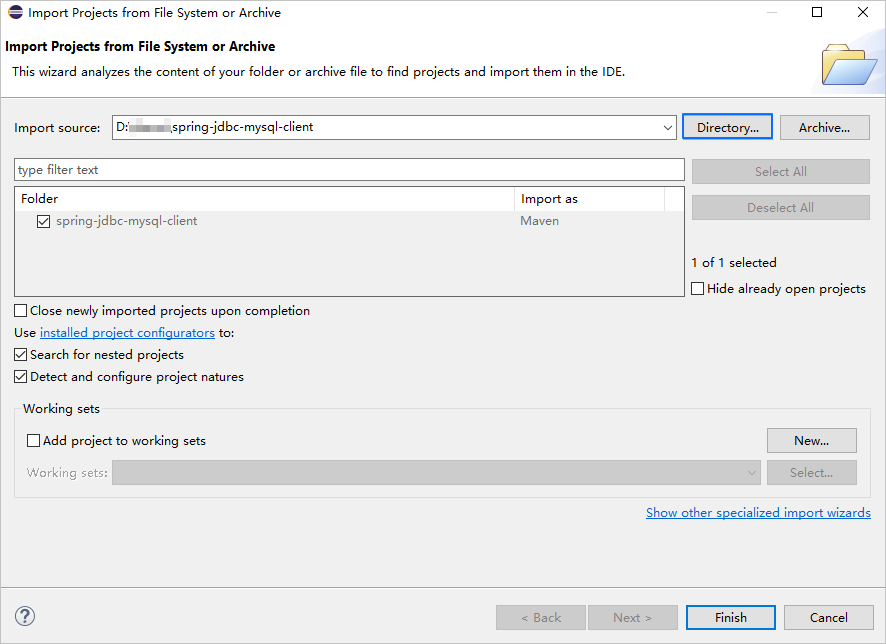
View the project.
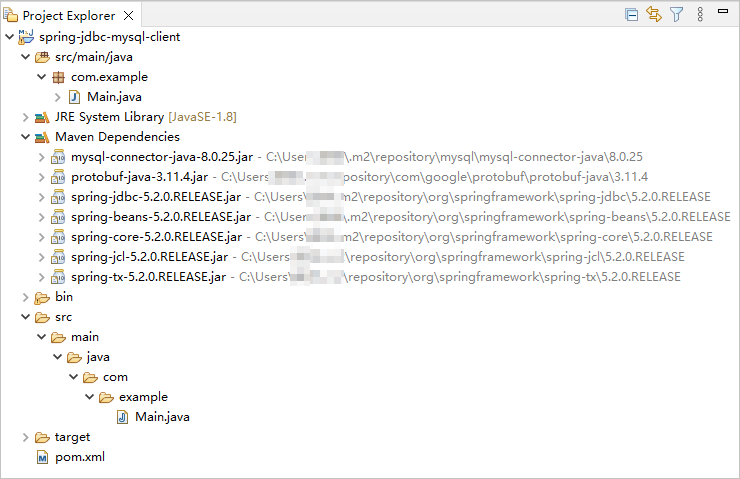
Step 2: Obtain the URL of OceanBase Database
Contact the deployment personnel or administrator of OceanBase Database to obtain the connection string.
Here is an example:
obclient -hxxx.xxx.xxx.xxx -P2881 -utest_user001@mysql001 -p****** -DtestFor more information about the connection string, see Connect to an OceanBase tenant by using OBClient.
Fill in the URL below based on the OceanBase Database connection string.
jdbc:mysql://$host:$port/$database_name?user=$user_name&password=$password&useSSL=falsewhere
$hostspecifies the IP address for connecting to OceanBase Database. For connection through OceanBase Database Proxy (ODP), use the IP address of an ODP. For direct connection, use the IP address of an OBServer node.$portspecifies the port for connecting to OceanBase Database. For connection through ODP, the default value is2883, which can be customized when ODP is deployed. For direct connection, the default value is2881, which can be customized when OceanBase Database is deployed.$database_namespecifies the name of the database to be accessed.Notice
The user for connecting to a tenant must have the
CREATE,INSERT,UPDATE,DELETE、SELECT, andDROPprivileges on the database. For more information about user privileges, see Privilege types in MySQL mode.$user_namespecifies the username of the account in the format of user@tenant#cluster name or username@SERVICE:service name. It is specified by the-uparameter. When the value is in the user@tenant#cluster name format, the default tenant issysand the default administrator isroot. The cluster name is not required when you directly connect to OceanBase Database, but is required when you connect to OceanBase Database through ODP.$passwordspecifies the password of the account.
For more information about the connection attributes of MySQL Connector/J, see Configuration Properties.
Here is an example:
jdbc:mysql://xxx.xxx.xxx.xxx:2881/test?user=test_user001@mysql001&password=******&useSSL=false
Step 3: Modify the database connection information in the spring-jdbc-mysql-client project
Modify the database connection information in the spring-jdbc-mysql-client/src/main/java/com/example/Main.java file based on the information obtained in Step 2: Obtain the URL of OceanBase Database.
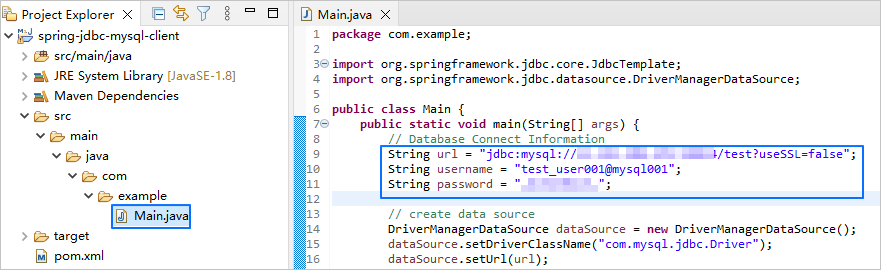
Here is an example:
- The IP address of the OBServer node is
xxx.xxx.xxx.xxx. - The port is
2881. - The name of the database to be accessed is
test. - The tenant account is
test_user001@mysql001.mysql001is a MySQL user tenant created in OceanBase Database, andtest_user001is the username of themysql001tenant. - The password is
******.
Here is the sample code:
...
        String url = "jdbc:mysql://xxx.xxx.xxx.xxx:2881/test?useSSL=false";
        String username = "test_user001@mysql001";
        String password = "******";
...
Step 4: Run the spring-jdbc-mysql-client project
In the project navigation view, find and expand the src/main/java directory.
Right-click the Main.java file and choose Run As > Java Application.
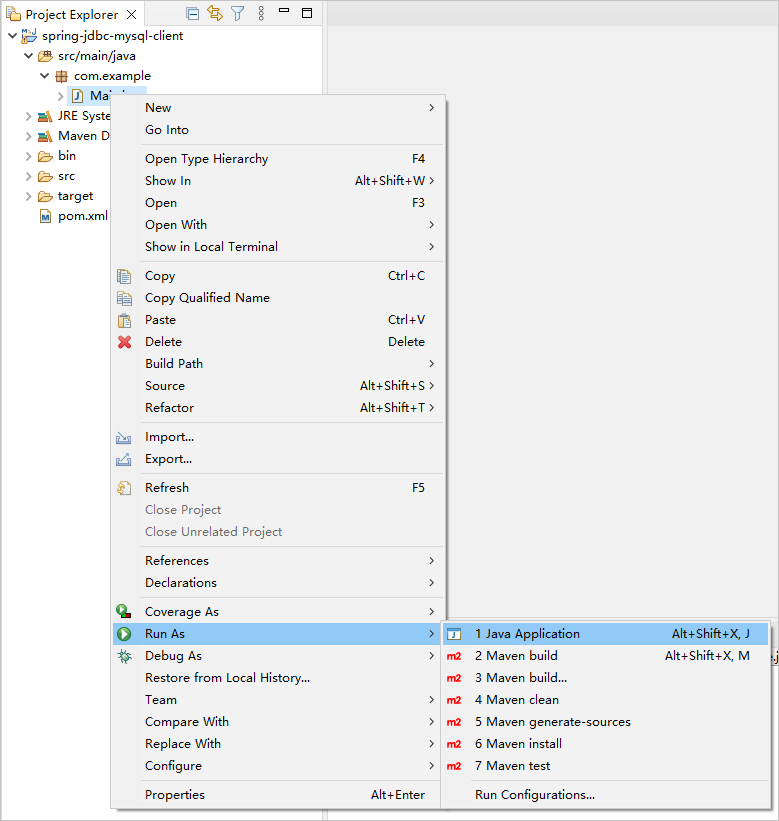
In the Console window of Eclipse, view the output results.

Project code introduction
Click here to download the project code, which is a package named spring-jdbc-mysql-client.zip.
Decompress the package to obtain a folder named spring-jdbc-mysql-client. The directory structure is as follows:
spring-jdbc-mysql-client
├── src
│   └── main
│       └── java
│           └── com
│                └── example
│                   └── Main.java
└── pom.xml
Here is a breakdown of the files and directories:
src: the root directory that stores the source code.main: a directory that stores the main code, including the major logic of the application.java: a directory that stores the Java source code.com: a directory that stores the Java package.example: a directory that stores the packages of the sample project.Main.java: the main class that contains logic such as the table creation and data insertion.pom.xml: the configuration file of the Maven project, which is used to manage project dependencies and build settings.
Code in pom.xml
The pom.xml file is a configuration file for Maven projects, which defines the dependencies, plug-ins, and build rules of the projects. Maven is a Java project management tool that can automatically download dependencies, compile, and package the projects.
To configure the pom.xml file, perform the following steps:
Declare the file.
Declare the file as an XML file that uses the XML standard
1.0and character encoding formatUTF-8.Here is the sample code:
<?xml version="1.0" encoding="UTF-8"?>Configure namespaces and the POM version.
xmlns: the default XML namespace for the POM, which is set tohttp://maven.apache.org/POM/4.0.0.xmlns:xsi: the XML namespace for XML elements prefixed withxsi, which is set tohttp://www.w3.org/2001/XMLSchema-instance.xsi:schemaLocation: the location of an XML schema definition (XSD) file. The value consists of two parts: the default XML namespace(http://maven.apache.org/POM/4.0.0)and the URI of the XSD file (http://maven.apache.org/xsd/maven-4.0.0.xsd).<modelVersion>: the POM version used by the POM file, which is set to4.0.0.
Here is the sample code:
<project xmlns="http://maven.apache.org/POM/4.0.0"
         xmlns:xsi="http://www.w3.org/2001/XMLSchema-instance"
         xsi:schemaLocation="http://maven.apache.org/POM/4.0.0 http://maven.apache.org/xsd/maven-4.0.0.xsd">
  <modelVersion>4.0.0</modelVersion>

 <!-- Other configurations -->

</project>
Configure basic information.
<groupId>: the ID of the group to which the project belongs, which is set tocom.example.<artifactId>: the name of the project, which is set tospring-jdbc-mysql-client.<version>: the project version, which is set to1.0-SNAPSHOT.
Here is the sample code:
    <groupId>com.example</groupId>
    <artifactId>spring-jdbc-mysql-client</artifactId>
    <version>1.0-SNAPSHOT</version>
Configure the attributes of the project source file.
Specify
maven-compiler-pluginas the compiler plug-in of Maven, and set the source code version and target code version of the compiler to Java 8. This means that the project source code is compiled by using Java 8 and the compiled bytecode is compatible with the Java 8 runtime environment. This ensures that Java 8 syntax and characteristics can be correctly processed during the compilation and running of the project.Note
Java 1.8 and Java 8 are different names for the same version.
Here is the sample code:
    <build>
        <plugins>
            <plugin>
                <groupId>org.apache.maven.plugins</groupId>
                <artifactId>maven-compiler-plugin</artifactId>
                <configuration>
                    <source>8</source>
                    <target>8</target>
                </configuration>
            </plugin>
        </plugins>
    </build>
Configure project dependencies.
Add the
mysql-connector-javadependency library for interactions with the database, and configure the following parameters:Note
The following code defines that the project depends on MySQL Connector/J V5.1.40. For more information about other versions, see MySQL Connector/J.
<groupId>: the ID of the group to which the dependency belongs, which is set tomysql.<artifactId>: the name of the dependency, which is set tomysql-connector-java.<version>: the version of the dependency, which is set to5.1.40.
Here is the sample code:
        <dependency>
            <groupId>mysql</groupId>
            <artifactId>mysql-connector-java</artifactId>
            <version>5.1.40</version>
        </dependency>
Add the
spring-jdbcdependency library and configure the following parameters:<groupId>: the ID of the group to which the dependency belongs, which is set toorg.springframework.<artifactId>: the name of the dependency, which is set tospring-jdbc.<version>: the version of the dependency, which is set to5.2.0.RELEASE.
Here is the sample code:
        <dependency>
            <groupId>org.springframework</groupId>
            <artifactId>spring-jdbc</artifactId>
            <version>5.2.0.RELEASE</version>
        </dependency>
Code in Main.java
The Main.java file is a part of the sample application. Code in this file demonstrates how to perform database operations by using the Spring Data JDBC framework. The code first configures the database connection information, and then creates a JdbcTemplate object to perform database operations. It also provides examples of creating tables, inserting data, and querying data.
To configure the Main.java file, perform the following steps:
Define the package and import necessary classes.
- Declare the name of the package to which the current code belongs as
com.example. - Import the
JdbcTemplateclass, which is the core class in the Spring Data JDBC framework and is used to perform database operations. - Import the
DriverManagerDataSourceclass, which is a data source class provided by Spring that implements theDataSourceinterface and is used to configure database connection information.
Here is the sample code:
package com.example; import org.springframework.jdbc.core.JdbcTemplate; import org.springframework.jdbc.datasource.DriverManagerDataSource;- Declare the name of the package to which the current code belongs as
Create a
Mainclass and define amainmethod.- Define a public class named
Mainas the entry to the application. The class name must be the same as the file name. - Define a public static method named
main, which is used as the execution start point of the application. - Define other database operations.
Here is the sample code:
public class Main { public static void main(String[] args) { // Database connection information // Create a data source. // Create a JdbcTemplate object. // Create a table. // Insert data. // Update data. // Delete data. // Query data. // Drop the table. } }- Define a public class named
Define the database connection information.
Define the URL, username, and password for connecting to the database. You must replace
$host,$port,$database_name,$user_name, and$passwordwith the actual database connection information.Here is the sample code:
        String url = "jdbc:mysql://$host:$port/$database_name?useSSL=false";
        String username = "$user_name";
        String password = "$password";
where:
$hostspecifies the IP address for connecting to OceanBase Database. For connection through ODP, use the IP address of an ODP. For direct connection, use the IP address of an OBServer node.$portspecifies the port for connecting to OceanBase Database. For connection through ODP, the default value is2883, which can be customized when ODP is deployed. For direct connection, the default value is2881, which can be customized when OceanBase Database is deployed.$database_namespecifies the name of the database to be accessed.$user_namespecifies the username of the account in the format of user@tenant#cluster name or username@SERVICE:service name. It is specified by the-uparameter. When the value is in the user@tenant#cluster name format, the default tenant issysand the default administrator isroot. The cluster name is not required when you directly connect to OceanBase Database, but is required when you connect to OceanBase Database through ODP.$passwordspecifies the password of the account.
Create a data source.
Create a
DriverManagerDataSourceobject and configure the database connection information, including the driver class name, database URL, username, and password. To do this, perform the following steps:- Create a
DriverManagerDataSourceobject that configures the database connection information. - Call the
setDriverClassNamemethod to set the name of the database driver class tocom.mysql.jdbc.Driver. - Set the database URL by calling the
setUrlmethod. - Set the database username by calling the
setUsernamemethod. - Set the database password by calling the
setPasswordmethod.
Here is the sample code:
DriverManagerDataSource dataSource = new DriverManagerDataSource(); dataSource.setDriverClassName("com.mysql.jdbc.Driver"); dataSource.setUrl(url); dataSource.setUsername(username); dataSource.setPassword(password);- Create a
Create the
JdbcTemplateobject.The
JdbcTemplateobject is one of the core classes of the Spring Data JDBC framework.JdbcTemplateprovides methods to perform database operations, such as executing SQL statements, updating data, and querying data.Here is the sample code:
JdbcTemplate jdbcTemplate = new JdbcTemplate(dataSource);Create a table.
- Define an SQL statement that creates a table. In the SQL statement, set the table name to
test_springjdbcand define two columns:idof theINTtype andnameof theVARCHAR(20)type. - Execute the SQL statement to create the table. The
jdbcTemplateobject executes the statement by calling theexecutemethod. - If a success message is displayed in the console, the table is successfully created.
Here is the sample code:
String createTableSql = "CREATE TABLE test_springjdbc (id INT, name VARCHAR(20))"; jdbcTemplate.execute(createTableSql); System.out.println("Create table successfully.");- Define an SQL statement that creates a table. In the SQL statement, set the table name to
Insert data.
- Define an SQL statement that inserts data. In the SQL statement, set the target table to
test_springjdbcand the target columns toidandname, and insert(1,'A1'),(2,'A2'), and(3,'A3'). - Execute the SQL statement to insert data. The
jdbcTemplateobject executes the statement by calling theupdatemethod. - If a success message is displayed in the console, the data is successfully inserted into the table.
Here is the sample code:
String insertDataSql = "INSERT INTO test_springjdbc (id,name) VALUES (1,'A1'), (2,'A2'), (3,'A3')"; jdbcTemplate.update(insertDataSql); System.out.println("Insert data successfully.");- Define an SQL statement that inserts data. In the SQL statement, set the target table to
Update data.
- Define an SQL statement that updates the
namefield toA11for the row whereidis1in thetest_springjdbctable. - Execute the SQL statement. The
jdbcTemplateobject executes the statement by calling theupdatemethod. - If a success message is displayed in the console, the data is successfully updated.
Here is the sample code:
String updateDataSql = "UPDATE test_springjdbc SET name = 'A11' WHERE id = 1"; jdbcTemplate.update(updateDataSql); System.out.println("Update data successfully.");- Define an SQL statement that updates the
Delete data.
- Define an SQL statement that deletes the row where
idis2from thetest_springjdbctable. - Execute the SQL statement. The
jdbcTemplateobject executes the statement by calling theupdatemethod. - If a success message is displayed in the console, the data is successfully deleted.
Here is the sample code:
String deleteDataSql = "DELETE FROM test_springjdbc WHERE id = 2"; jdbcTemplate.update(deleteDataSql); System.out.println("Delete data successfully.");- Define an SQL statement that deletes the row where
Query data.
- Define an SQL statement that queries data. In the SQL statement, use
SELECT *to select all columns and specify to query data from thetest_springjdbctable. - Execute the SQL statement to query data. The
jdbcTemplateobject executes the statement by calling thequerymethod and accepts a callback function as a parameter. - Code in the callback function uses a
ResultSetobject (rs) to obtain and process each row in the query result. The callback function uses thegetIntandgetStringmethods to get the values of theidandnamecolumns from theResultSetobject and prints them to the console. Finally, the callback function returnsnull. - If a success message is displayed in the console, the data is successfully queried.
Here is the sample code:
String selectDataSql = "SELECT * FROM test_springjdbc"; jdbcTemplate.query(selectDataSql, (rs, rowNum) -> { int id = rs.getInt("id"); String name = rs.getString("name"); System.out.println("id: " + id + ", name: " + name); return null; }); System.out.println("Query data successfully.");- Define an SQL statement that queries data. In the SQL statement, use
Drop the table.
- Define an SQL statement that drops the
test_springjdbctable from the database. - Execute the SQL statement. The
jdbcTemplateobject executes the statement by calling theexecutemethod. - If a success message is displayed in the console, the table is successfully dropped.
Here is the sample code:
String deleteTableSql = "DROP TABLE test_springjdbc"; jdbcTemplate.execute(deleteTableSql); System.out.println("Table drop successfully.");- Define an SQL statement that drops the
Complete code examples
<?xml version="1.0" encoding="UTF-8"?>
<project xmlns="http://maven.apache.org/POM/4.0.0"
         xmlns:xsi="http://www.w3.org/2001/XMLSchema-instance"
         xsi:schemaLocation="http://maven.apache.org/POM/4.0.0 http://maven.apache.org/xsd/maven-4.0.0.xsd">
    <modelVersion>4.0.0</modelVersion>

    <groupId>com.example</groupId>
    <artifactId>spring-jdbc-mysql-client</artifactId>
    <version>1.0-SNAPSHOT</version>

    <build>
        <plugins>
            <plugin>
                <groupId>org.apache.maven.plugins</groupId>
                <artifactId>maven-compiler-plugin</artifactId>
                <configuration>
                    <source>8</source>
                    <target>8</target>
                </configuration>
            </plugin>
        </plugins>
    </build>

    <dependencies>
        <dependency>
            <groupId>mysql</groupId>
            <artifactId>mysql-connector-java</artifactId>
            <version>5.1.40</version>
        </dependency>
        <dependency>
            <groupId>org.springframework</groupId>
            <artifactId>spring-jdbc</artifactId>
            <version>5.2.0.RELEASE</version>
        </dependency>
    </dependencies>

</project>
package com.example;

import org.springframework.jdbc.core.JdbcTemplate;
import org.springframework.jdbc.datasource.DriverManagerDataSource;

public class Main {
    public static void main(String[] args) {
        // Specify the database connection information.
        String url = "jdbc:mysql://$host:$port/$database_name?useSSL=false";
        String username = "$user_name";
        String password = "$password";

        // Create a data source.
        DriverManagerDataSource dataSource = new DriverManagerDataSource();
        dataSource.setDriverClassName("com.mysql.jdbc.Driver");
        dataSource.setUrl(url);
        dataSource.setUsername(username);
        dataSource.setPassword(password);

        // Create a JdbcTemplate object.
        JdbcTemplate jdbcTemplate = new JdbcTemplate(dataSource);

        // Create a table.
        String createTableSql = "CREATE TABLE test_springjdbc (id INT, name VARCHAR(20))";
        jdbcTemplate.execute(createTableSql);
        System.out.println("Create table successfully.");

        // Insert data.
        String insertDataSql = "INSERT INTO test_springjdbc (id,name) VALUES (1,'A1'), (2,'A2'), (3,'A3')";
        jdbcTemplate.update(insertDataSql);
        System.out.println("Insert data successfully.");

        // Update data.
        String updateDataSql = "UPDATE test_springjdbc SET name = 'A11' WHERE id = 1";
        jdbcTemplate.update(updateDataSql);
        System.out.println("Update data successfully.");

        // Delete data.
        String deleteDataSql = "DELETE FROM test_springjdbc WHERE id = 2";
        jdbcTemplate.update(deleteDataSql);
        System.out.println("Delete data successfully.");

        // Query data.
        String selectDataSql = "SELECT * FROM test_springjdbc";
        jdbcTemplate.query(selectDataSql, (rs, rowNum) -> {
            int id = rs.getInt("id");
            String name = rs.getString("name");
            System.out.println("id: " + id + ", name: " + name);
            return null;
        });
        System.out.println("Query data successfully.");

        // Drop the table.
        String deleteTableSql = "DROP TABLE test_springjdbc";
        jdbcTemplate.execute(deleteTableSql);
        System.out.println("Table drop successfully.");
    }
}
References
For more information about MySQL Connector/J, see Overview of MySQL Connector/J.